
Weekly Tip #23
How to Set Up One-Click PDF Form Submission to Your Inbox
Manual PDF form collection is a waste of time—here's how to automate submissions straight to your inbox.
When you've sent out PDF forms — satisfaction surveys, course registration forms, internal application forms, and more, how do you get them submitted and emailed back to the person in charge quickly after they're filled in? Foxit PDF Editor has the answer.
Let's walk through it together!
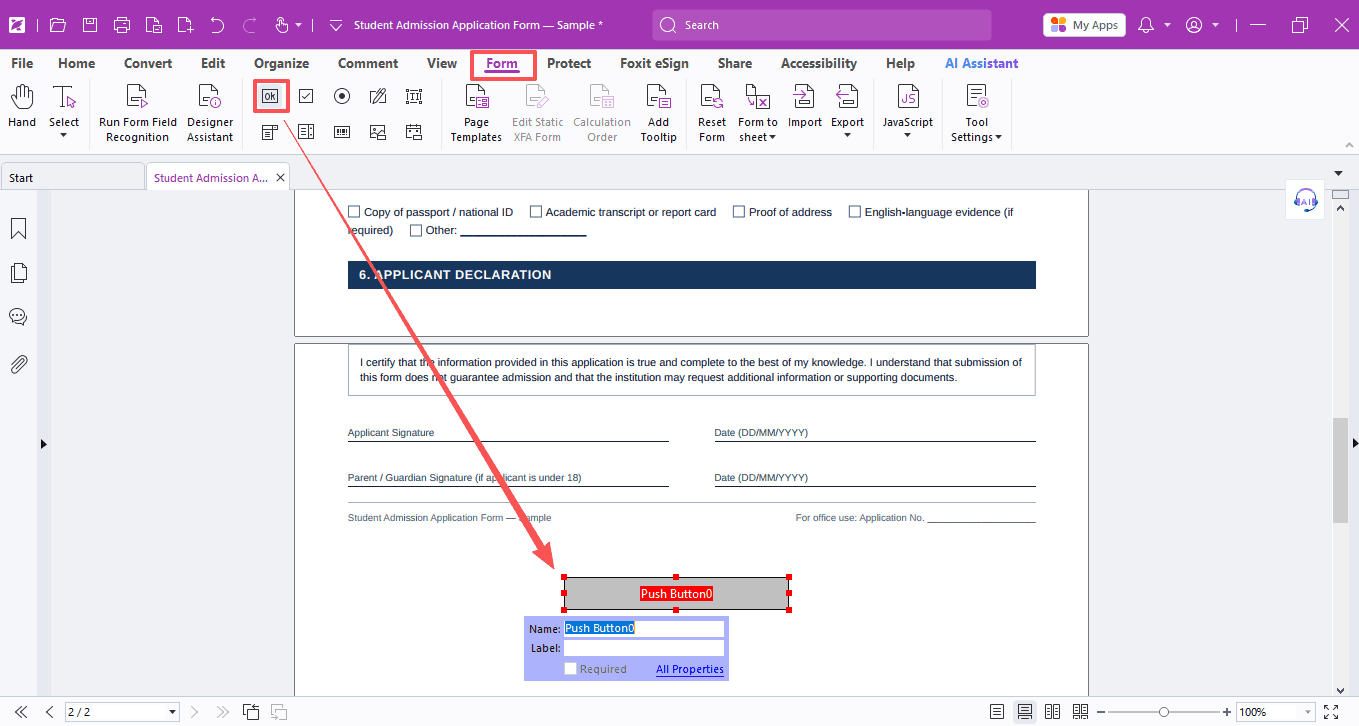
- Open your form in Foxit PDF Editor, go to Form → Run Form Field Recognition
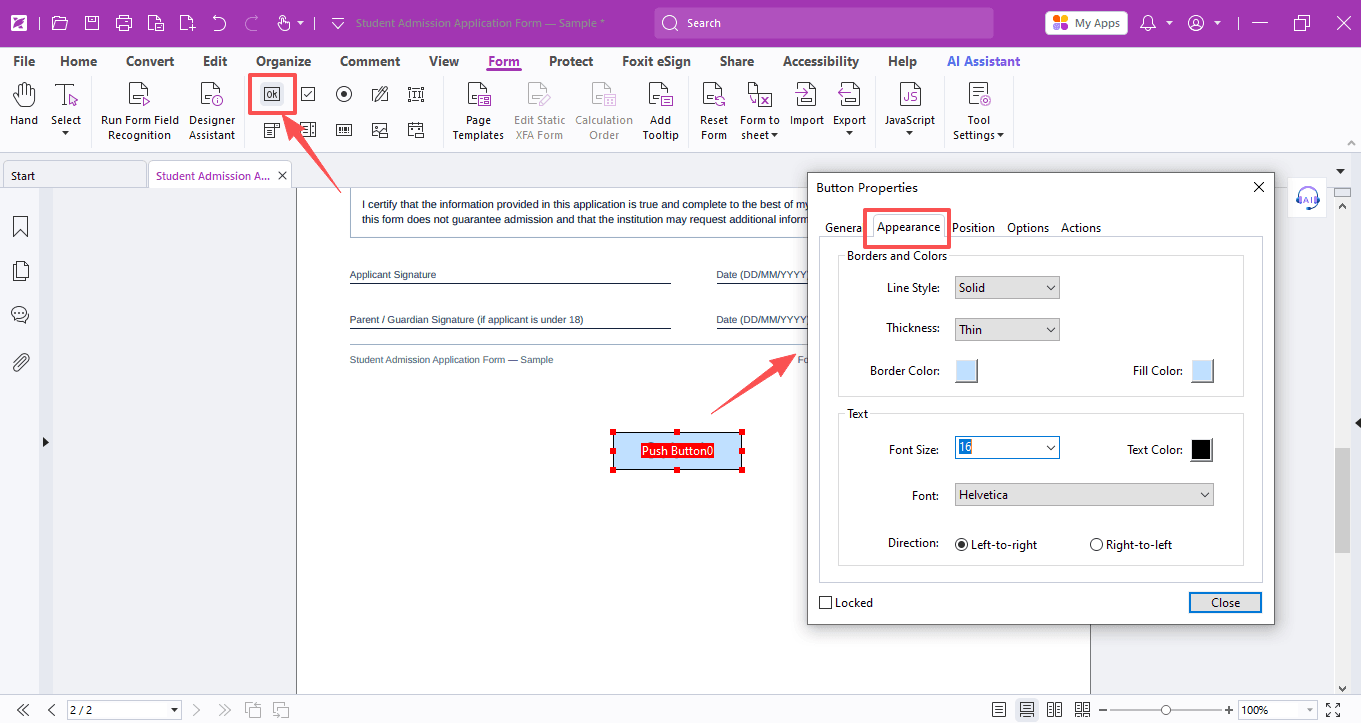
- Click Push Button in the toolbar, then click and drag on the page to draw a button area.
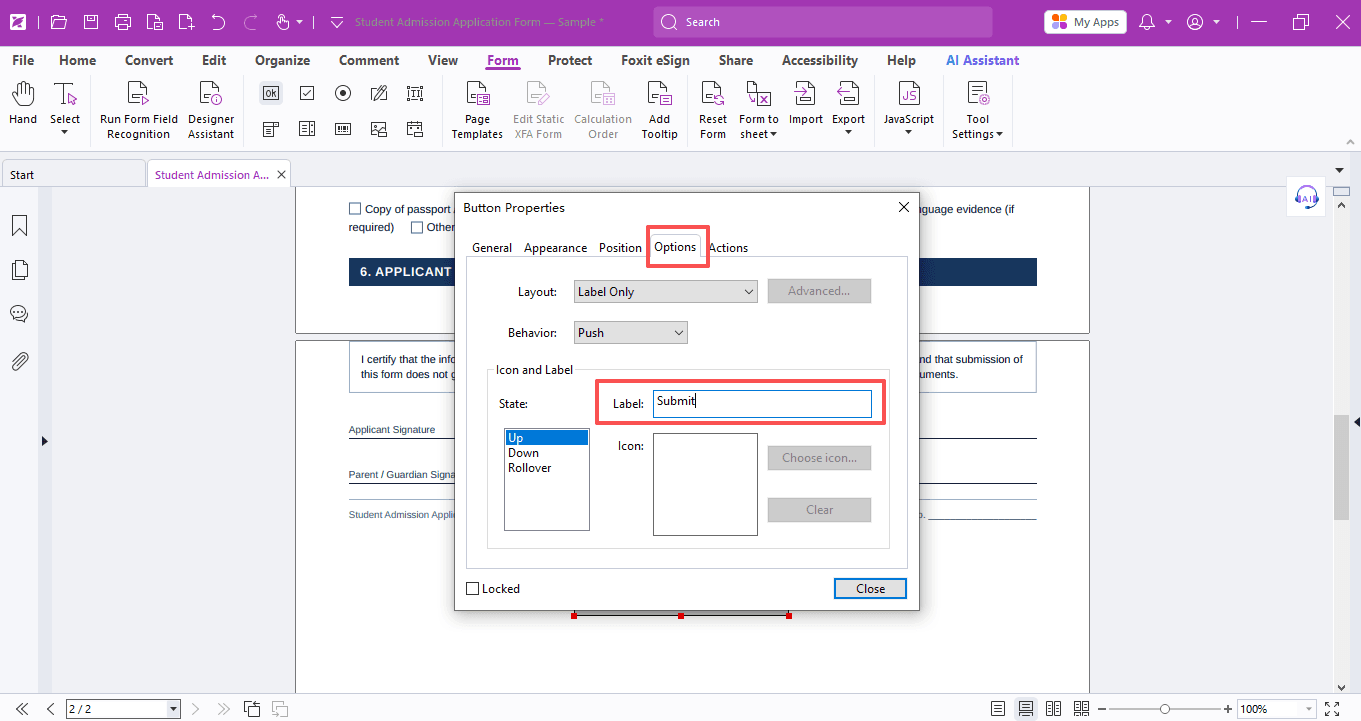
- Double-click the button area (or right-click and select Properties) to open the Button Properties dialog. On the Options tab, set the button's Label — this is the text that appears on the button. In our example, we used “Submit”.
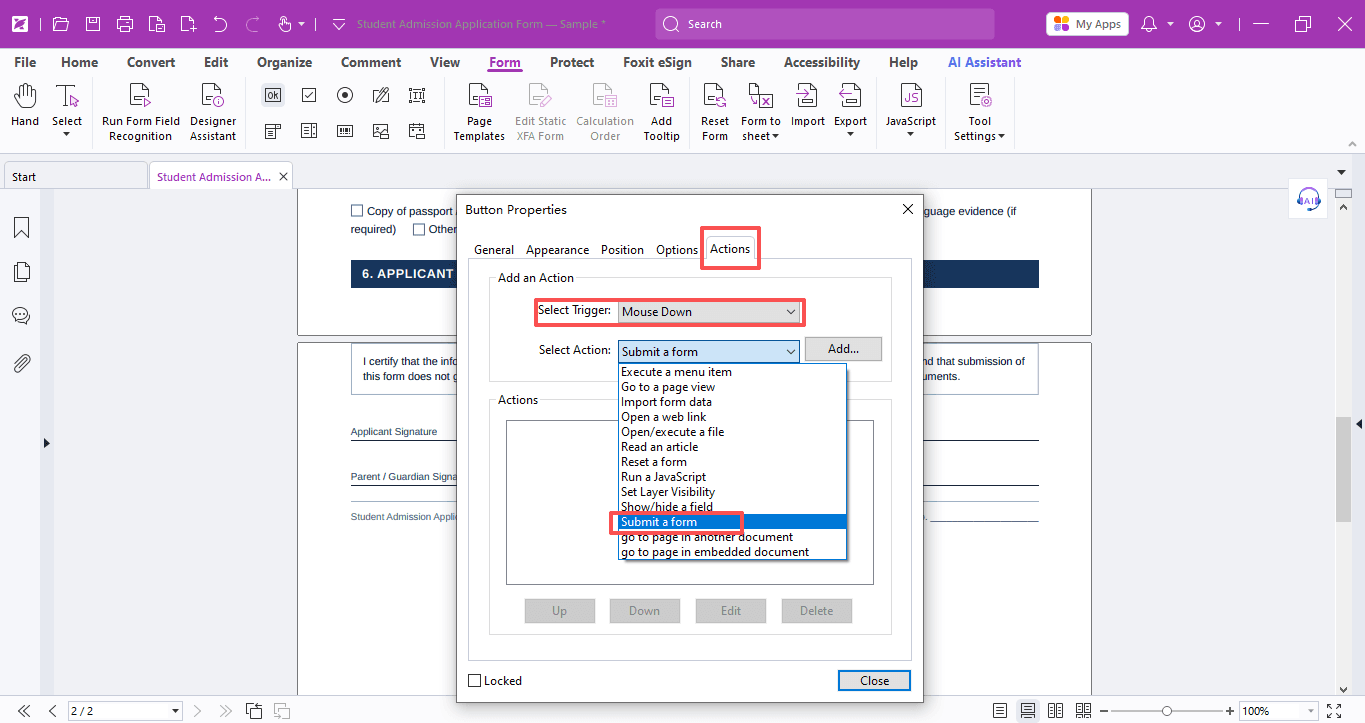
- Click the Actions tab. Set the trigger to Mouse Down and choose Submit a Form as the action.
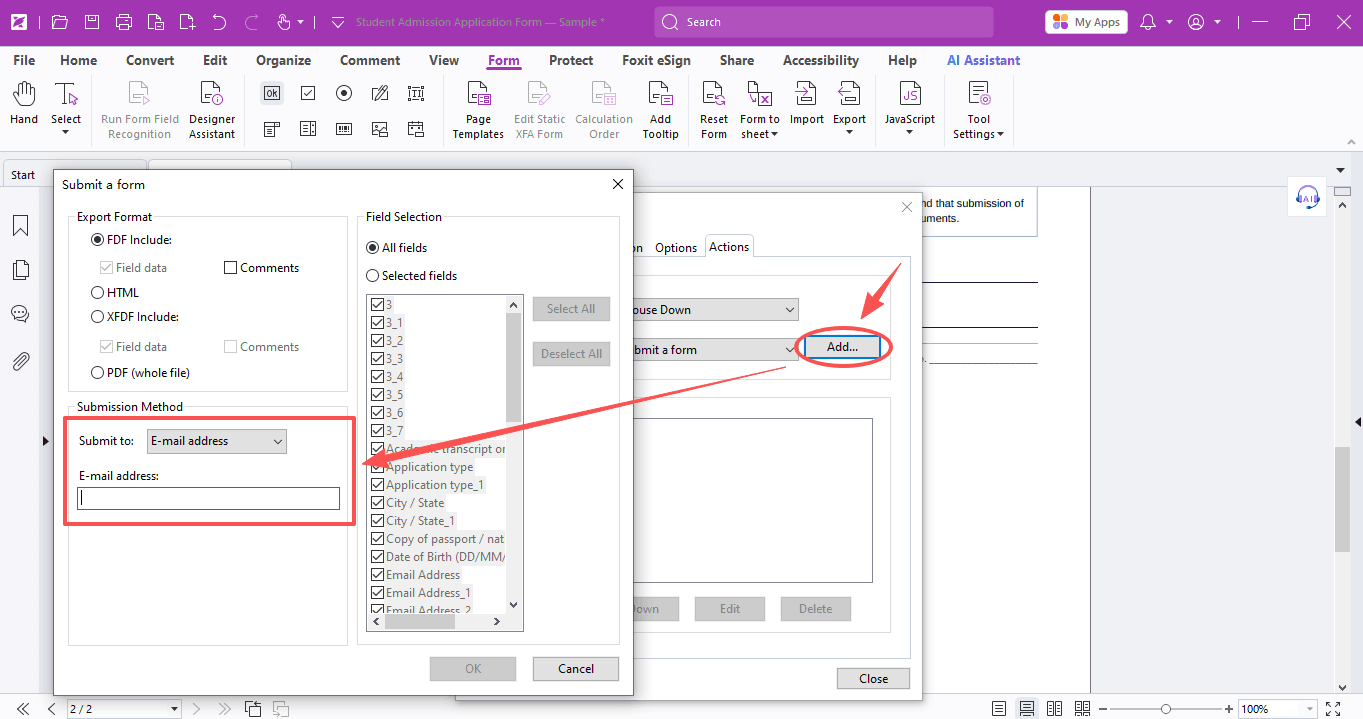
- Click the Add button next to the action to configure the submission details. For the submission method, select E-mail address and type in the email address you'd like the completed forms sent to.
- Once everything's set, switch to the Hand tool and try it out — fill in the form and click the button to see it in action!
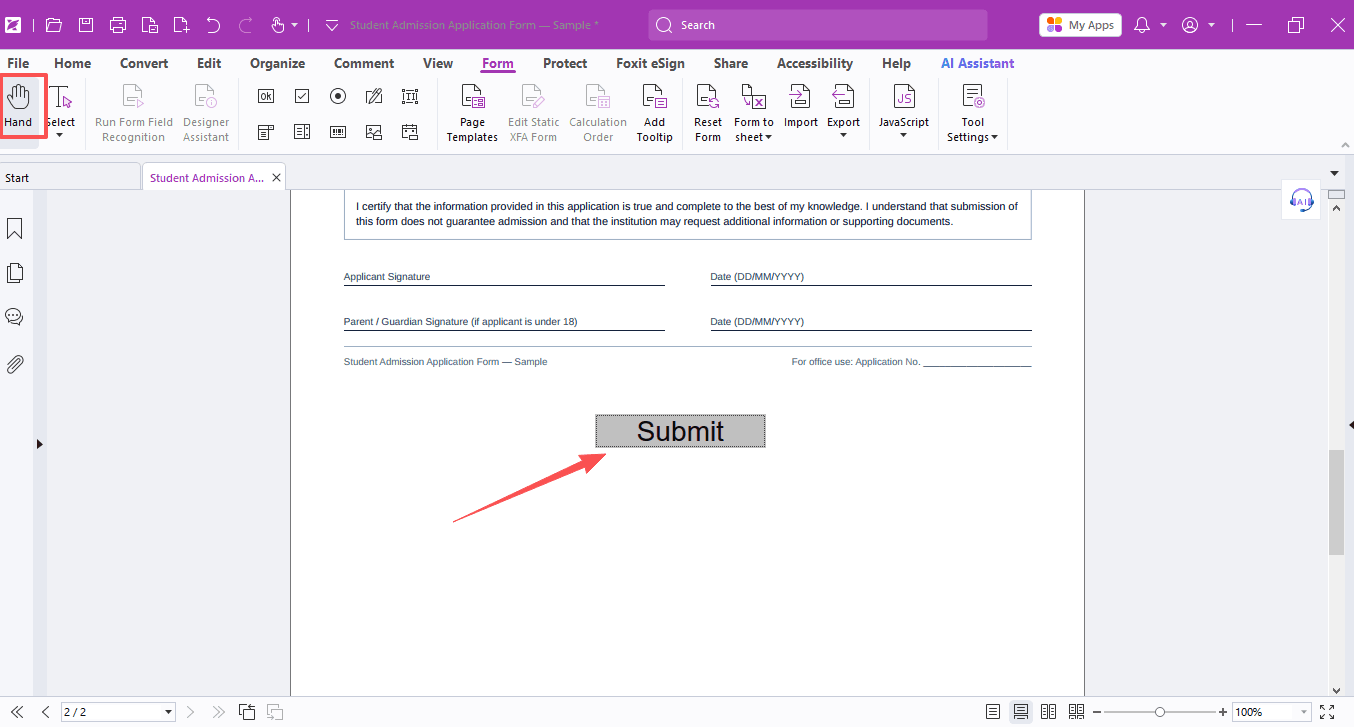
If you want to adjust the button's appearance, just open the Button Properties again and tweak its look until it's just right.
And that's all there is to it. Give it a try and get those forms flying back to you faster than ever!
If you need help with any specific case using Foxit PDF Editor, or have questions about how to use it, please feel free to click here to submit your inquiries. We will create dedicated guides based on your actual needs to provide further support.
Try it yourself
Open the interactive Web SDK demo, or talk to a Foxit APAC partner about licensing for your team or campus.