
Weekly Tip #2
How to Search Multiple Keywords in a PDF
Search multiple keywords or count word occurrences in PDFs — Foxit PDF Editor's Advanced Search has you covered.
Ever struggled to find the right PDF using keywords?
Want to search for two or more keywords in an e‑book?
Or need to count how often certain words appear in a PDF?
Today I'll show you a super easy way using Foxit PDF Editor!
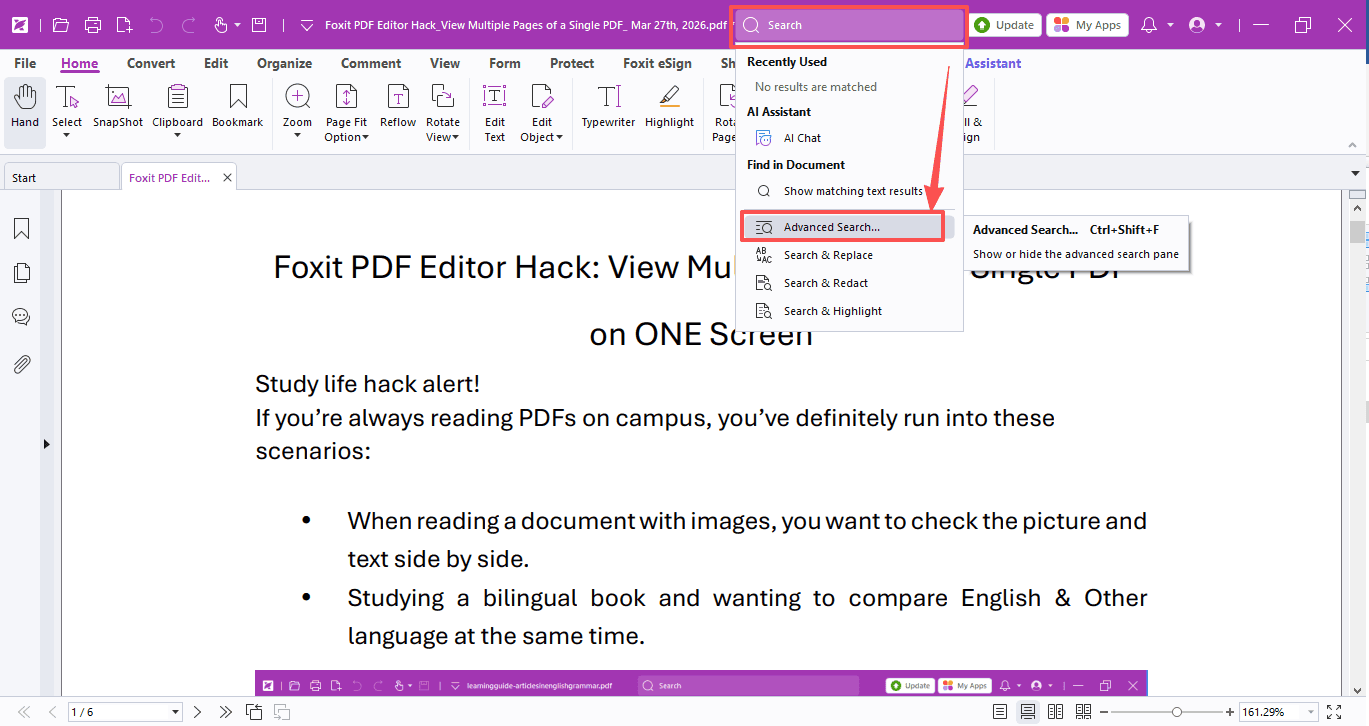
- Open your PDF in Foxit PDF Editor and click the Search box at the top and select Advanced Search.
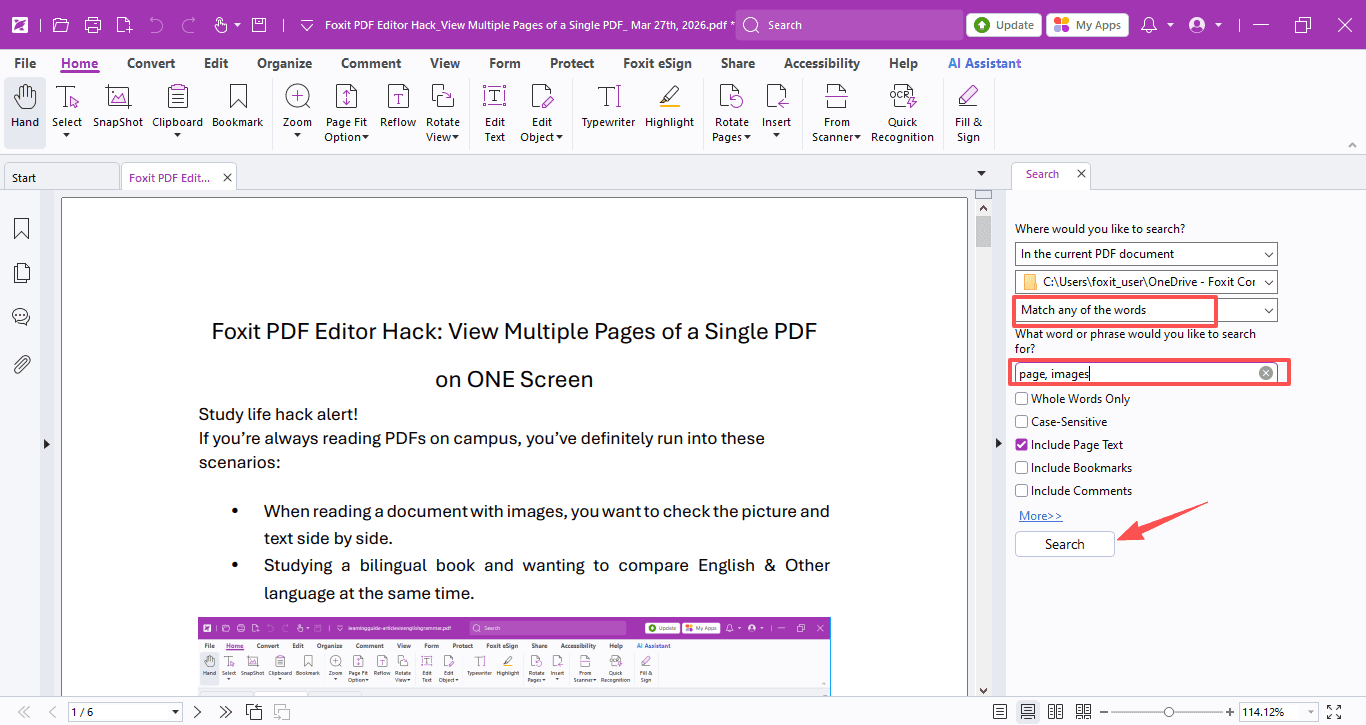
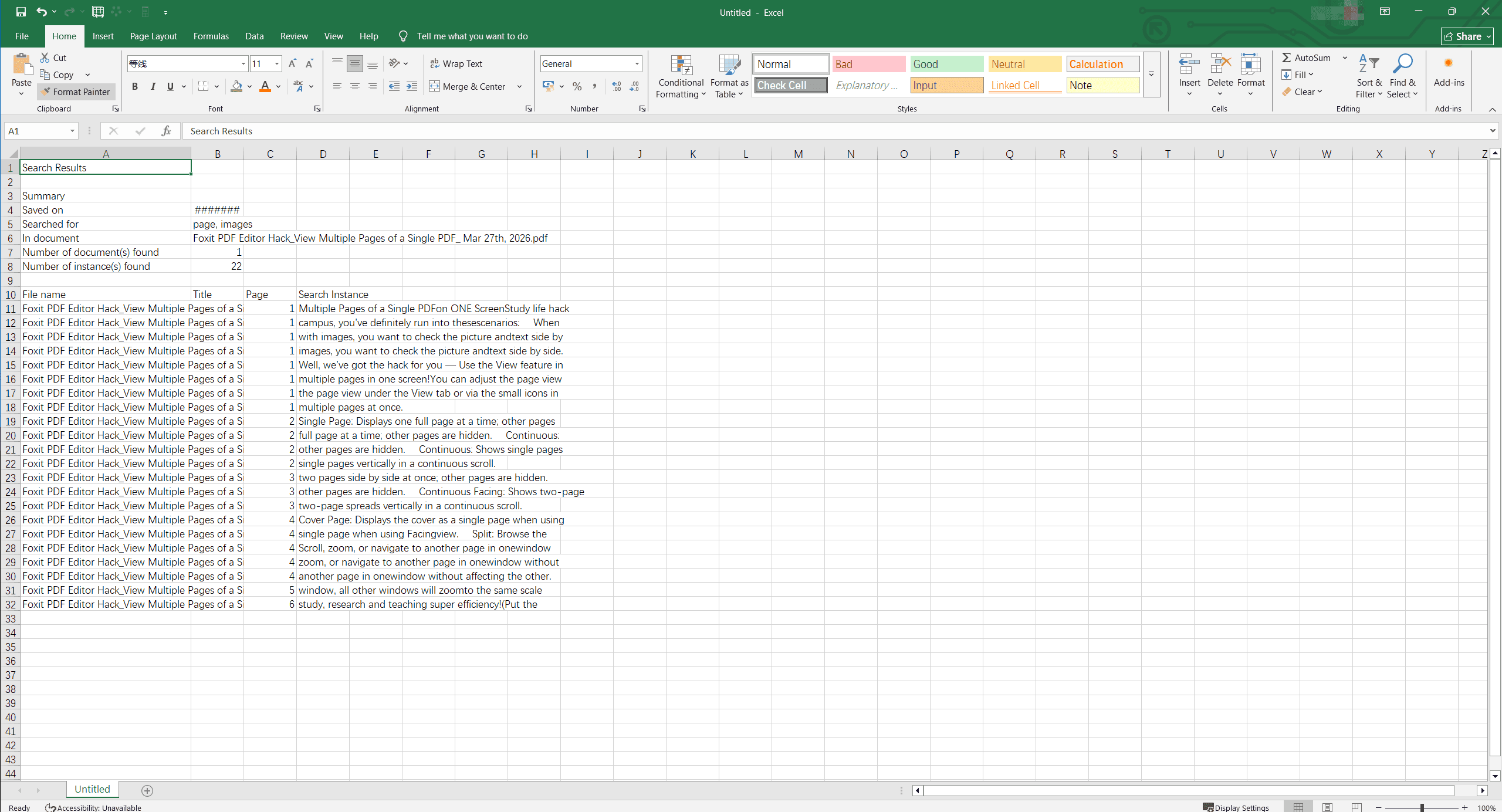
- Choose Match any of the words, type in your keywords, and hit Search!
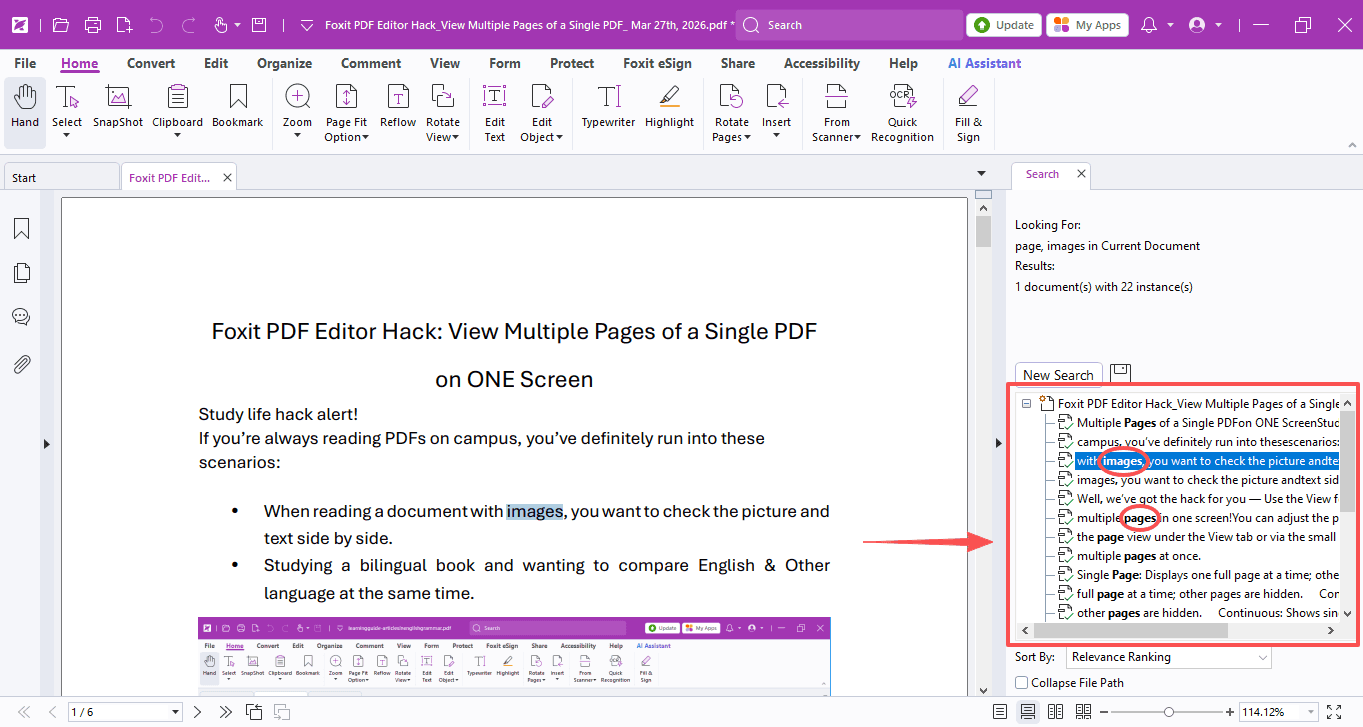
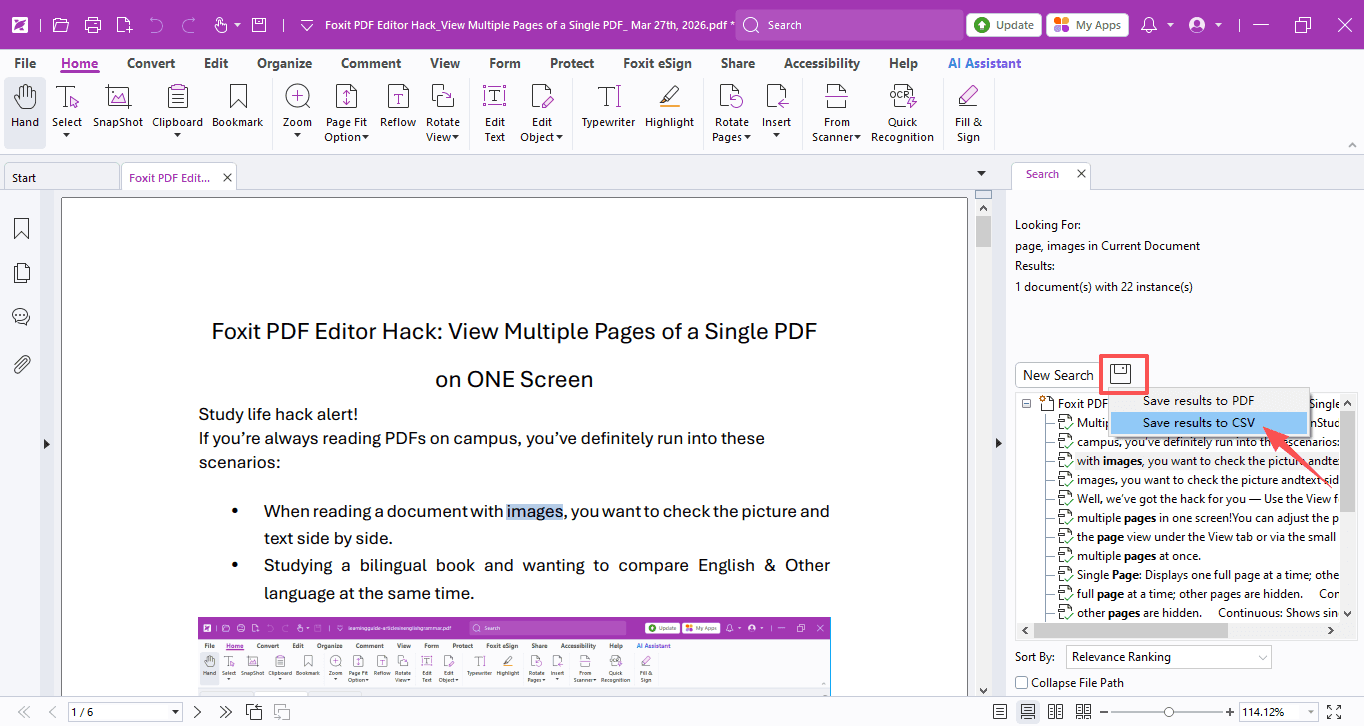
- To count the results, simply export them to a CSV file and open it in Excel.
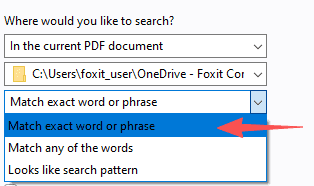
A quick tip: This guide searches word by word, so if you want exact word or phrases, use Match exact word or phrase and search one word/ phrase at a time for better accuracy!
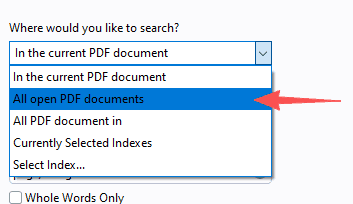
You can also search across multiple PDFs by adjusting the search range.
Hope this trick saves you lots of time and makes your study and work much easier!
If you have any questions about using Foxit PDF Editor, please feel free to click here to submit your inquiries. We will create dedicated guides based on your actual needs to provide further support.
Try it yourself
Open the interactive Web SDK demo, or talk to a Foxit APAC partner about licensing for your team or campus.