
Weekly Tip #17
How to Rotate Single or Multiple Pages in a PDF
Nothing throws off your reading flow like a page that's facing the wrong way. Foxit PDF Editor makes it super easy to rotate pages.
Nothing throws off your reading flow like a page that's facing the wrong way. Luckily, Foxit PDF Editor makes it super easy to rotate pages—whether it's just one page, a few, or your whole document.
Here's how it works:
For Single Page Rotation – 3 ways to do it
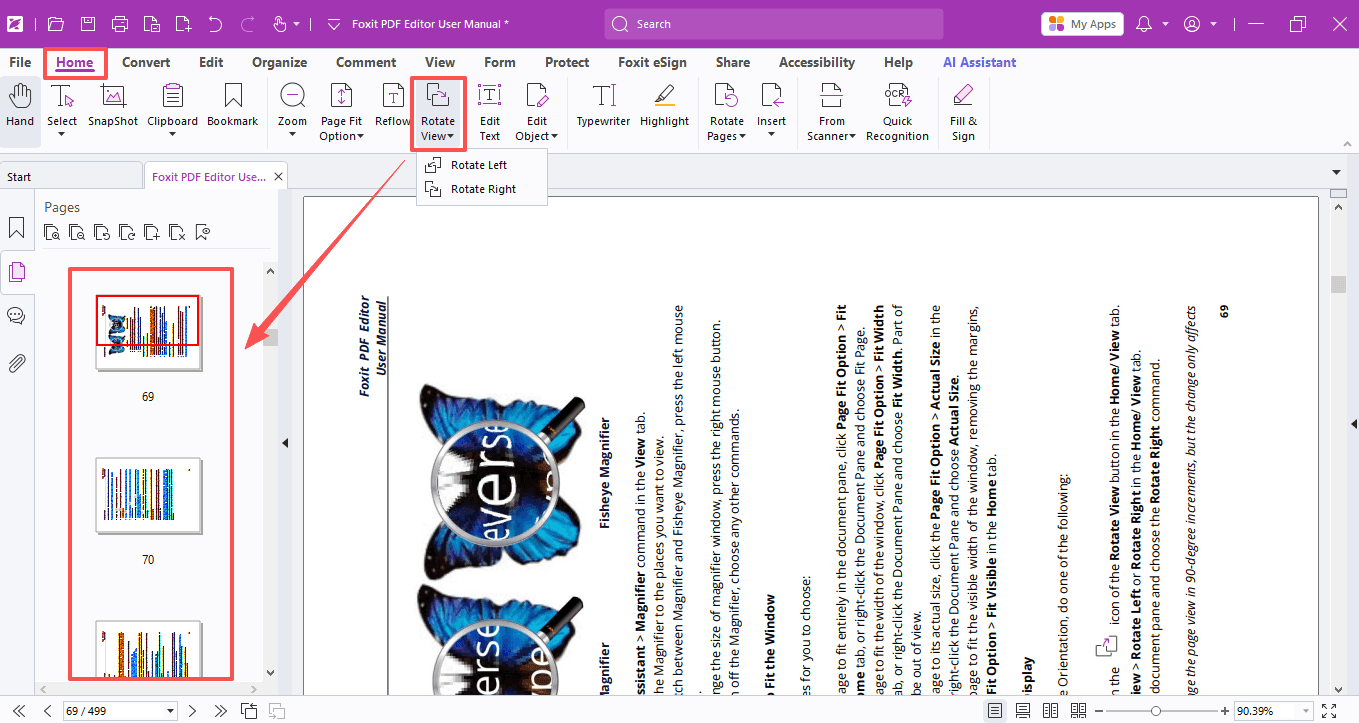
1. Open your PDF in Foxit PDF Editor, then head over to the Home tab and click Rotate View.
The Rotate View only changes the on-screen display for all PDF pages temporarily—it does not modify the actual PDF file and cannot be saved.
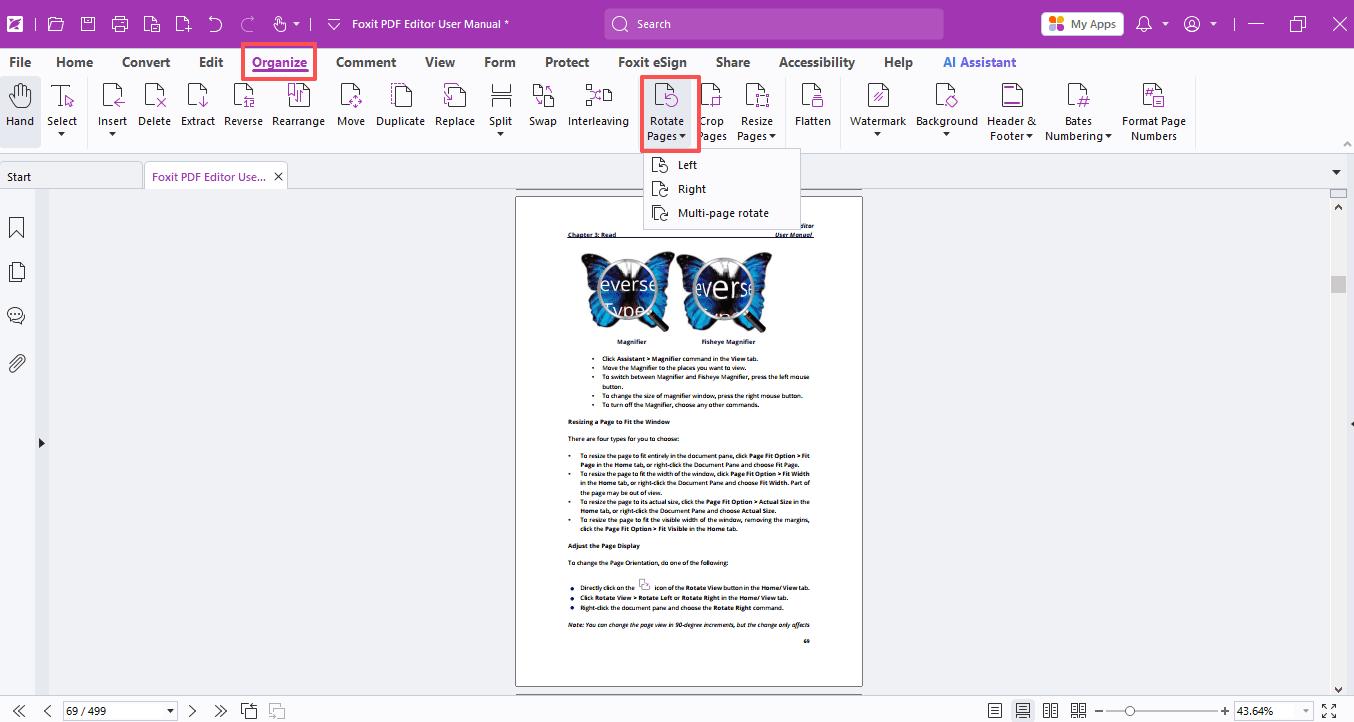
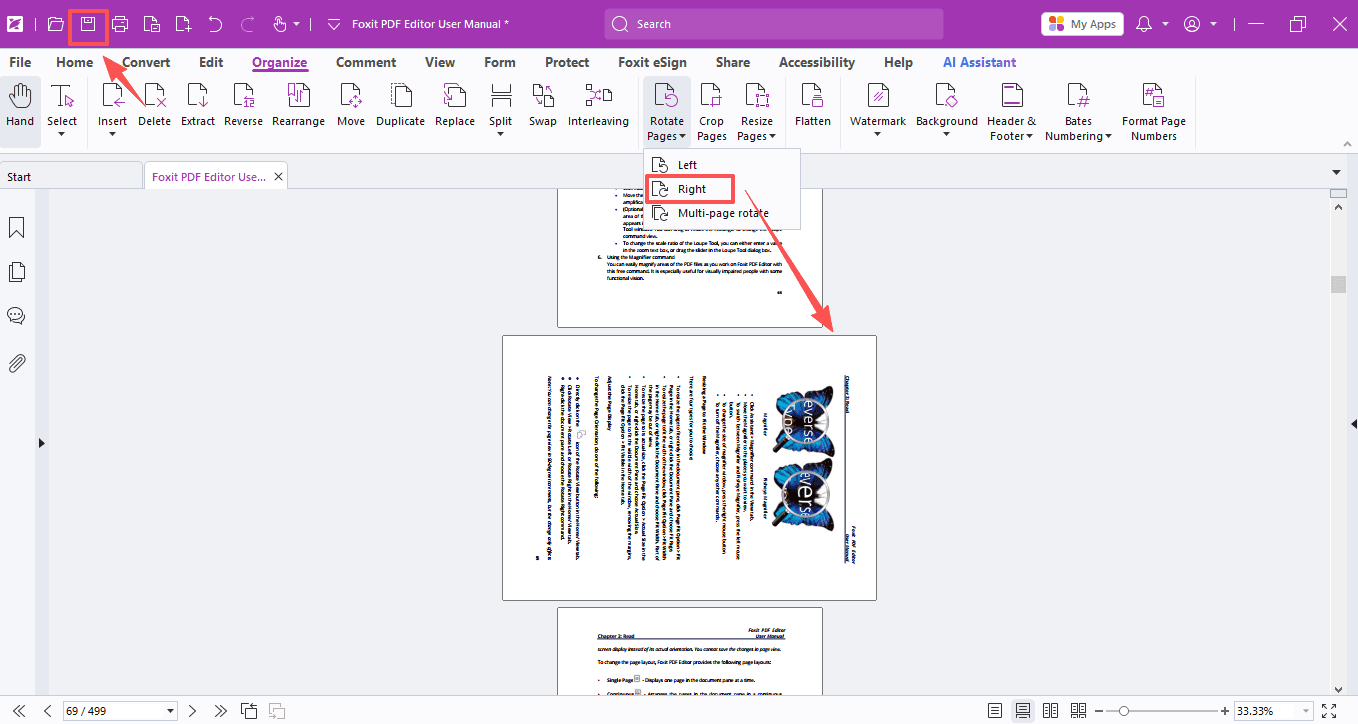
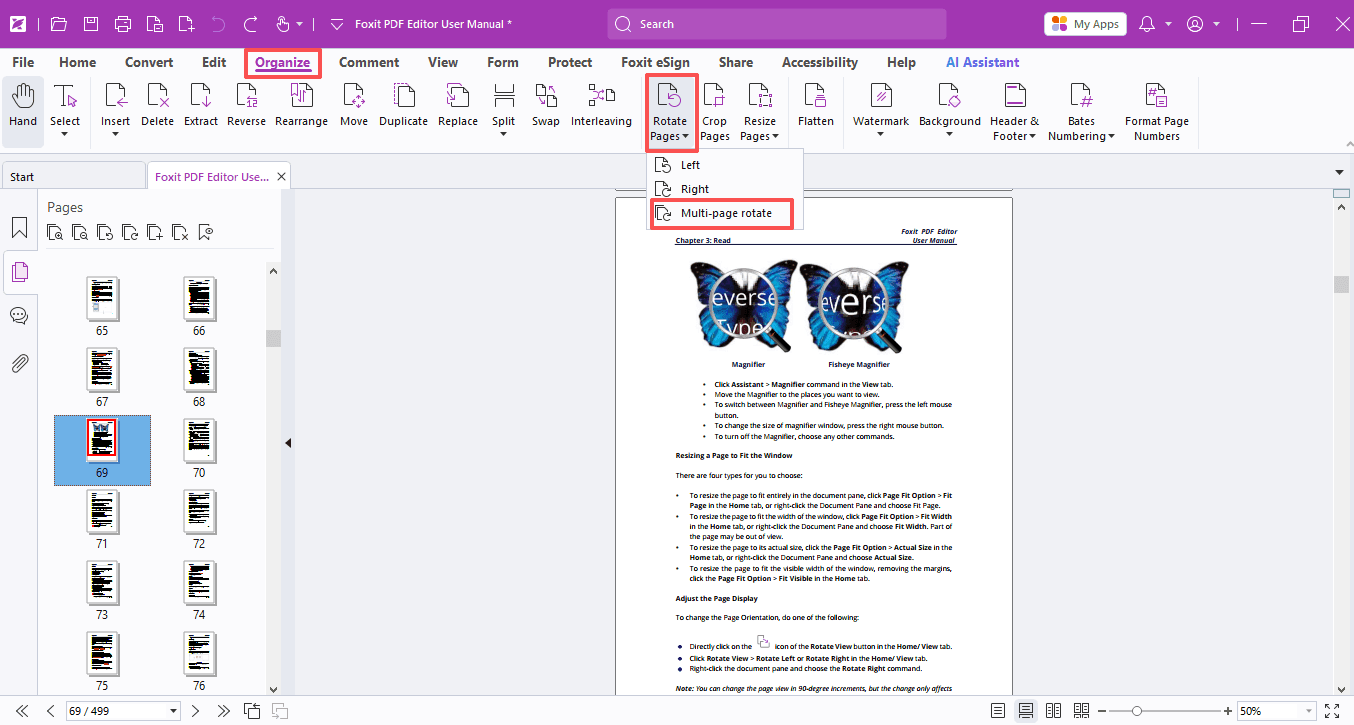
2. Hit Organize > Rotate Pages. Choose Left or Right, and the current page will flip 90 degrees in that direction.
3. Right-click any page thumbnail in the left sidebar, select Rotate Pages, choose the direction, then click OK and you're all set.
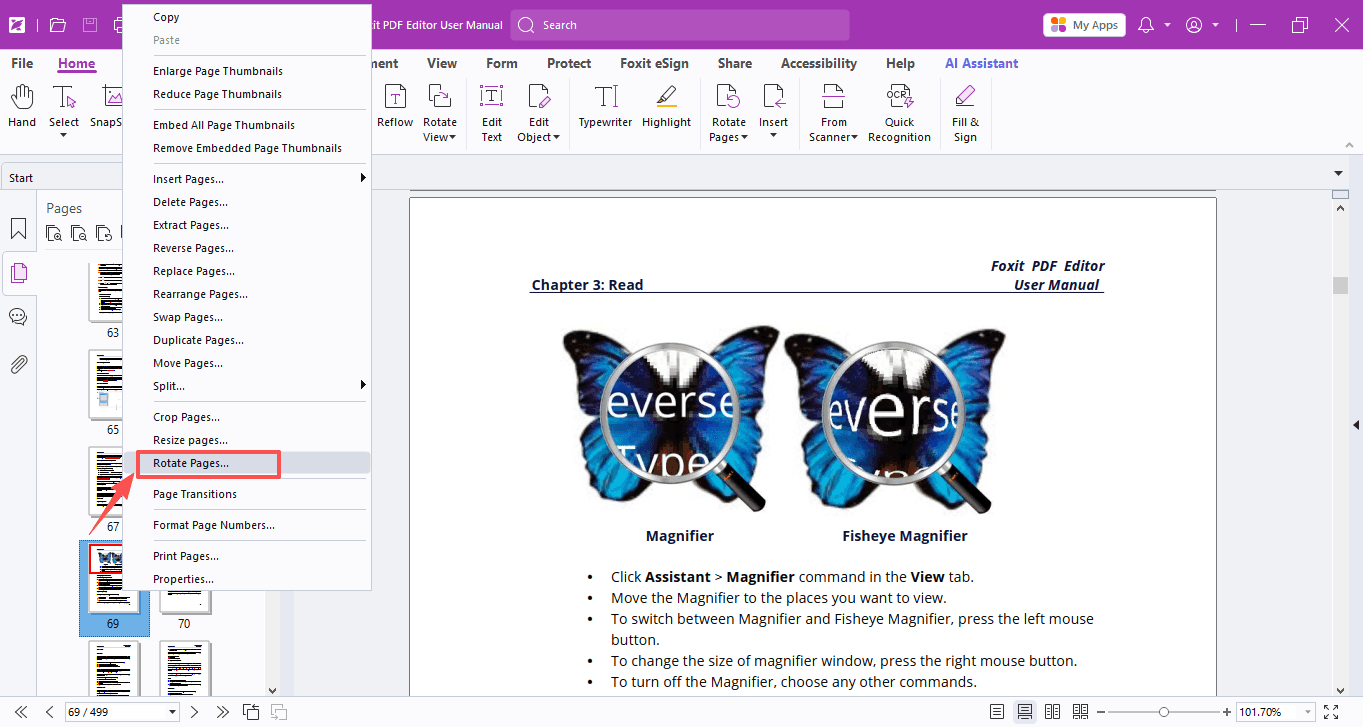
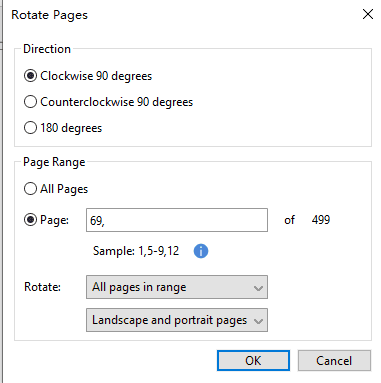
Way 2 and Way 3 permanently modify the actual PDF file. Once you rotate and save, the changes will stay even after you reopen the document.
For Multiple Page Rotation
- Select Rotate Pages and pick the Multi-page rotate.
- In the pop-up window, simply choose your rotation direction, set the page range, and hit OK.
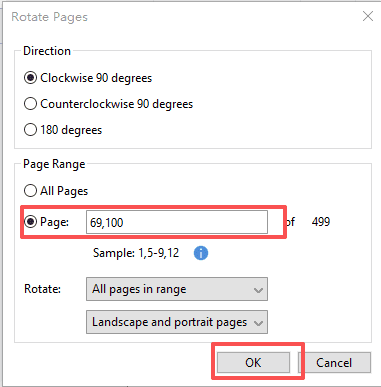
Once you rotate and save, your pages stay that way. No need to redo it every time you open the file.
Now go ahead—give your PDF a spin and get back to reading in comfort!
If you need help with any specific case using Foxit PDF Editor, or have questions about how to use it, please feel free to click here to submit your inquiries. We will create dedicated guides based on your actual needs to provide further support.
Try it yourself
Open the interactive Web SDK demo, or talk to a Foxit APAC partner about licensing for your team or campus.