
Weekly Tip #26
How to Prevent PDF Edit Loss with Auto‑Save and Save‑As
Don't let crashes or accidental overwrites ruin your PDF work. Set up Auto-Save for snapshots and use Save As for multiple versions in Foxit PDF Editor.
Have you ever lost hours of work editing a PDF because the system crashed? What should you do if you accidentally overwrite the original file and can't recover the old version?
Before opening a PDF, you can set up Auto-Save in Foxit PDF Editor to create periodic snapshots, and use Save As to keep multiple versions of a file, helping you avoid losing your edits.
Here's how:
Set up Auto-Save
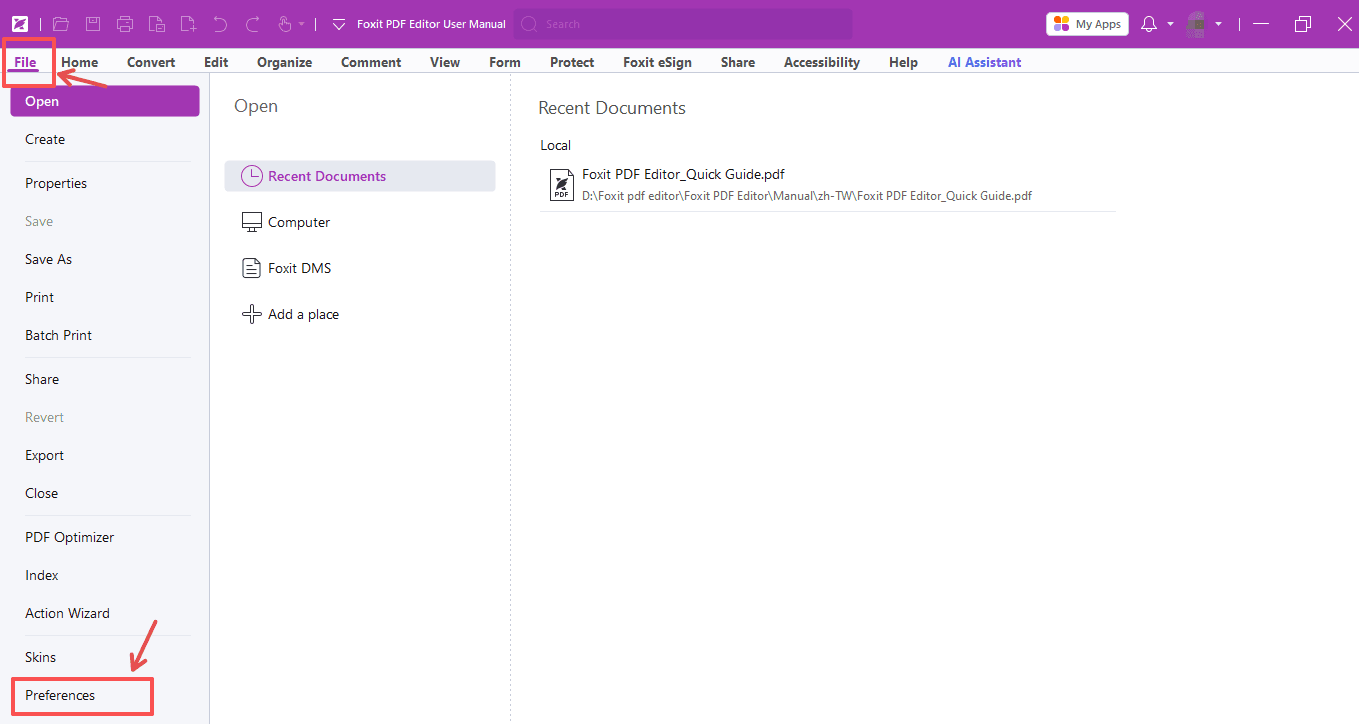
- Open Foxit PDF Editor and go to File > Preferences.
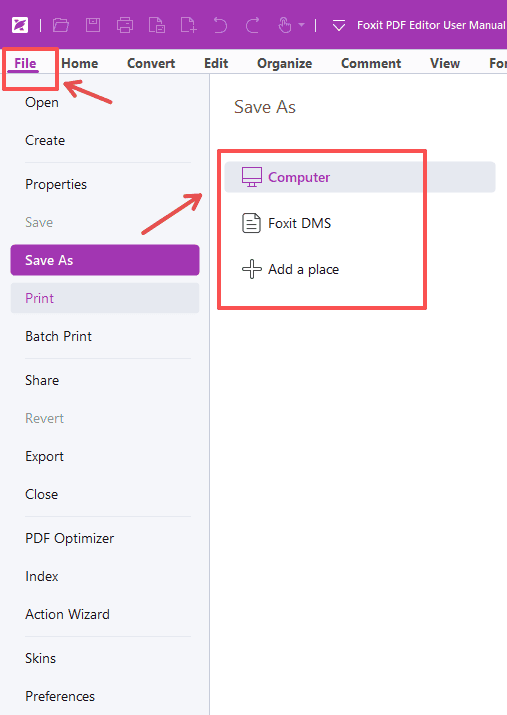
- In the pop-up dialog box, select Documents from the left-hand list. Under Save Settings, enable Automatically save file every x minutes, set your preferred time interval for auto-save.
- Click OK to apply your preferences.
Tip:
- While you are in this panel, you may also configure Preferred Save As Location. Click Browse to define your default local folder, this folder will automatically open whenever you use Save As.
- This setting only affects the Save As dialog and does not modify where auto‑recovery temporary files are stored.
After an unexpected crash or forced closure, Foxit PDF Editor will detect temporary recovery files when you reopen your PDF. You can restore work that was never manually saved.
Note: auto-save only protects unsaved edits. It cannot retrieve earlier versions once you manually save and overwrite your PDF file. To preserve multiple versions of your work, you can use Save As to create separate copies.
Save Multiple PDF Versions via Save As
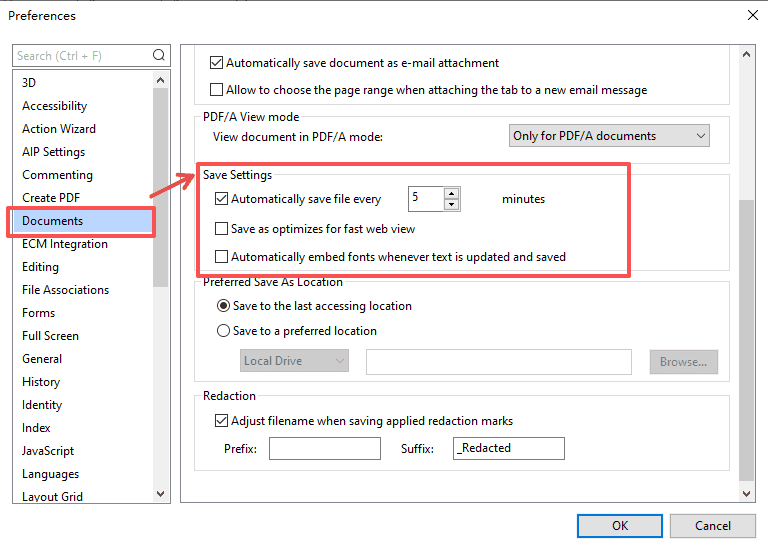
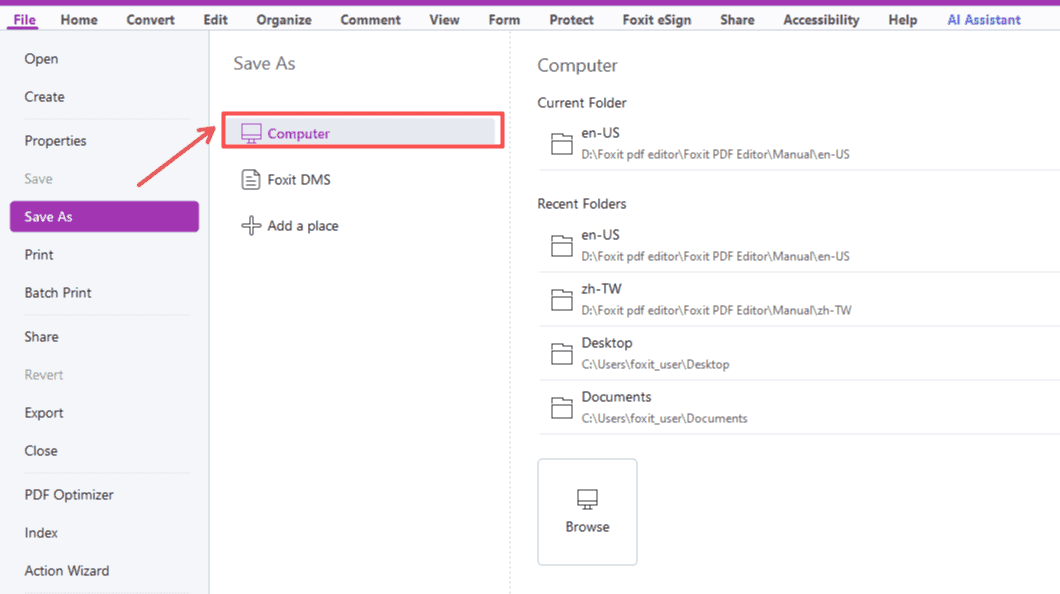
- Go to File > Save As.
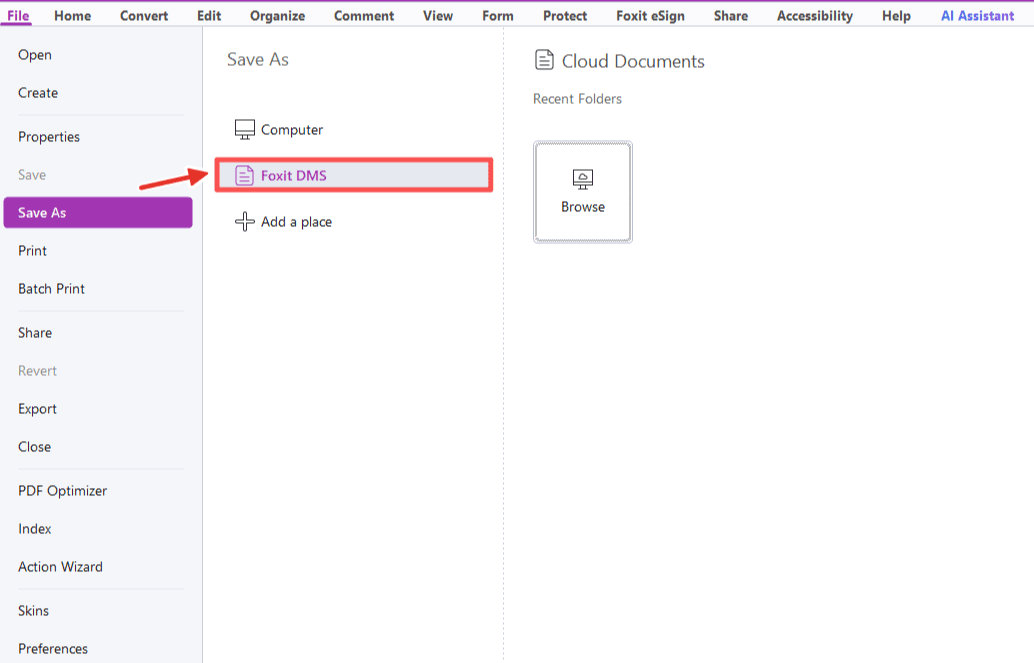
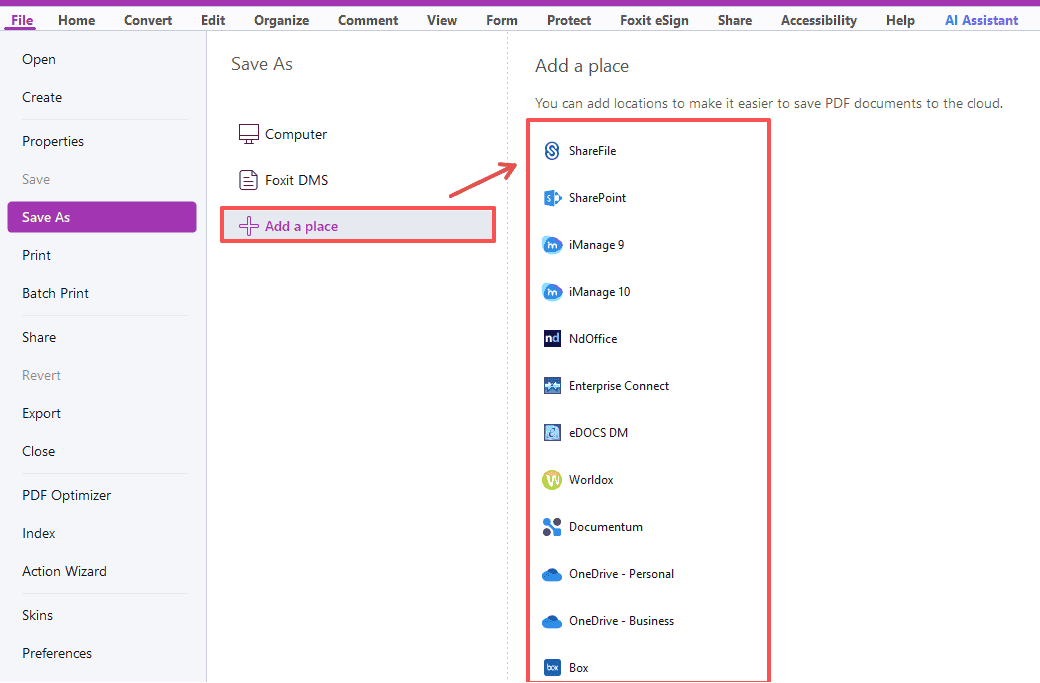
- Three destination options are available: Computer, Foxit DMS, and Add a place.
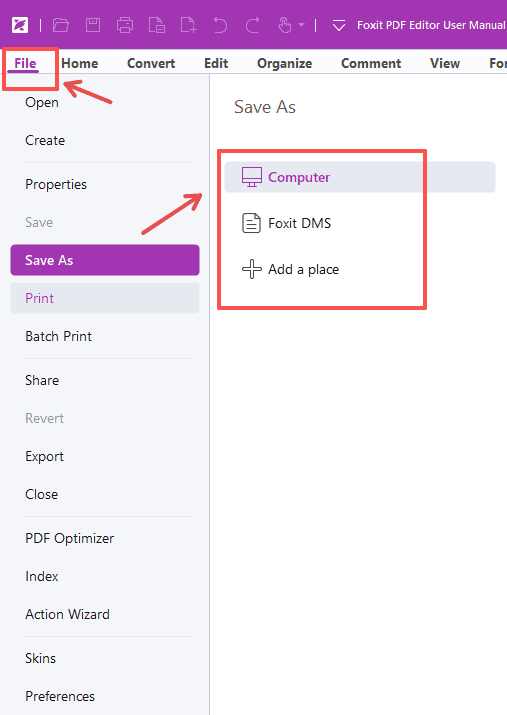
- Computer: Saves the file locally. The dialog opens at your Preferred Save As Location. Input a new filename and select a folder, then click Save.
- Foxit DMS: Saves to Foxit cloud storage. Sign in to your Foxit account, choose a cloud folder, name your file and save.
- Add a place: Connect third-party cloud services such as OneDrive, Google Drive, Dropbox, SharePoint and more. Sign in to your account, select the target folder, rename your file and save. Added services will stay in the list for future use.That's all for this tip! Hopefully it will help you safeguard your PDF editing work.
If you need help with any specific case using Foxit PDF Editor, or have questions about how to use it, please feel free to click here to submit your inquiries. We will create dedicated guides based on your actual needs to provide further support.
Try it yourself
Open the interactive Web SDK demo, or talk to a Foxit APAC partner about licensing for your team or campus.