
Weekly Tip #4
How to Merge Multiple PDF Documents into One PDF
Got too many files and just need one PDF? Don't worry! We've got a simple solution: Foxit PDF Editor.
As a student or teacher, you've probably faced these scenarios more than once:
- You need to combine homework, research notes, and project parts into one PDF for easy submission to your teachers.
- You want to merge lesson plans, worksheets, slides, and handouts into a single PDF to share with your class.
- You're working on a group project and need to gather everyone’s work into one clean, unified final document
Don't worry! We've got a simple solution to make all this easier: Foxit PDF Editor. It lets you convert and combine different types of files into a single PDF in just a few easy steps.
First, open Foxit PDF Editor. Then, you can use any of these ways to start merging:
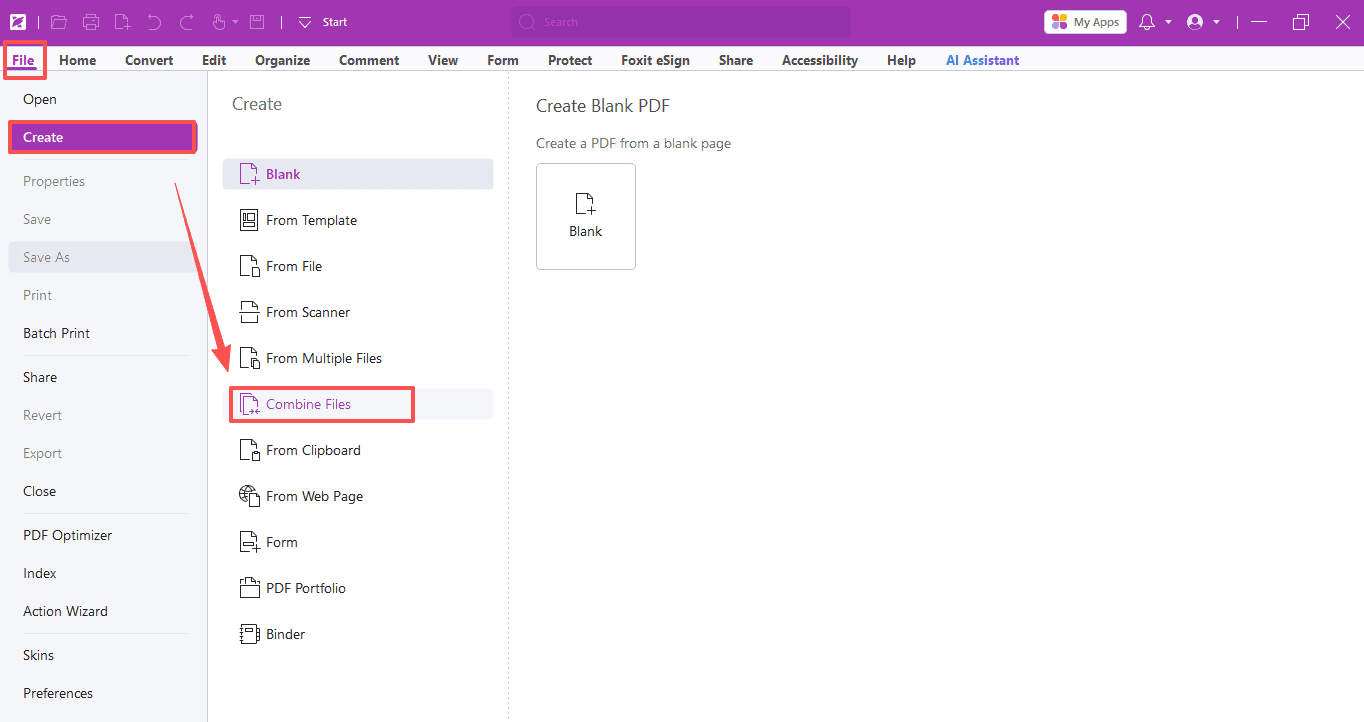
- Go to File > Create > Combine Files
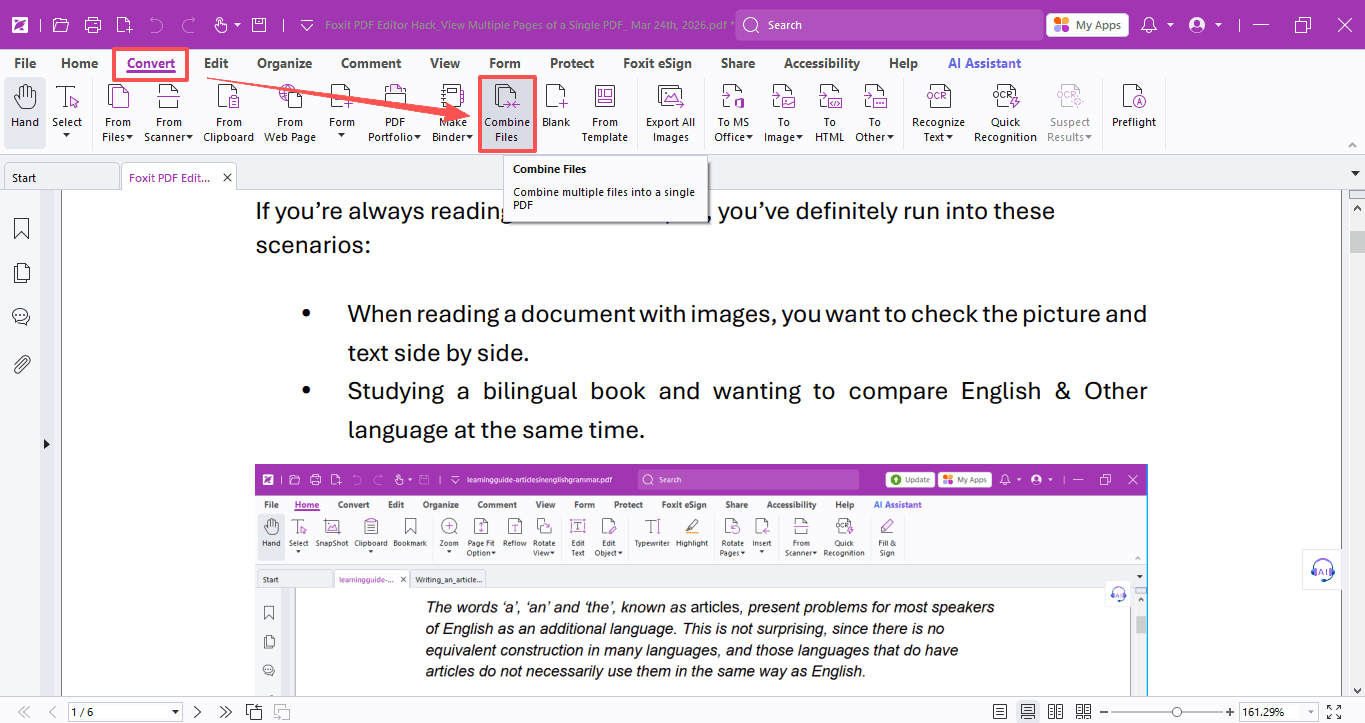
- Or select Convert > Combine Files
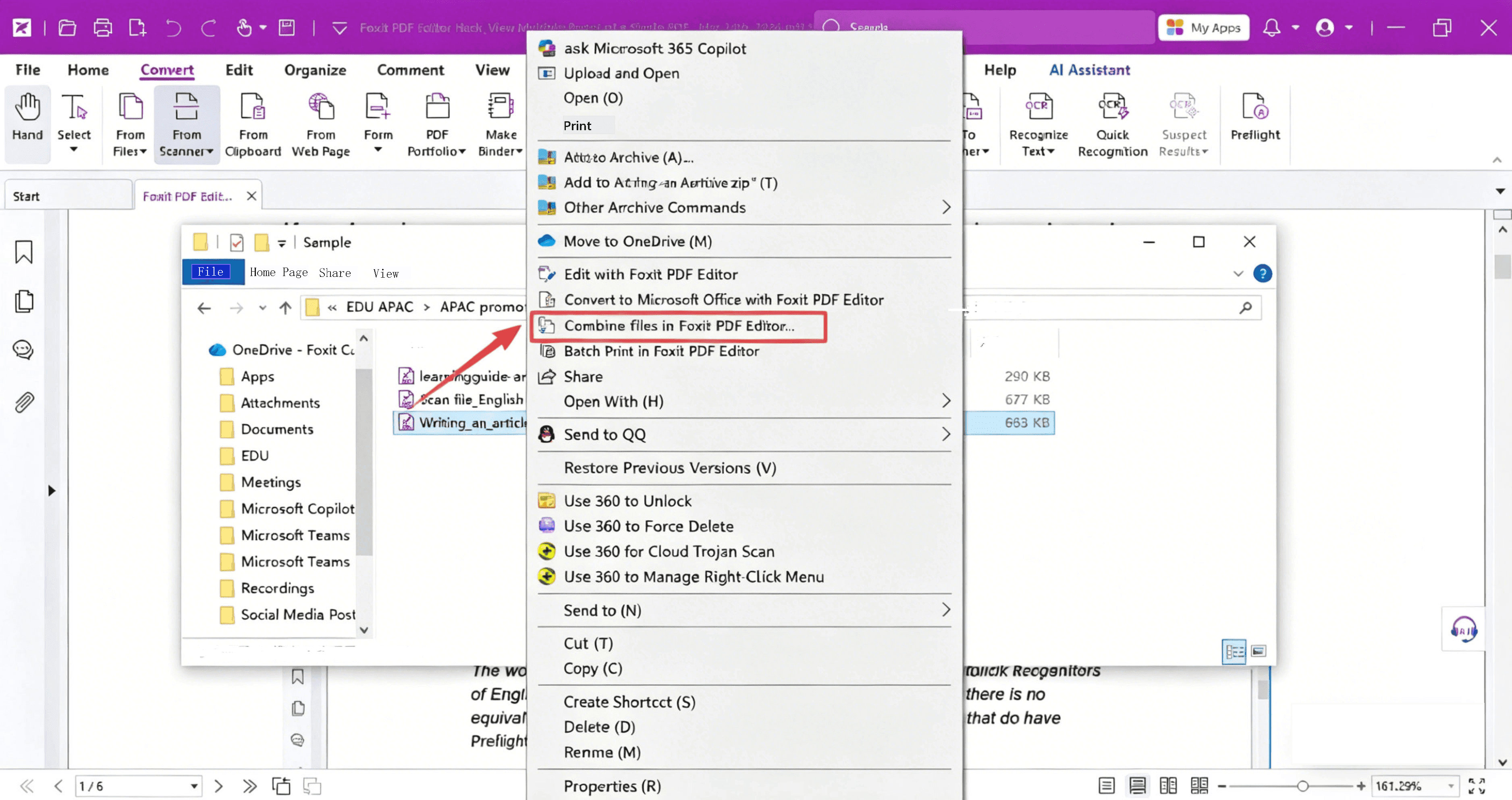
- Or right-click any file you want to process and choose Combine Files in Foxit PDF Editor…
Option 1: File > Create > Combine Files
Option 2: Convert > Combine Files
Option 3: Right-click > Combine Files in Foxit PDF Editor
This works for almost any file format — no matter what kind of documents you have, you can turn them all into one neat PDF.
Once you click the Combine Files feature, a preview pane will automatically pop up as file tabs in the program window. All you need to do is add the files you want to merge, then click Combine — and just like that, all your files will turn into one single PDF!
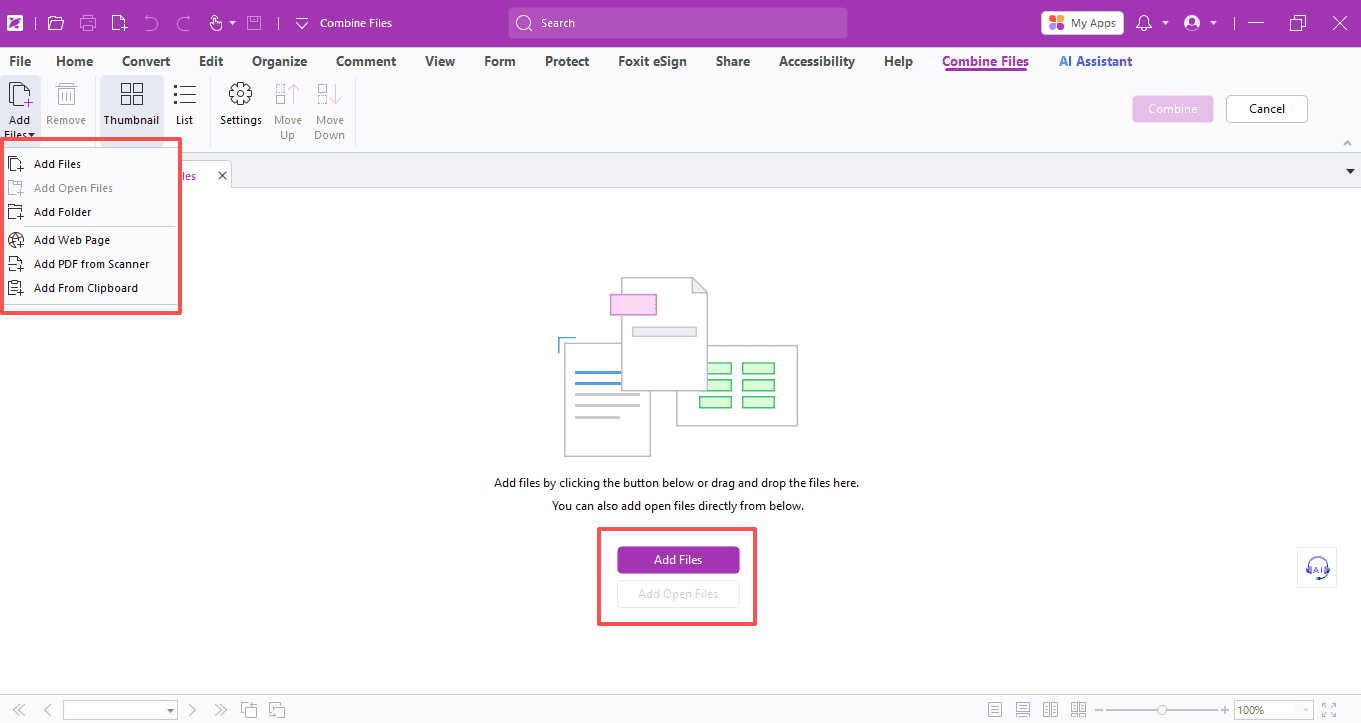
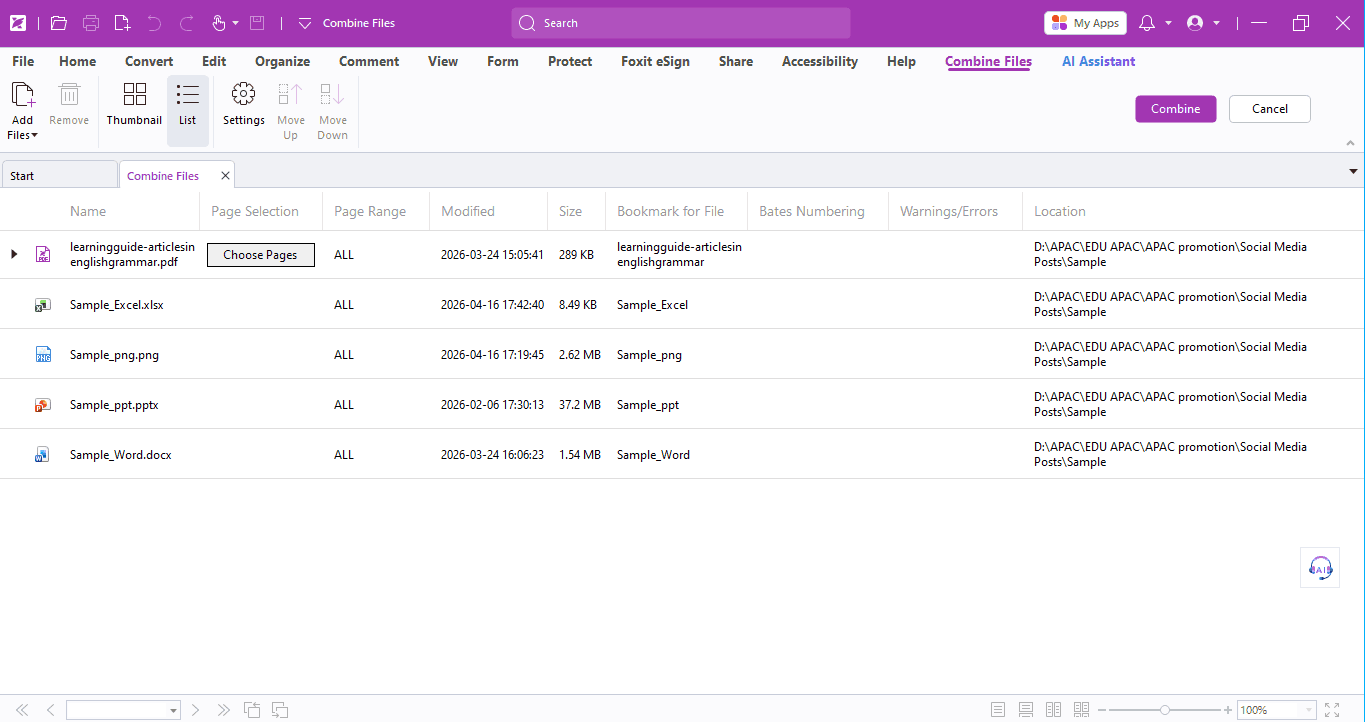
And here's a bonus: While merging, you can make adjustments to fit your needs:
- Drag and drop files to rearrange their order
- Select specific pages (for PDFs) or Excel worksheets
- Add or remove files from the list right in the menu bar
- Adjust extra settings, like choosing where to save your final PDF or creating a table of contents for easier navigation
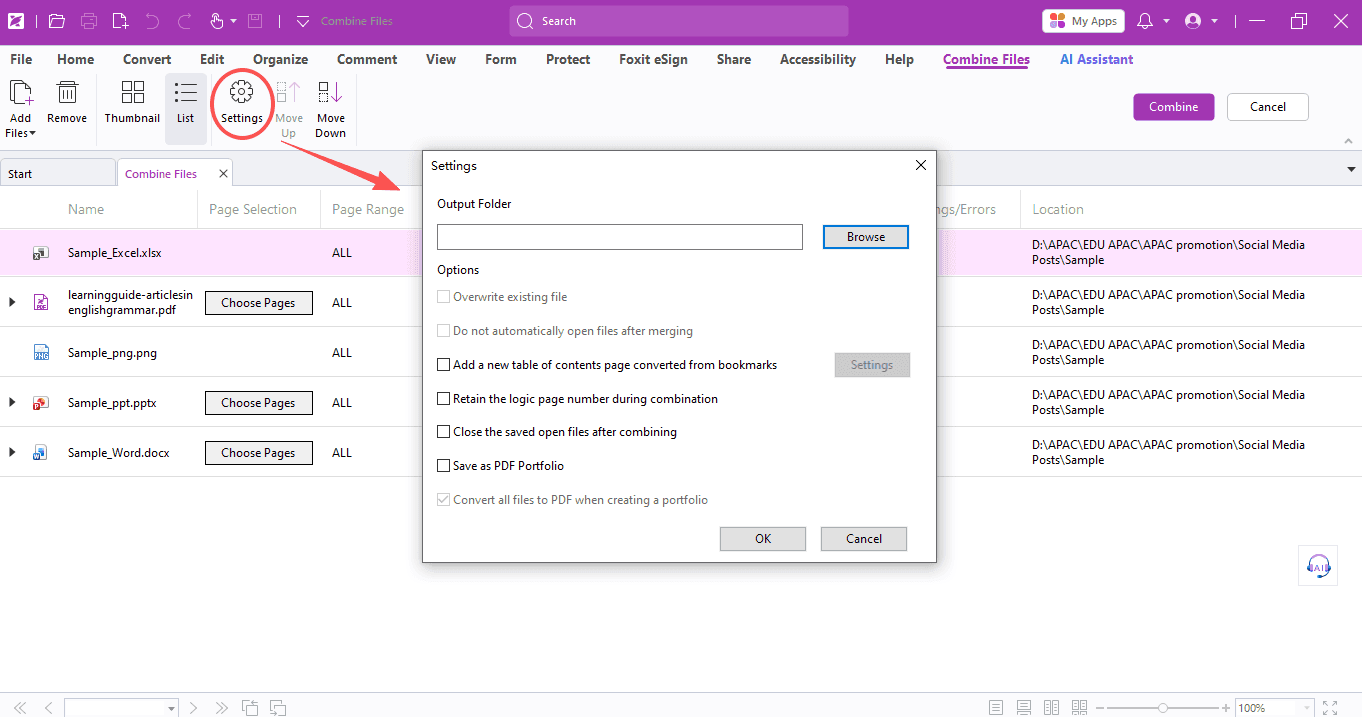
Pro tip: If you add an entire folder of PDFs, every file in that folder will be automatically extracted and added to your merge list. By default, all files are sorted in ascending order by their filenames.
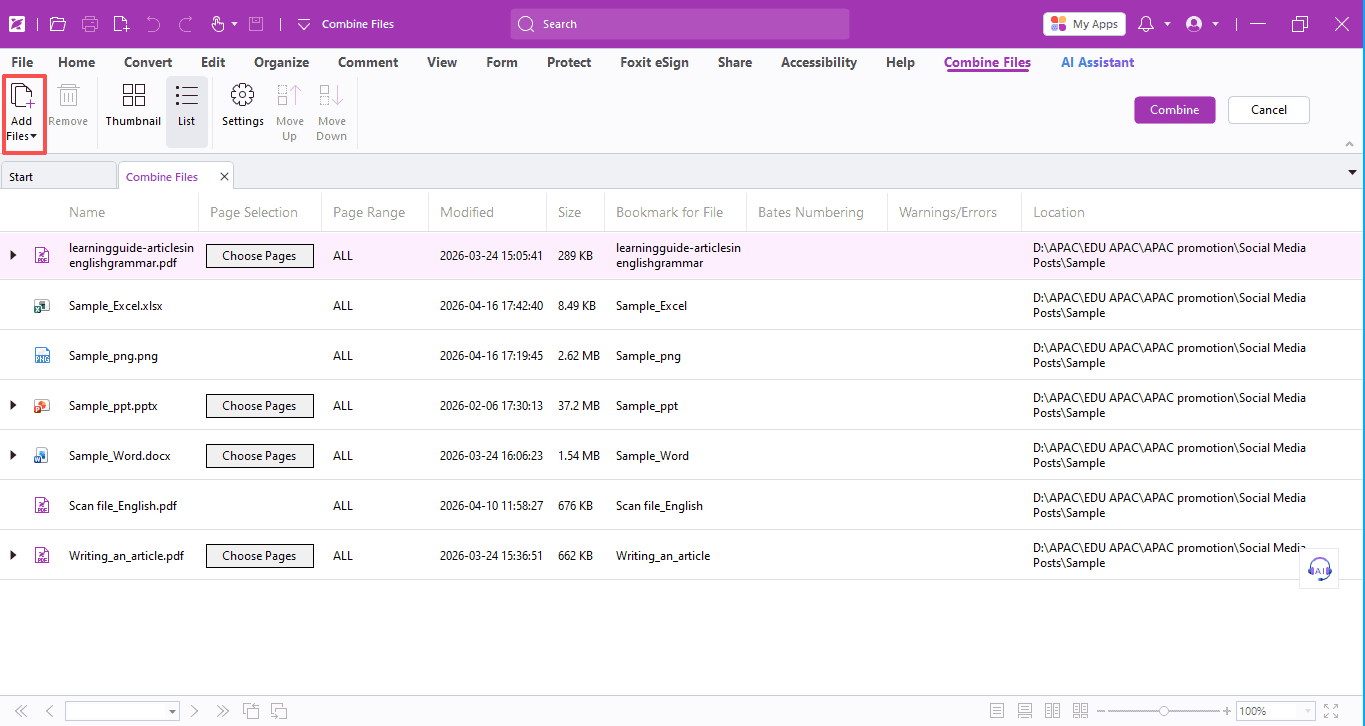
Hopefully, this tip helps you solve your file merging problems faster and save more time!
If you need help with any specific case using Foxit PDF Editor, or have questions about how to use it, please feel free to click here to submit your inquiries. We will create dedicated guides based on your actual needs to provide further support.
Try it yourself
Open the interactive Web SDK demo, or talk to a Foxit APAC partner about licensing for your team or campus.