
Weekly Tip #15
How to Make Your Reading Experience More Comfortable and Eye-Friendly
Tired of endless scrolling and eye strain while studying PDFs? The reading features of Foxit PDF Editor fix that—relaxed, eye-friendly, hands-free.
If you’re tired of staring at the screen, struggling with constant page-scrolling while taking notes, or simply want a more comfortable way to study with PDFs, Foxit PDF Editor has you covered. Its thoughtful reading features are designed to give you a relaxed, eye-friendly, and hands-free experience.
Let’s check them out!
1. Widen your reading view
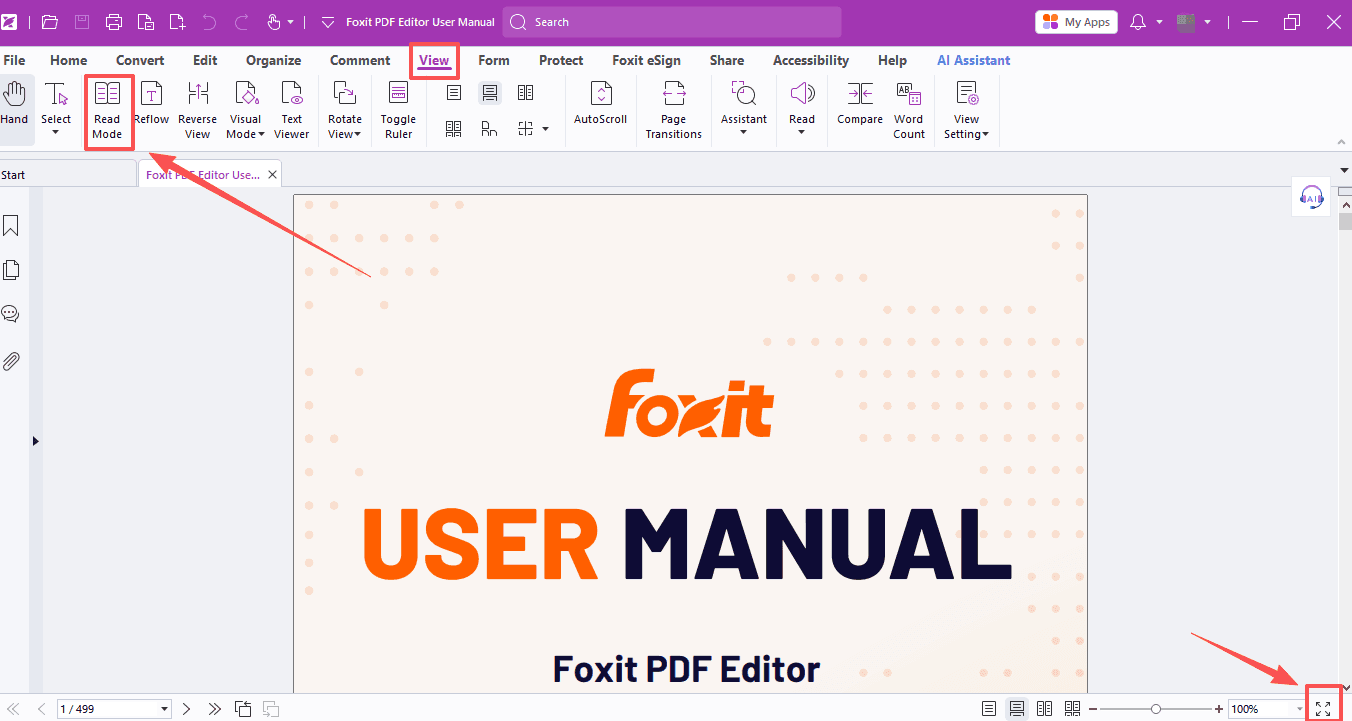
Distracting toolbars getting in your way? Switch to Reading Mode or Full Screen Mode! All navigation bars, toolbars and status bars will disappear, leaving you with a bigger clean reading space.
- Head to the View tab and select Reading Mode, or hit the Full Screen icon at the bottom right of the app window.
- Hold Ctrl and scroll your mouse to zoom in/out.
- Press Left / Right arrow keys on the keyboard to flip pages.
- Tap Esc to exit full screen or reading mode anytime.
2. Auto-scroll text without lifting a finger
No need to drag pages manually when your hands are occupied!
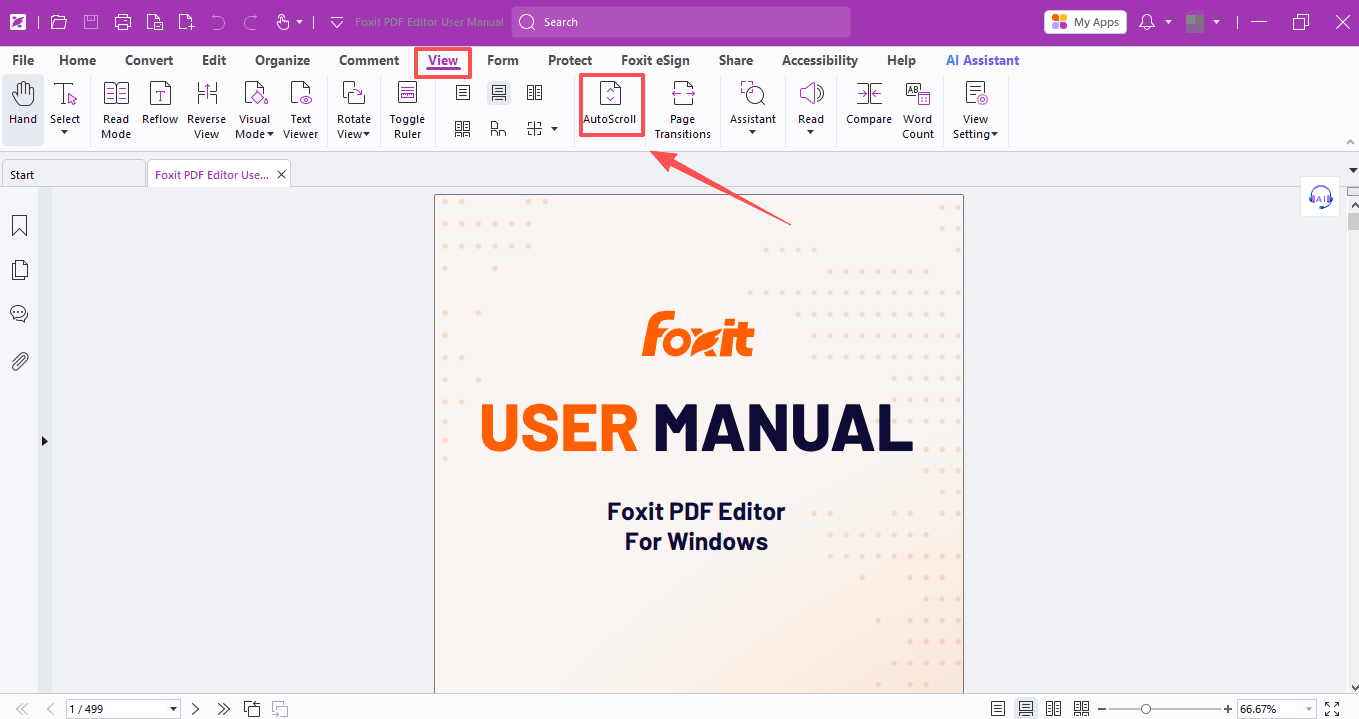
- Go to View > Auto Scroll, and the text will slide upward by default. Easy controls for auto-scroll:
- Number keys 0–9 to adjust speed (0 = slowest, 9 = fastest).
- Spacebar to pause scrolling.
- Esc to turn auto-scroll off.
3. Let the PDF read aloud for you
Want to close your eyes and unwind while listening to your materials? Turn on Read Aloud!
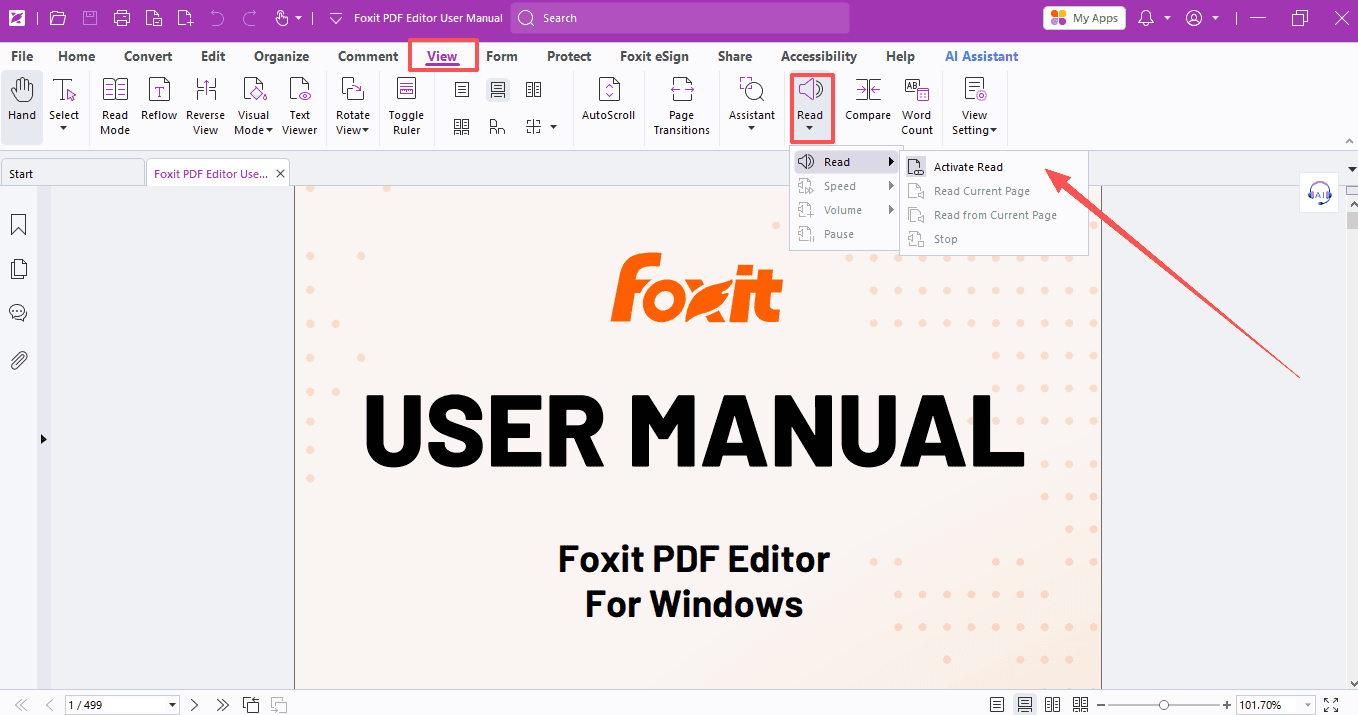
- Click View > Read > Activate Read, then pick either Read Current Page or Read from Current Page—your PDF will start narrating right away. You can also tweak the Speed and Volume to your liking.
4. Gentle viewing tools to protect your eyes
Magnifier for tiny details
Grab the magnifier tool via View > Assistant. Press Esc to close it when you’re done.
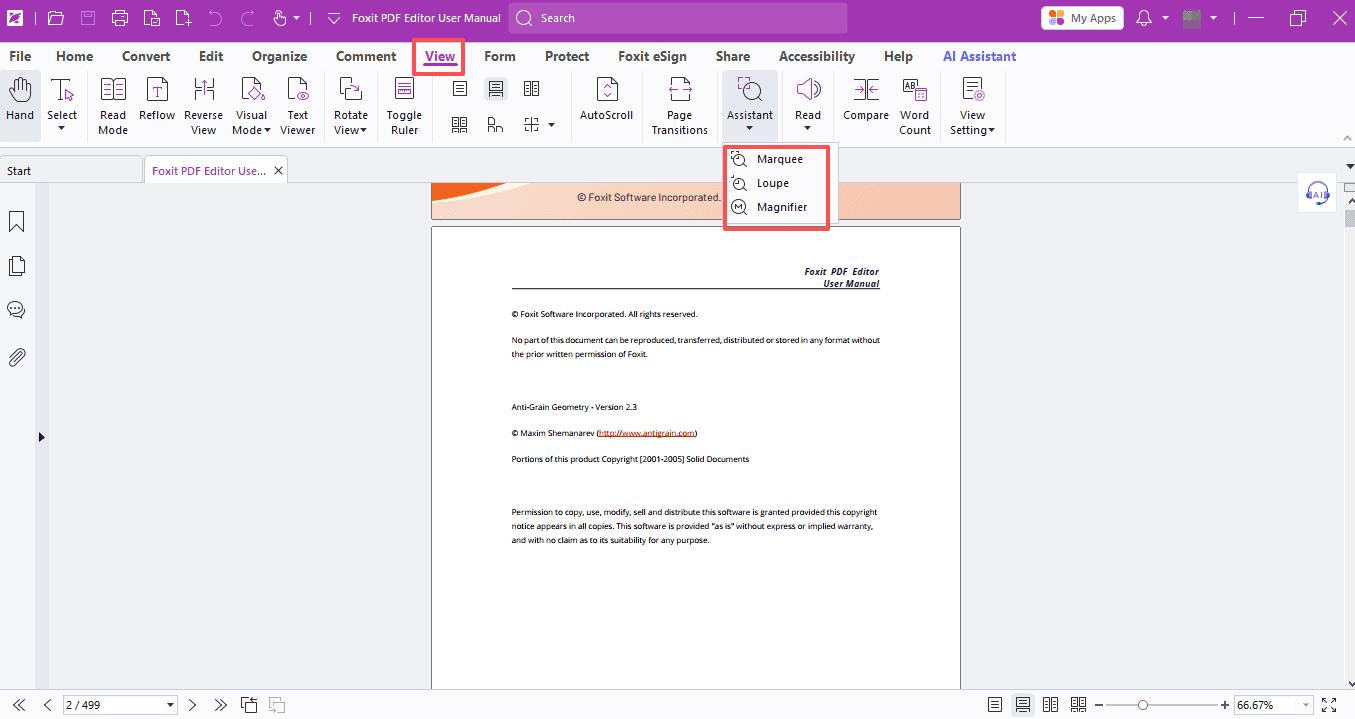
Three magnifier styles to pick from:
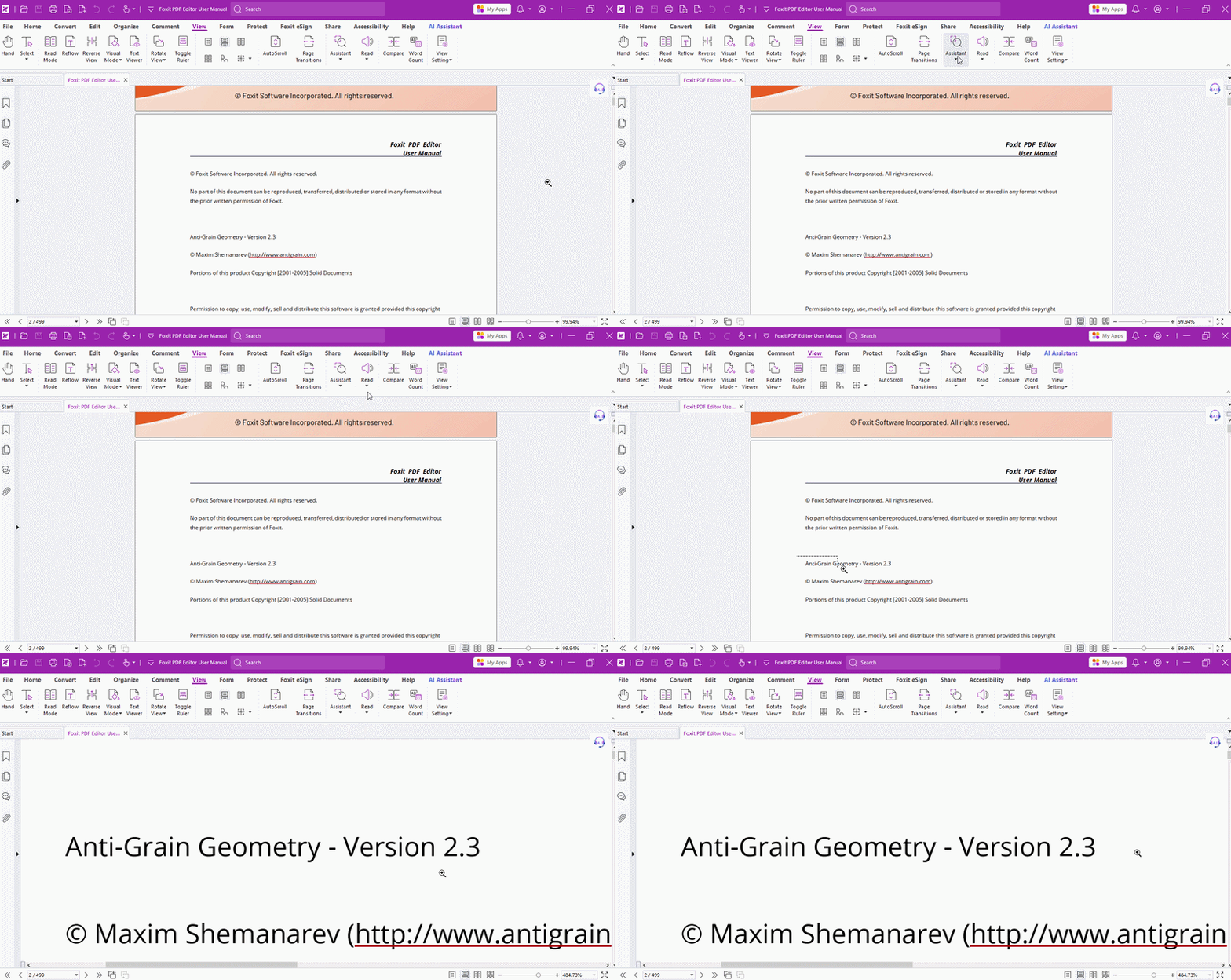
- Marquee: Expand a selected area of the page to fill the entire view
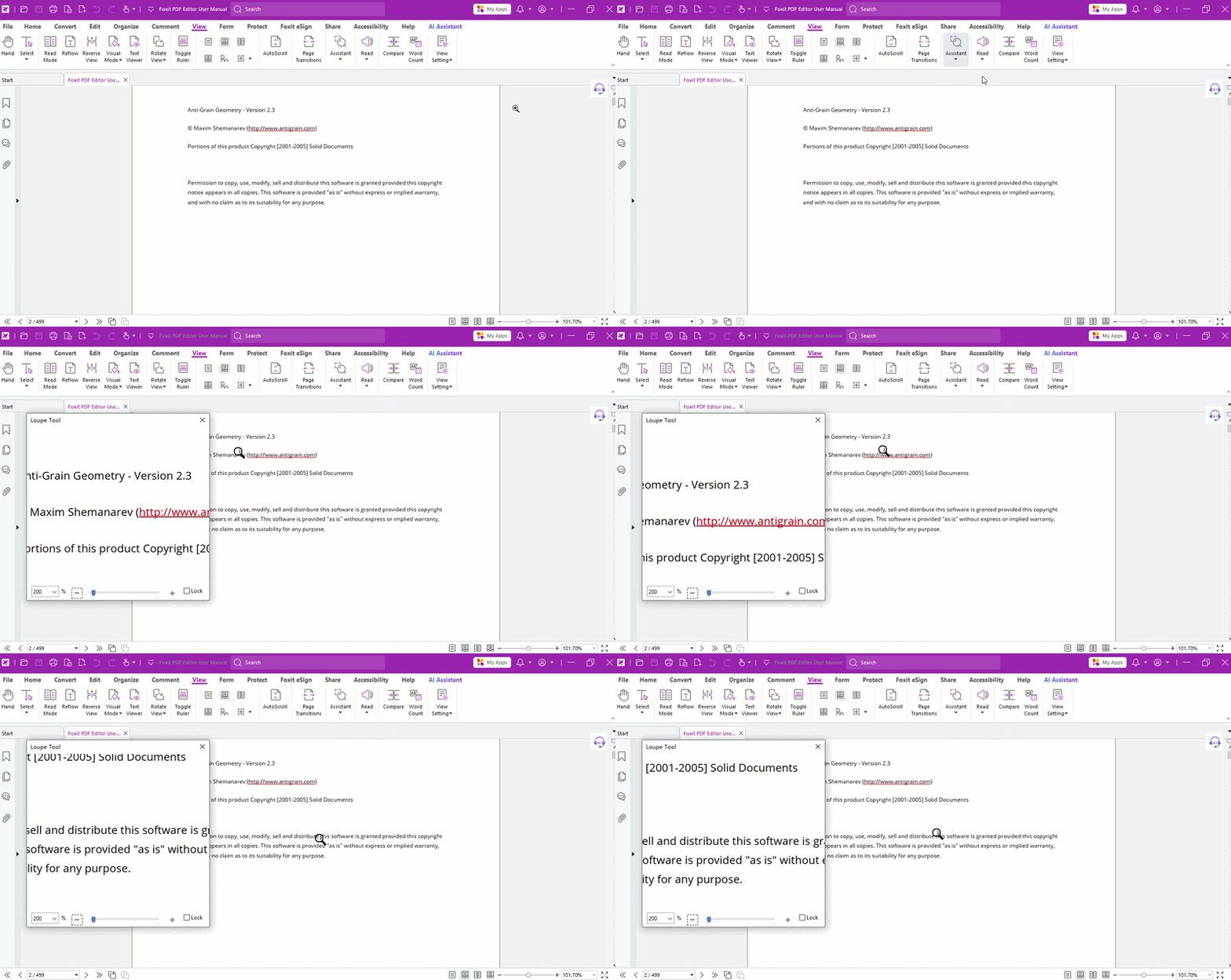
- Loupe: View part of the page in a separate window with a higher zoom level
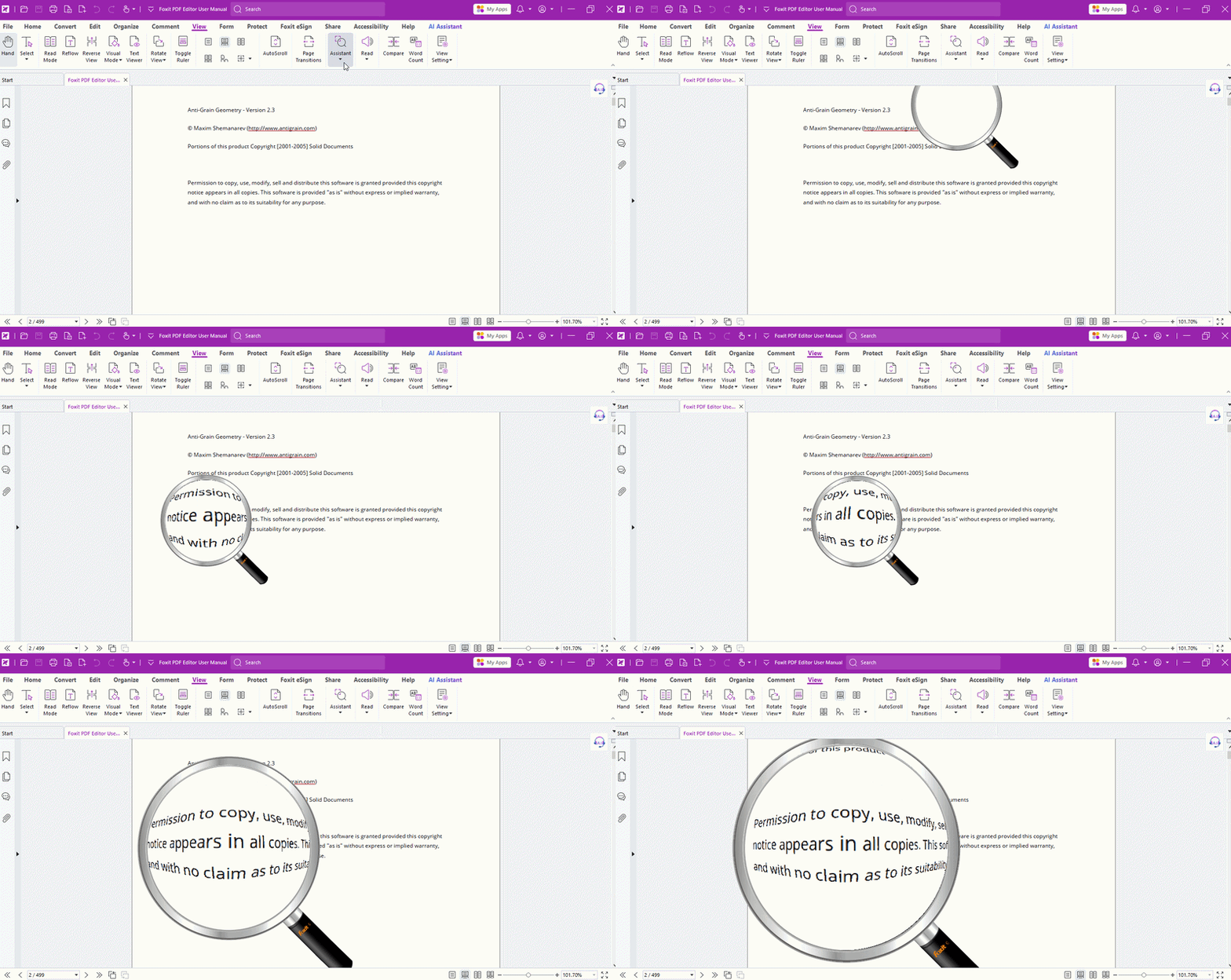
- Magnifier: Show a magnifying glass that can magnify part of the page; left-click to show a fisheye view, right-click to change viewing size
Eye-friendly background color
Customize soft eye-care colors:
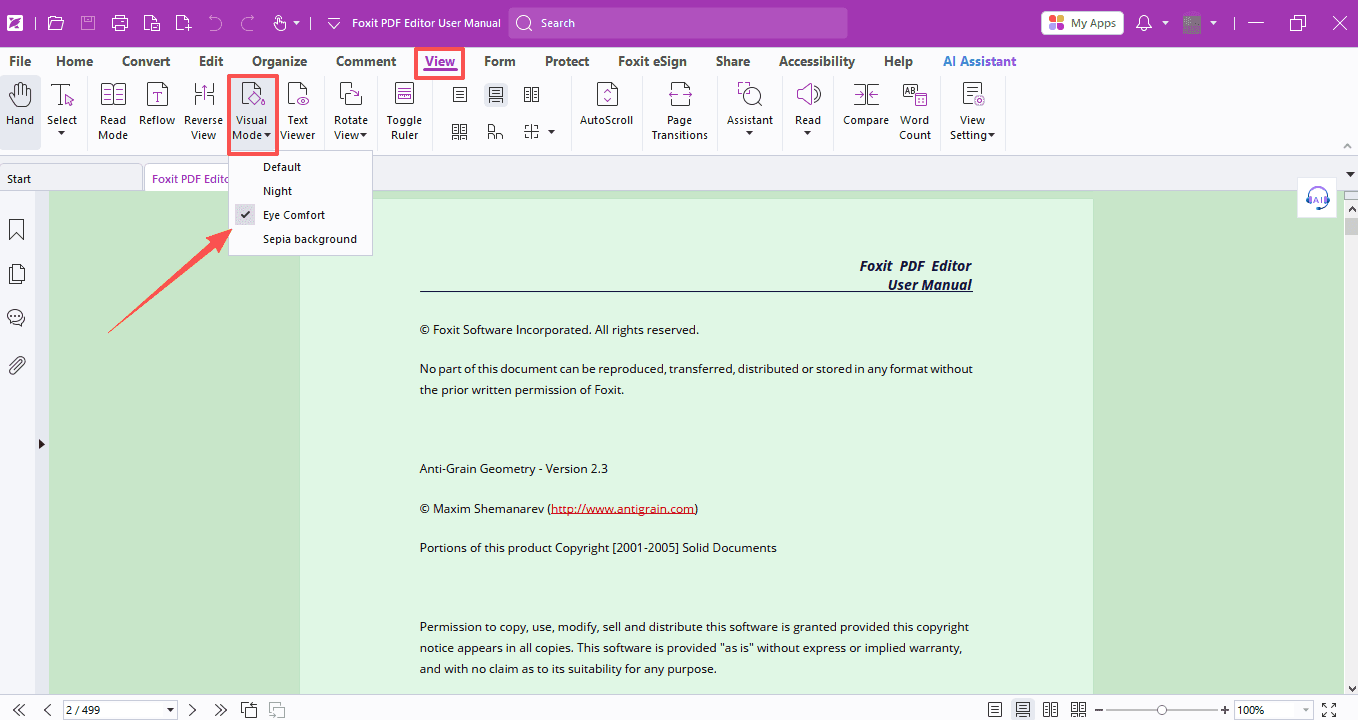
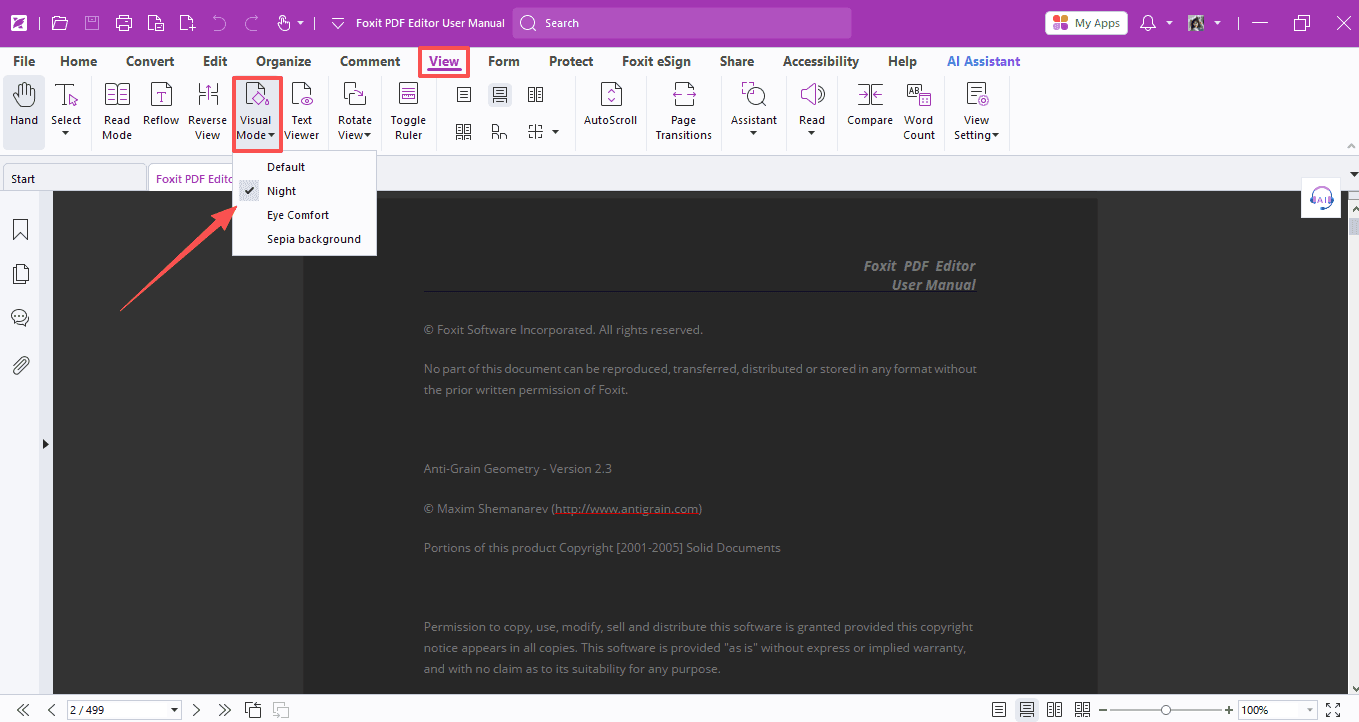
- Go to View > Visual Mode > Eye Comfort. It only changes how the file looks on your screen—it won’t alter the original colors of your PDF at all!
Night Mode for dark surroundings
Enable Night Mode under the View > Visual Mode. your whole document will switch to a dark theme.
Try out these tips next time you open a PDF—and enjoy a more comfortable, eye-friendly reading experience!
If you need help with any specific case using Foxit PDF Editor, or have questions about how to use it, please feel free to click here to submit your inquiries. We will create dedicated guides based on your actual needs to provide further support.
Try it yourself
Open the interactive Web SDK demo, or talk to a Foxit APAC partner about licensing for your team or campus.