
Weekly Tip #20
How to Fix Broken Text Blocks and Edit Objects in PDFs
Can't edit PDF text smoothly because it's broken into disconnected boxes or blocked by images? Link & Join Text solves exactly that.
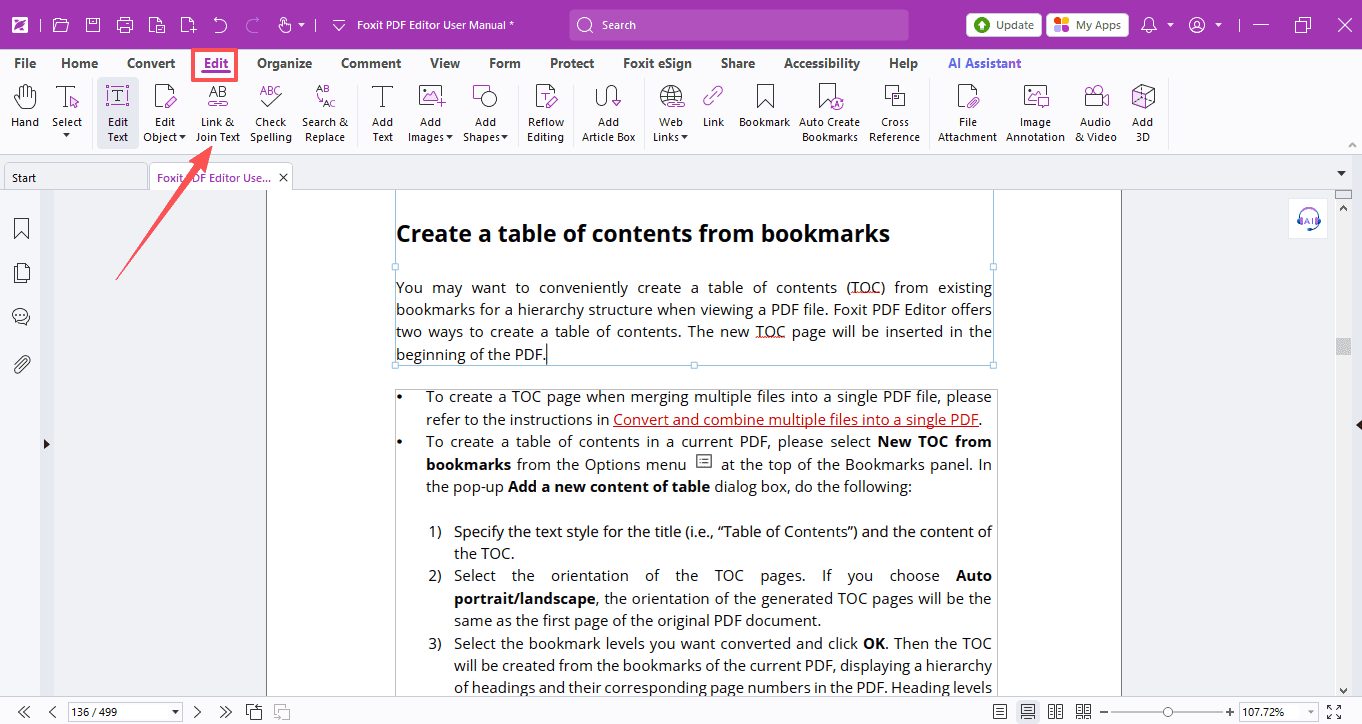
In our last sharing, we walked through the text editing functions in Foxit PDF Editor. But have you ever noticed that when editing text, sometimes text boxes on the page are disconnected? Or sometimes an image sits right between two text boxes, breaking the flow and stopping you from editing continuously?
That’s exactly what today's tools are here to solve. Let's dive deeper into two powerful editing features: Link & Join Text, as well as object editing.
Link & Join Text
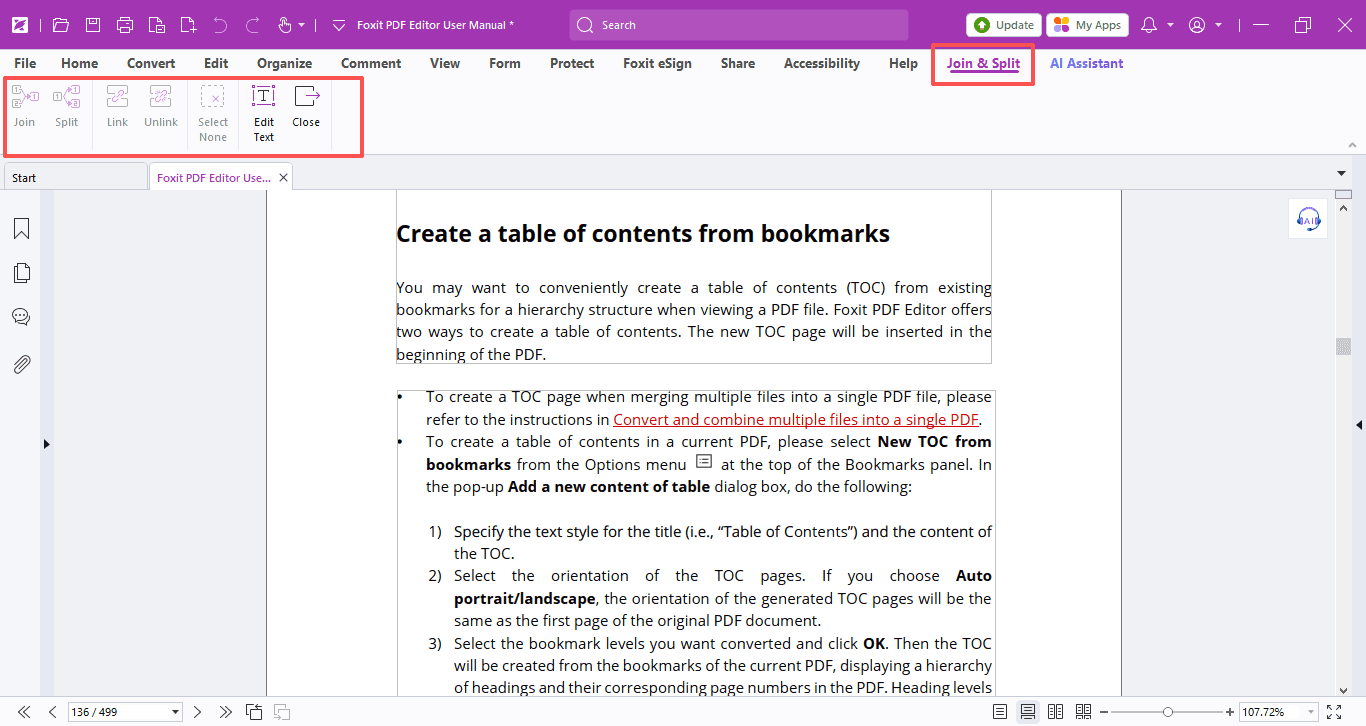
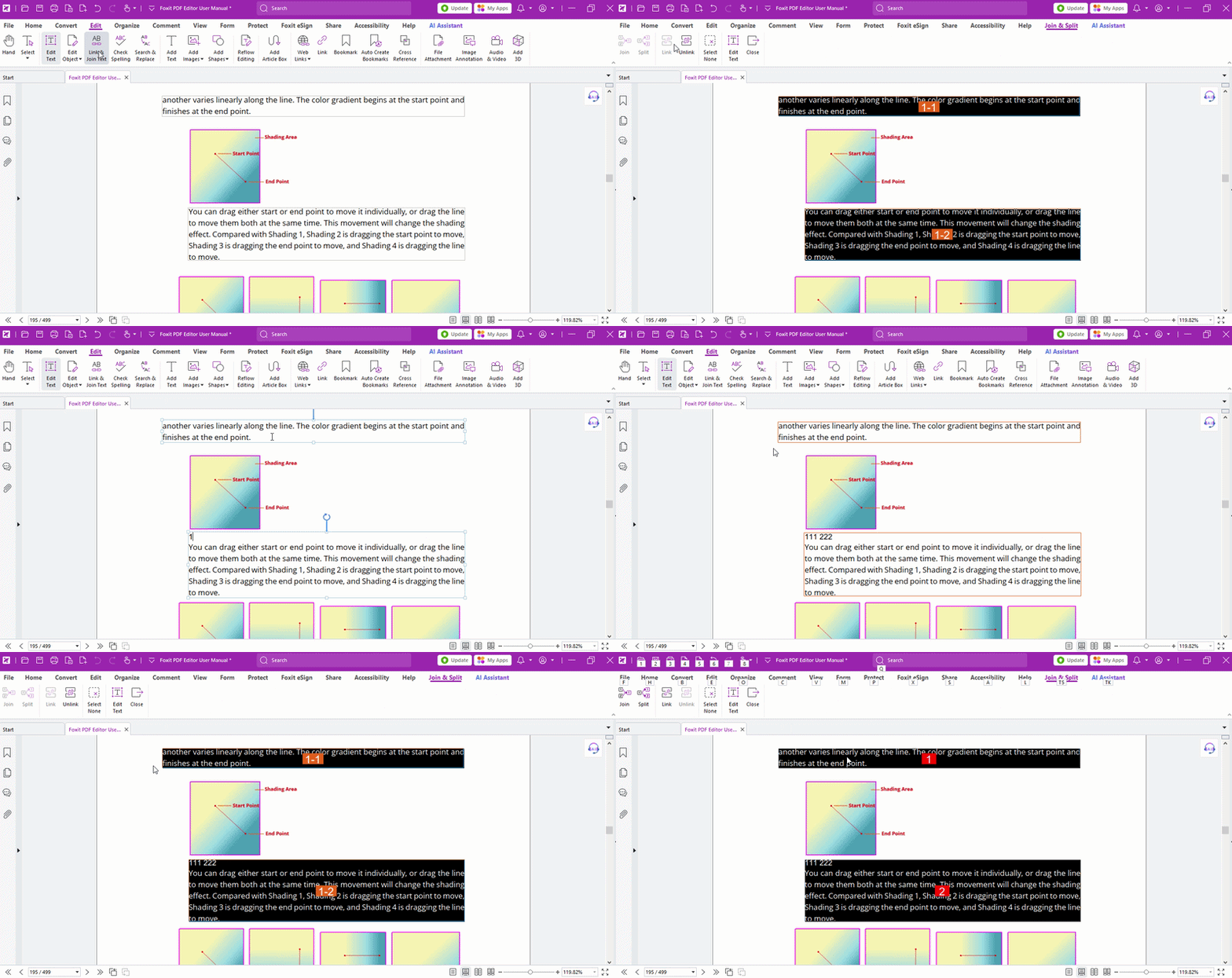
- Navigate to the Edit tab and select Link & Join Text. The Join & Split panel will appear on the top.
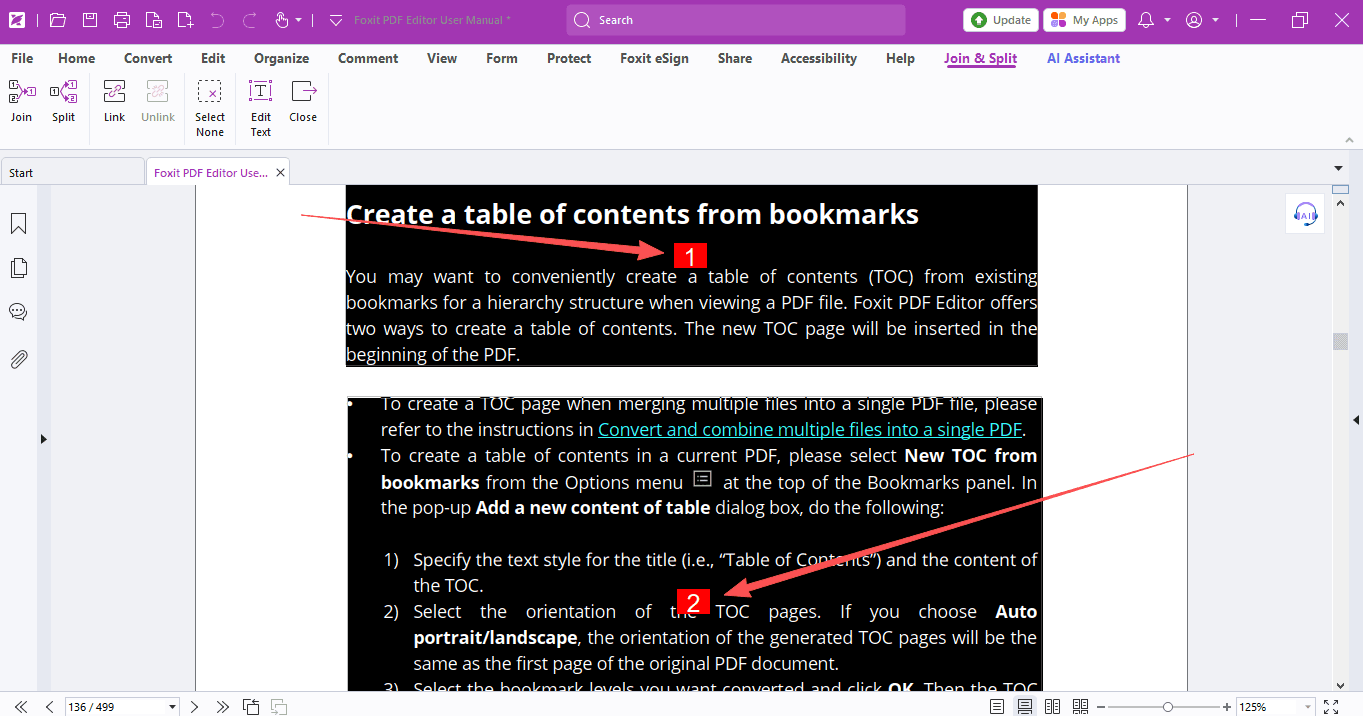
- Click multiple separate text blocks in sequence; each selected block will be labeled with a number.
- If you want to combine several text blocks into one single block, select the target blocks and click Join. You can also select a merged text block and click Split to divide it into separate text boxes again.
(Only available for text boxes on the same page)
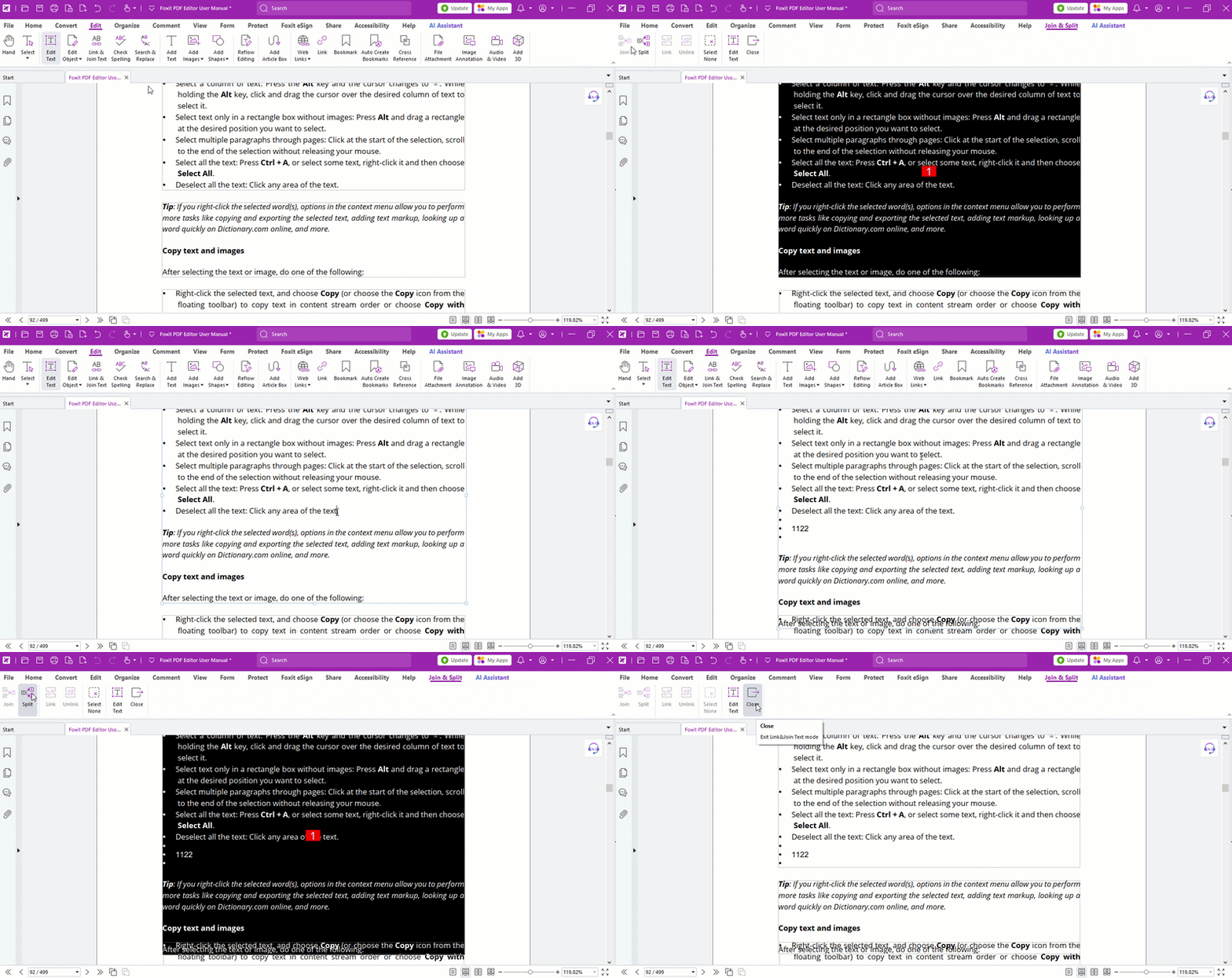
- Choose Link to connect these text boxes. Text will automatically reflow between linked blocks and avoid overlapping images in between. To disconnect linked text blocks, select them and hit Unlink.
(Works on the same page or across pages)
Edit images, shapes and other objects
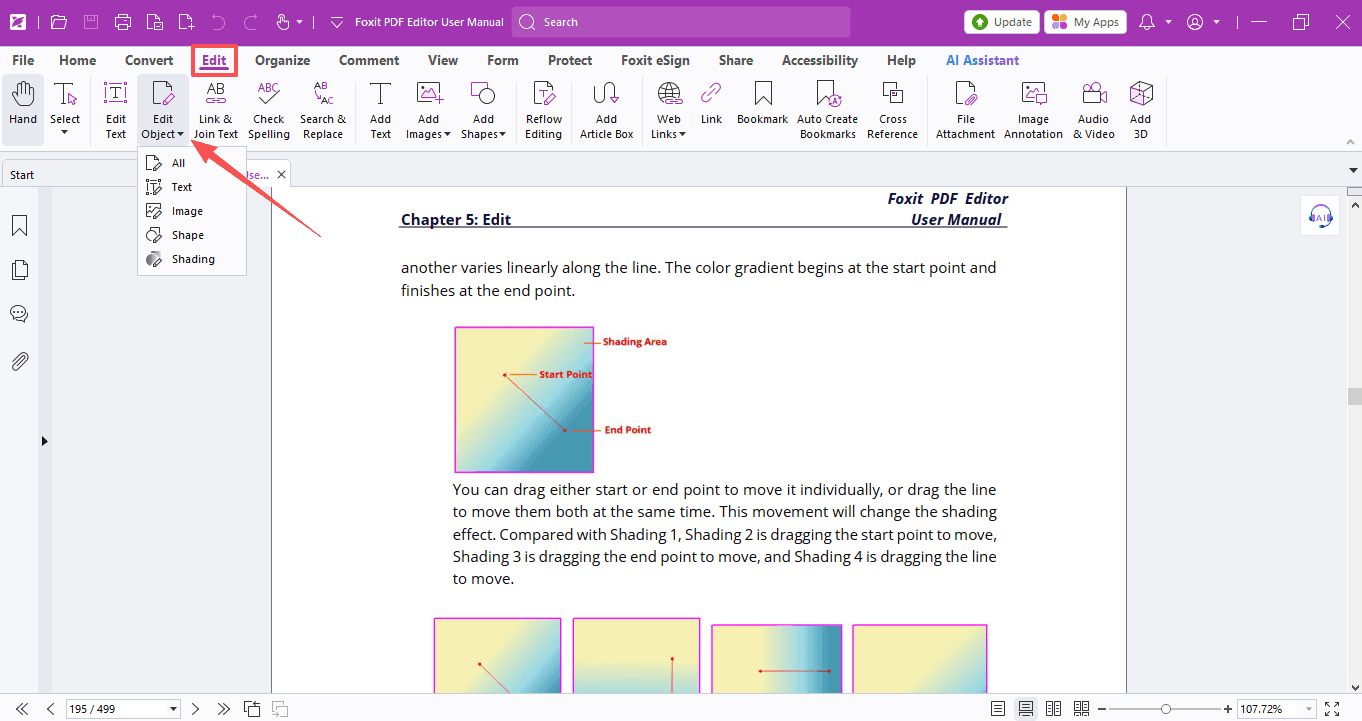
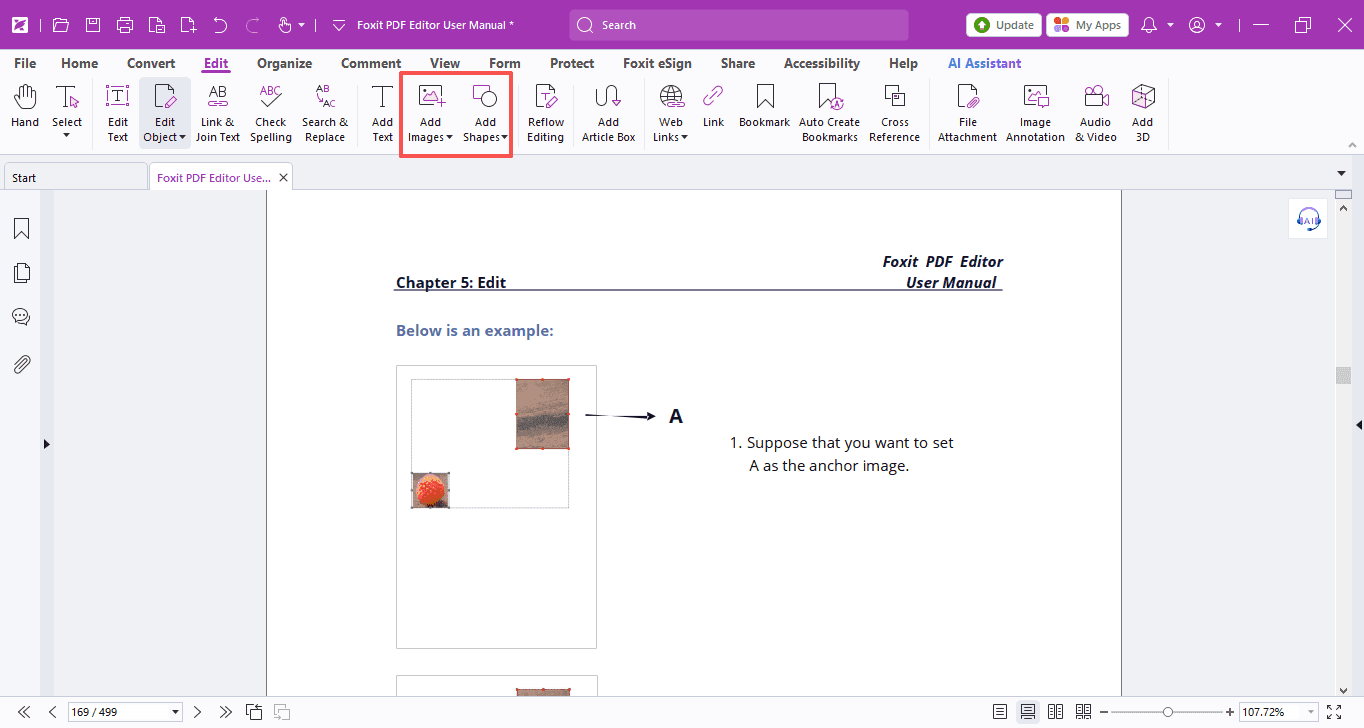
Besides text editing, Foxit PDF Editor also lets you directly modify graphical elements such as images and shapes. Simply go to the Edit > Edit Object, then select All.
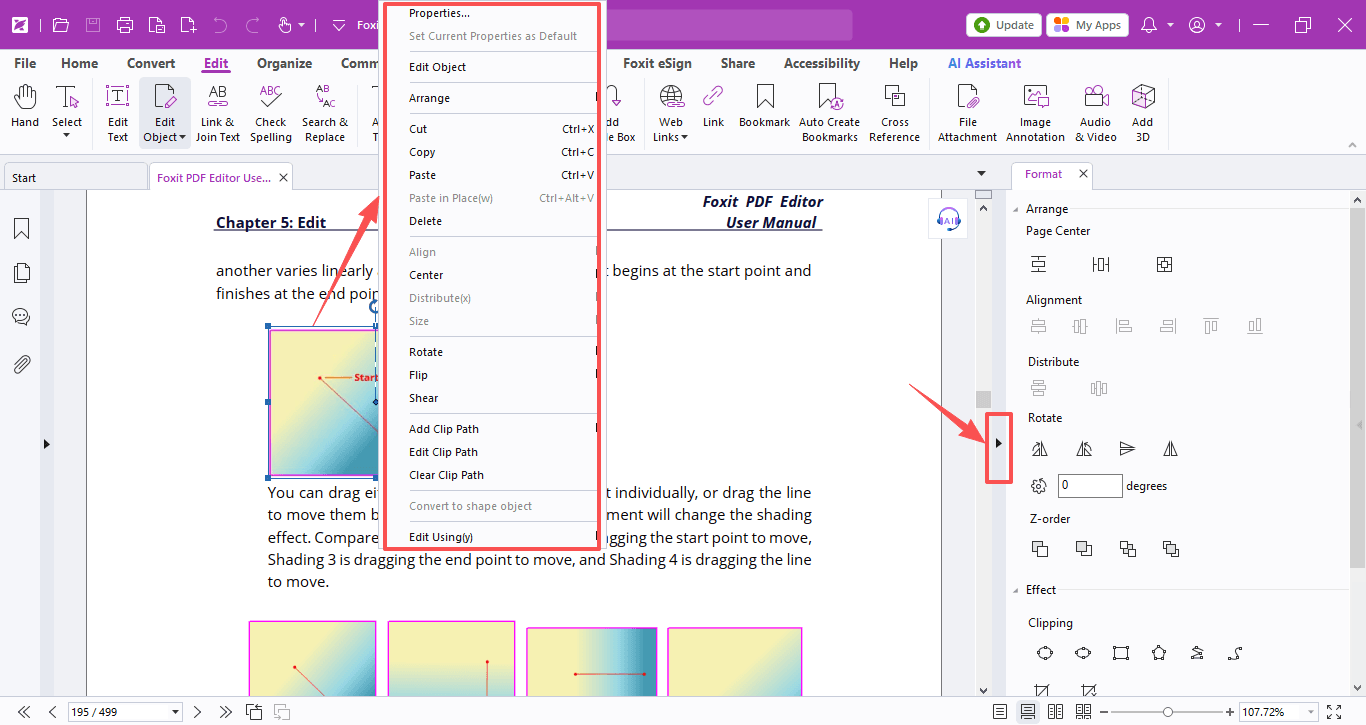
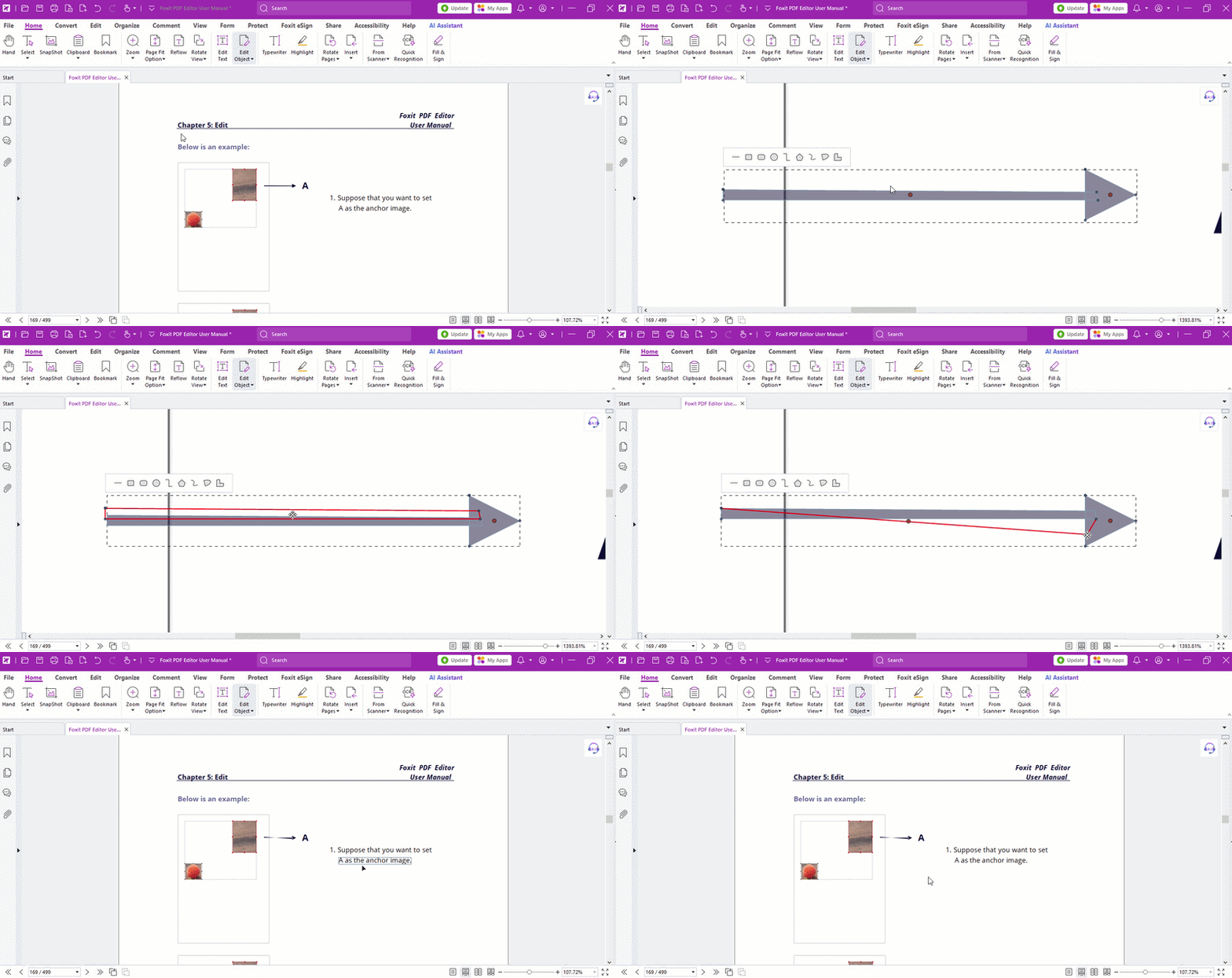
- Right-click an image or shape, or click the small triangle icon on the right to bring up the Format panel. Here you can adjust positioning, rotation, skew, cropping, transparency, delete the object, and more.
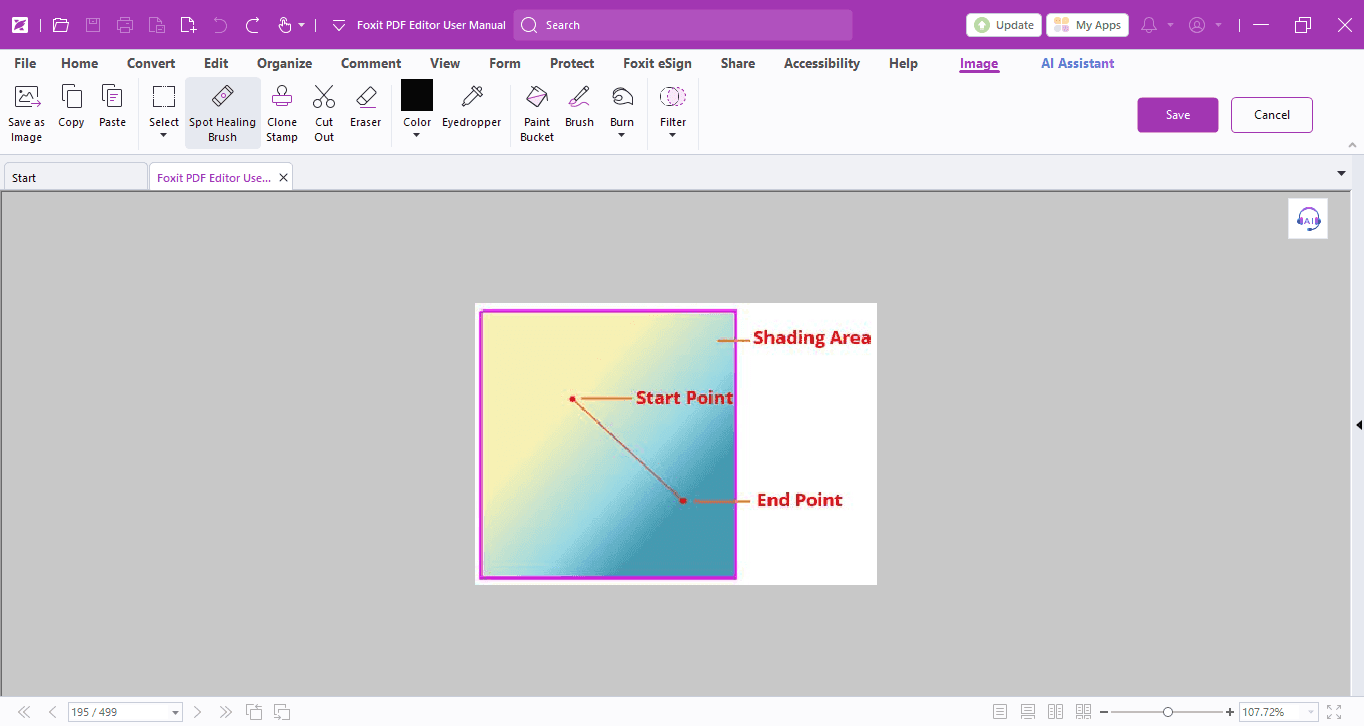
- Double-click an image to enter the image editing mode, where you can crop the image, adjust color fills, apply filters and apply other edits.
- Double-click a shape to modify its path or insert new shape elements, and click anywhere on the page to exit the editing mode.
- You can also import images from folders or draw new images and shapes using the toolbar.
That wraps up today’s guide! Make the most of the editing tools to boost your PDF workflow.
If you need help with any specific case using Foxit PDF Editor, or have questions about how to use it, please feel free to click here to submit your inquiries. We will create dedicated guides based on your actual needs to provide further support.
Try it yourself
Open the interactive Web SDK demo, or talk to a Foxit APAC partner about licensing for your team or campus.