
Weekly Tip #10
How to Extract Text from PDFs
Need to extract text from scanned PDFs or images? Foxit's partial OCR tool lets you recognize just the region you need—fast and easy.
How do you pull text out of scanned PDFs or image files?
Need to grab paragraphs or full pages of text from e-books?
Want to extract and edit text embedded inside PDF images?
Follow Foxit’s quick tip!
For normal PDFs:
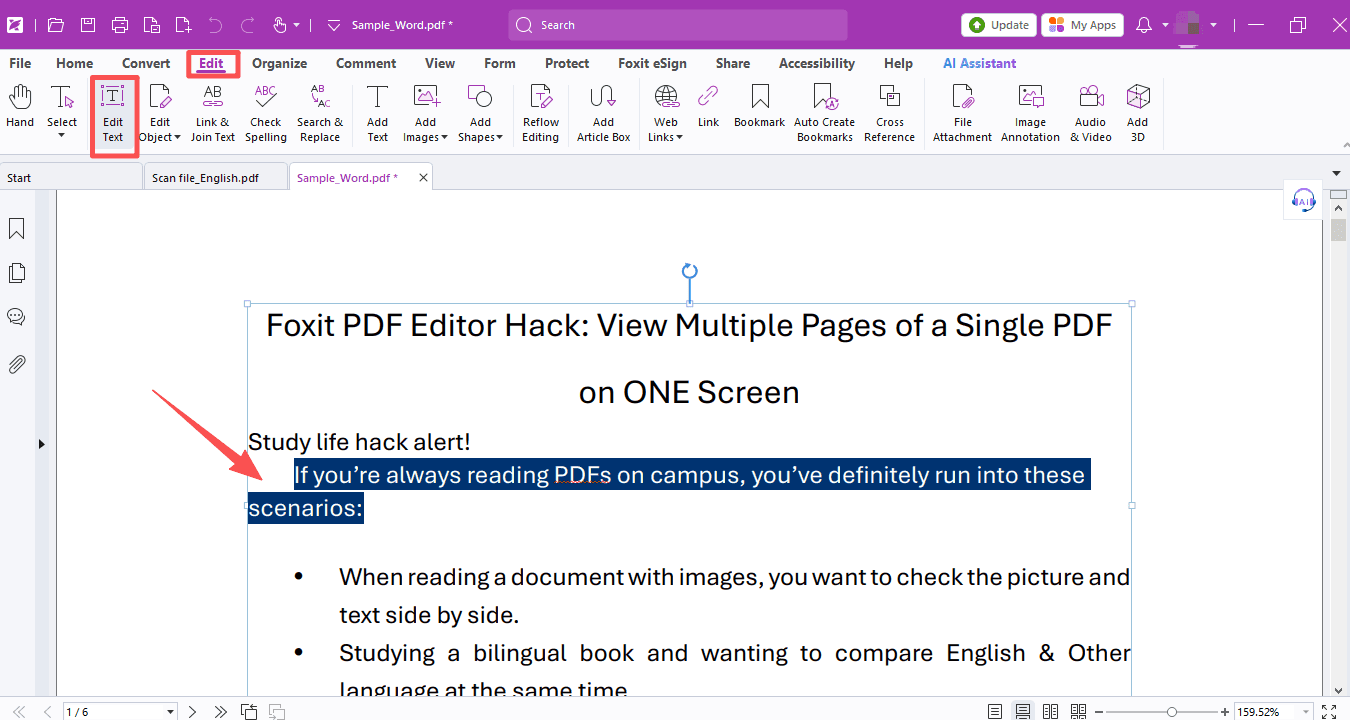
- Simply head to Edit > Edit Text, then copy content just like you would in Microsoft Word.
For scanned/ image PDFs, we use the handy partial OCR tool instead!
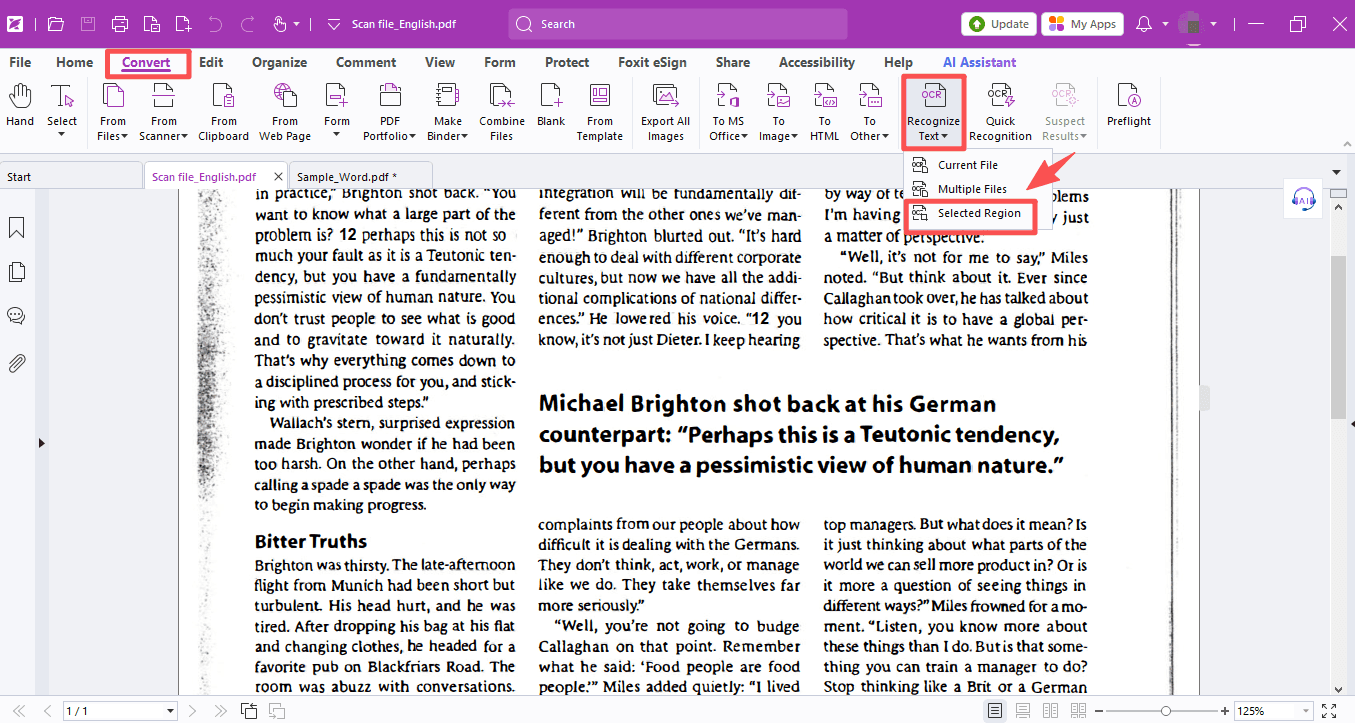
- Open your scanned file and navigate to Convert > Recognize Text > Selected Region.
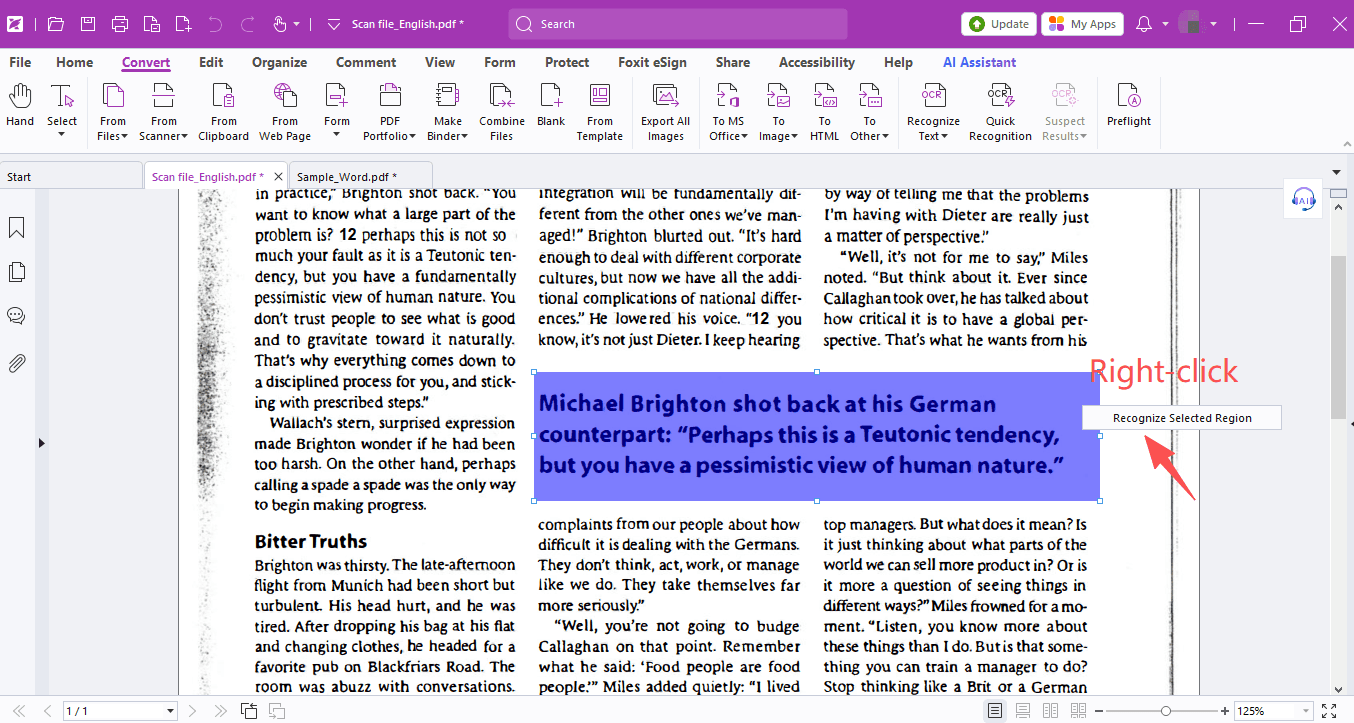
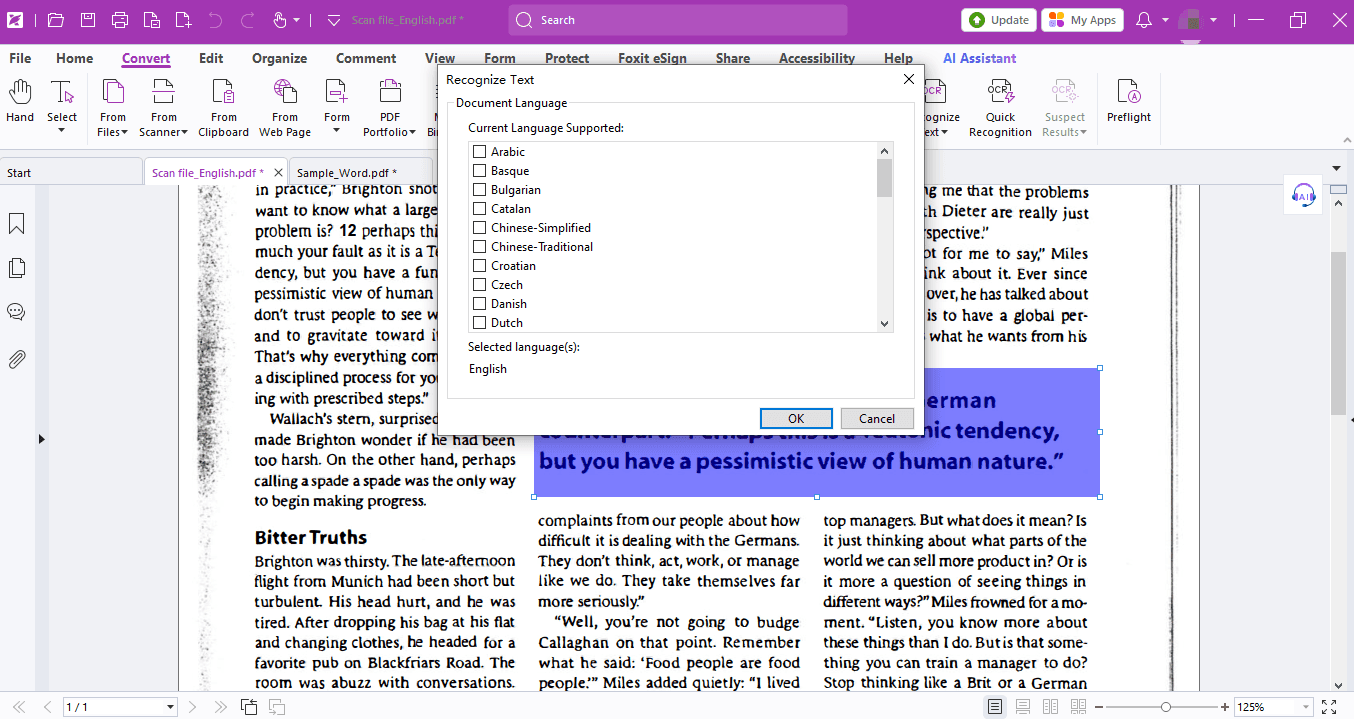
- Drag to highlight the content area you need, right-click and pick Recognize Selected Region. Pick your target language in the pop-up window and confirm.
Once recognition finishes, click and drag to highlight the converted text, then you can copy instantly.
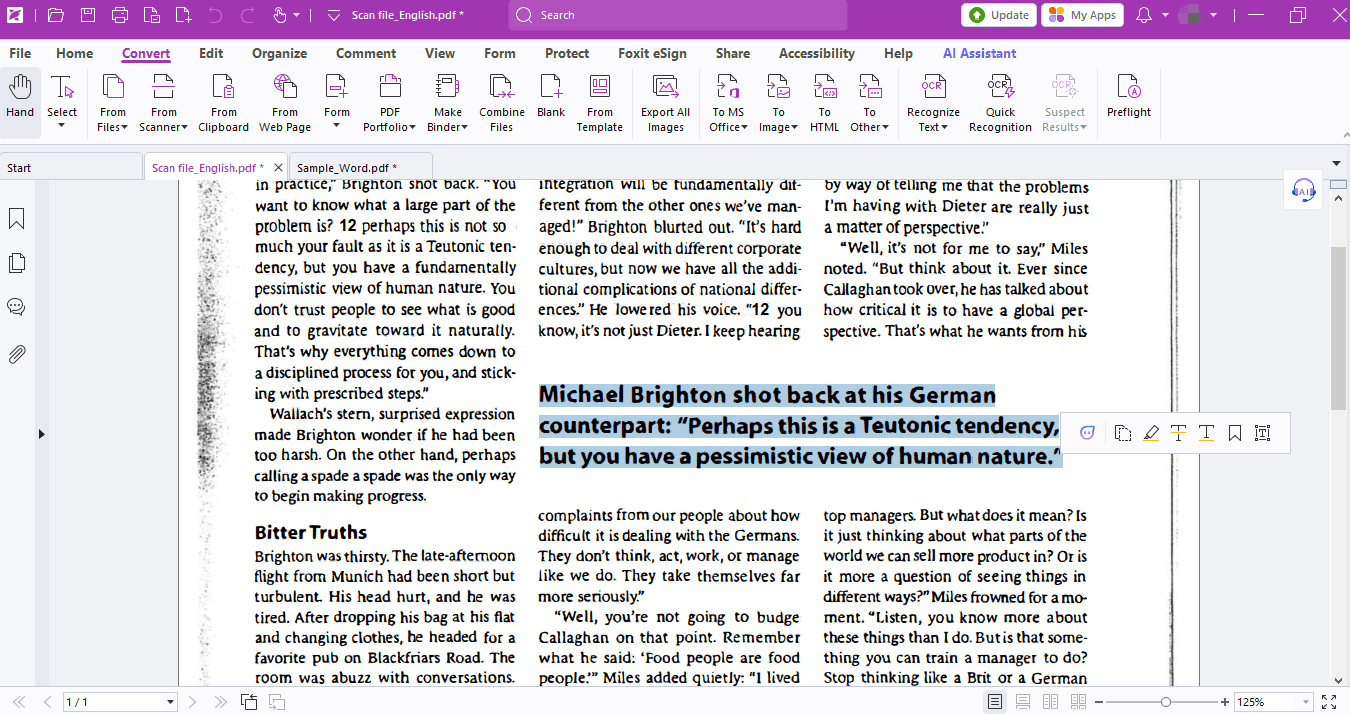
Selective area OCR saves tons of time compared to full-document recognition — perfect for pulling only snippets of text.
Give it a try! Hopefully this neat trick eases your reading and note-taking!
If you need help with any specific case using Foxit PDF Editor, or have questions about how to use it, please feel free to click here to submit your inquiries. We will create dedicated guides based on your actual needs to provide further support.
Try it yourself
Open the interactive Web SDK demo, or talk to a Foxit APAC partner about licensing for your team or campus.