
Weekly Tip #24
How to Extract Tables and Images from Research Papers and Webpages
Tired of copy-pasting messy tables from PDFs and web pages? Foxit PDF Editor pulls them out for you—clean and ready to use.
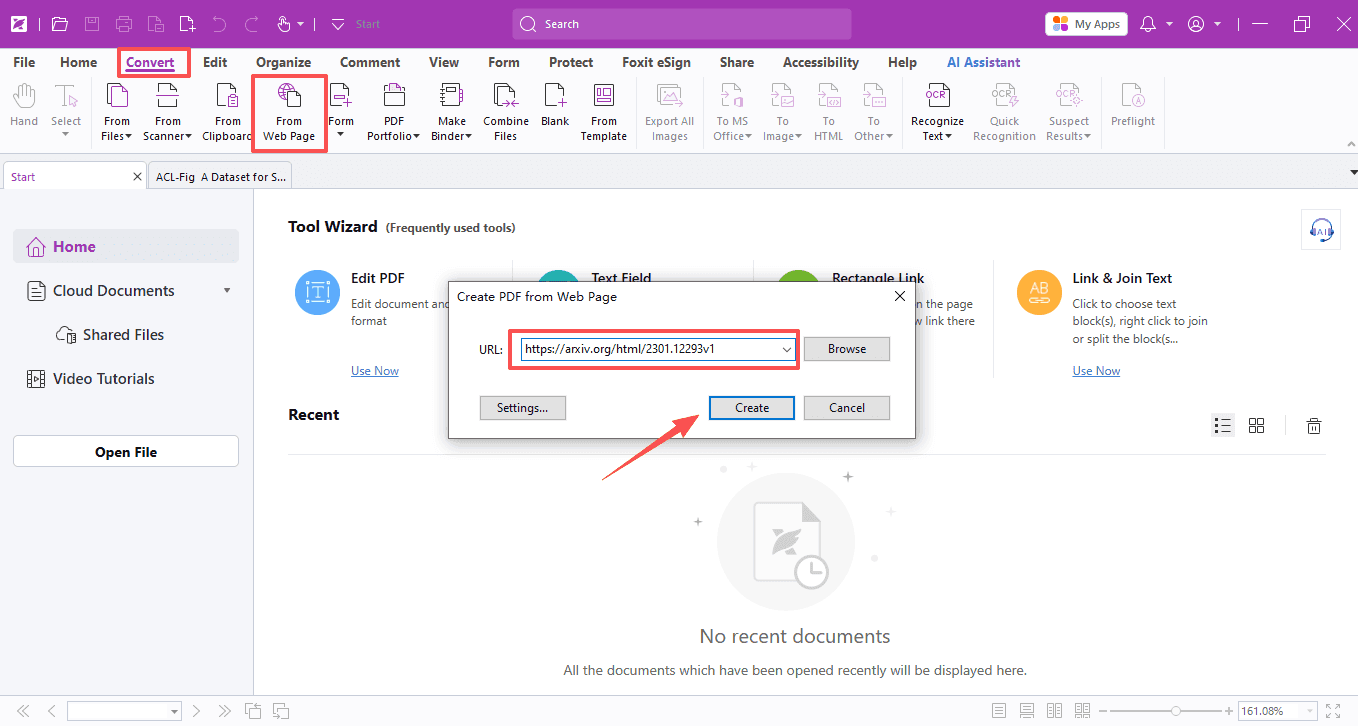
In our 21st tip, we mentioned that Foxit PDF Editor can do more than just convert entire PDFs to Excel—it can also extract specific tables from research papers or save important content straight from web pages.
Curious how? Let's break it down step by step.
Extract Tables from Research Papers
Found a table in a PDF research paper that you need for your analysis? Instead of exporting the entire file, here's a smarter way:
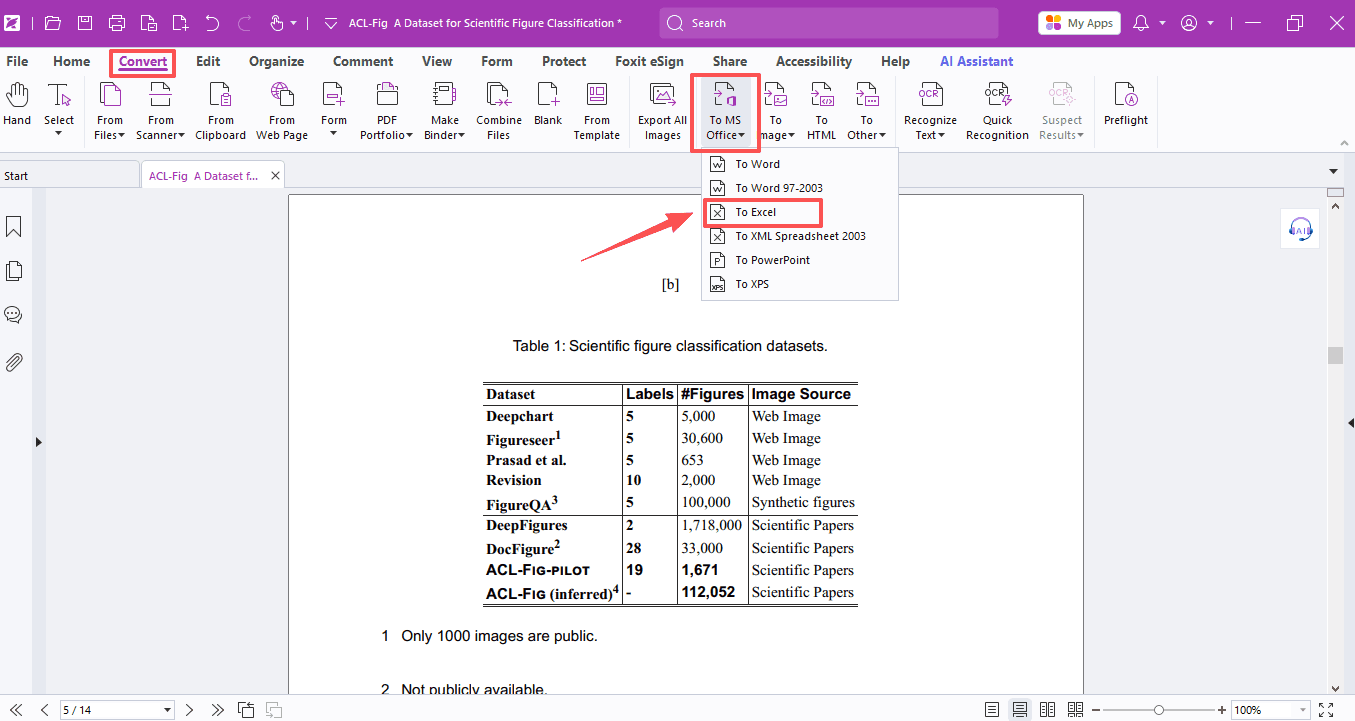
- Open Foxit PDF Editor and head to the Convert tab → To MS Office → To Excel.
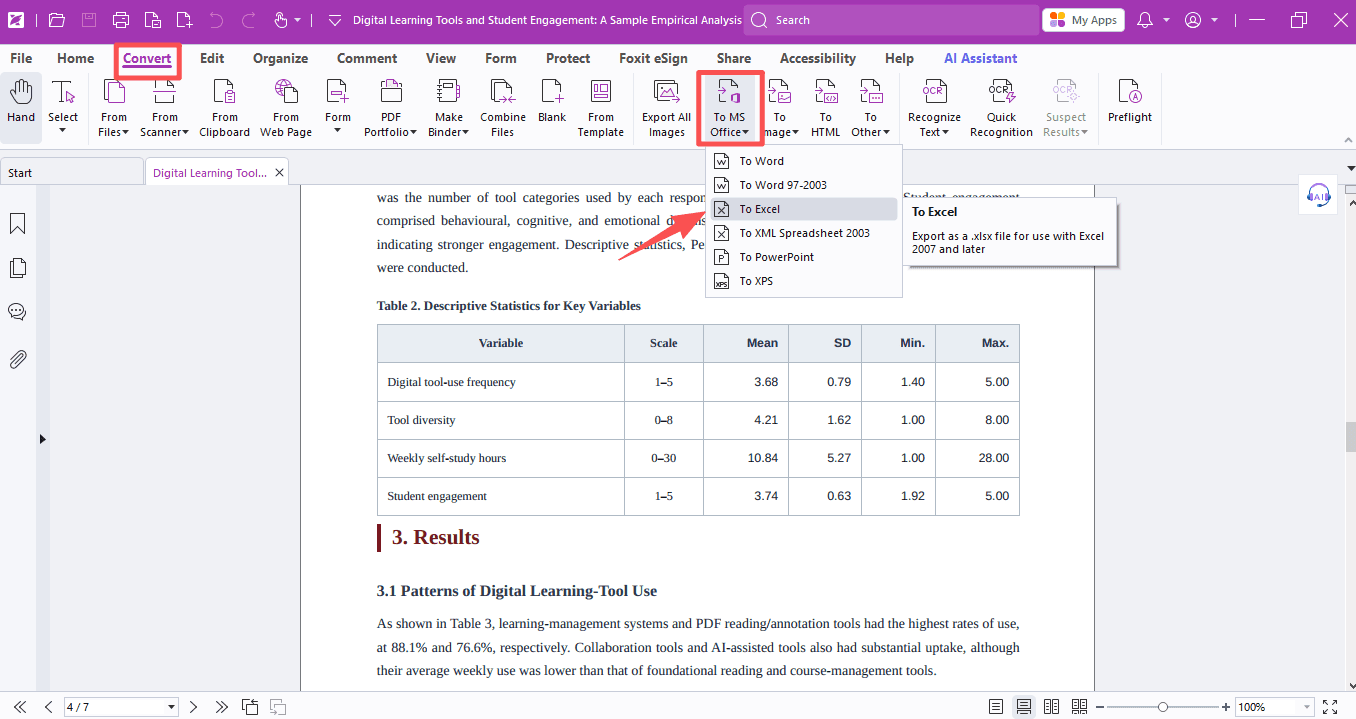
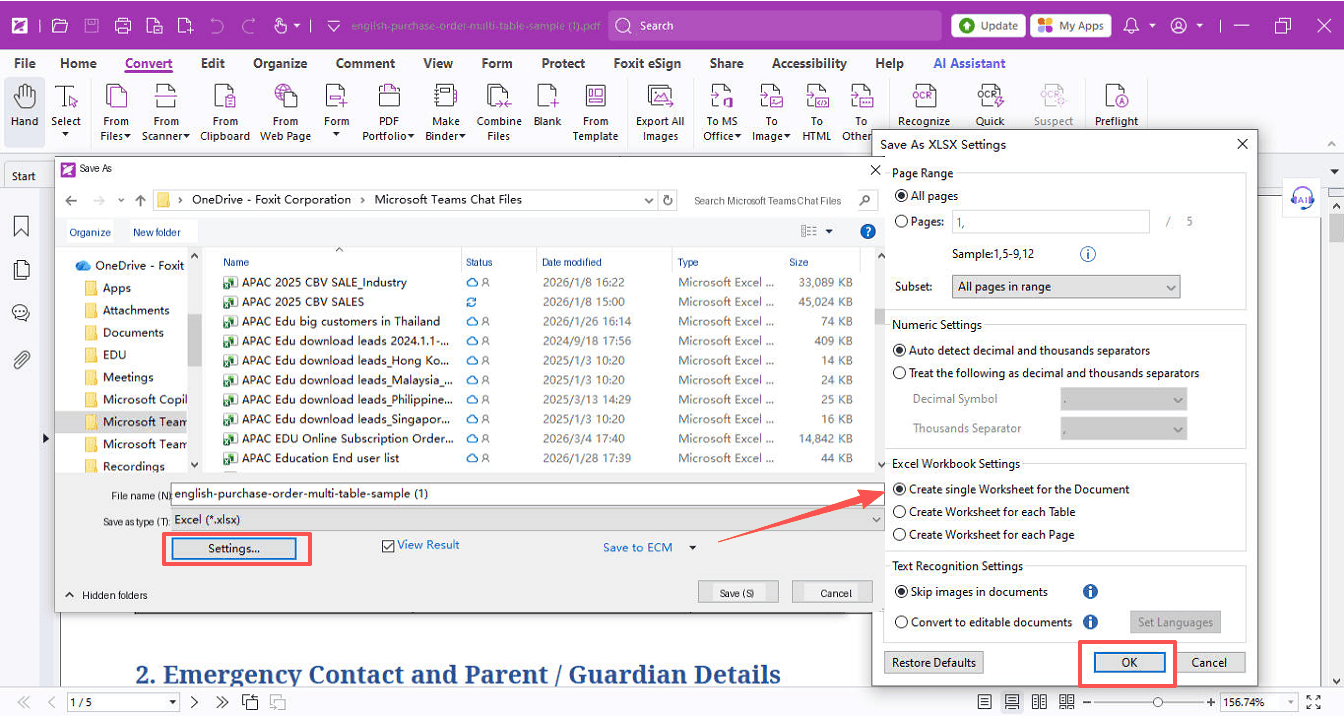
- Choose where to save the file, then click the Settings button. In the pop-up dialog box, you can:
- Select the page range you want
- Adjust the numeric settings to match your data
- Enable text recognition if your PDF is scanned
- Under Excel Workbook Settings, choose Create Single Worksheet for the Document.
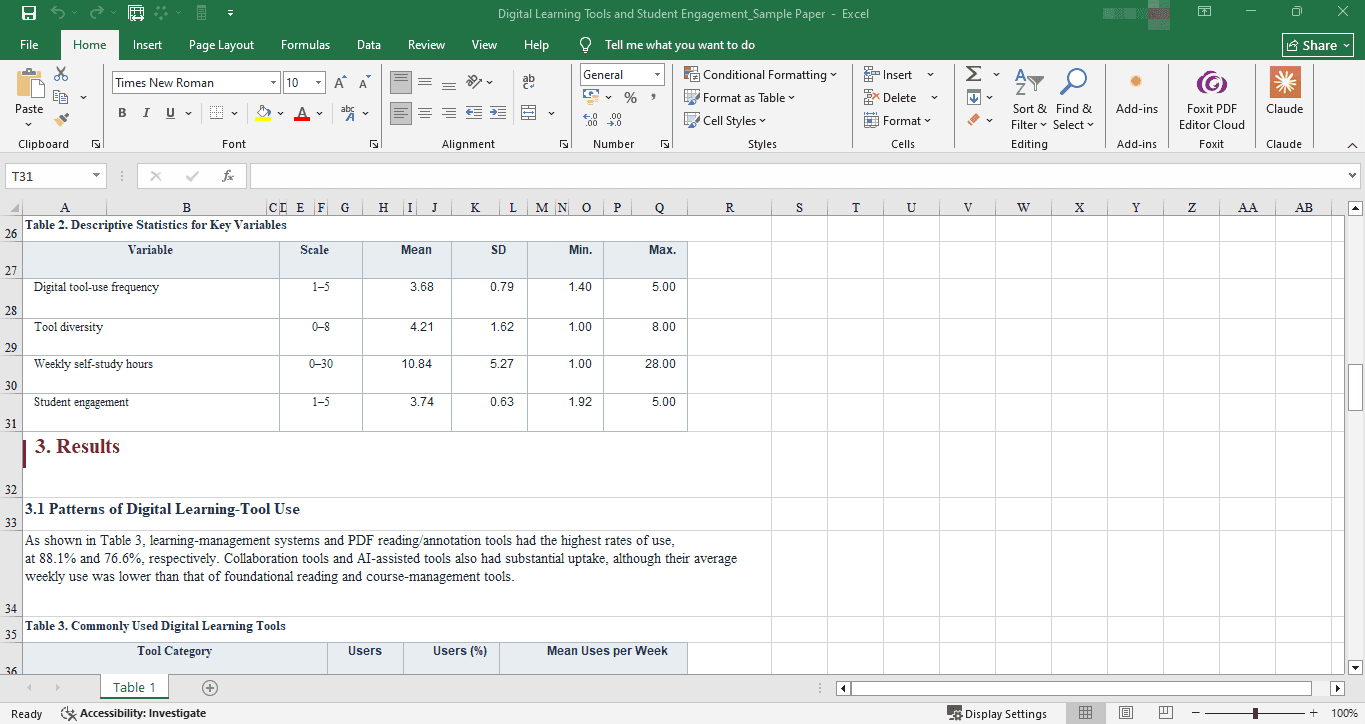
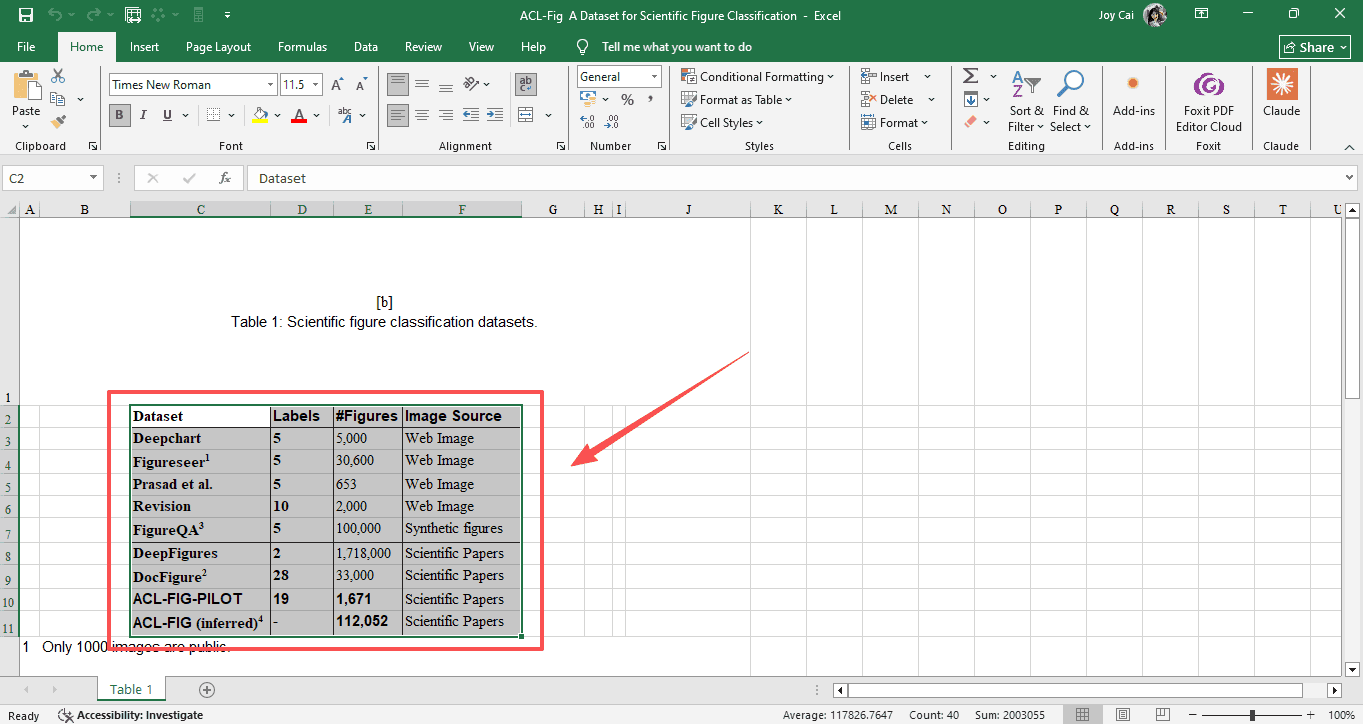
- Hit Save, and the table will appear neatly in Excel. You can simply copy the tables you need into other sheets, leaving behind all the text and clutter you don't want.
Save Images and Tables from Webpages
Found a useful table or dataset on a website? Don't copy-paste it manually—save the whole page as a PDF and work from there:
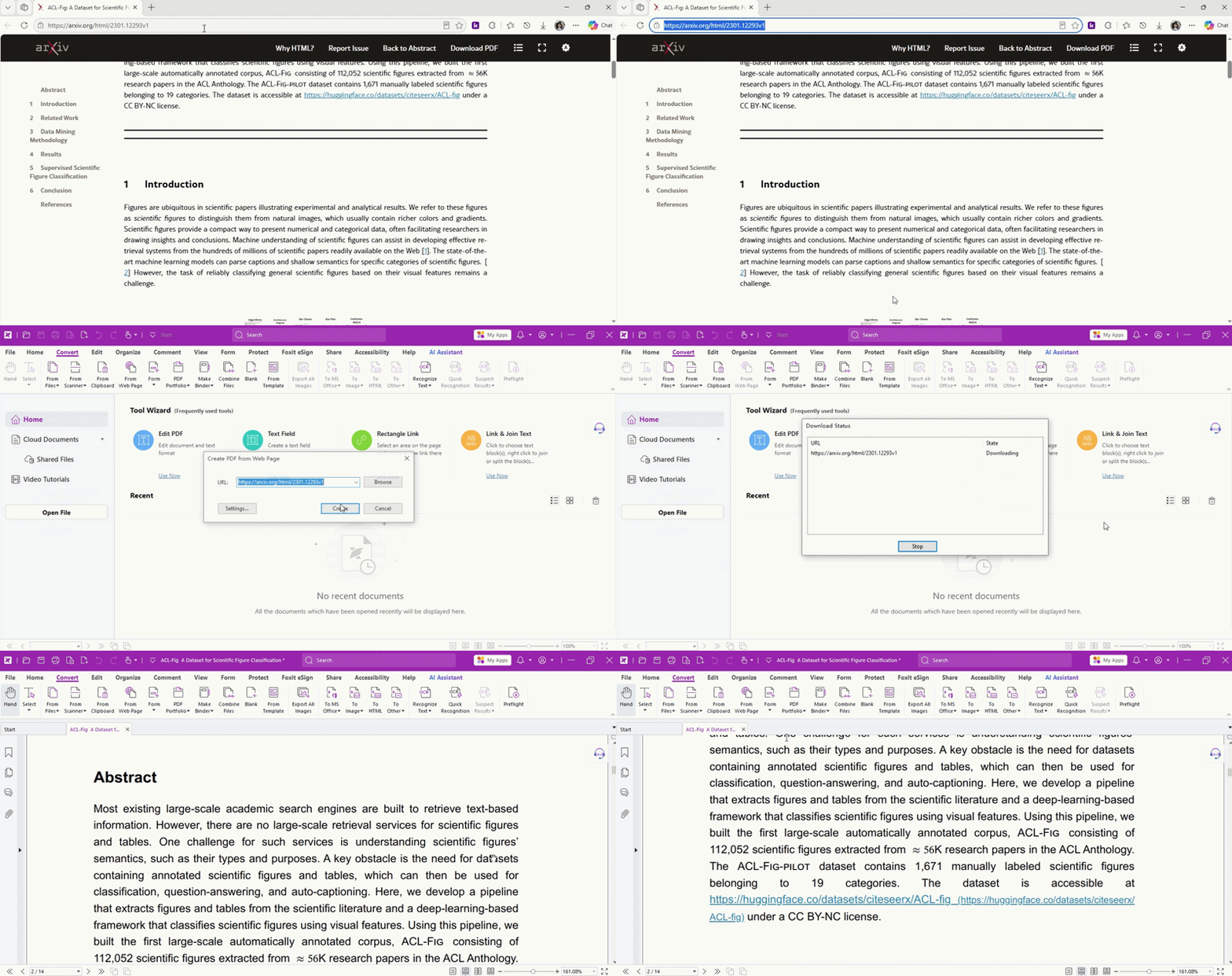
- Copy the webpage URL.
- Open Foxit PDF Editor, go to Convert → From Web Page, paste the URL, and click Create.
The webpage will be saved as a PDF—perfect for offline access, annotation, and organization.
Now, here's where it gets even better:
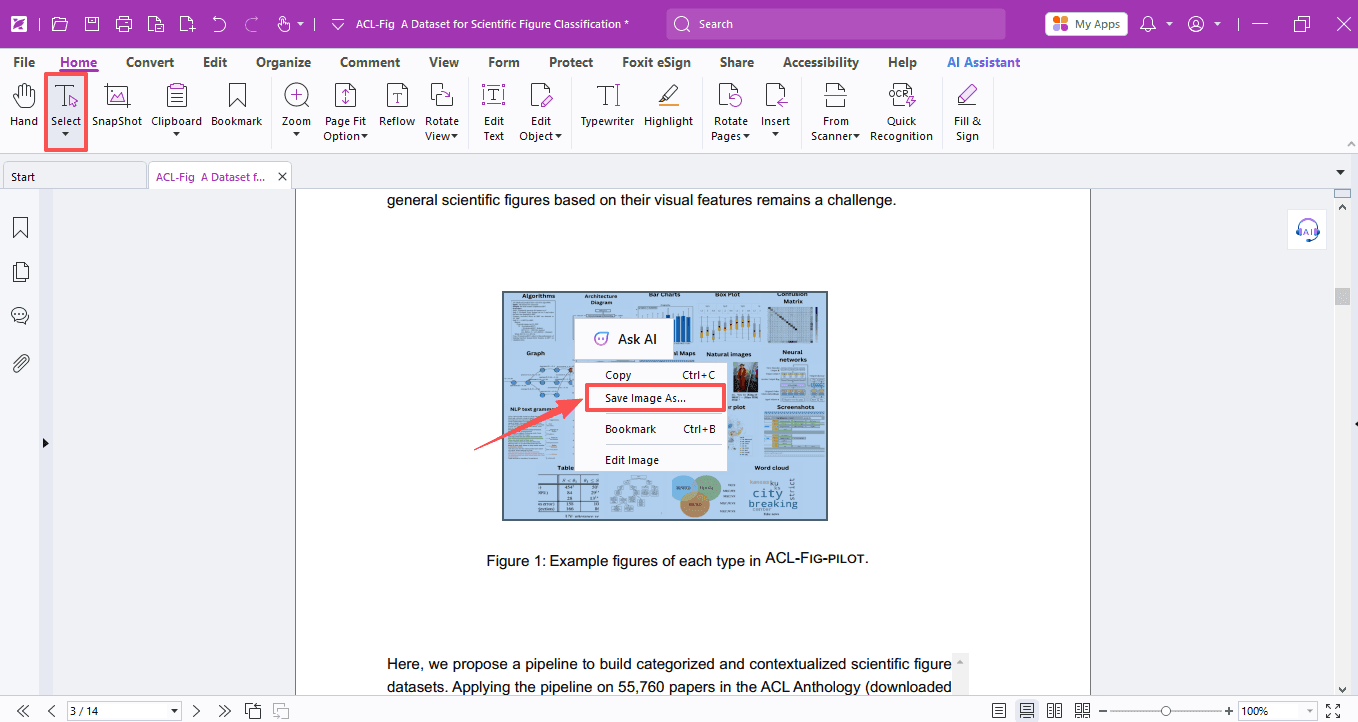
- Save an image from the PDF
- Choose the Select tool and click the image.
- Right-click the image and select Save Image As…
- Save a table from the PDF
Use the same PDF-to-Excel extraction method we showed above—just convert the saved webpage to PDF and pull out the tables you need.
That wraps up today's tips! We hope you find them helpful for your research and studies.
If you need help with any specific case using Foxit PDF Editor, or have questions about how to use it, please feel free to click here to submit your inquiries. We will create dedicated guides based on your actual needs to provide further support.
Try it yourself
Open the interactive Web SDK demo, or talk to a Foxit APAC partner about licensing for your team or campus.