
Weekly Tip #16
How to Extract Specific Pages from a PDF
No more full textbook PDFs! Extract key chapters and cut the clutter, all in seconds with Foxit PDF Editor.
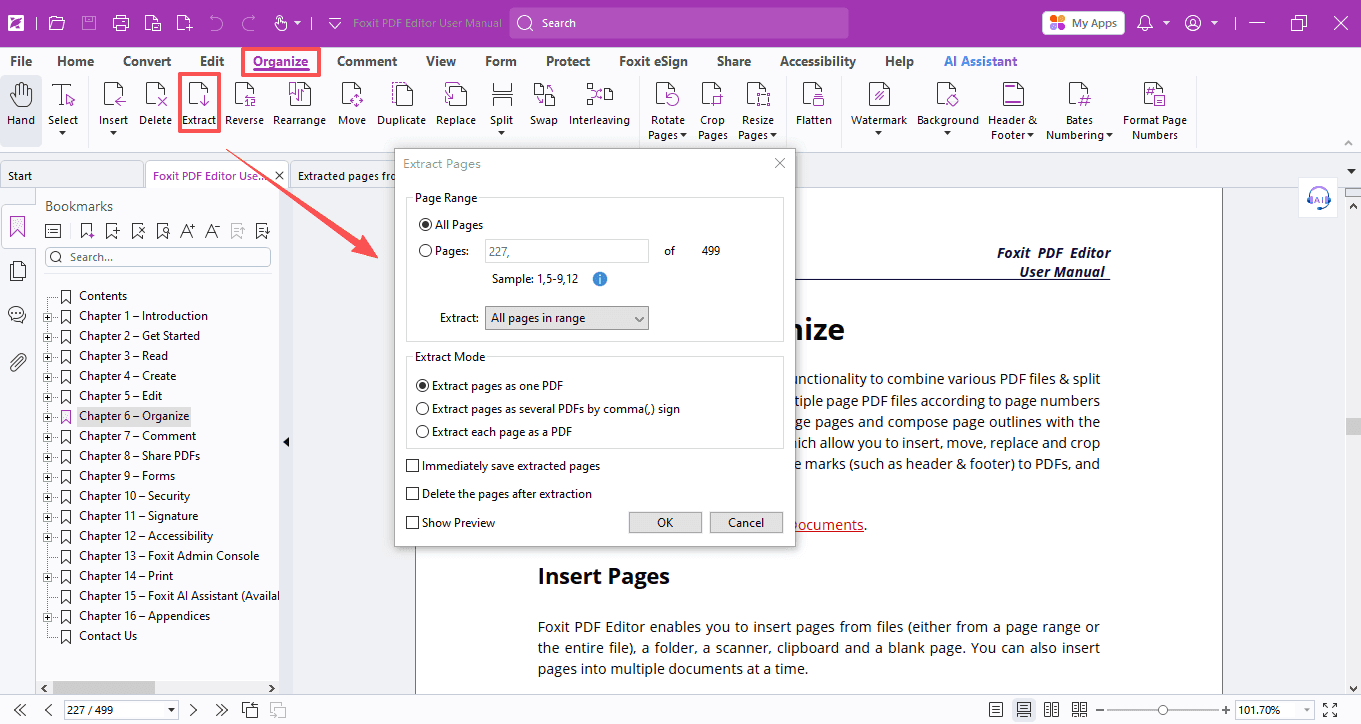
No more full textbook PDFs! Extract key chapters and cut the clutter, all in seconds with Foxit PDF Editor. Here’s a quick guide to get you started.
- Open your PDF in Foxit PDF Editor, hit Organize > Extract.
- Customize your page range and extract mode in the pop-up window.
- Click OK to extract the target pages. Save the new file to your device, and you’re done!
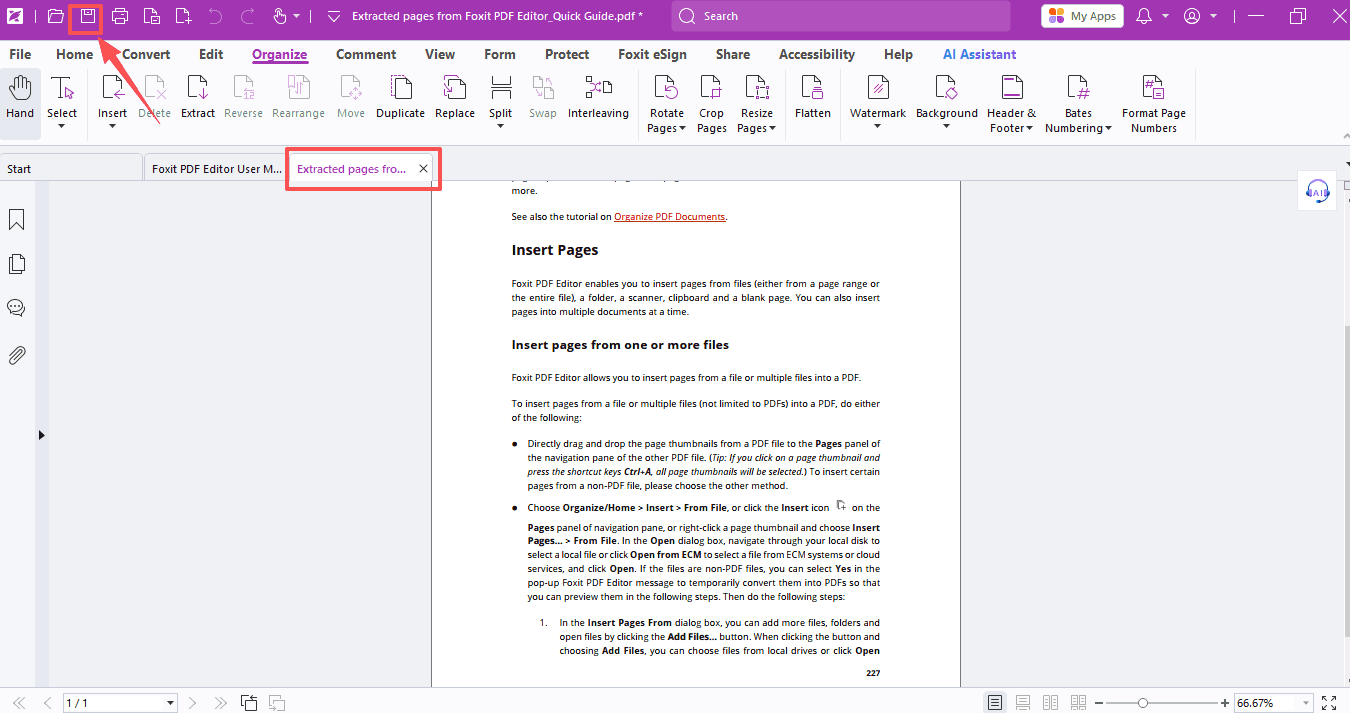
Handy Settings to Try
1. Page Range
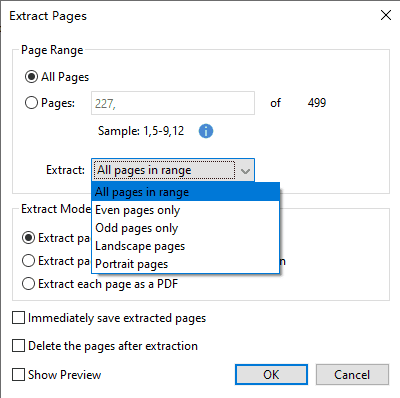
Easily filter and grab exactly the pages you want:
- All pages in the selected range
- Even / Odd pages only
- Landscape / Portrait pages
2. Extract Mode
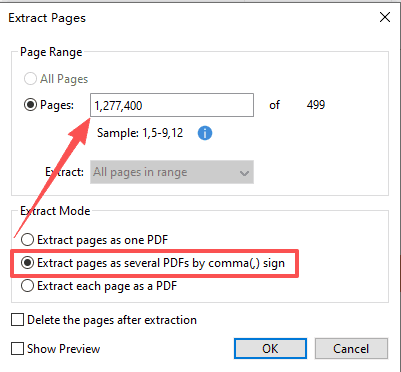
- Extract pages as one PDF: Merge all selected pages into one neat file.
- Extract pages as several PDFs by comma (,) sign: Use commas to split different page ranges into individual files with auto-generated names.
- Extract each page as a PDF: Save every selected page as its own independent file.
3. Extra Useful Tools
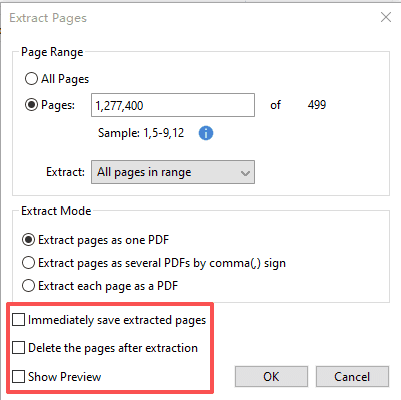
- Immediately save extracted pages: The extracted pages will be saved as a new PDF file without being automatically opened.
Note: If unchecked, the new file will open automatically but won’t be saved, so manual saving is required.
- Delete the pages after extraction: Remove extracted pages from your original PDF to clean up your file.
- Show Preview: Double-check your pages before exporting to avoid mistakes.
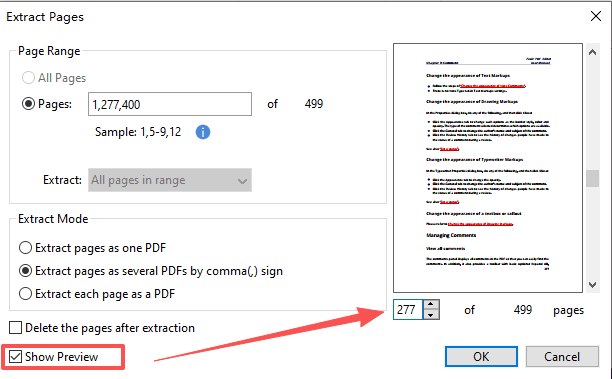
Quick Note: Immediately save extracted pages will be unavailable when you choose Extract pages as several PDFs by comma (,) sign or Extract each page as a PDF. You’ll just need to pick a folder to save your new PDFs manually!
A must-know study tip for school life! Save time and share files more easily. Stay tuned for more!
If you need help with any specific case using Foxit PDF Editor, or have questions about how to use it, please feel free to click here to submit your inquiries. We will create dedicated guides based on your actual needs to provide further support.
Try it yourself
Open the interactive Web SDK demo, or talk to a Foxit APAC partner about licensing for your team or campus.