
Weekly Tip #19
How to Edit Text Directly in a PDF Without Converting to Word
Why convert PDFs to Word when you can edit them directly? Save yourself the endless back-and-forth and get the job done efficiently.
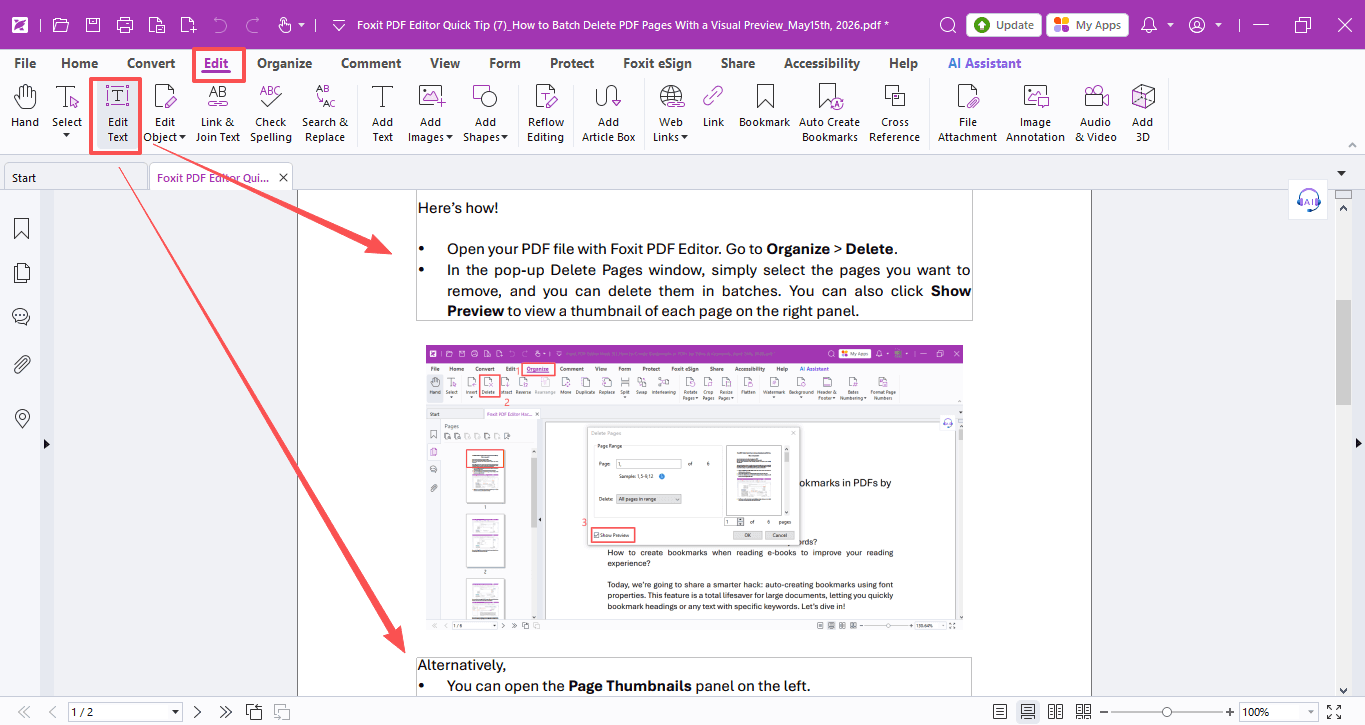
When you get PDF materials and need to add extra content, do you instinctively convert the PDF to Word first to make edits? When your supervisor sends revision comments on your submitted PDF report, do you re‑edit the Word version and export it back to PDF again?
Constantly converting between formats is incredibly inefficient and eats up way too much of your time.
For small, quick text edits inside a PDF, Foxit PDF Editor lets you get the job done directly and efficiently!
- Open your PDF file in Foxit PDF Editor. Go to the Edit tab on the toolbar and select Edit Text. The text in your PDF will split into editable text boxes and you can now modify text directly within these text boxes.
- Use the Format panel on the right‑hand side to change font type, font size, text color and more.
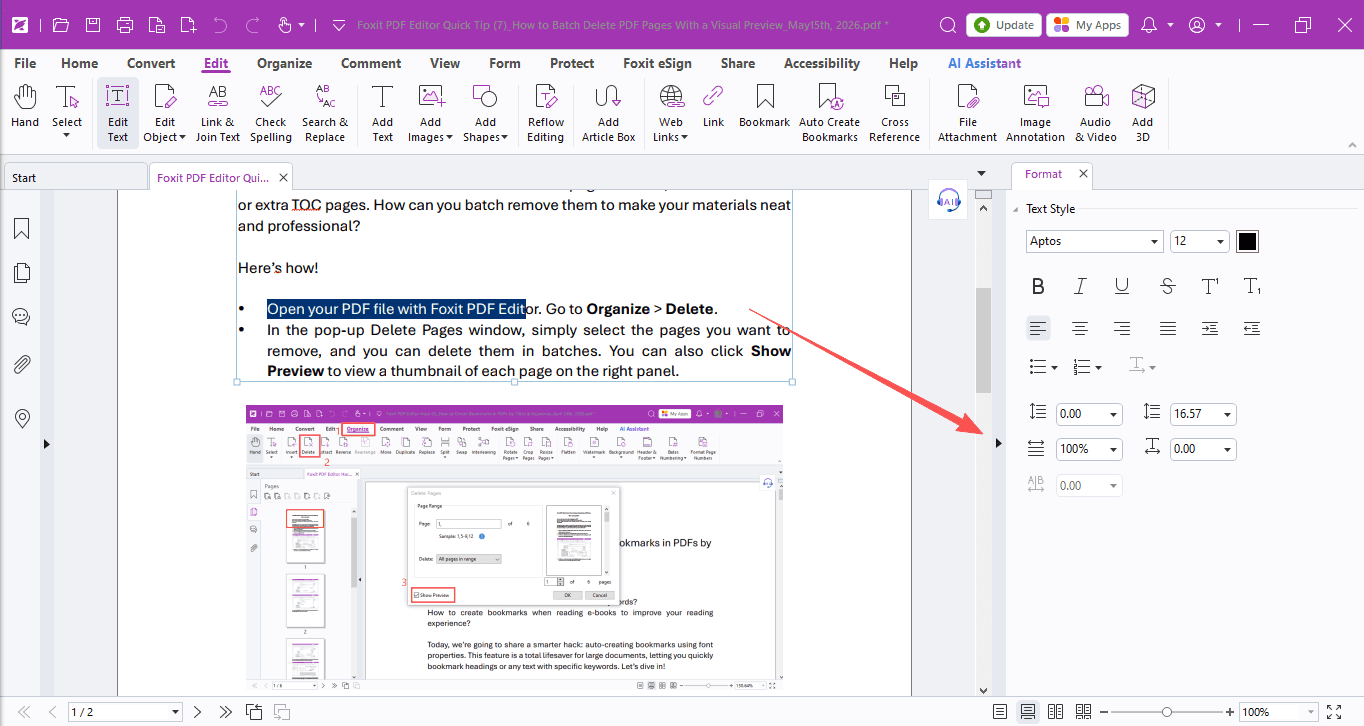
You can also add numbering and adjust line spacing or paragraph spacing from the same Format panel.
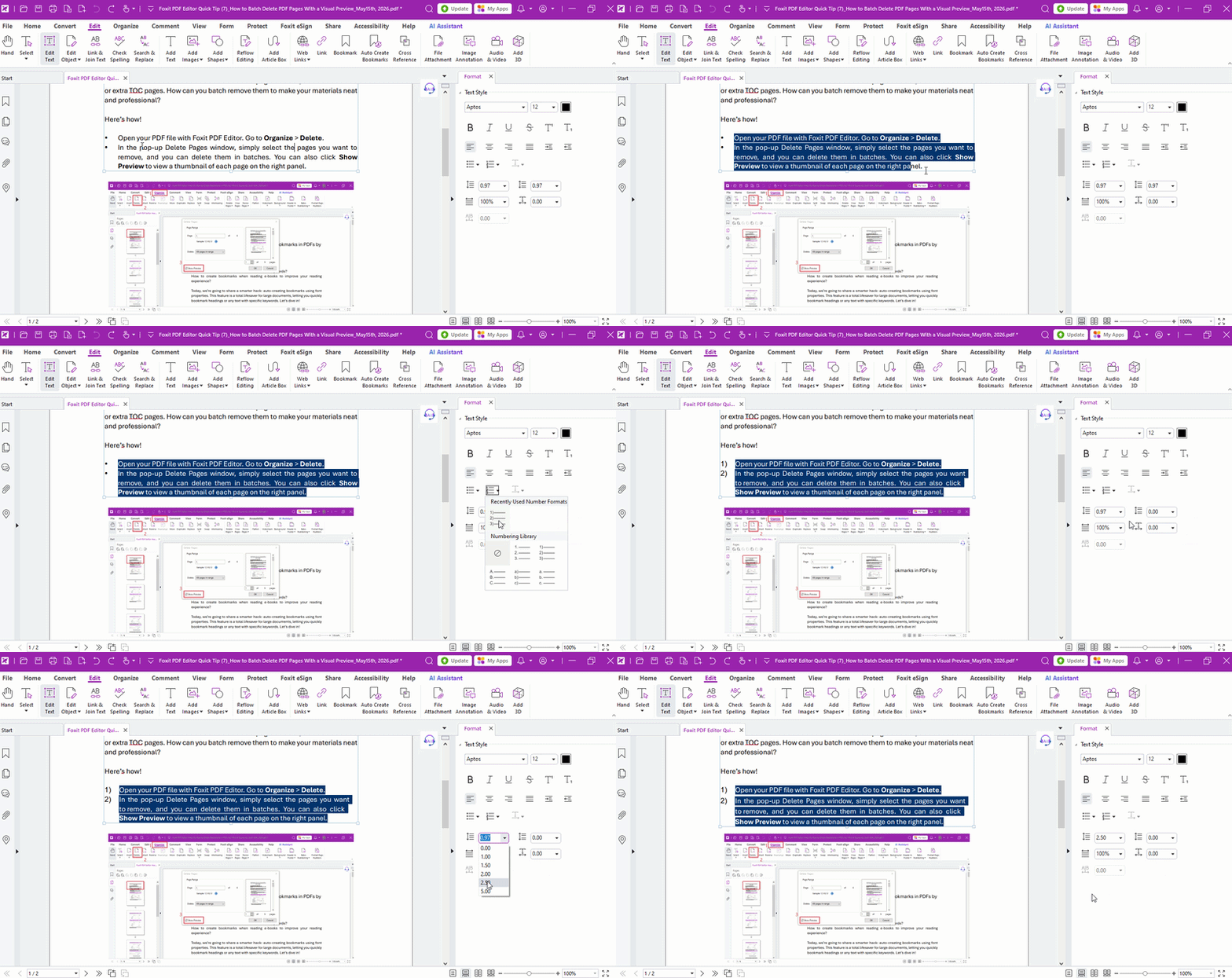
- Select an entire text box and drag it to move it to a new location. Drag the borders of the text box to adjust its height and width.
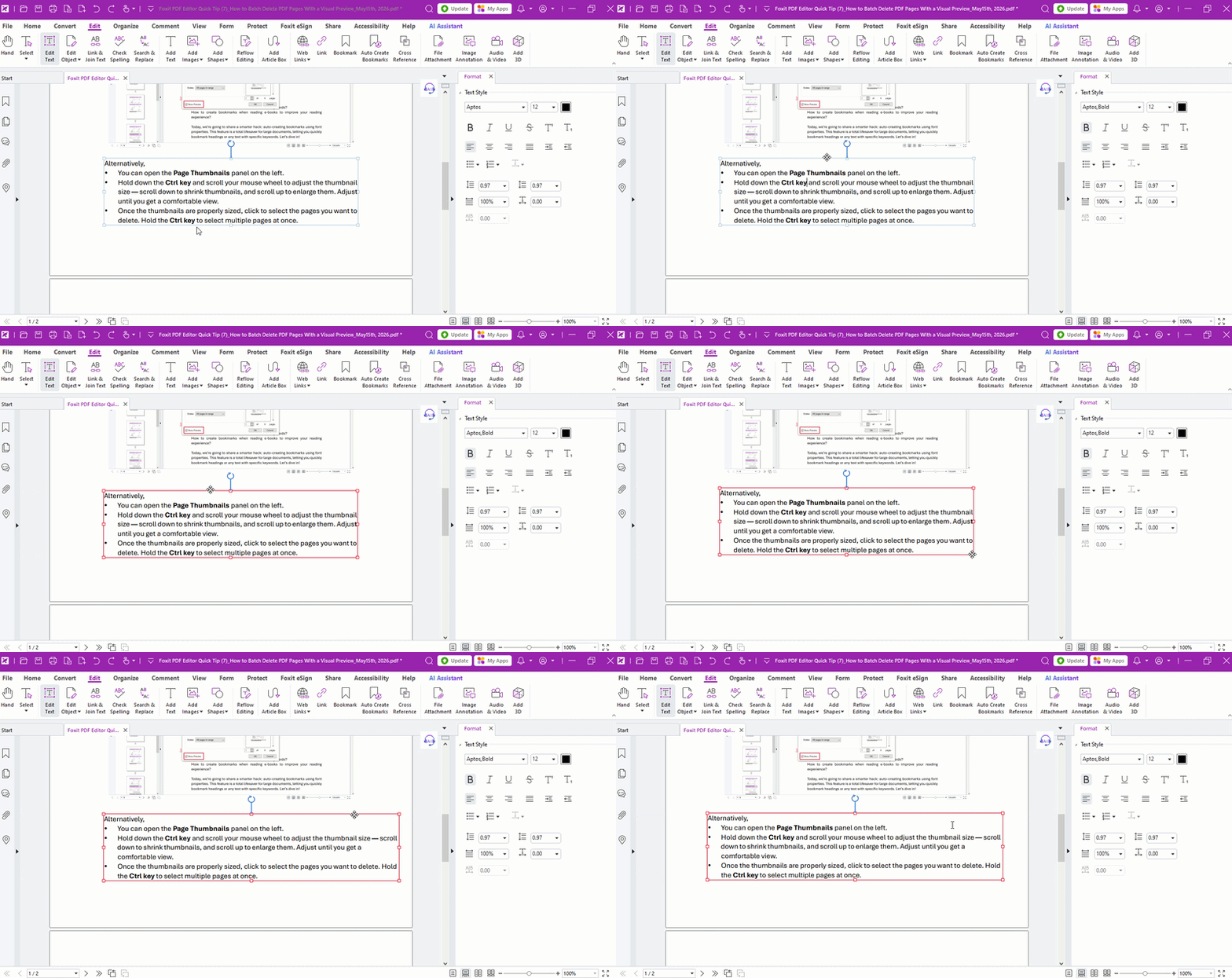
That’s how you edit text directly within a PDF document. Master this trick and you will drastically speed up your PDF text‑editing workflow.
If you need help with any specific case using Foxit PDF Editor, or have questions about how to use it, please feel free to click here to submit your inquiries. We will create dedicated guides based on your actual needs to provide further support.
Try it yourself
Open the interactive Web SDK demo, or talk to a Foxit APAC partner about licensing for your team or campus.