
Weekly Tip #5
How to Create Bookmarks in PDFs by Titles & Keywords
How to create bookmarks when reading e‑books to improve your reading experience? Foxit PDF Editor has the answer.
How to create bookmarks from headings in a PDF?
How to customize bookmarks in a PDF based on keywords?
How to create bookmarks when reading e‑books to improve your reading experience?
Today, we’re going to share a smarter hack: auto‑creating bookmarks using font properties. This feature is a total lifesaver for large documents, letting you quickly bookmark headings or any text with specific keywords. Let’s dive in!
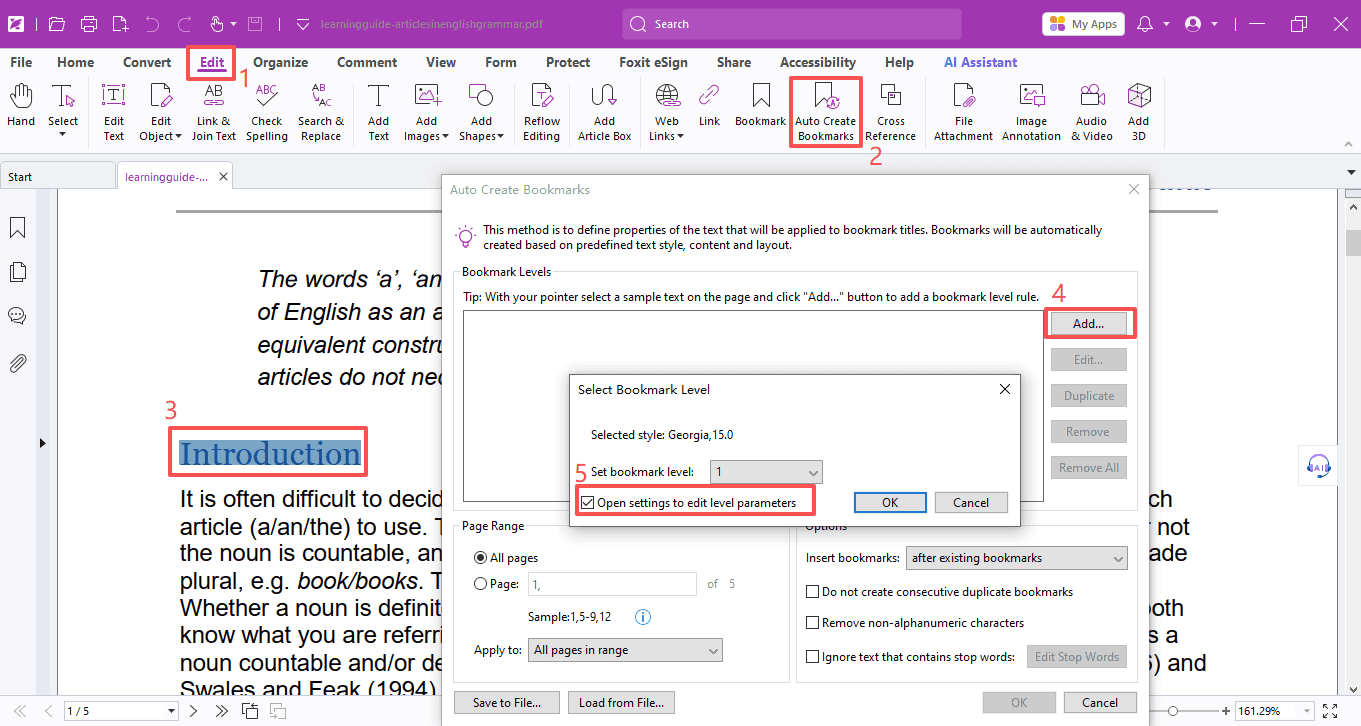
- Open your PDF in Foxit PDF Editor. Go to Edit > Auto Create Bookmarks. A settings window will pop up.
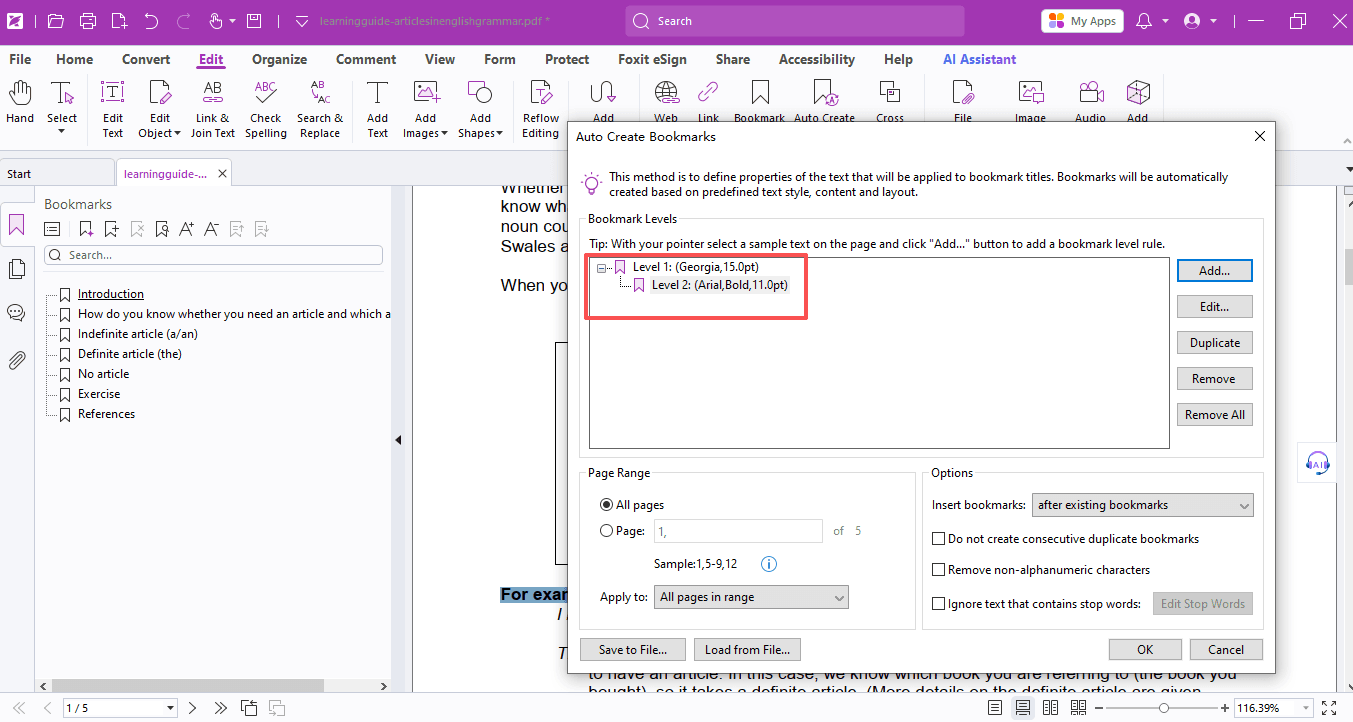
- Choose the text style you want to turn into bookmarks and click Add.
- In the new window, set your bookmark level, check Open settings to edit level parameters, then click OK.
- You’ll now see the Bookmark Level Settings panel, where you can adjust search rules and text properties (like font and size).
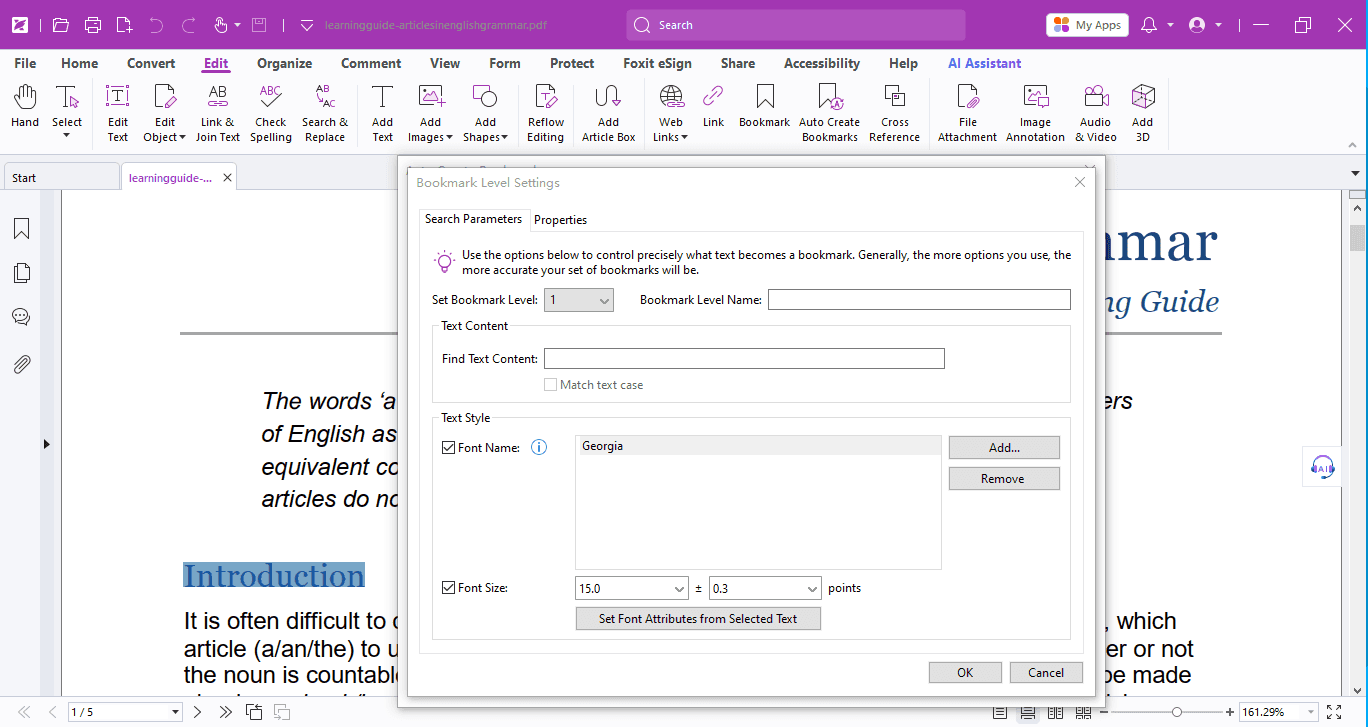
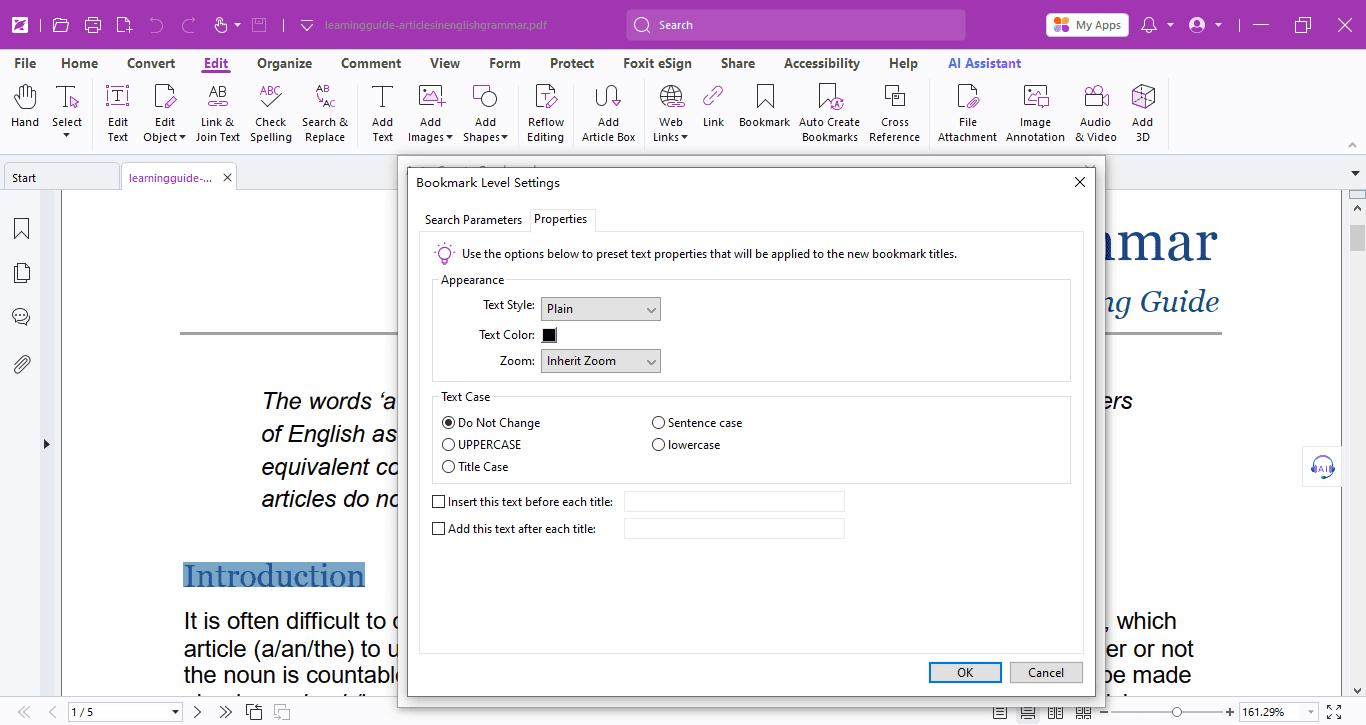
Once you click OK, you’ll go back to the Auto Create Bookmarks window. You can preview, edit, or delete bookmarks on the right.
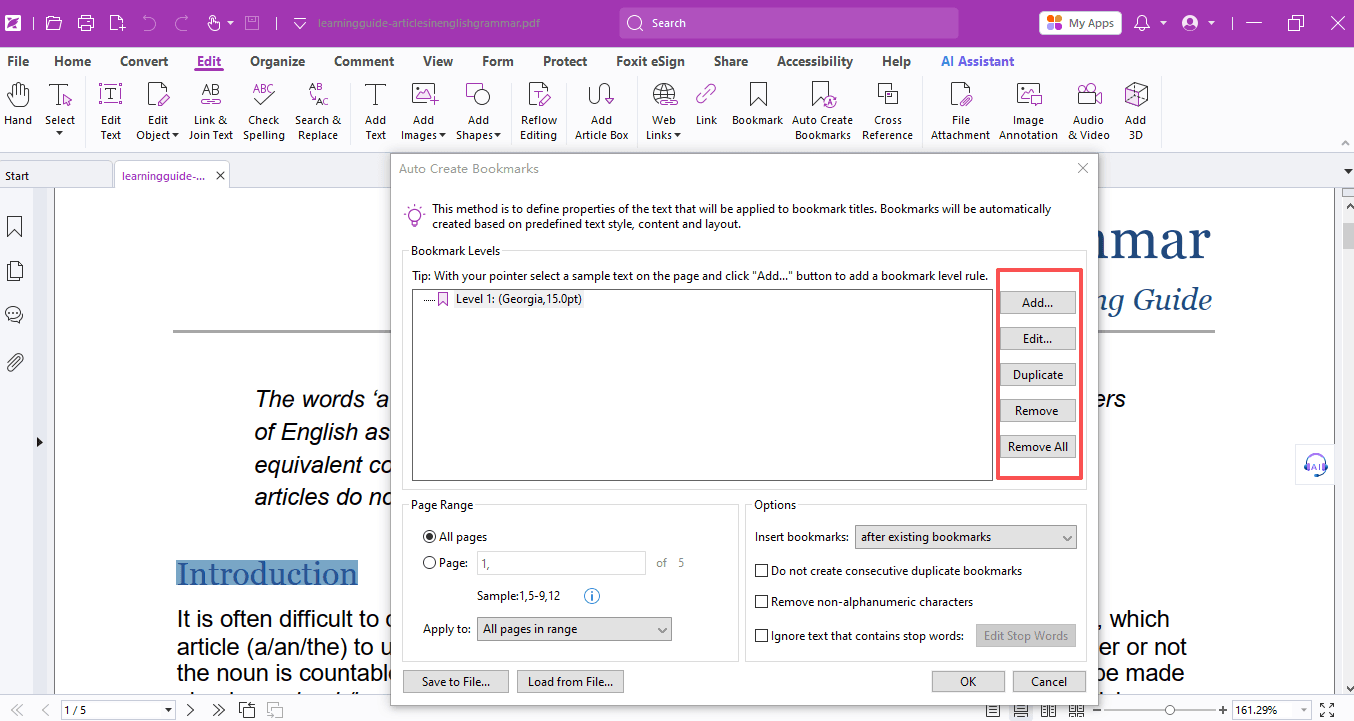
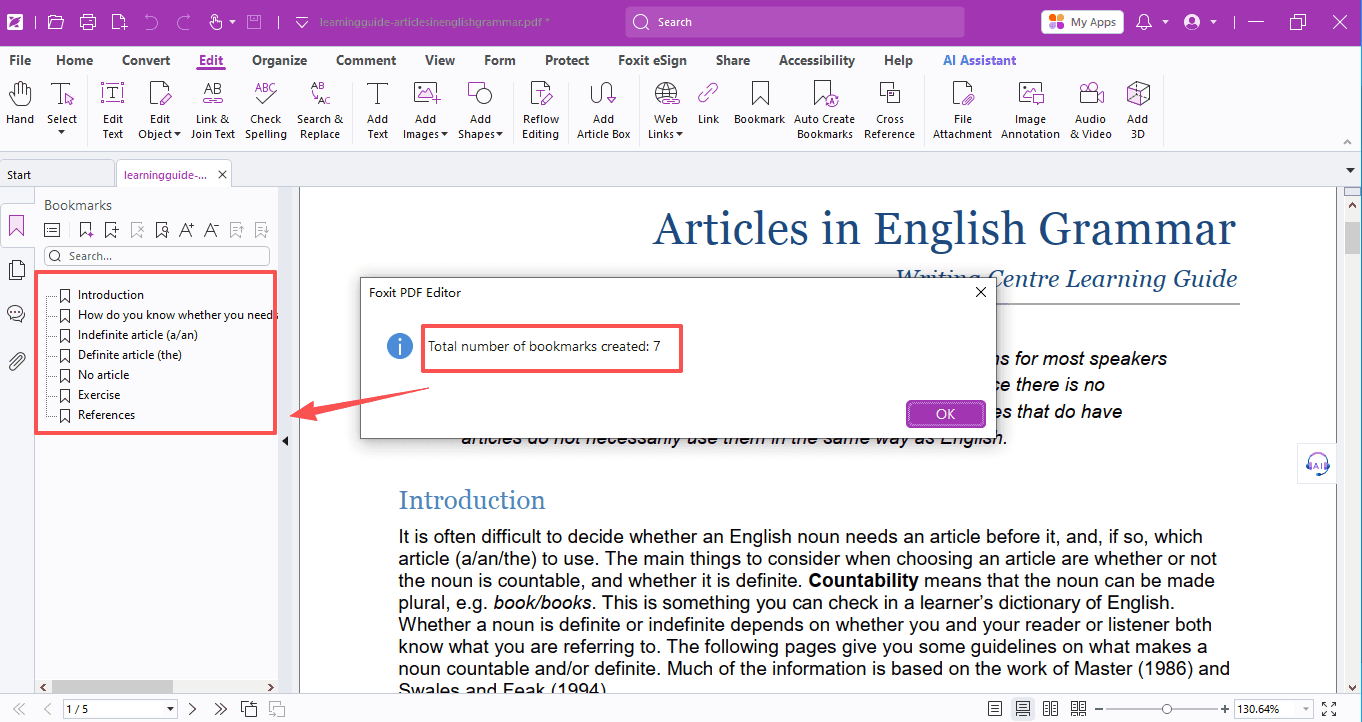
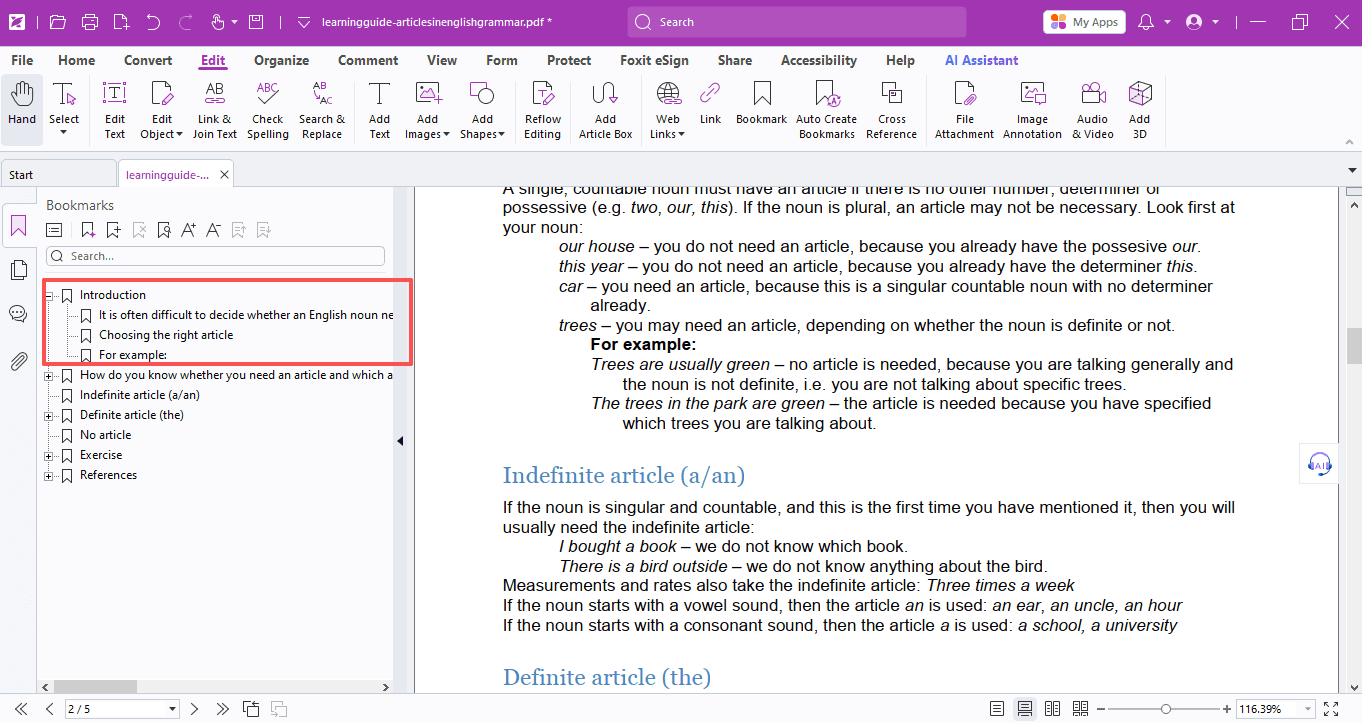
When everything looks good, click OK. The program will automatically detect text with your chosen font and size and turn it into bookmark titles.
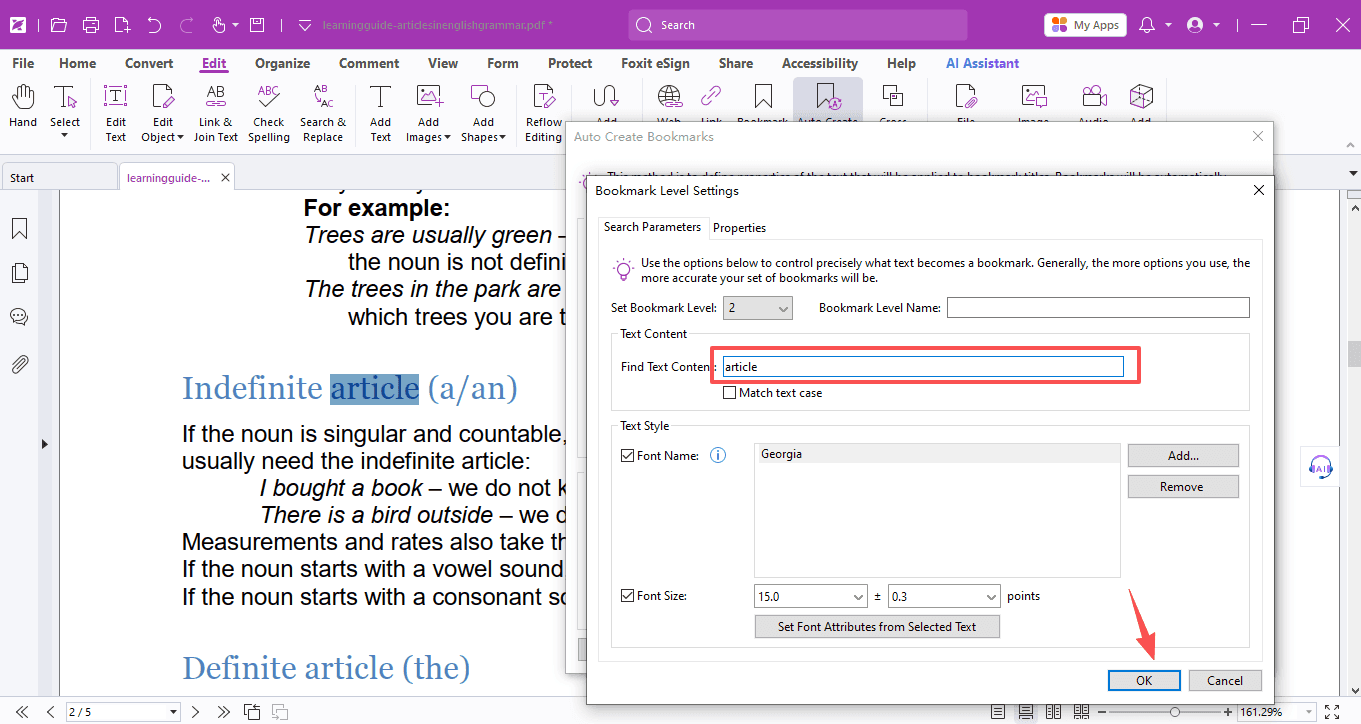
If you want to bookmark specific keywords instead, just type your target text in the Bookmark Level Settings box, hit OK, and bookmarks will be created for that exact phrase.
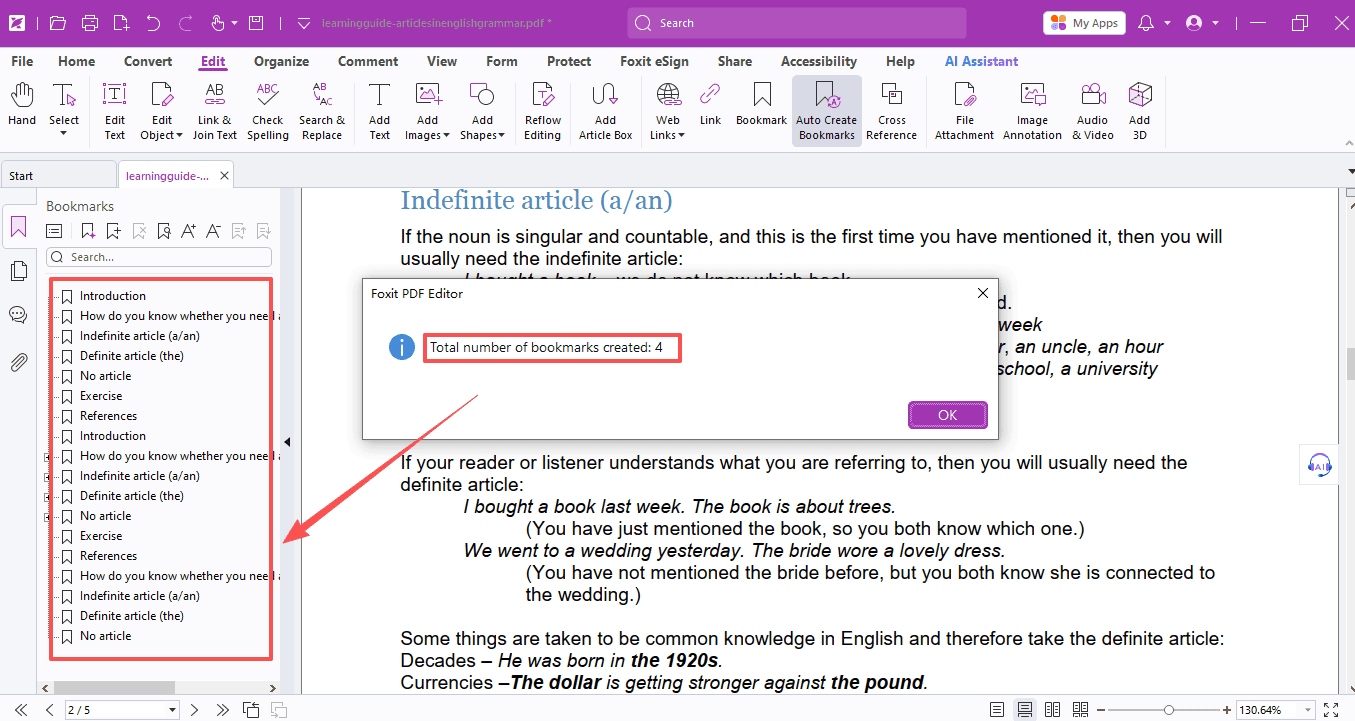
If you need more bookmark levels, simply repeat the steps above.
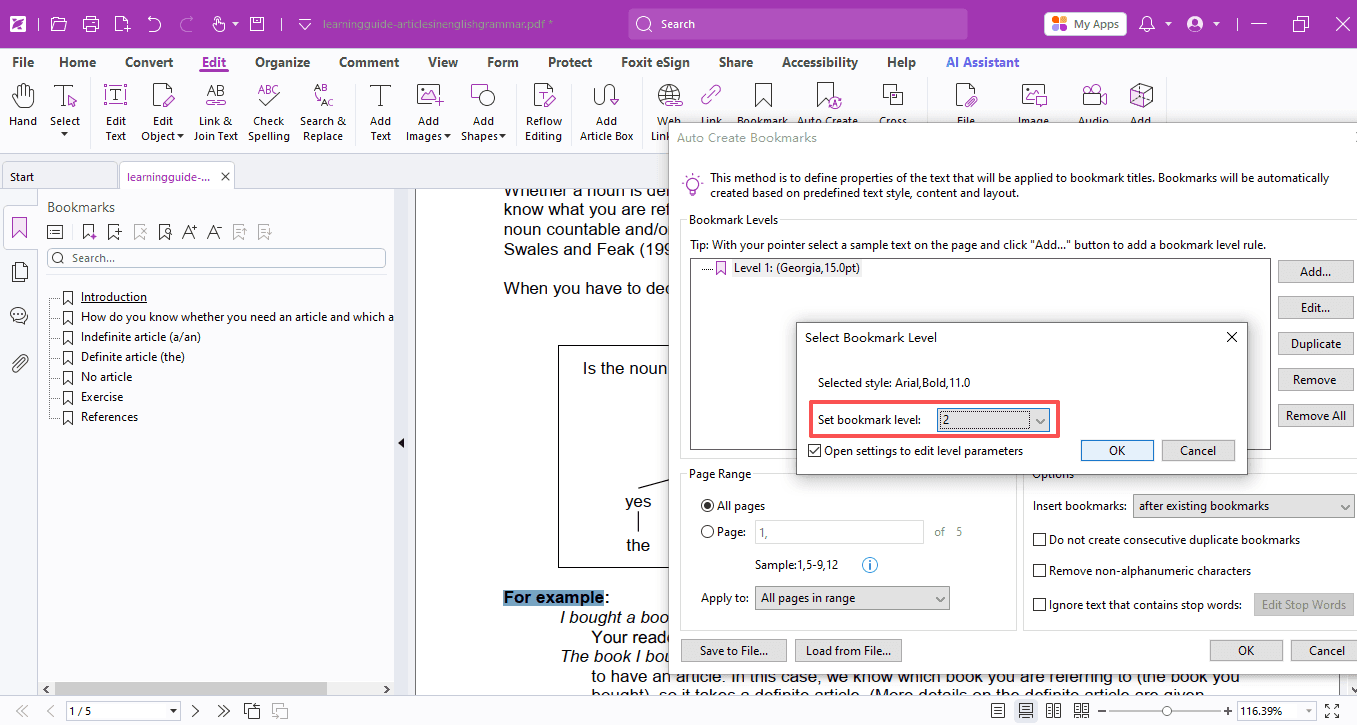
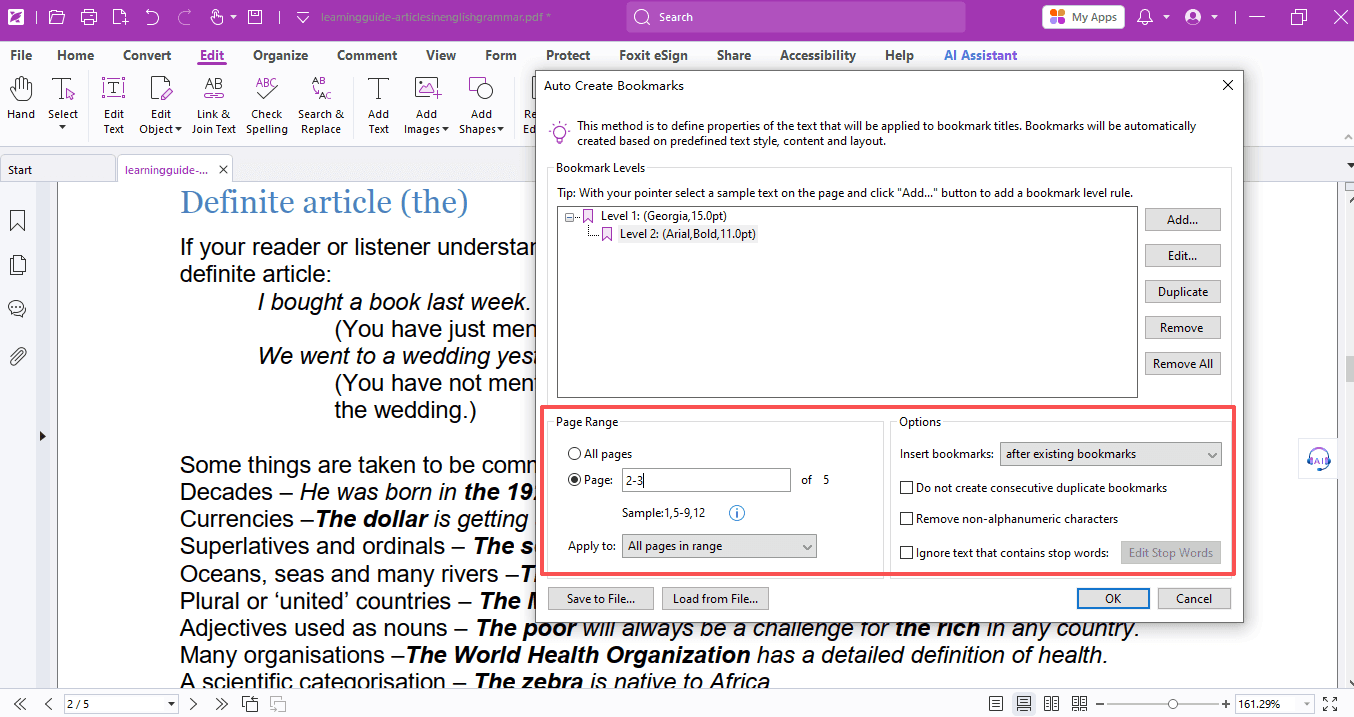
You can also set page ranges and extra options in the main Auto Create Bookmarks window.
It also works wonderfully for e-books. With these custom bookmarks, you can read more efficiently and stay organized!
If you need help with any specific case using Foxit PDF Editor, or have questions about how to use it, please feel free to click here to submit your inquiries. We will create dedicated guides based on your actual needs to provide further support.
Try it yourself
Open the interactive Web SDK demo, or talk to a Foxit APAC partner about licensing for your team or campus.