
Weekly Tip #21
How to Convert PDF Tables to Excel the Easy Way
Still manually rebuilding complex PDF tables in Excel? Here's how to convert multiple tables into separate worksheets instantly and accurately.
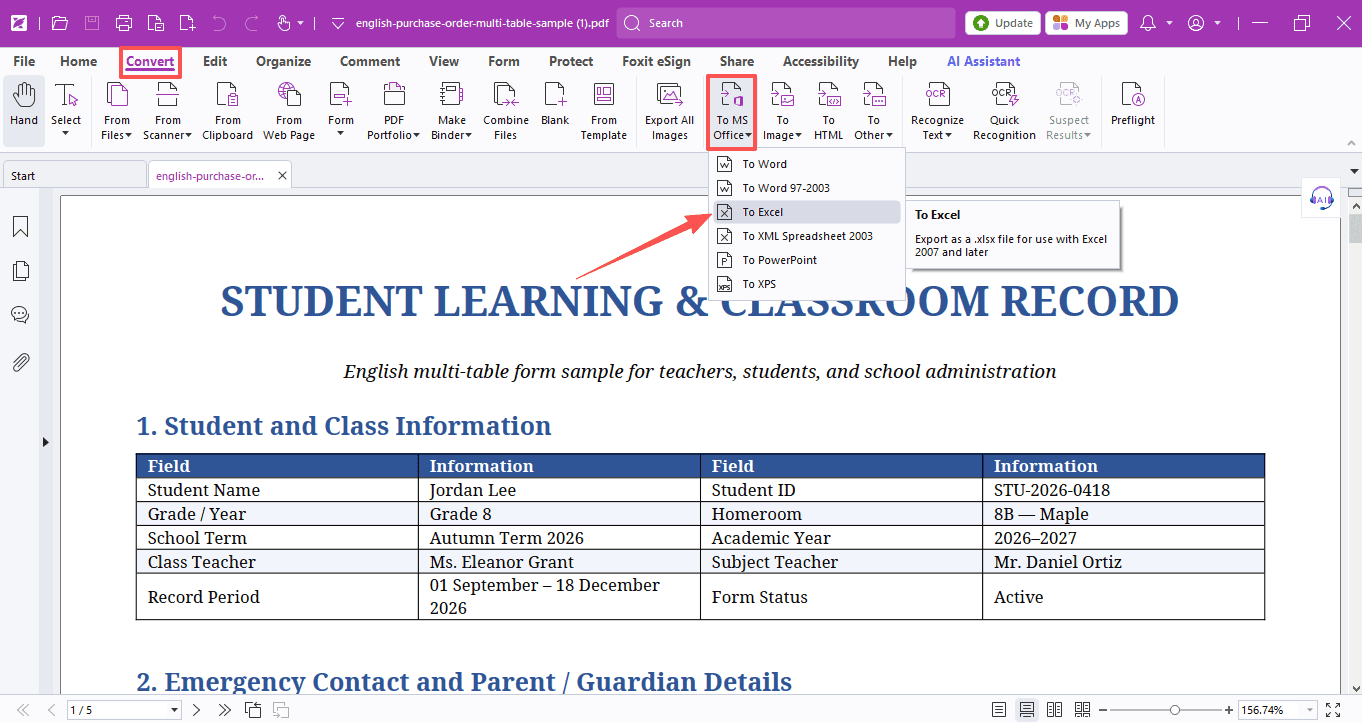
What's the most efficient and accurate way to convert a PDF table to Excel? And if your PDF contains multiple tables, is there a way to convert them all into separate worksheets within a single Excel workbook with just one click?
Today’s tip will show you exactly how.
1. PDF to Excel in a Few Clicks
- Open the PDF you want to convert in Foxit PDF Editor.
- Head to the Convert tab, choose To MS Office, then click To Excel.
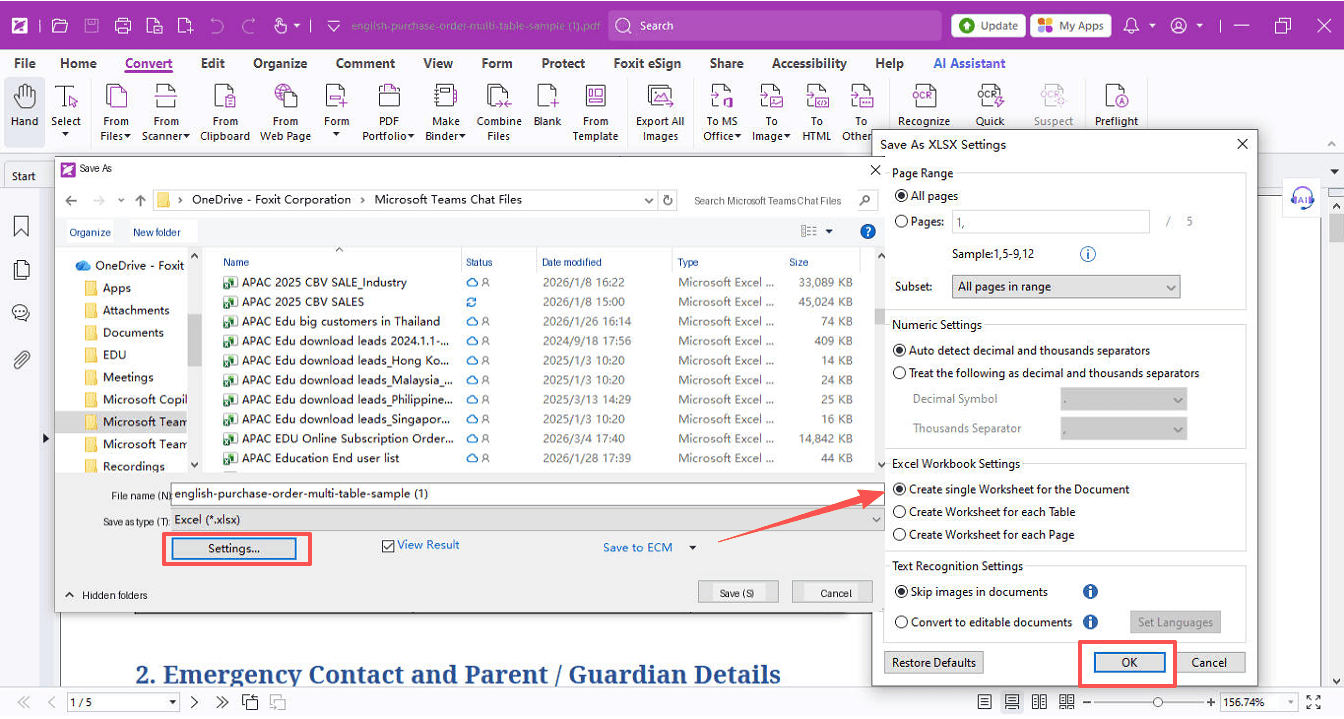
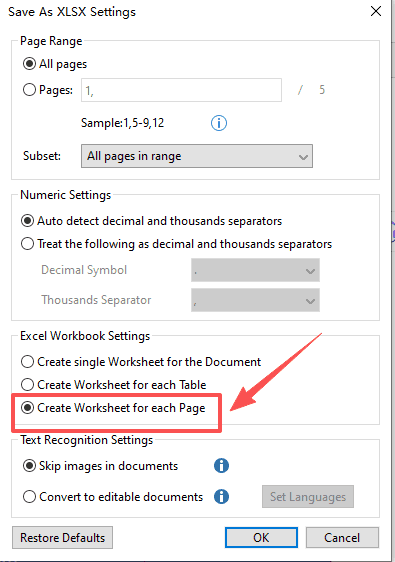
- Pick where you'd like to save the file, then hit Settings. Under Excel Workbook Settings, select Create Single Worksheet for the Document, click OK.
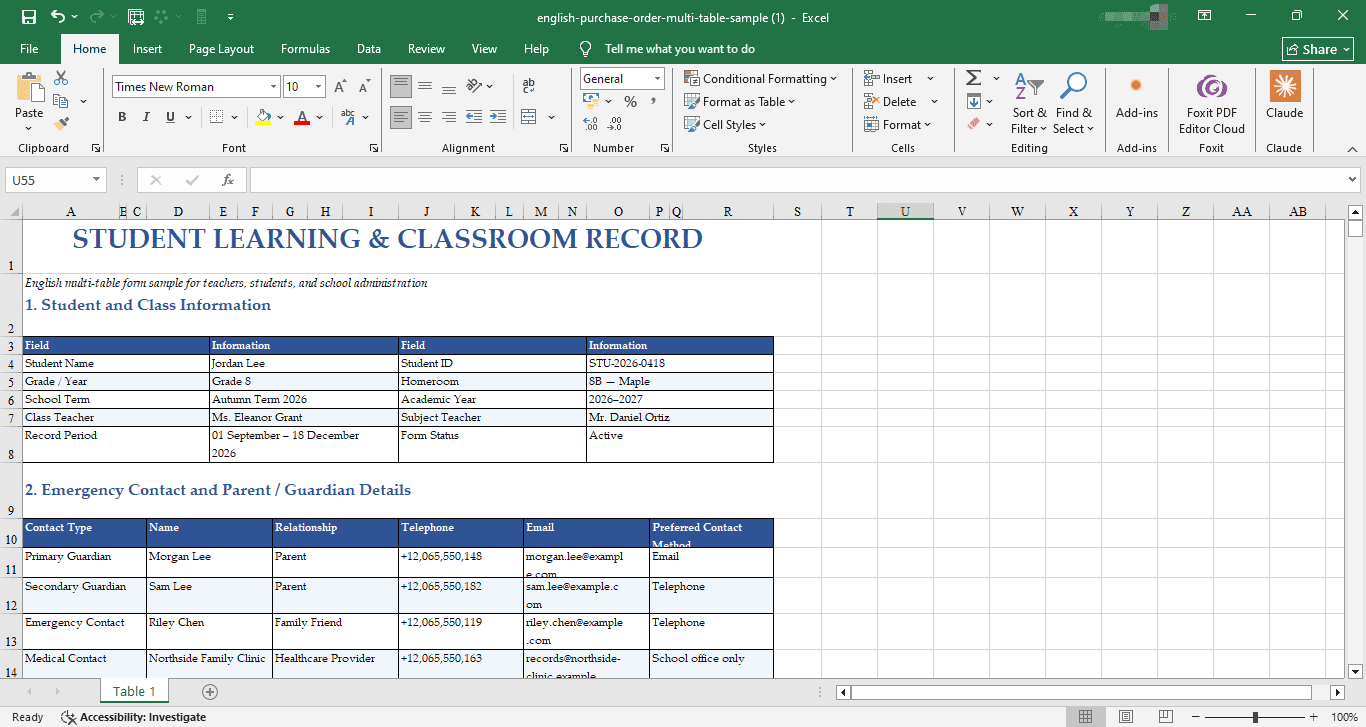
You'll notice the converted table keeps all the original text and text box formatting — the data and layout come with high accuracy.
2. Handling Multiple Tables
Got several tables in one PDF and want each one on its own worksheet? Just follow the same PDF-to-Excel steps, but this time under Excel Workbook Settings, choose Create a worksheet for each table. That's it!
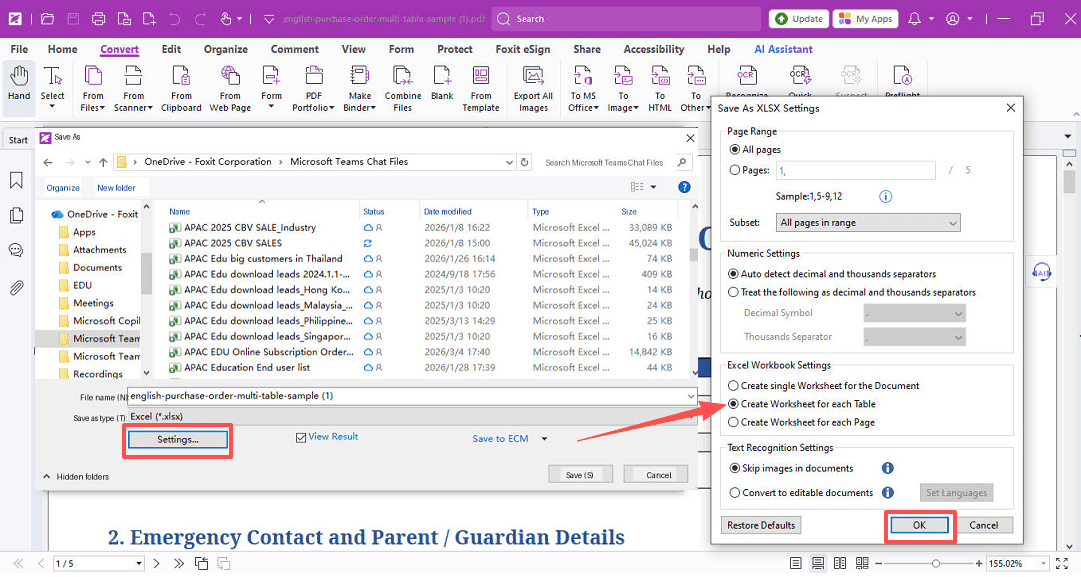
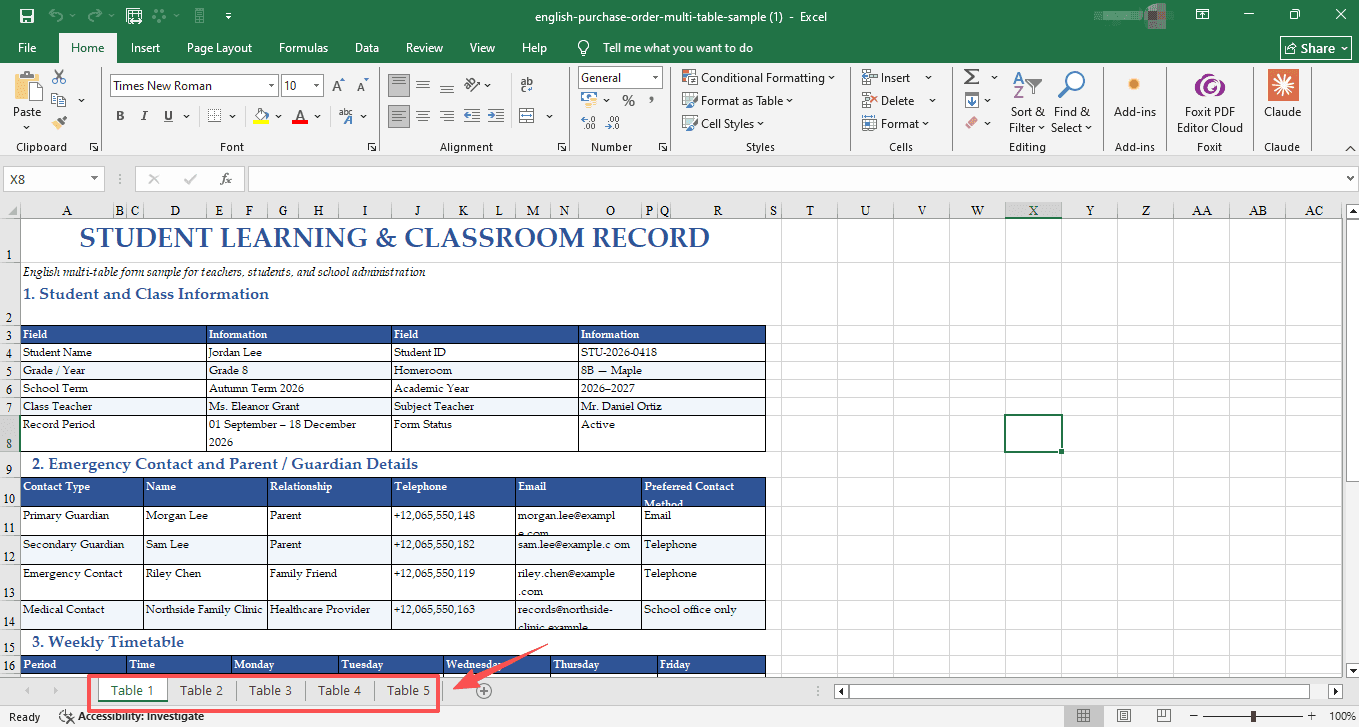
And if your PDF has one table per page, just select Create a worksheet for each page, and each table lands neatly in its own worksheet.
That's a wrap on PDF to Excel! But if you want to learn how to pull specific tables out of a PDF research paper, or how to save tables straight from a webpage, stay tuned for next time!
Get your license right now:
If you need help with any specific case using Foxit PDF Editor, or have questions about how to use it, please feel free to click here to submit your inquiries. We will create dedicated guides based on your actual needs to provide further support.
Try it yourself
Open the interactive Web SDK demo, or talk to a Foxit APAC partner about licensing for your team or campus.