
Weekly Tip #26
How to Convert Every Excel Worksheet into One PDF
When an Excel workbook produces a PDF with only one worksheet, enable the setting that converts the entire workbook.
This tip applies to the Excel workbook conversion setting described in the official source. The source identifies the registry path with Foxit PDF Editor 11.0 and says support for Foxit PDF Editor v11 and v12 ended on August 13, 2025; it recommends upgrading to v14 for continued support. The source does not specify a version for the in-product conversion steps, so confirm that the setting is available in your installation.
Converting an Excel file by right-clicking it can bring only one worksheet into the resulting PDF by default. If the workbook contains several tabs, change the conversion preference before creating the PDF. The setting is located in the conversion settings for Microsoft Office Excel and is called “Convert entire Excel workbook.” Once enabled, the source says you can convert Excel files as expected, with the workbook’s worksheets included rather than just one tab.
1. Open the Excel conversion settings
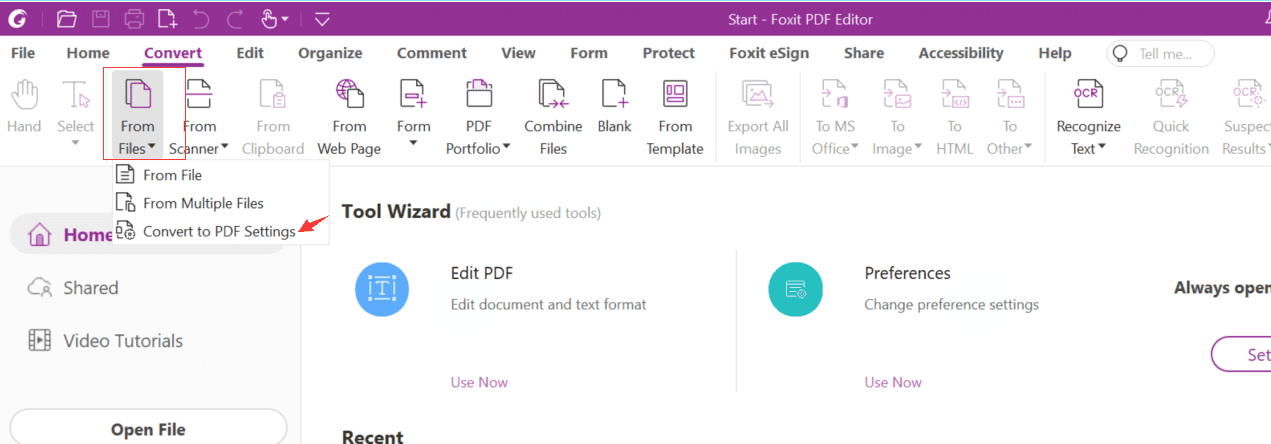
In Foxit PDF Editor, navigate to Convert > From files > Convert to PDF Settings. This opens the settings used when converting files to PDF. Select the settings area for Microsoft Office Excel in the next step.
The source does not specify a product version for this menu path. It does specify that Foxit PDF Editor v11 and v12 are no longer supported as of August 13, 2025, and recommends v14 for continued support.
2. Enable conversion of the entire workbook
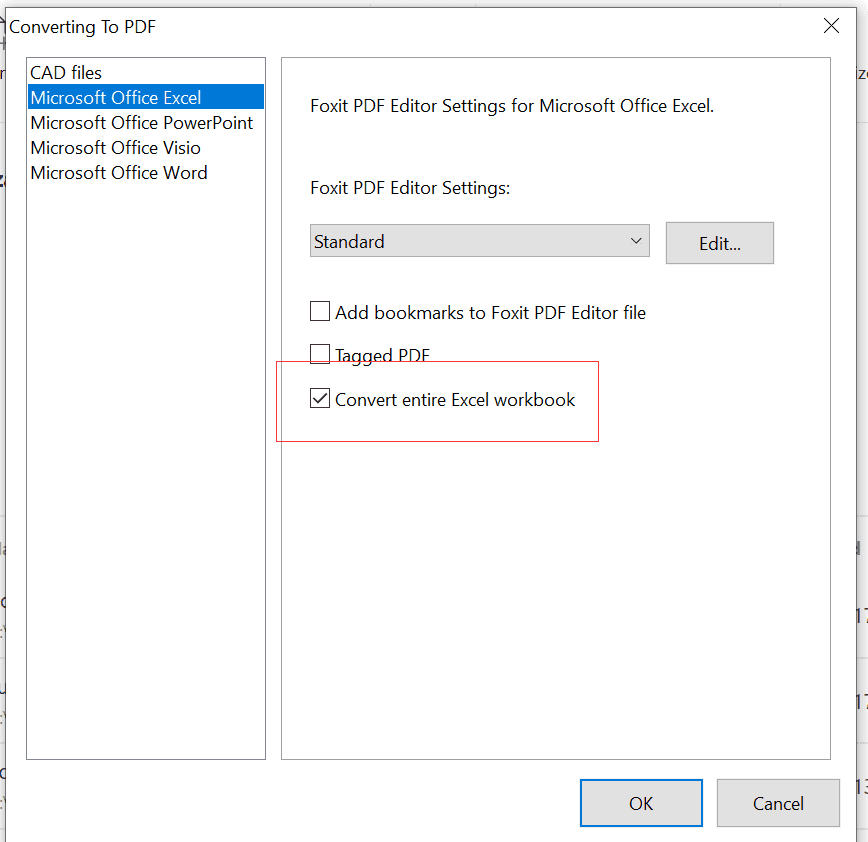
Click Microsoft Office Excel, select Convert entire Excel workbook, and then click OK. This changes the Excel conversion preference so the complete workbook can be converted instead of only one worksheet.
After confirming the setting, convert the Excel file using your normal conversion process. The official source states that you can then convert Excel files as expected. It does not specify a version for this setting or describe a separate verification command.
3. Set the preference for managed installations
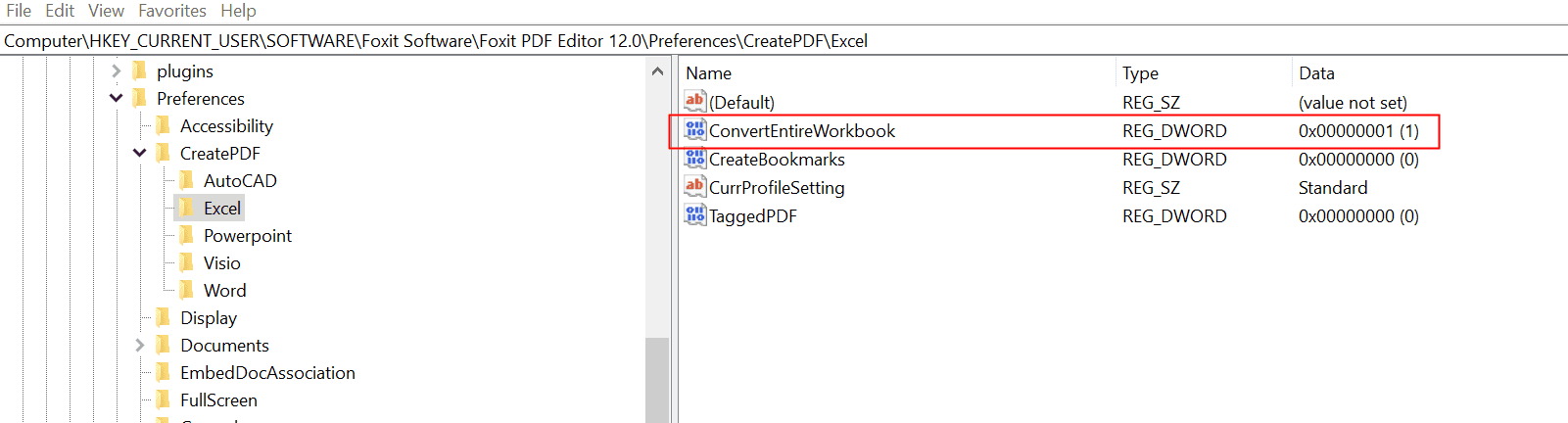
For a repeated deployment, the source reports that the selected option changes this registry value to 00000001: HKEY_CURRENT_USER\SOFTWARE\Foxit Software\Foxit PDF Editor 11.0\Preferences\CreatePDF\Excel\ConvertEntireWorkbook. Conversely, when the registry value is 00000001, the option is checked.
The source suggests writing the value with a .bat script across a domain or using Foxit Customization Wizard to create registry data and generate an .mst file. The .mst file can be applied during client installation. This registry path is explicitly for Foxit PDF Editor 11.0; the source does not specify an updated path for v14.
For a single conversion, enabling Convert entire Excel workbook in the Excel conversion settings is the essential change. For managed computers, the source describes two distribution approaches: a .bat script or Foxit Customization Wizard with an .mst file applied during installation. Because the documented registry path names Foxit PDF Editor 11.0 and support for v11 and v12 has ended, verify the applicable registry location and deployment behavior for the supported version you use.
Official source: How to convert excel files with multiple worksheets to PDF
Try it yourself
Open the interactive Web SDK demo, or talk to a Foxit APAC partner about licensing for your team or campus.