
Weekly Tip #18
How to Complete PDF Forms Fast with Foxit PDF Editor
What do you do when you download a PDF form you can't type into—convert it to Word? Skip that hassle and fill it out directly with Foxit's Form tool.
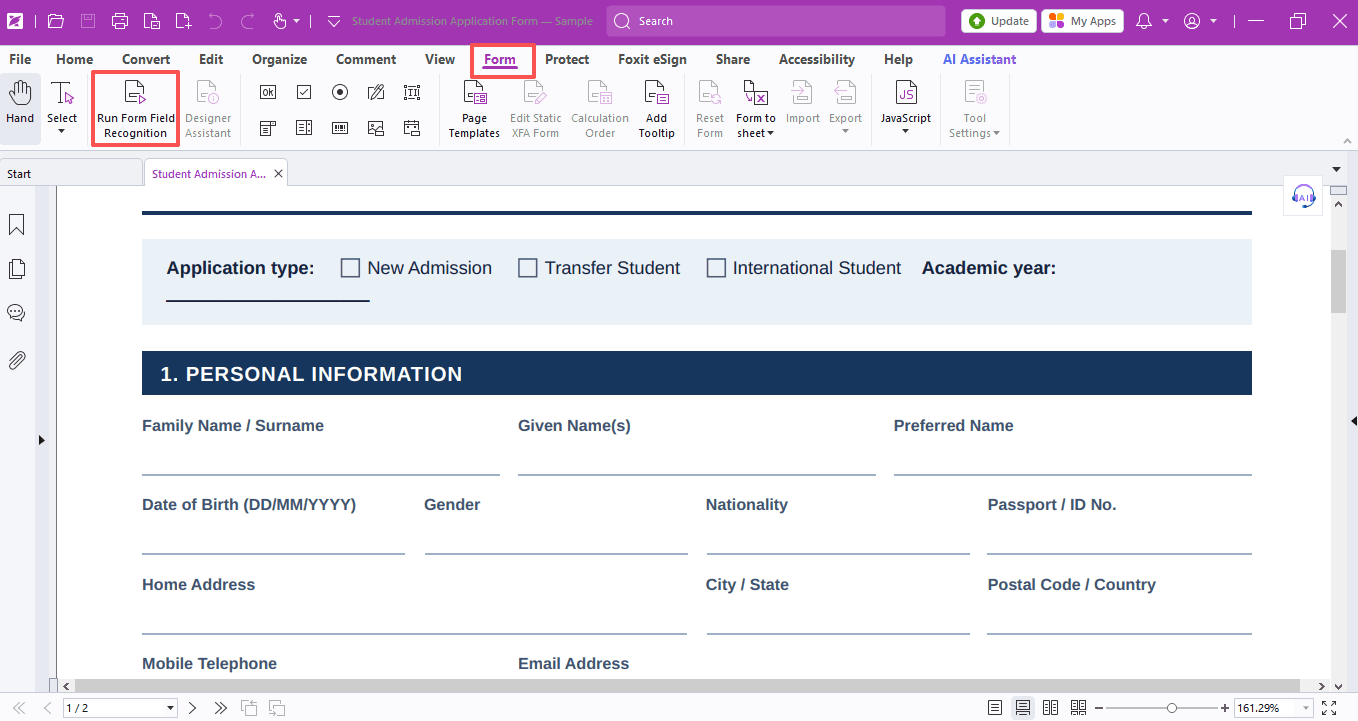
When you download a PDF application form from the online admin office that you can’t type into directly, are you converting it to a Word document just to fill in the blanks? That certainly works, but we've got an easier solution — the Form tool in Foxit PDF Editor.
It automatically spots all blank fields meant for your input, lets you type info straight away, tweak text styles, and even place your official electronic stamp right onto the form. Let’s dive in!
Step 1: Use the Form tool to auto-detect fillable fields
- Open your target PDF form inside Foxit PDF Editor, then hit the Form tab on the top toolbar.
- Click Run Form Field Recognition. The software will scan the whole file, mark every blank spot, and create editable text boxes for you to type your information easily.
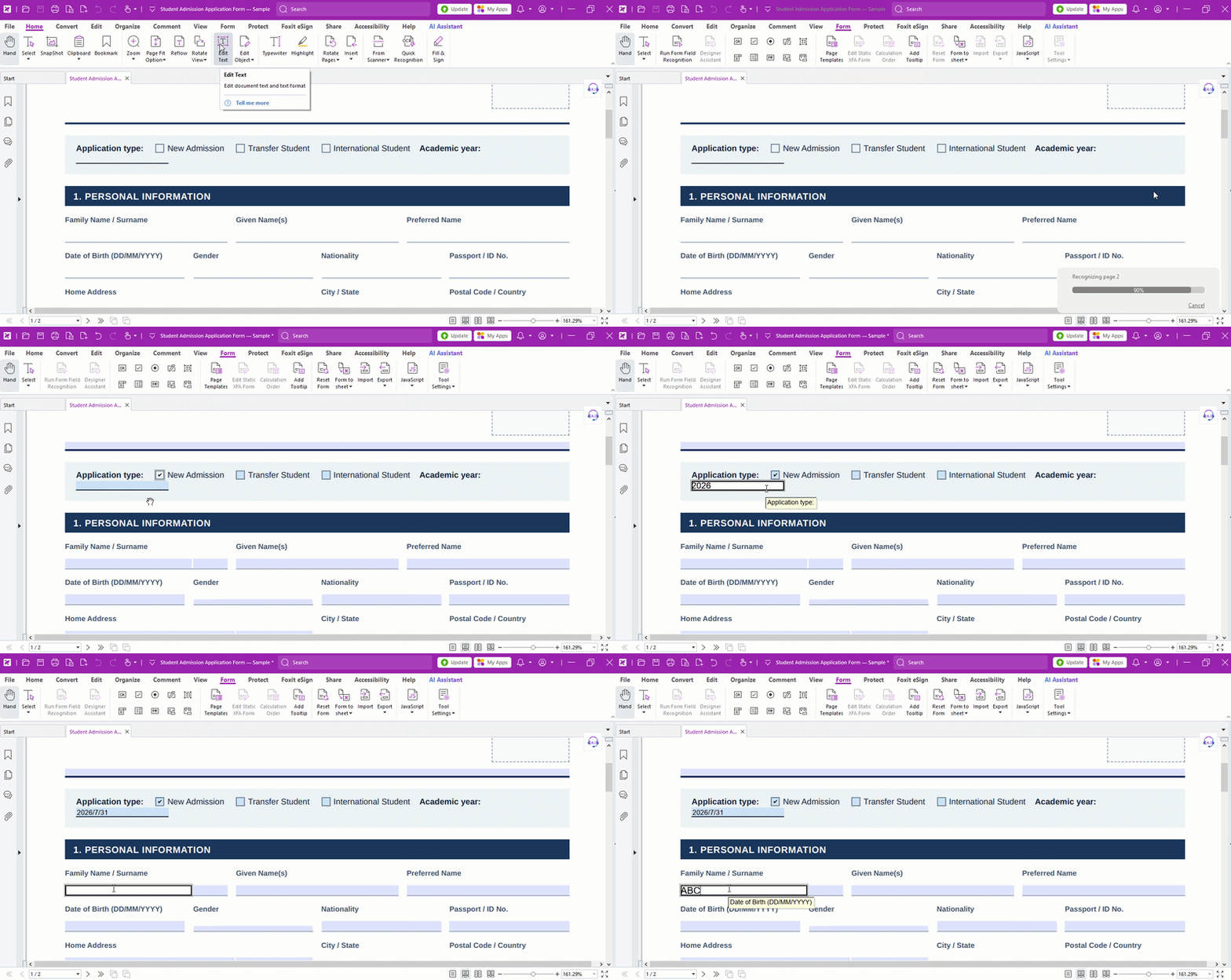
If there are blank areas that the system fails to detect automatically, simply click the Text Field button on the toolbar, then draw text boxes manually over those spots.
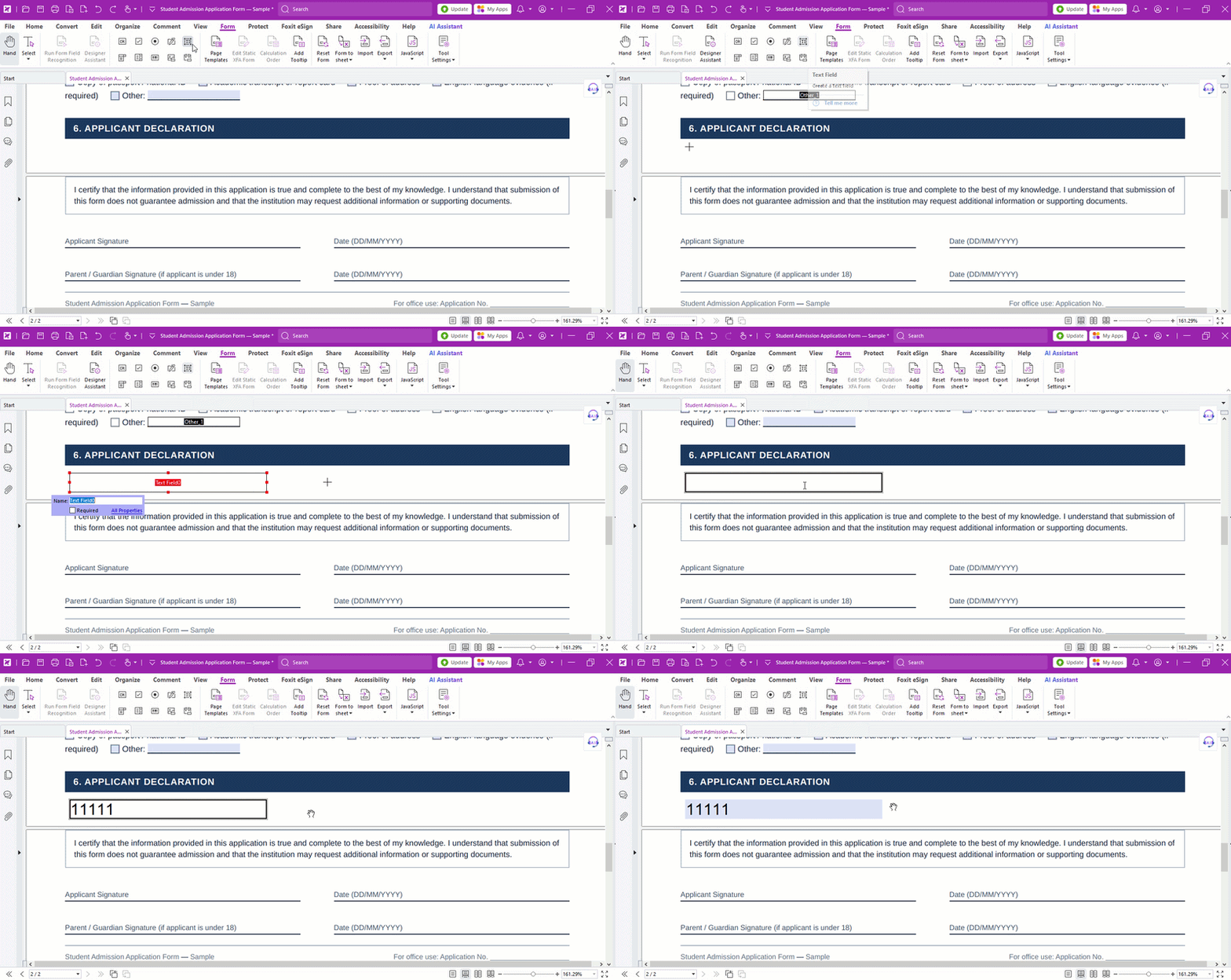
Step 2: Customize your text formatting
If you want to adjust how your typed text looks inside the boxes, here’s how:
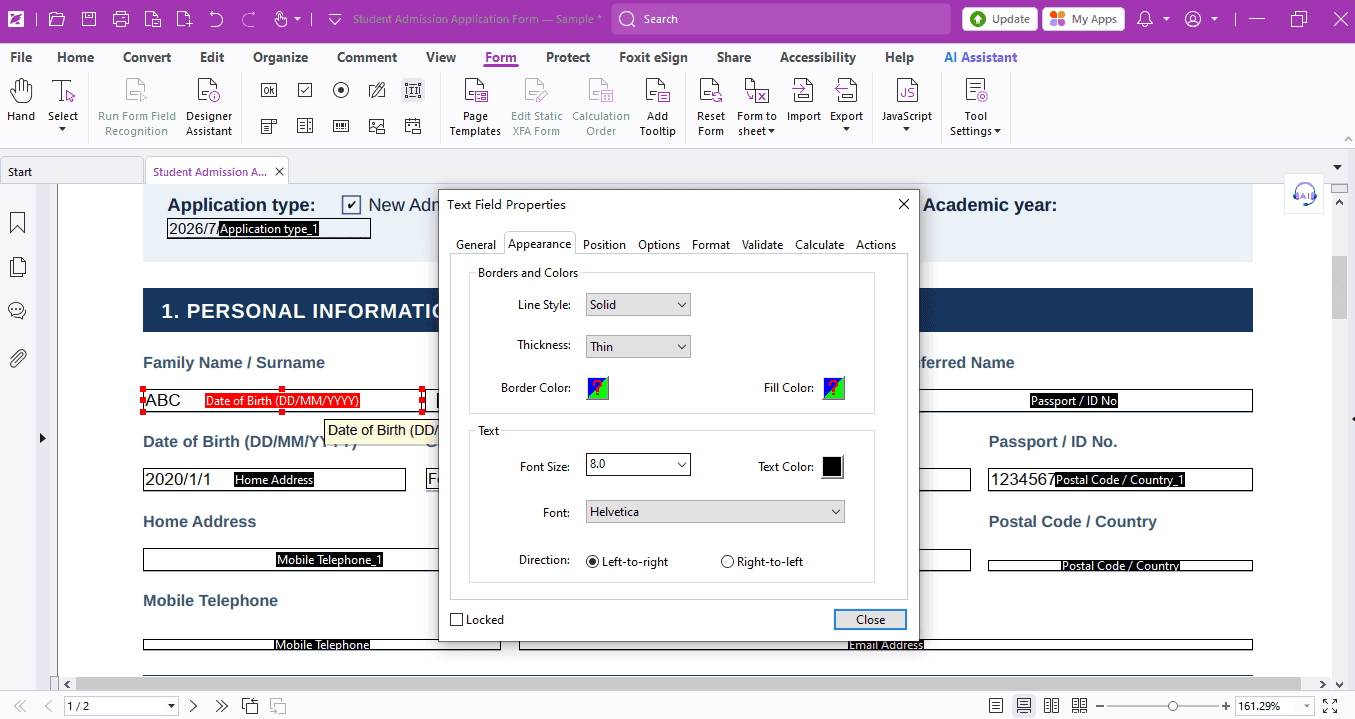
- Select the Text Field tool, highlight the text you want to edit, right-click and pick Properties.
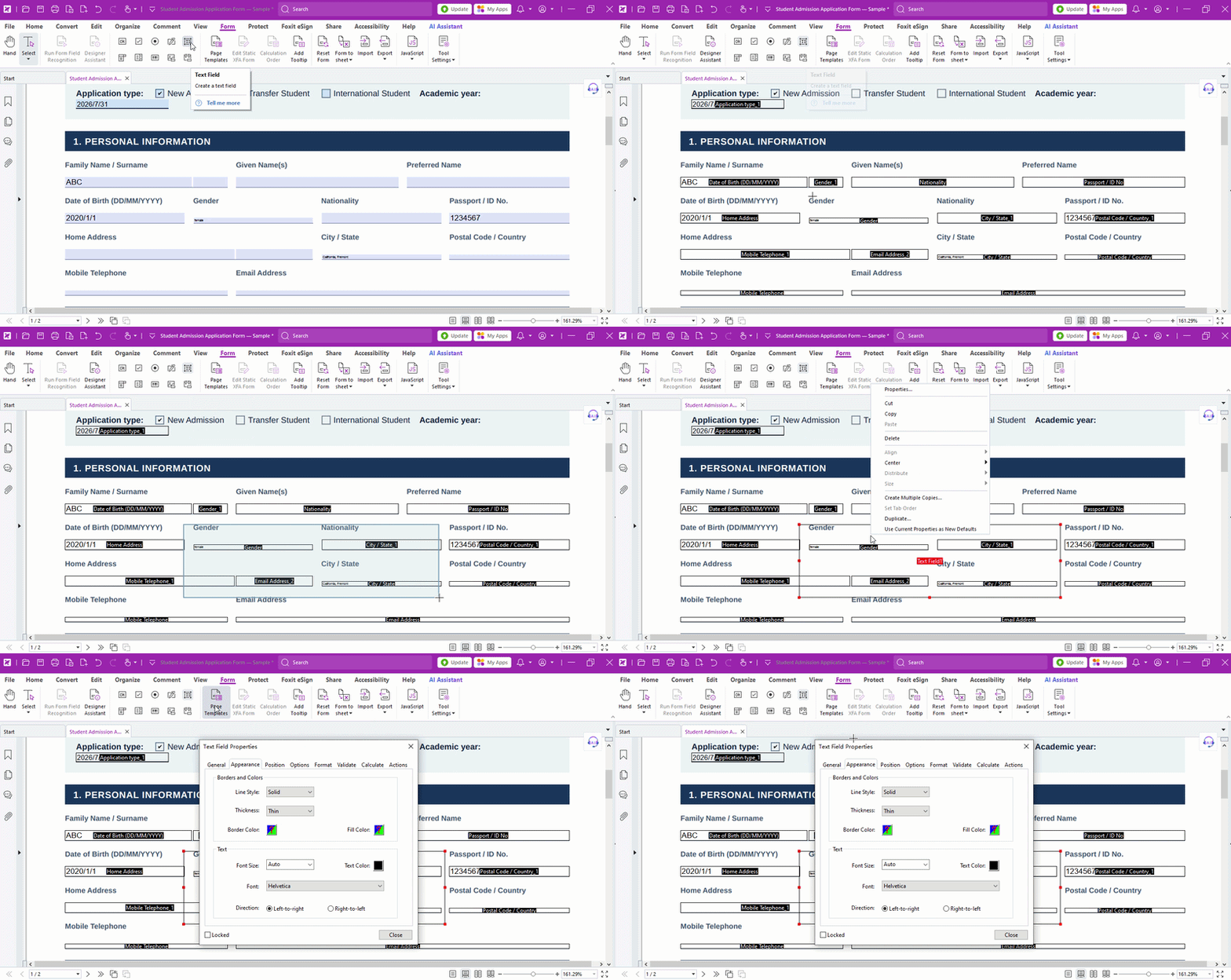
- A Properties pop-up window will show up. Head over to the Appearance tab to customize borders & colors for the text box, and change the font type, font size and text color however you like.
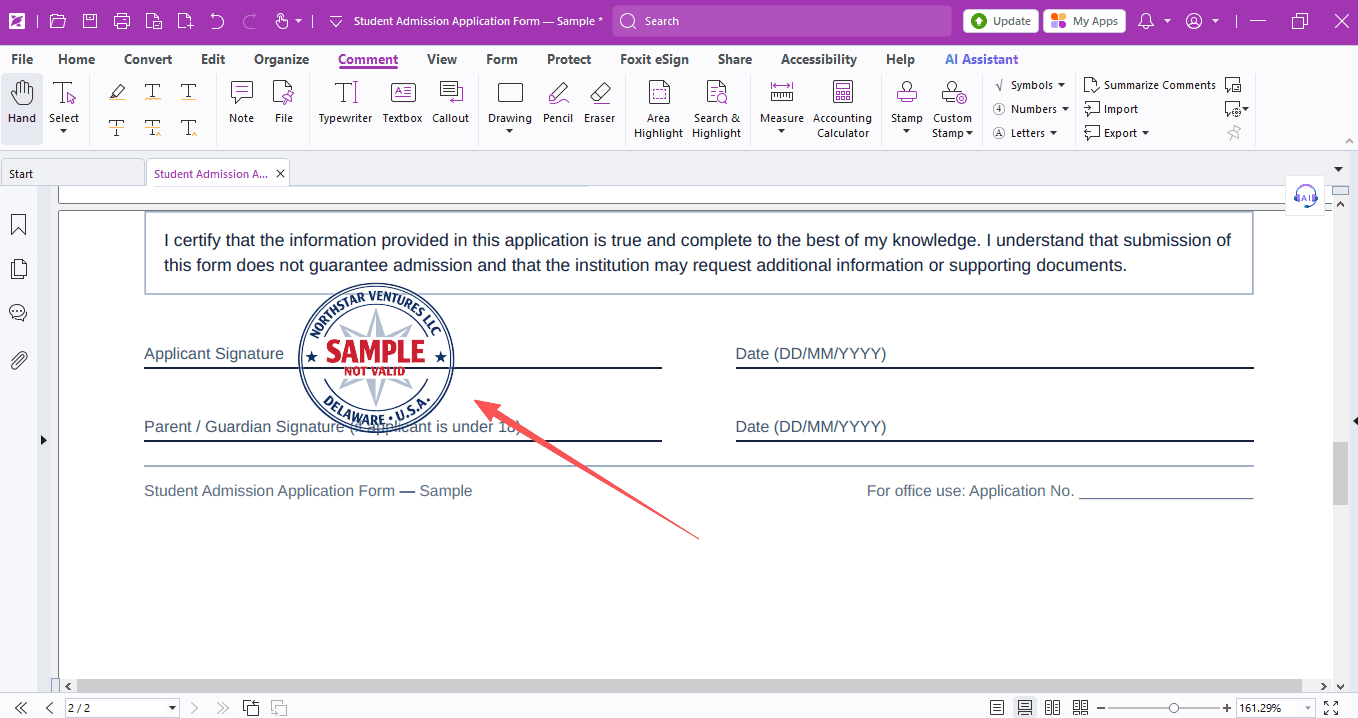
Step3: Apply your electronic stamp
If there’s a spot on the PDF form that needs an official electronic stamp, follow the steps below:
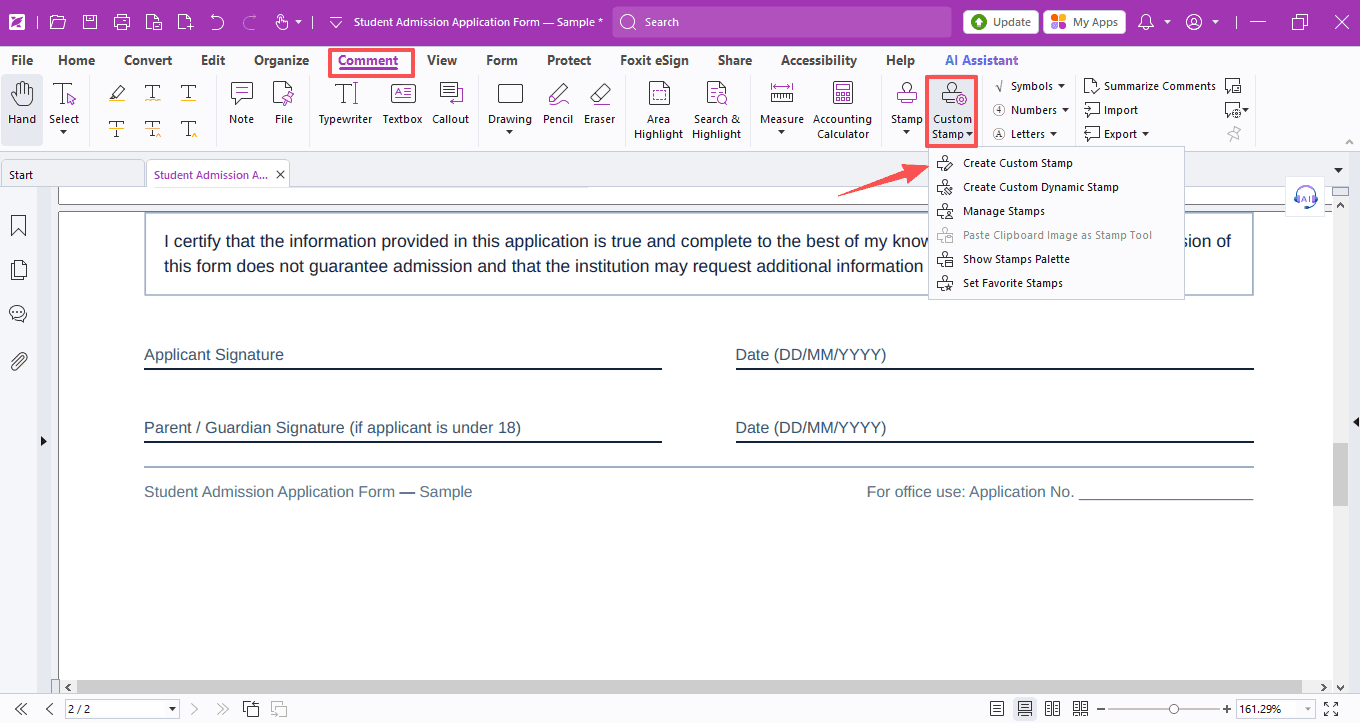
- go to the Comment tab on the toolbar, hit Custom Stamp, then pick Create Custom Stamp.
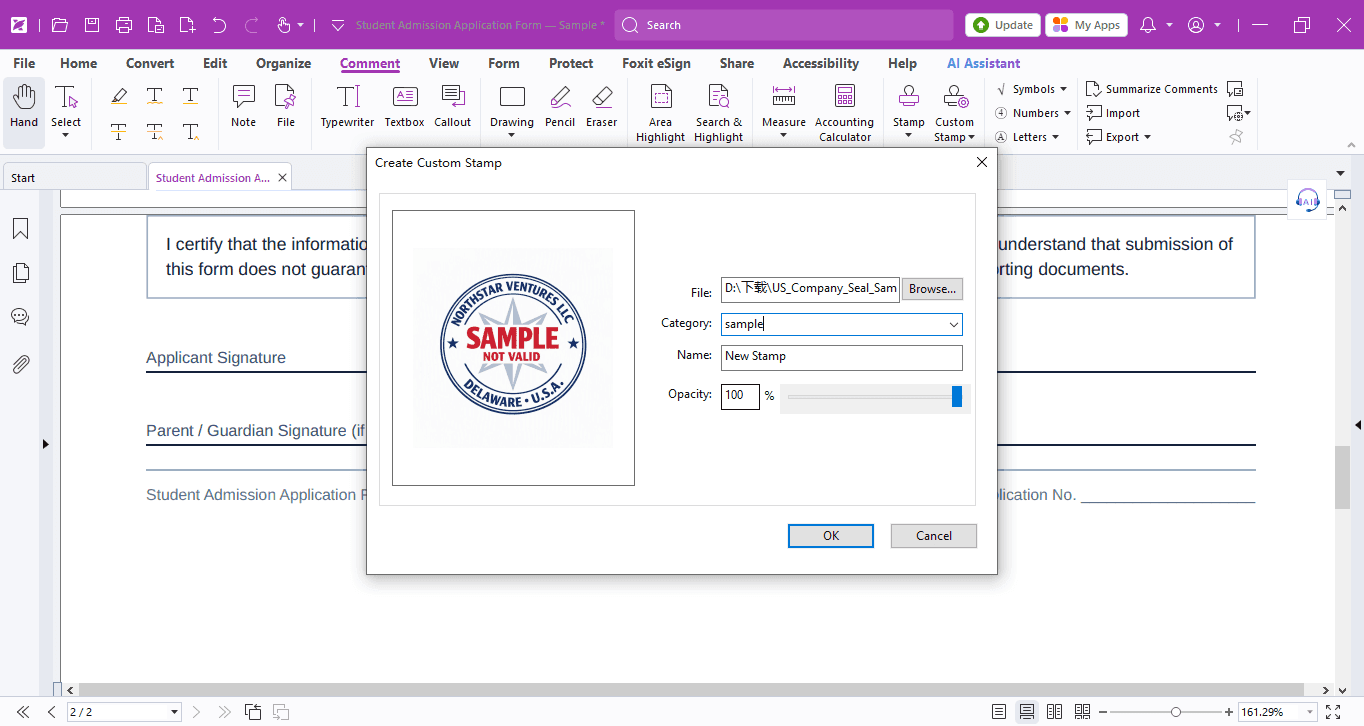
- In the pop-up window, click Browse to upload your pre-made electronic stamp image, set the stamp category, name and opacity, and then hit OK.
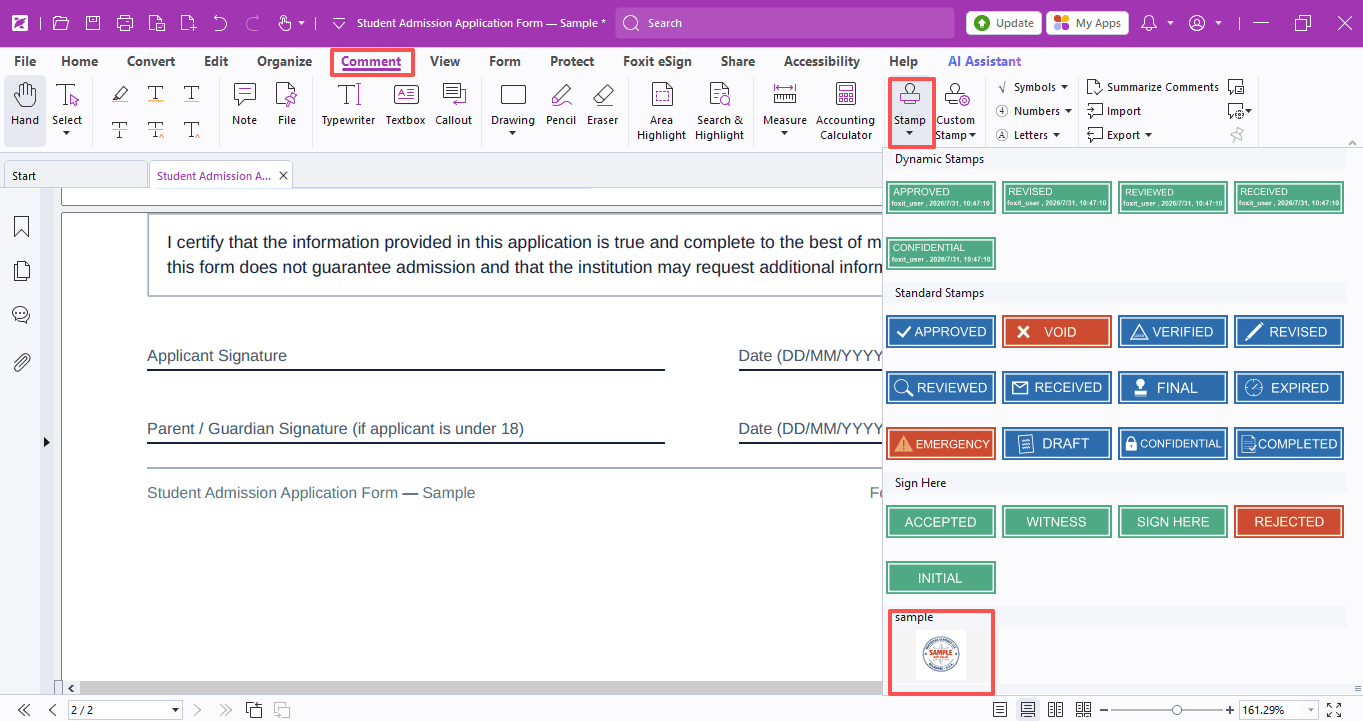
- Open the Stamp menu and select your saved stamp to place it right on the document.
Follow these steps and you’ll breeze through filling out any PDF form in no time. Give it a try right away!
If you need help with any specific case using Foxit PDF Editor, or have questions about how to use it, please feel free to click here to submit your inquiries. We will create dedicated guides based on your actual needs to provide further support.
Try it yourself
Open the interactive Web SDK demo, or talk to a Foxit APAC partner about licensing for your team or campus.