
Weekly Tip #3
How to Batch Replace Text in PDF Documents
Typos in your paper, or a name that needs updating everywhere? Foxit PDF Editor's batch text replacement makes it quick and easy.
Have you ever encountered these situations while working with PDF documents?
- You made a typo in your paper and need to correct it throughout the entire file.
- A name appears frequently in your materials and needs to be updated without missing any occurrence.
No worries! Foxit PDF Editor has got you covered with its handy batch text replacement feature!
Here's how to do it, step by step:
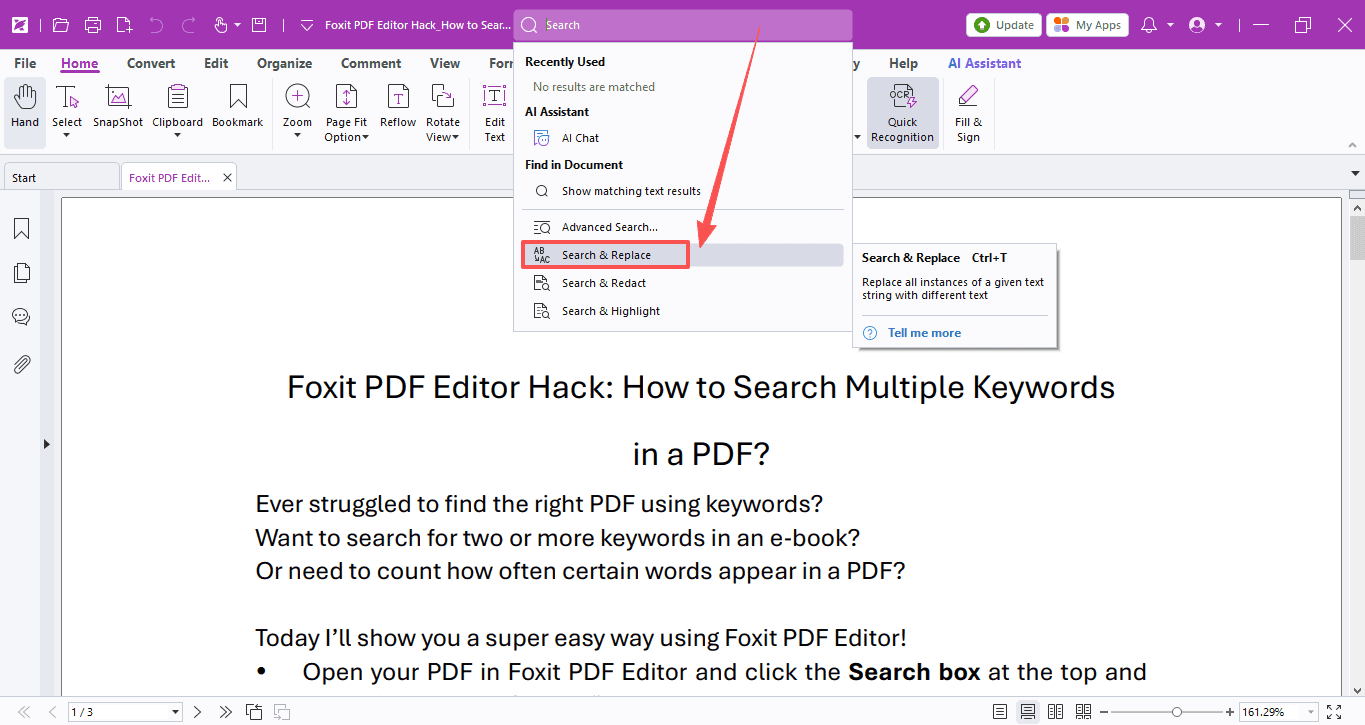
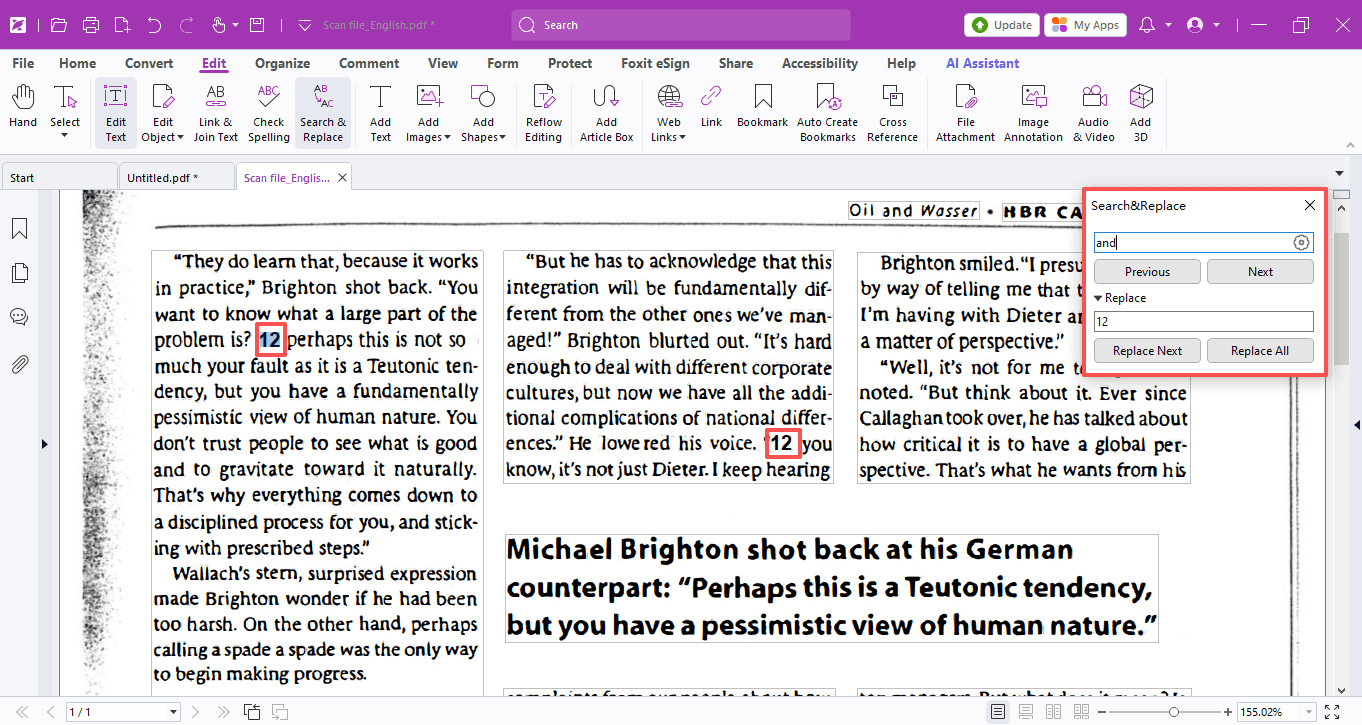
- Open your PDF file in Foxit PDF Editor, click the Search Box at the top, and select Search & Replace.
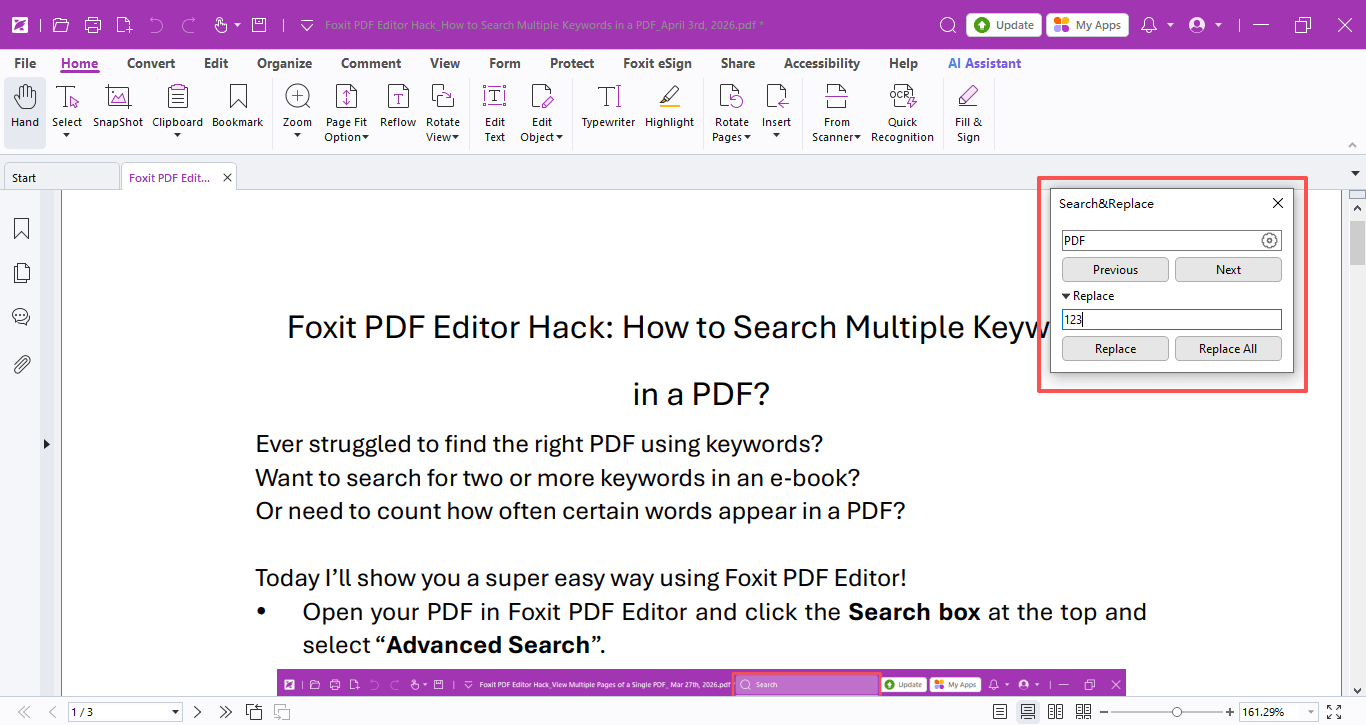
- In the pop-up window, type the original text and the new text you want to use, then hit Replace All.
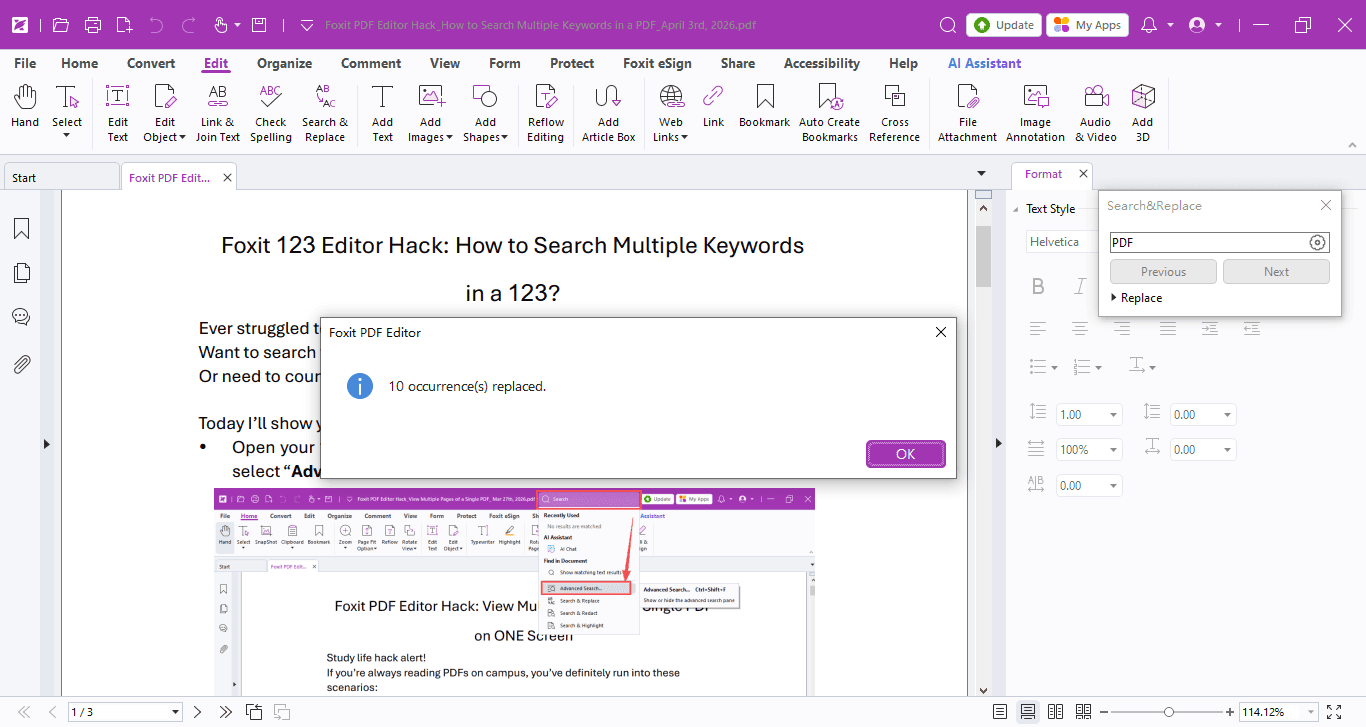
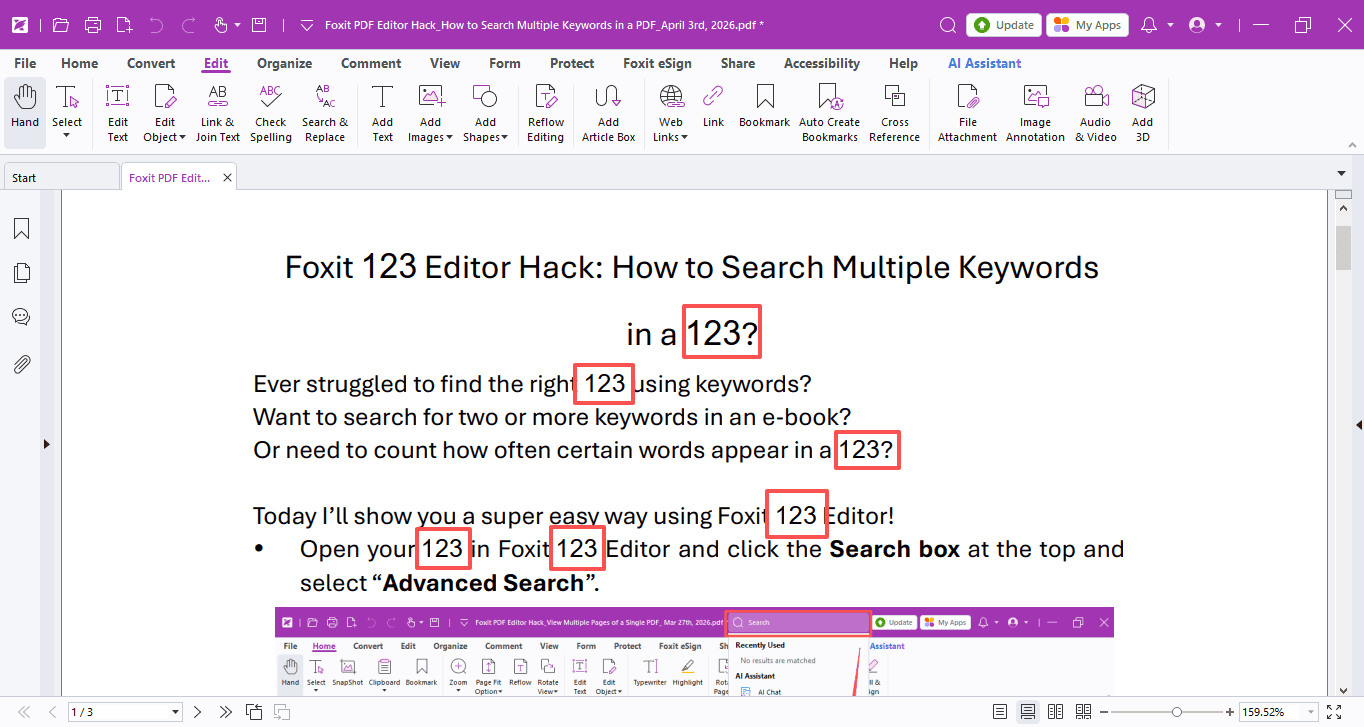
- Once finished, it will show you how many places were updated, and you can check the results right away!
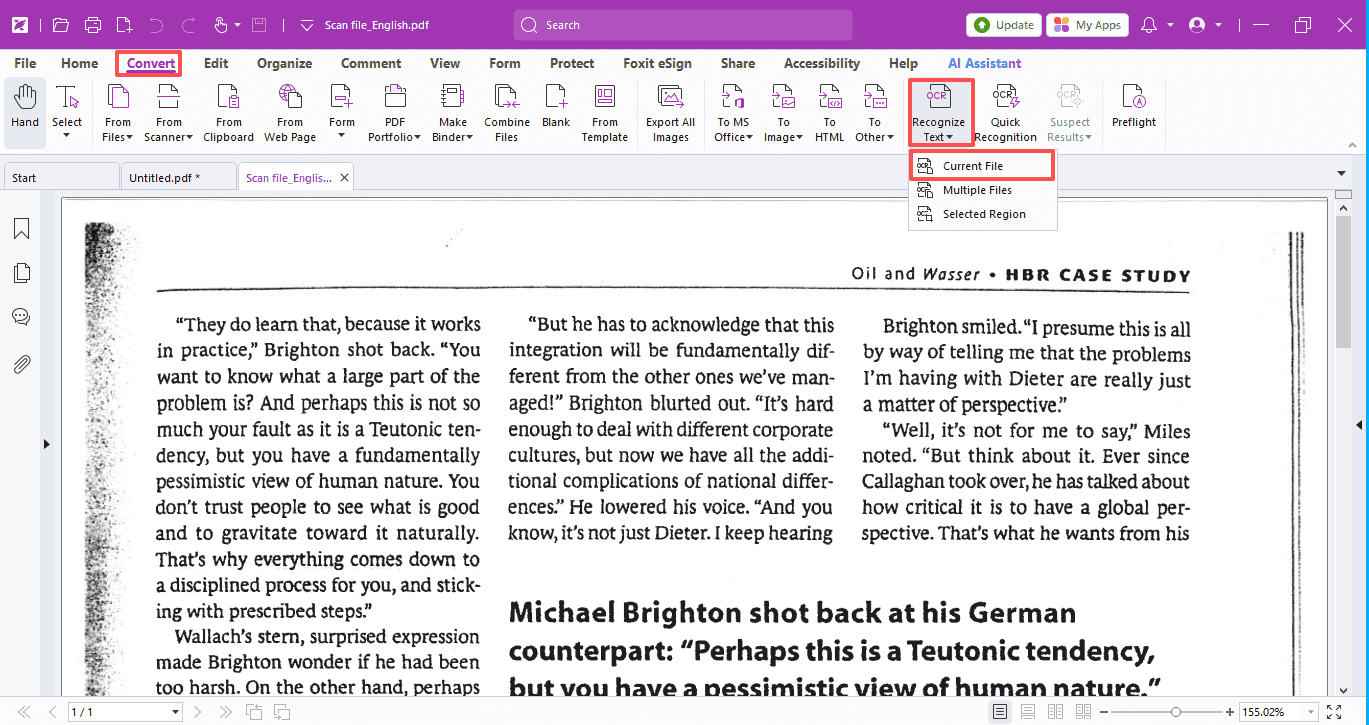
What if it's a scanned PDF? Scanned files can't be edited directly, but we can fix that first:
- Go to the Convert → Recognize Text → Current File.
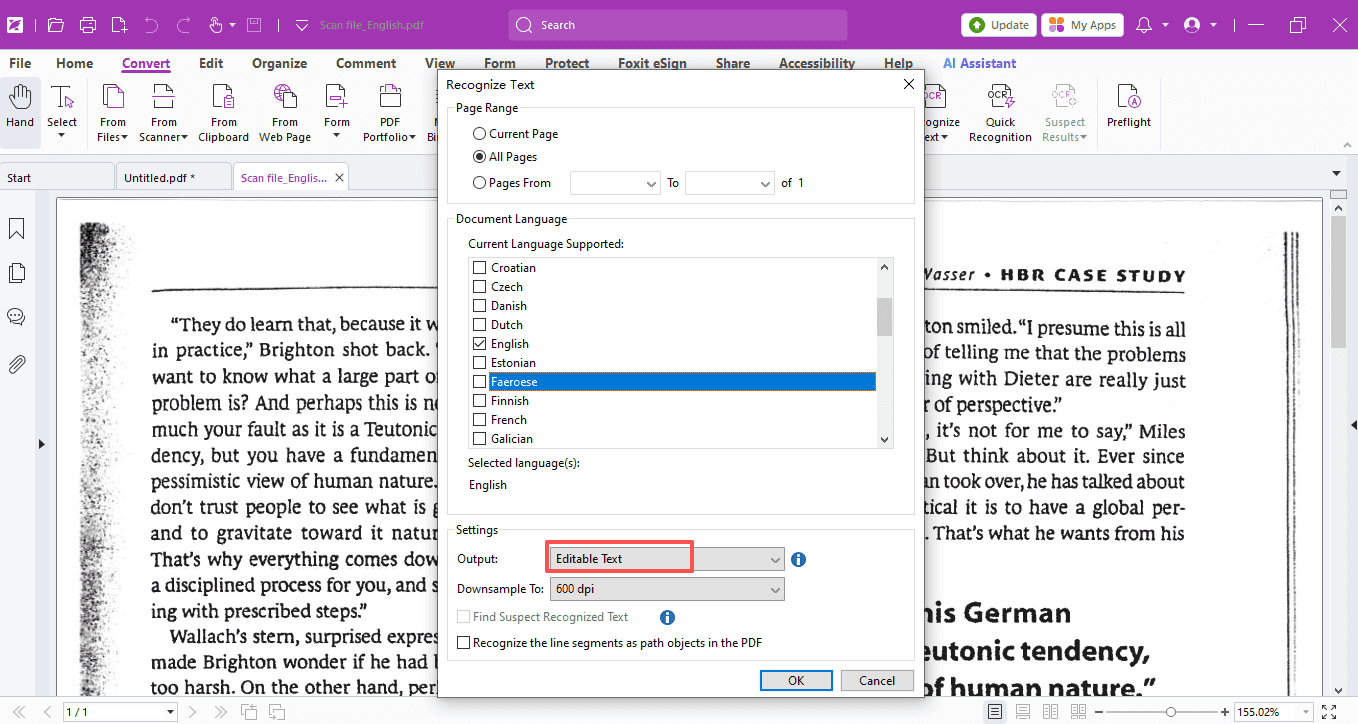
- Select the language used in your document, choose Editable Text, and click OK.
Your scanned PDF will turn into fully editable text, so you can search and replace just like a normal document! Then just follow the same replacement steps above, and you're all set.
Hope this tip comes in handy and makes your study and work a breeze!
If you need help with any specific case using Foxit PDF Editor, or have questions about how to use it, please feel free to click here to submit your inquiries. We will create dedicated guides based on your actual needs to provide further support.
Try it yourself
Open the interactive Web SDK demo, or talk to a Foxit APAC partner about licensing for your team or campus.