
Weekly Tip #7
How to Batch Delete PDF Pages With a Visual Preview
Need to delete unwanted pages in a PDF fast? Foxit PDF Editor shows you how.
What’s the easiest way to delete unwanted pages after merging multiple PDFs?
How can you preview pages before deletion to avoid accidentally removing important content?
Online materials often come with extra irrelevant pages like ads, redundant covers or extra TOC pages. How can you batch remove them to make your materials neat and professional?
Here’s how!
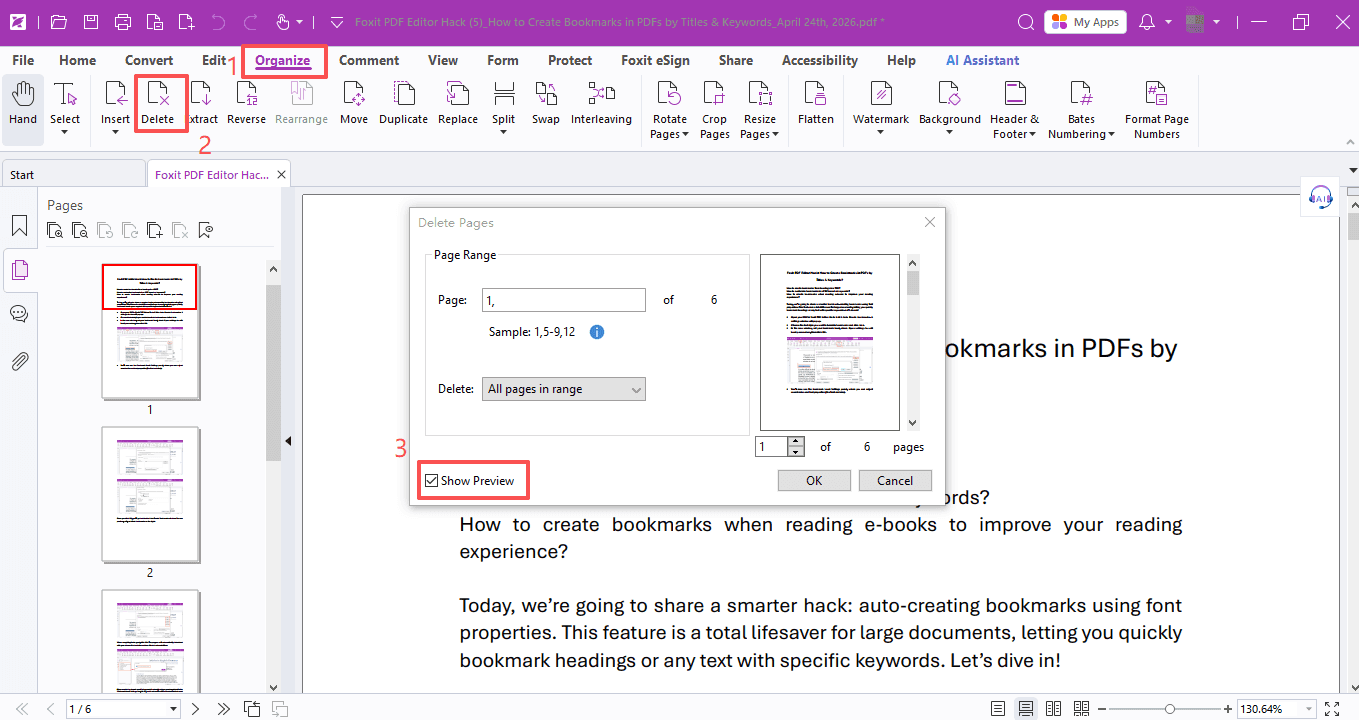
- Open your PDF file with Foxit PDF Editor. Go to Organize > Delete.
- In the pop-up Delete Pages window, simply select the pages you want to remove, and you can delete them in batches. You can also click Show Preview to view a thumbnail of each page on the right panel.
Alternatively,
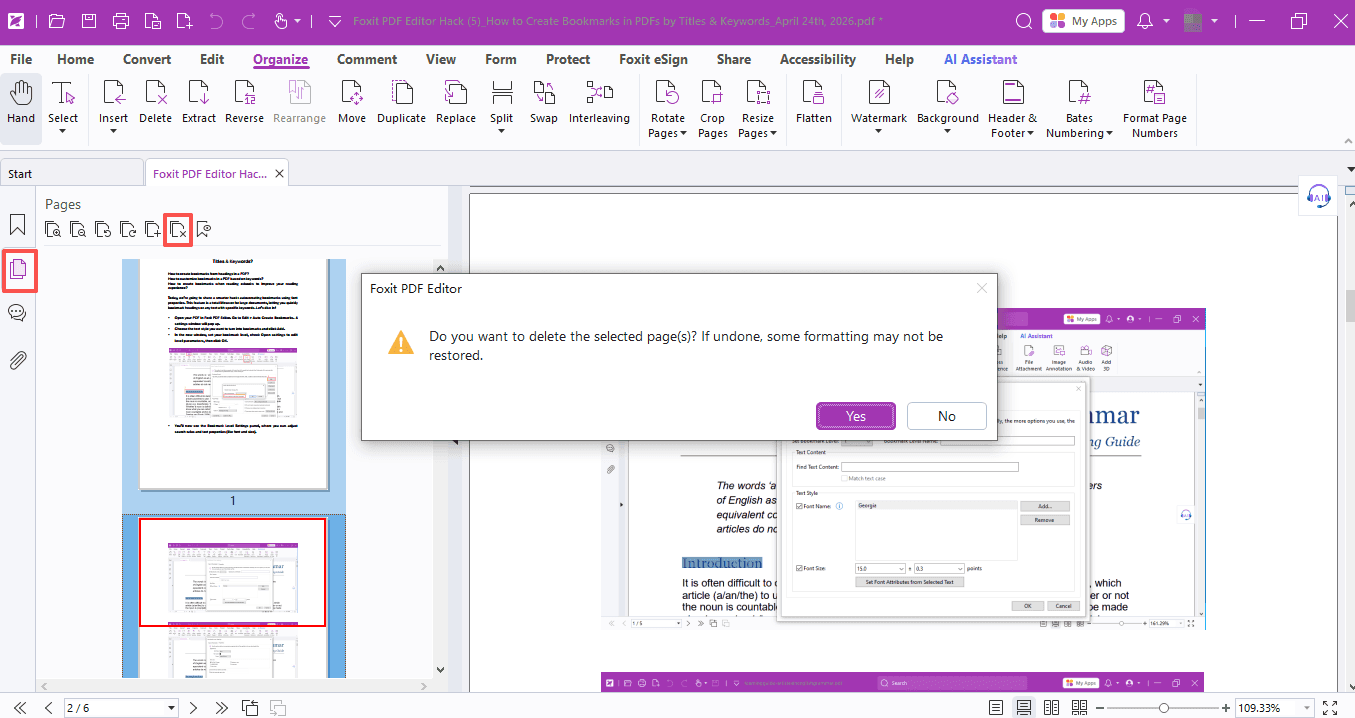
- You can open the Page Thumbnails panel on the left.
- Hold down the Ctrl key and scroll your mouse wheel to adjust the thumbnail size — scroll down to shrink thumbnails, and scroll up to enlarge them. Adjust until you get a comfortable view.
- Once the thumbnails are properly sized, click to select the pages you want to delete. Hold the Ctrl key to select multiple pages at once.
- Then click the delete icon, or simply press the Delete key to remove all selected pages in one batch.
That’s all for this week’s tip!
Hope this handy trick helps streamline your study and teaching workflow effortlessly.
If you need help with any specific case using Foxit PDF Editor, or have questions about how to use it, please feel free to click here to submit your inquiries. We will create dedicated guides based on your actual needs to provide further support.
Try it yourself
Open the interactive Web SDK demo, or talk to a Foxit APAC partner about licensing for your team or campus.