
Weekly Tip #6
How to Auto-Generate Clickable Table of Contents for PDFs
Still adding a table of contents and jump links to your PDFs by hand? Here's how to do it the easy way with Foxit PDF Editor.
Are you still adding table of contents and jump links to your PDFs by hand?
Are you still scrolling page by page through PDFs without a clickable TOC?
Today, you will learn how to quickly auto-generate a professional TOC for any PDF using Foxit PDF Editor. Let’s get started!
If your PDF already has bookmarks
You can create a hierarchical table of contents from them.
The new TOC will be inserted at the very beginning of your PDF, and every entry is clickable, which takes you instantly to the corresponding section.
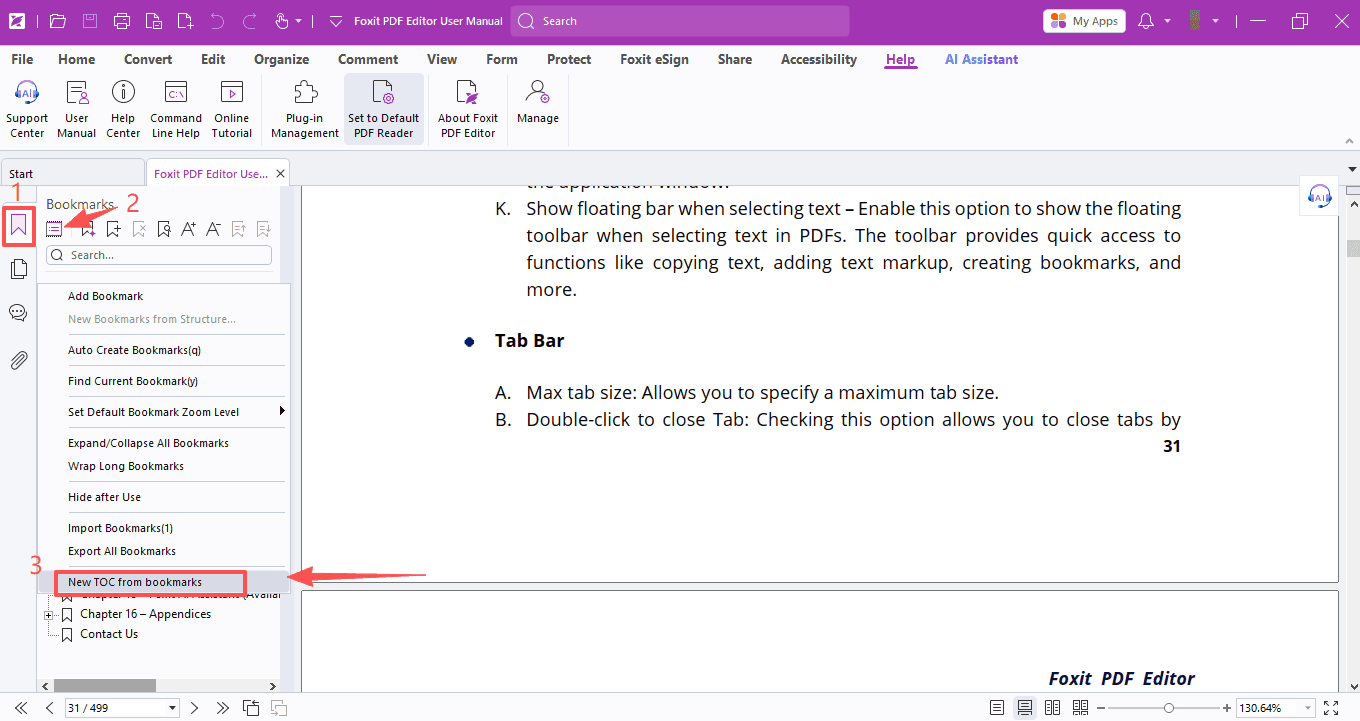
- Open the Bookmarks panel on the left sidebar. Click the Menu icon button at the top of the Bookmarks panel, then select New TOC from Bookmarks.
- In the pop-up window, set the text style for your TOC, choose which bookmark levels to include, and adjust other settings as needed.
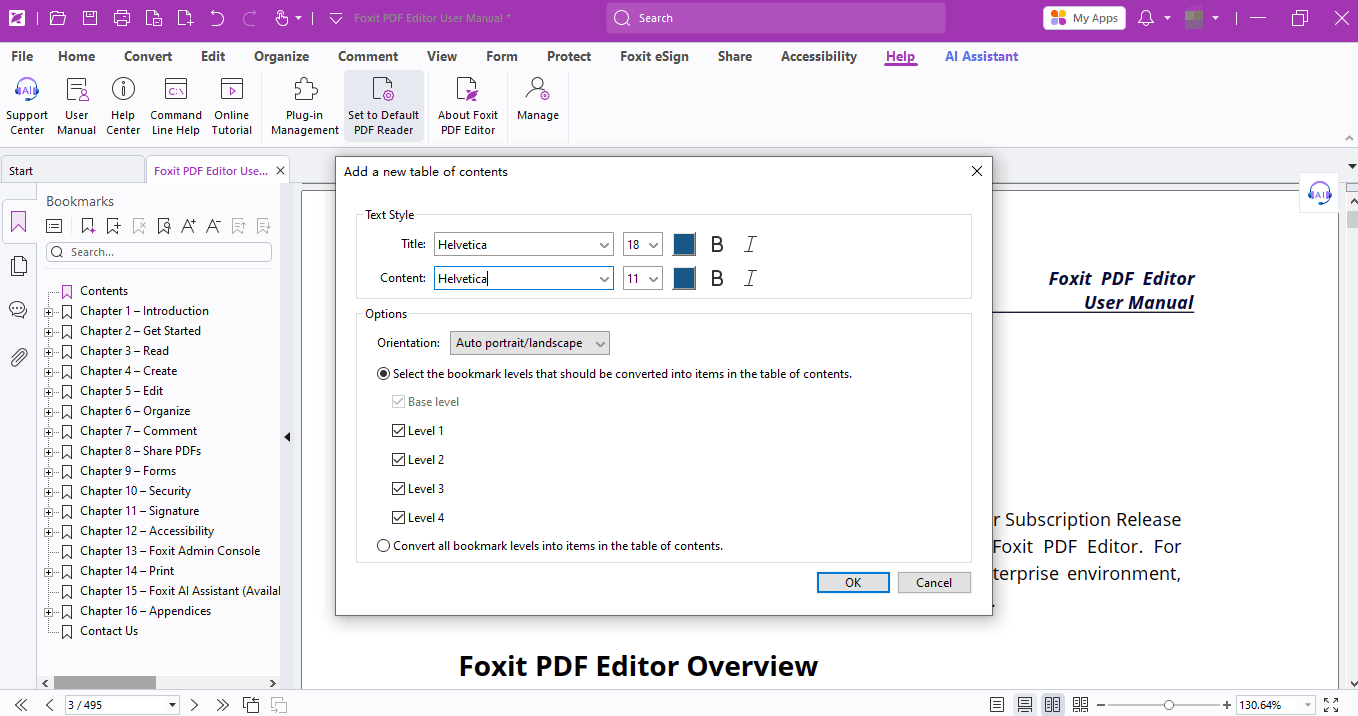
- Once you finish the setup, click OK. The program will instantly generate a table of contents based on your existing bookmarks, complete with section headings and matching page numbers.
Heads-up: Headings follow the hierarchy of your bookmarks, with second-level and lower-level titles shown in indented format.
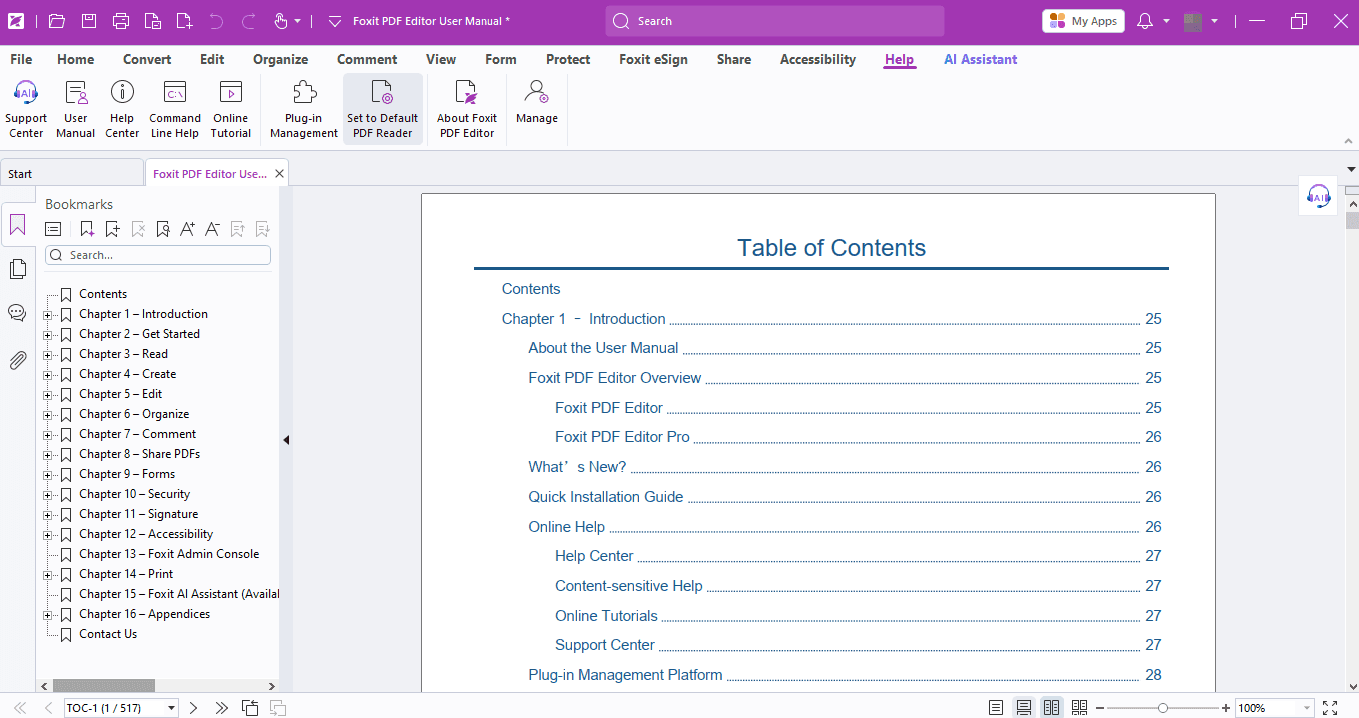
Just save your file, and you’re all set!
If your PDF doesn’t have bookmarks yet
You can create them first. We’ve shared the step-by-step guide in our previous tips article: How to Create Bookmarks in PDFs by Titles & Keywords, feel free to check it out for a quick recap!
If you need help with any specific case using Foxit PDF Editor, or have questions about how to use it, please feel free to click here to submit your inquiries. We will create dedicated guides based on your actual needs to provide further support.
Try it yourself
Open the interactive Web SDK demo, or talk to a Foxit APAC partner about licensing for your team or campus.