
Weekly Tip #14
How to Annotate a PDF Document
Whether you're grading, annotating, or marking up, Foxit PDF Editor's built-in annotation tools keep it clear and efficient.
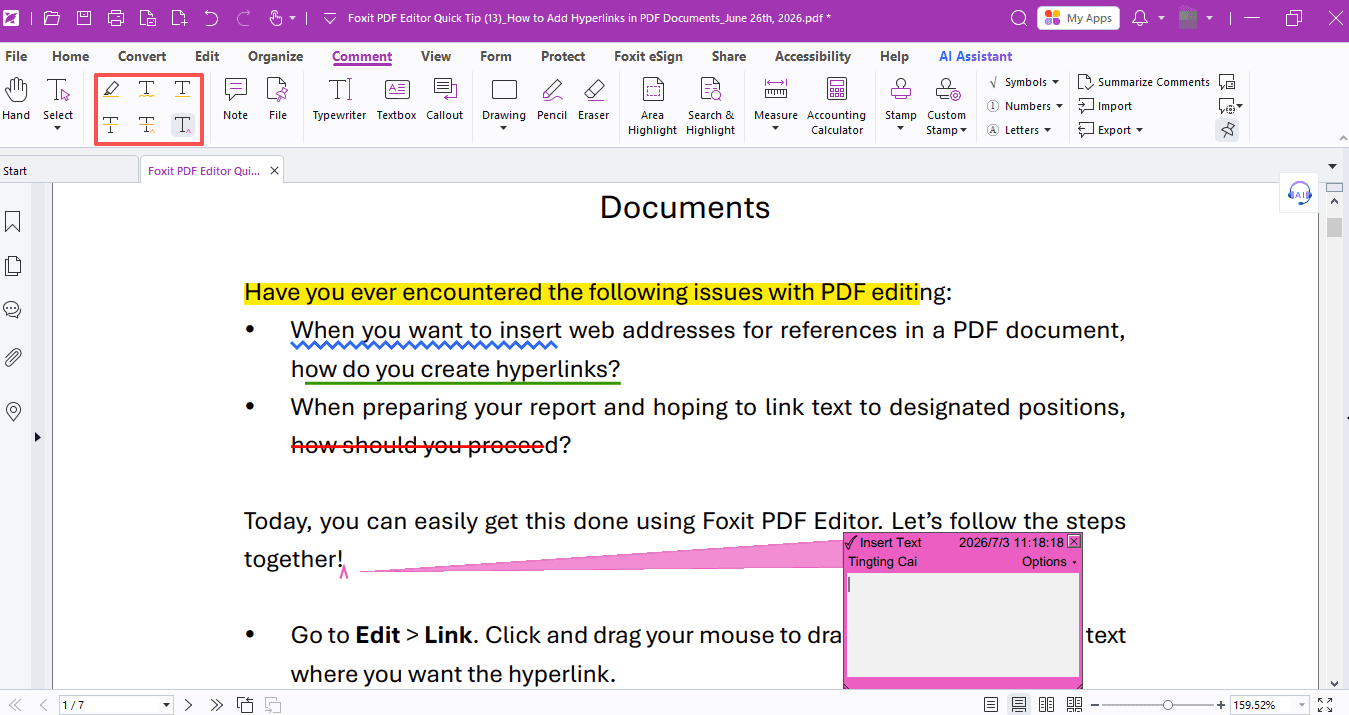
Whether you’re leaving comments on student dissertations, jotting down marginal thoughts while reading e-books, or adding visual markers like boxes and underlines to reference materials—clear and efficient annotation is essential to your workflow.
All these tasks can be easily handled with the annotation tools built into Foxit PDF Editor. Let’s walk through all the useful features together!
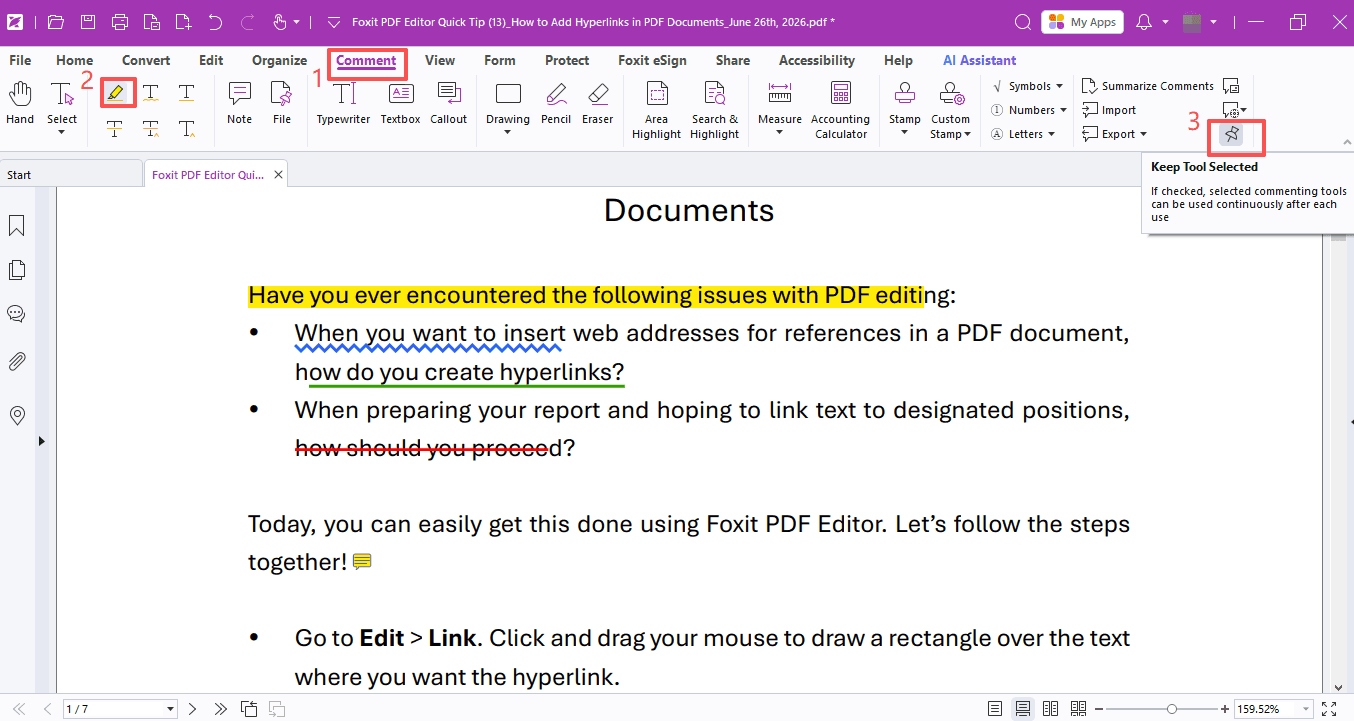
Open your target document in Foxit PDF Editor. The Comment toolbar holds a full suite of frequently used markup tools: Highlight, Squiggly Underline, Underline, Strikeout, Replace Text and Insert Text.
If you plan to add multiple marks with the same tool, check Keep Tool Selected after picking your annotation tool. This saves you from having re-select it every time.
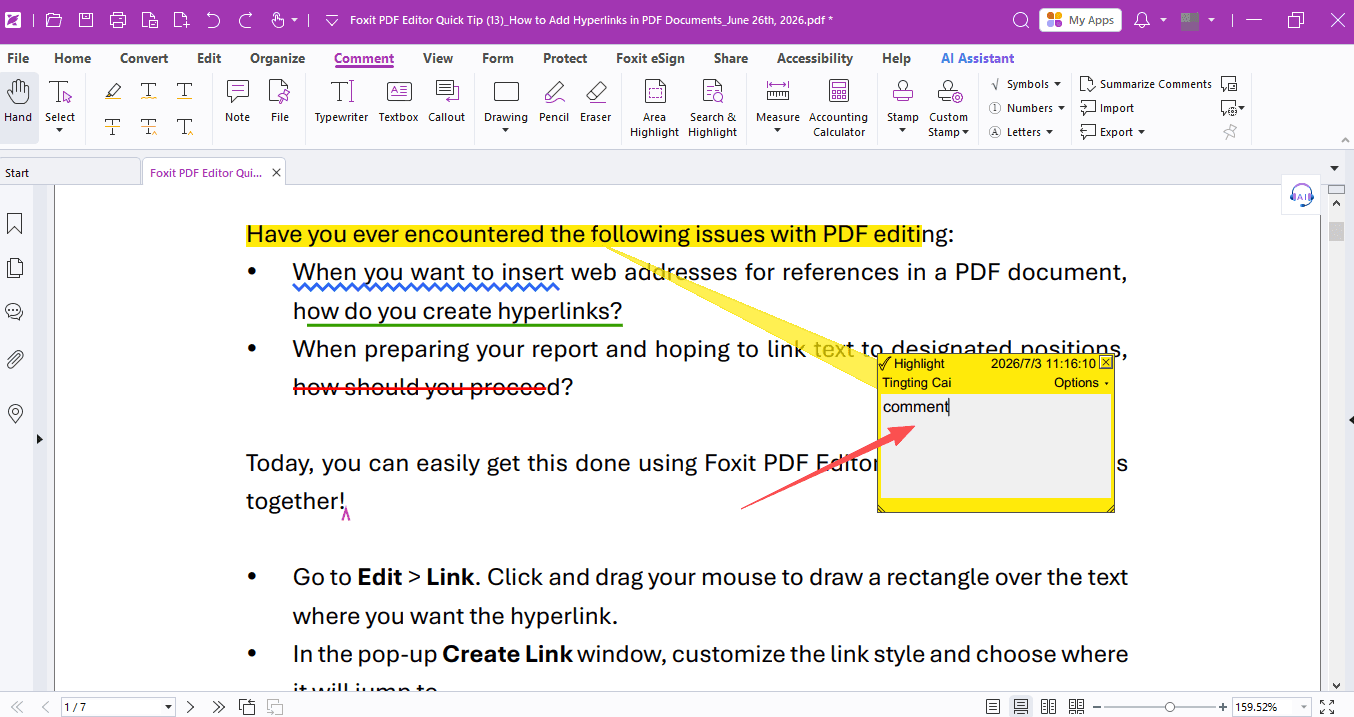
After placing any markup, you can attach notes to share your feedback, questions or thoughts.
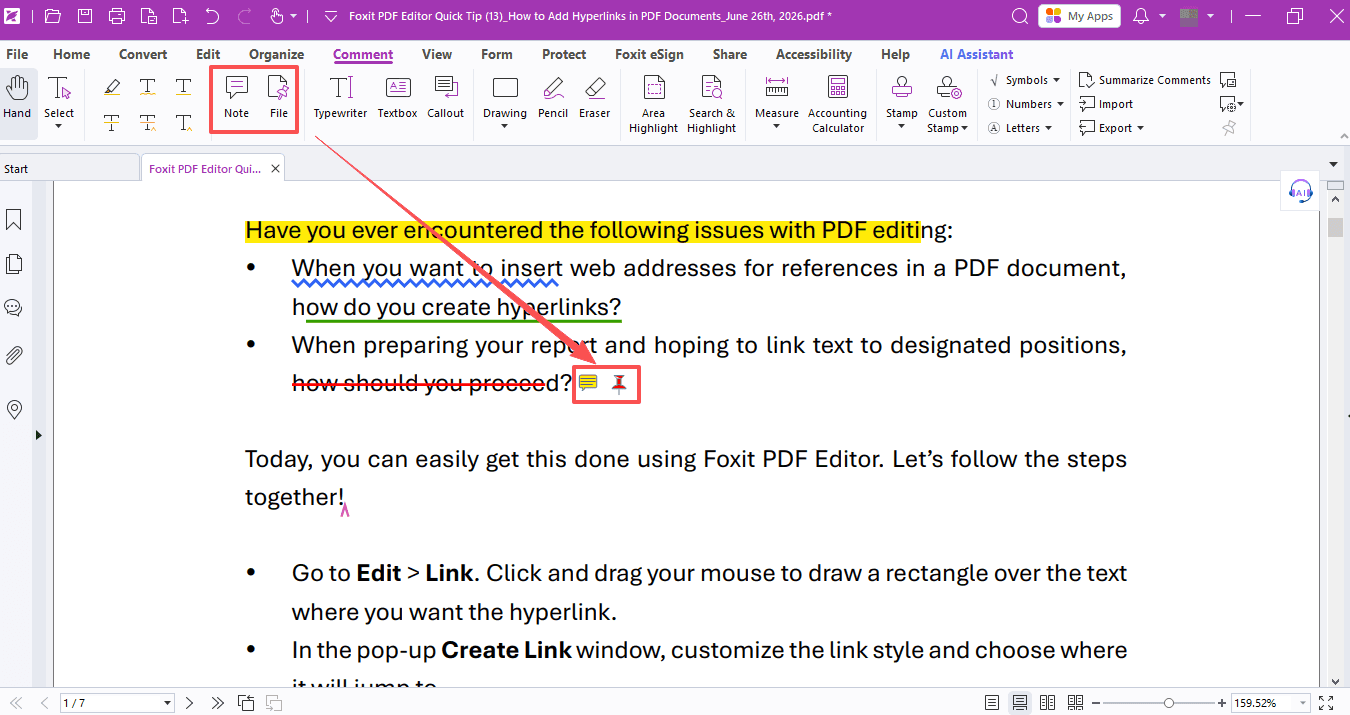
You may also insert standalone sticky notes or file attachments anywhere on the page, and simply double-click to open any attached files.
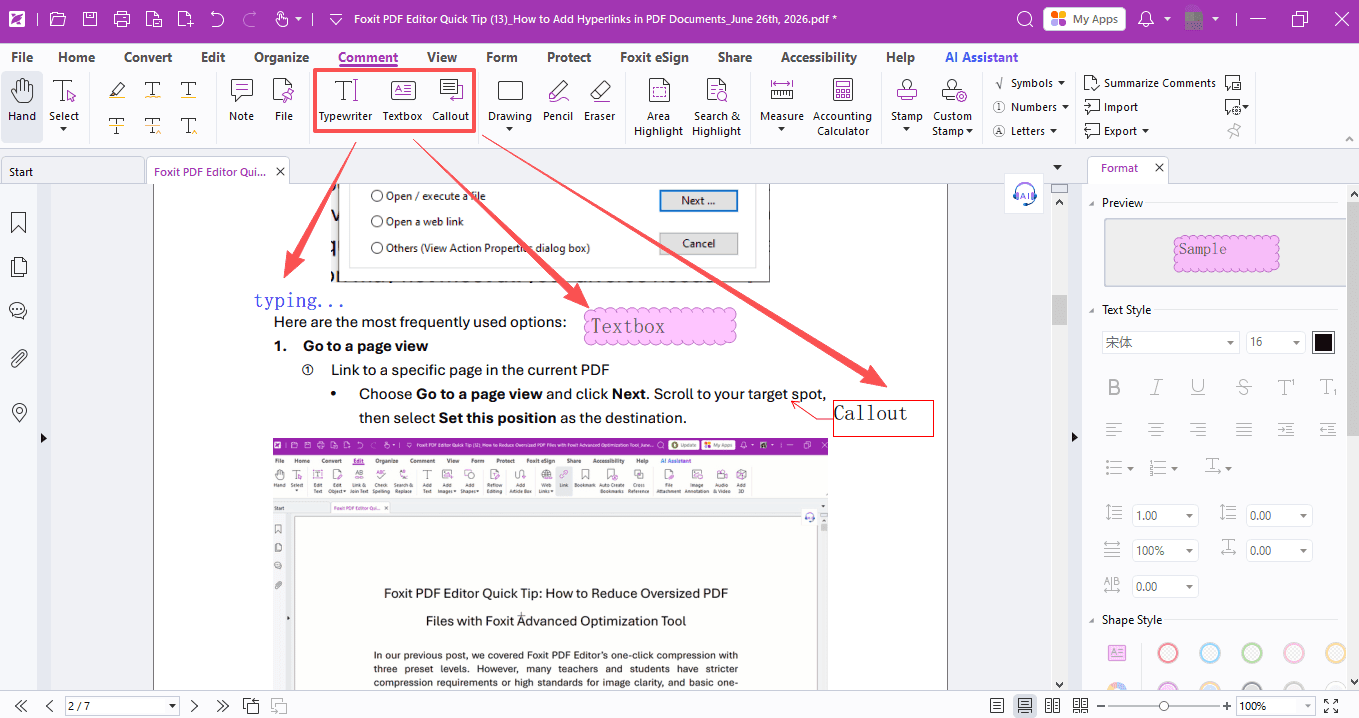
Three text-based annotation formats are available if you want to type notes directly onto the page: Typewriter, Textbox and Callout.
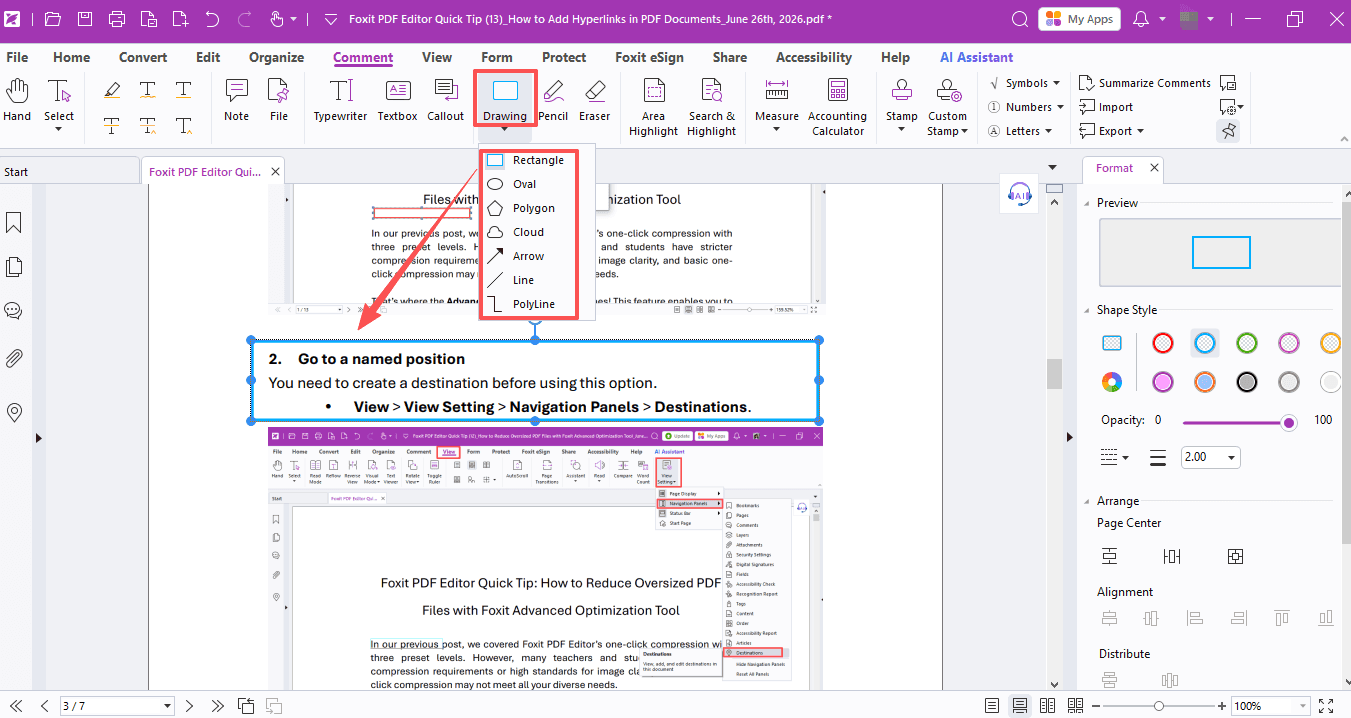
The drawing toolkit lets you draw arrows, straight lines, rectangles, circles and more to flag key text or images. You can tweak line styles, colors and other visual settings in the Format panel.
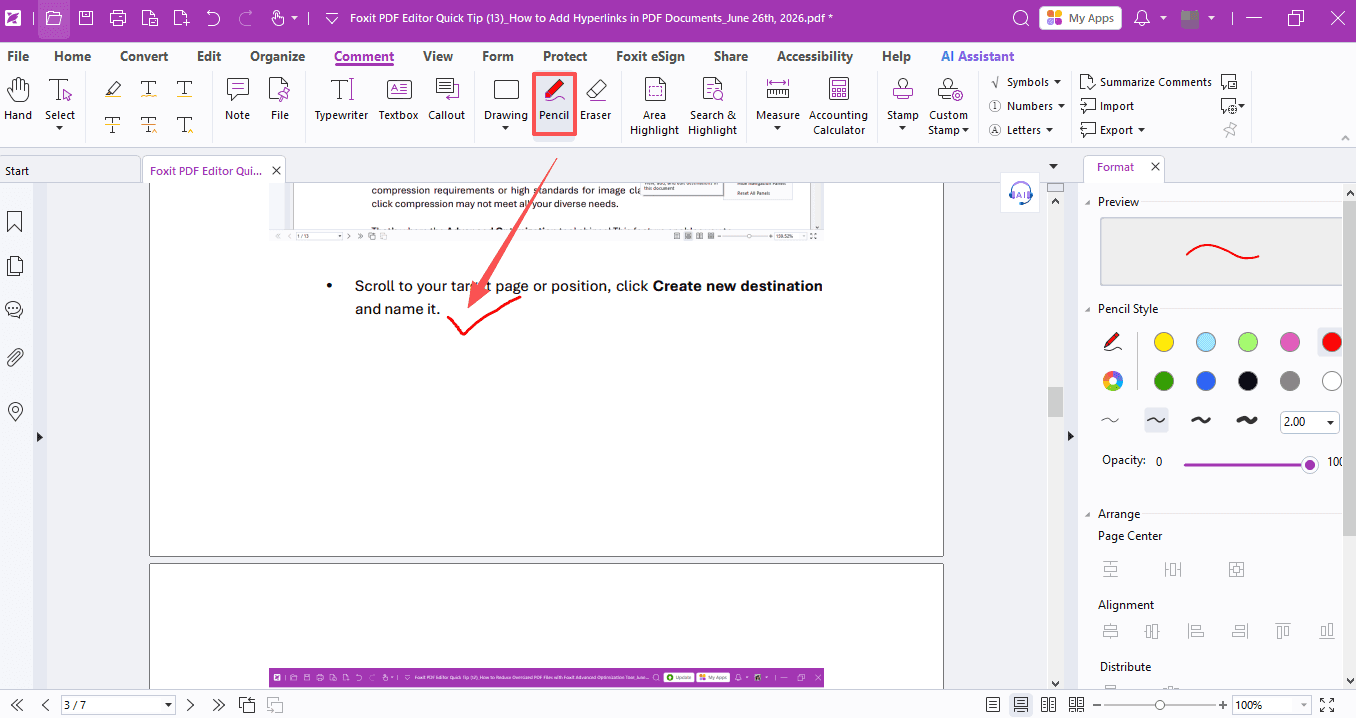
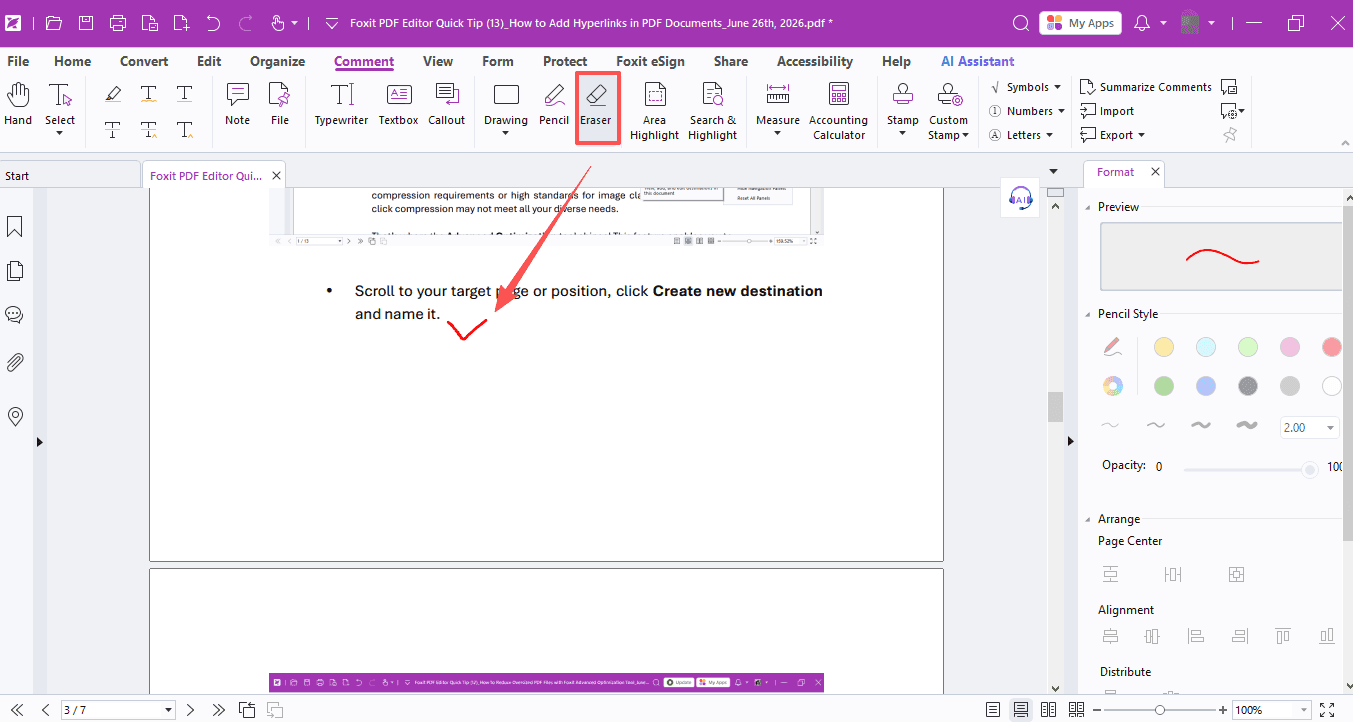
The Pencil tool lets you add freehand markup. Adjust its color, line thickness and transparency via the Format panel on the right, and the Eraser tool wipes away any pencil scribbles.
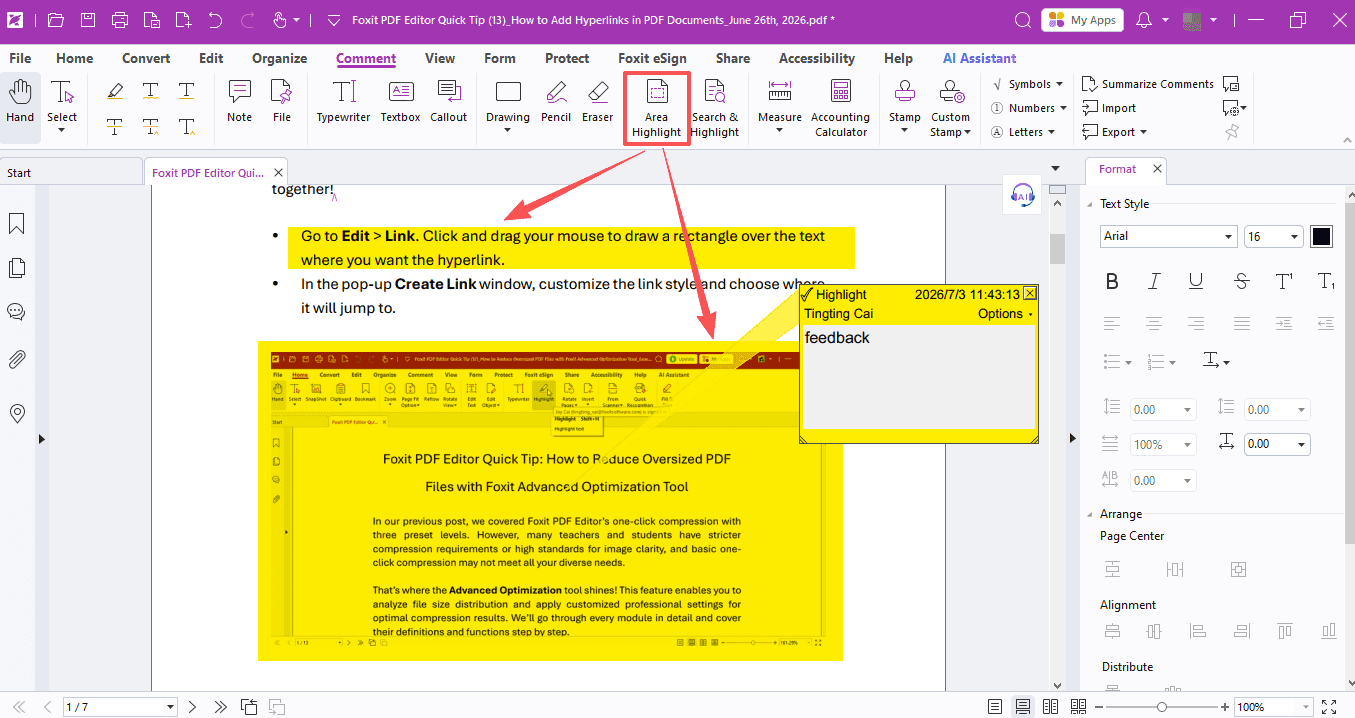
For highlighting full paragraphs or images, use Area Highlight to shade any section and add accompanying notes.
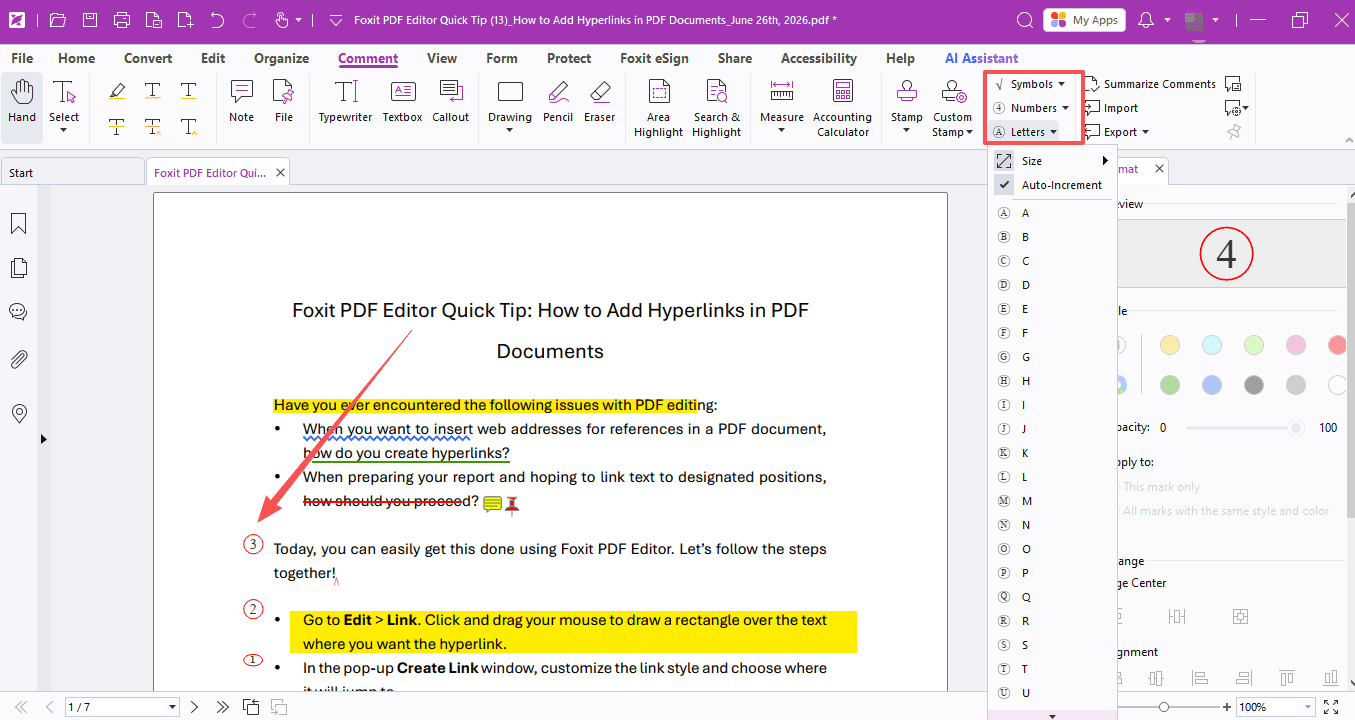
It also supports symbols, including auto-incrementing numbered markers. Navigate to Symbols / Numbers / Letters, drag to select multiple symbols, then use the right-side panel to align them neatly.
This is an incredibly handy feature for academic review—go ahead and give it a try!
If you need help with any specific case using Foxit PDF Editor, or have questions about how to use it, please feel free to click here to submit your inquiries. We will create dedicated guides based on your actual needs to provide further support.
Try it yourself
Open the interactive Web SDK demo, or talk to a Foxit APAC partner about licensing for your team or campus.