
Weekly Tip #9
How to Add, Reassign, and Customize PDF Footers
Cover pages, renumbering, custom page numbers — Foxit PDF Editor makes it easy to get your footers just right.
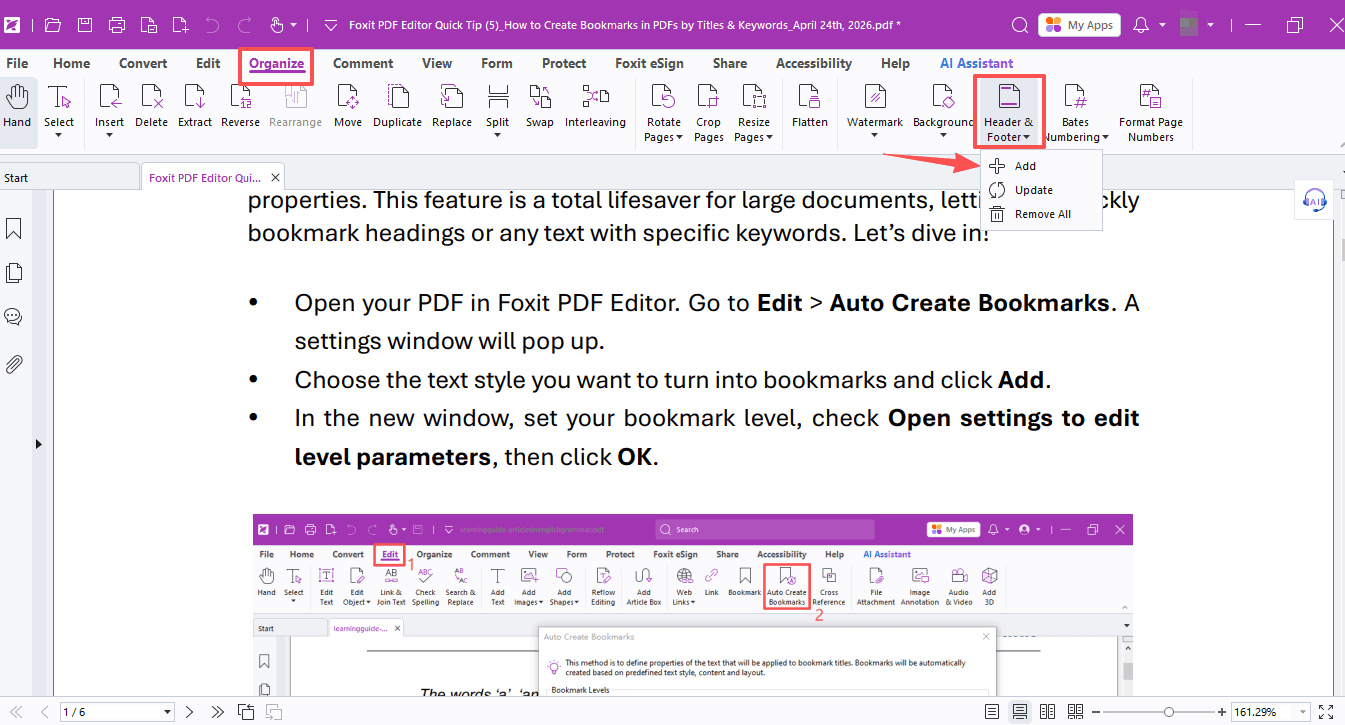
When working with PDFs, you may run into situations like these:
- Adding footers to a PDF while keeping the cover page footer-free.
- Reassigning page numbers in footers after merging multiple PDF files.
- Creating custom footers with page number formats such as "1/5".
No worries! Here's a simple way to handle all of them using Foxit PDF Editor.
Open Foxit PDF Editor, go to the Organize tab → Header & Footer → Add.
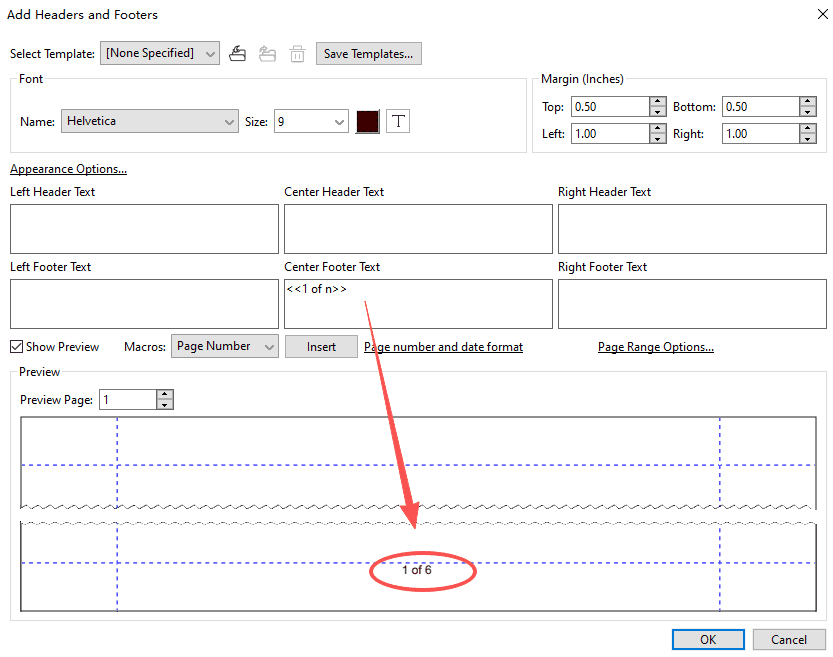
- To set up your custom footer: Open the Page number and date format. Choose your preferred style, such as 1/n or Page 1 of n, then hit “Insert” to place it in your desired footer position.
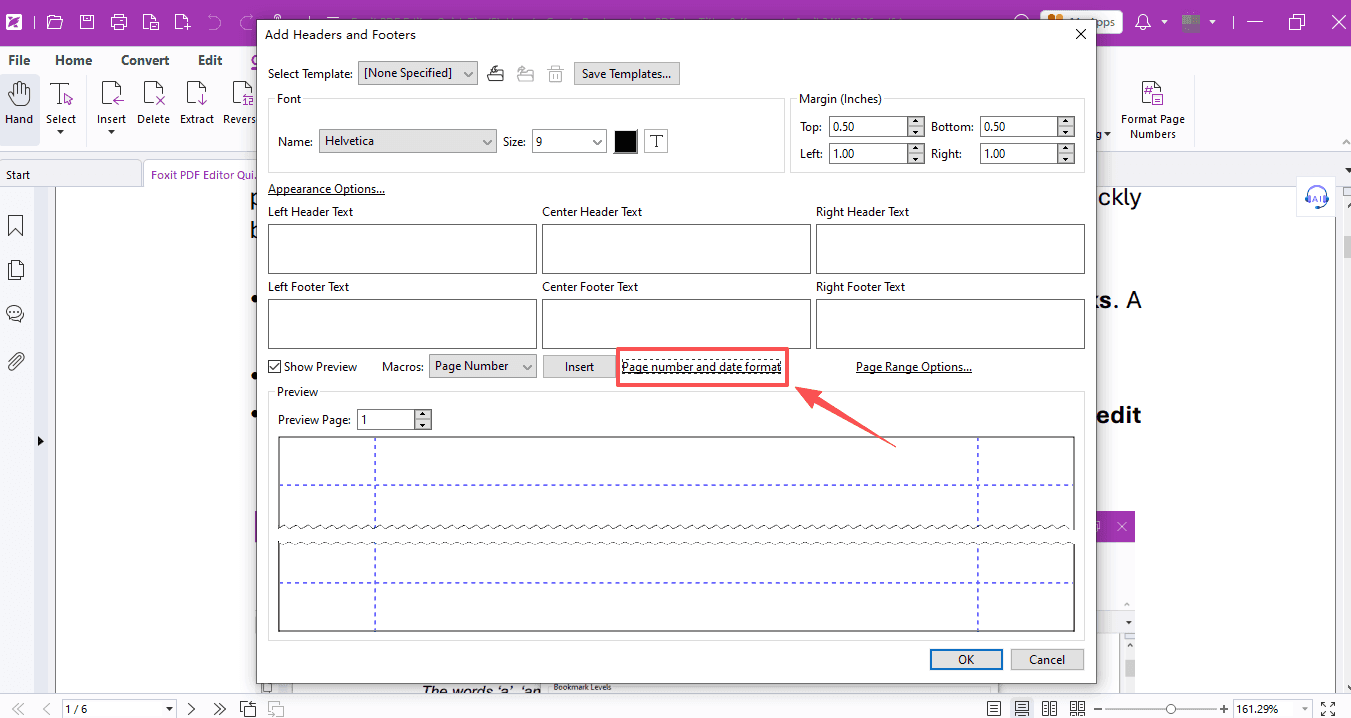
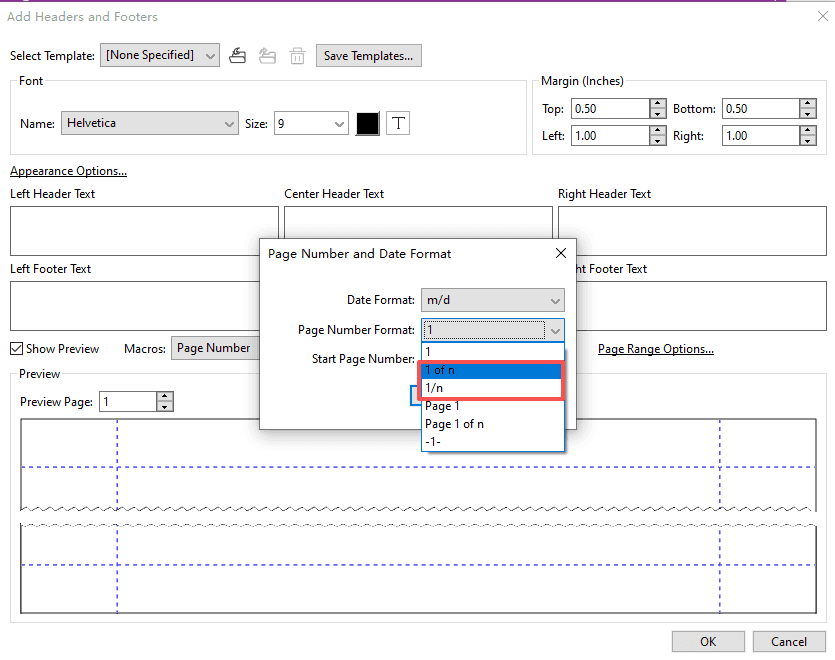
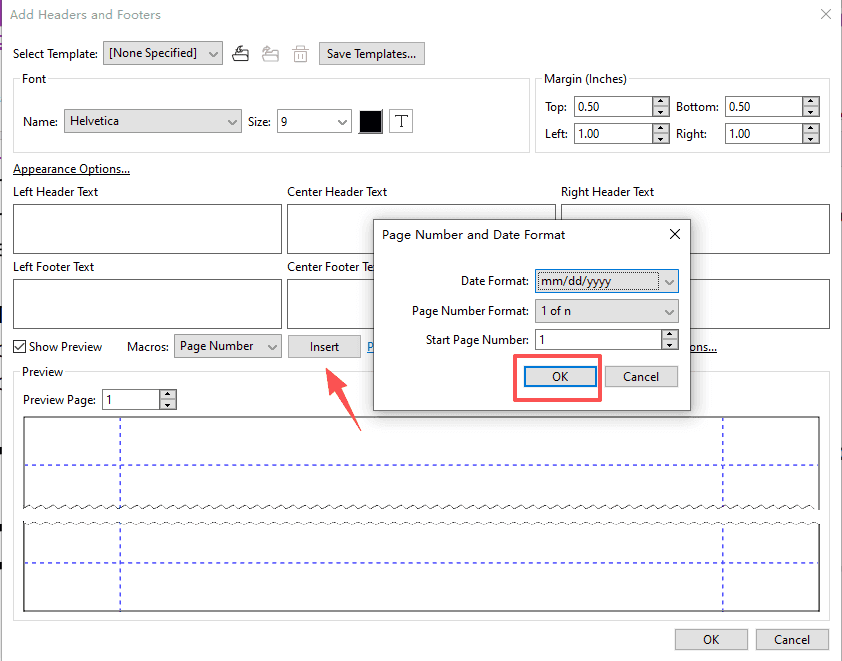
- After inserting, you can check the real-time preview right away. Feel free to adjust the font, size, color and other styles as you like!
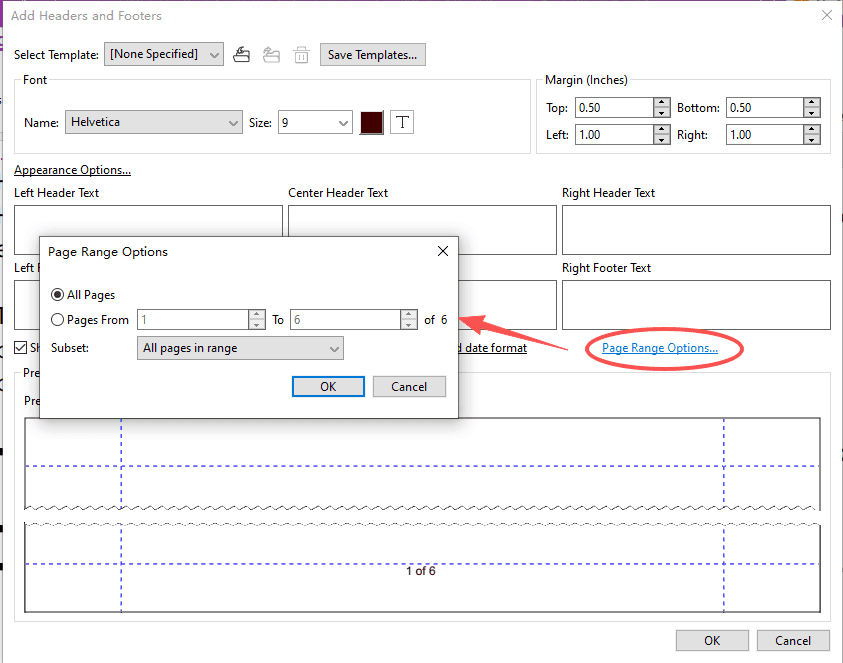
- You can also click the Page Range Options to apply footers starting from Page 2 — this way, your cover page will stay footer-free.
That’s all for today's tips. Let this handy skill make study and teaching a breeze!
If you need help with any specific case using Foxit PDF Editor, or have questions about how to use it, please feel free to click here to submit your inquiries. We will create dedicated guides based on your actual needs to provide further support.
Try it yourself
Open the interactive Web SDK demo, or talk to a Foxit APAC partner about licensing for your team or campus.