
Weekly Tip #13
How to Add Hyperlinks in PDF Documents
Need to add hyperlinks or internal jump links in a PDF? Foxit PDF Editor lets you create them in just a few clicks.
Have you ever encountered the following issues with PDF editing:
- When you want to insert web addresses for references in a PDF document, how do you create hyperlinks?
- When preparing your report and hoping to link text to designated positions, how should you proceed?
Today, you can easily get this done using Foxit PDF Editor. Let’s follow the steps together!
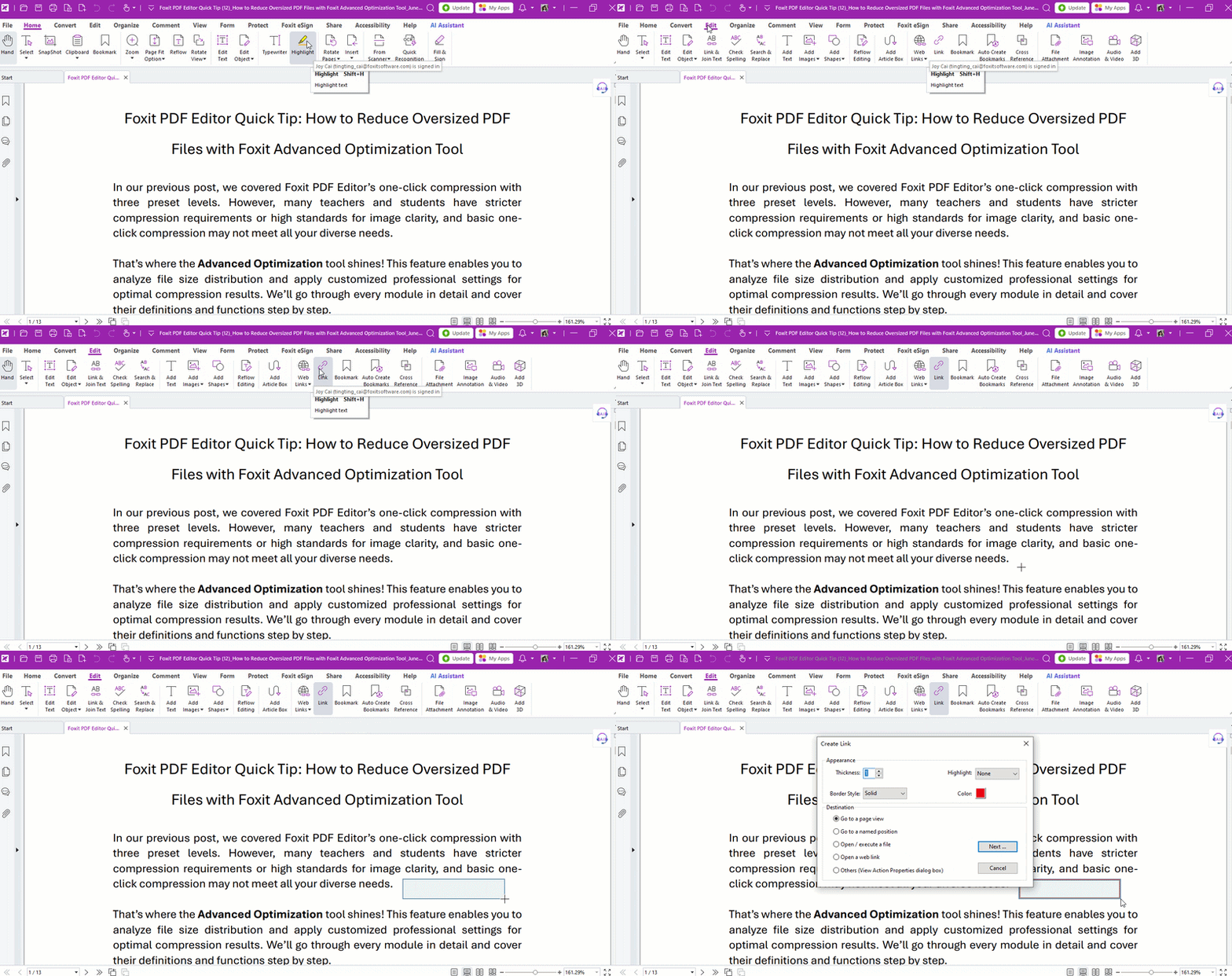
- Go to Edit > Link. Click and drag your mouse to draw a rectangle over the text where you want the hyperlink.
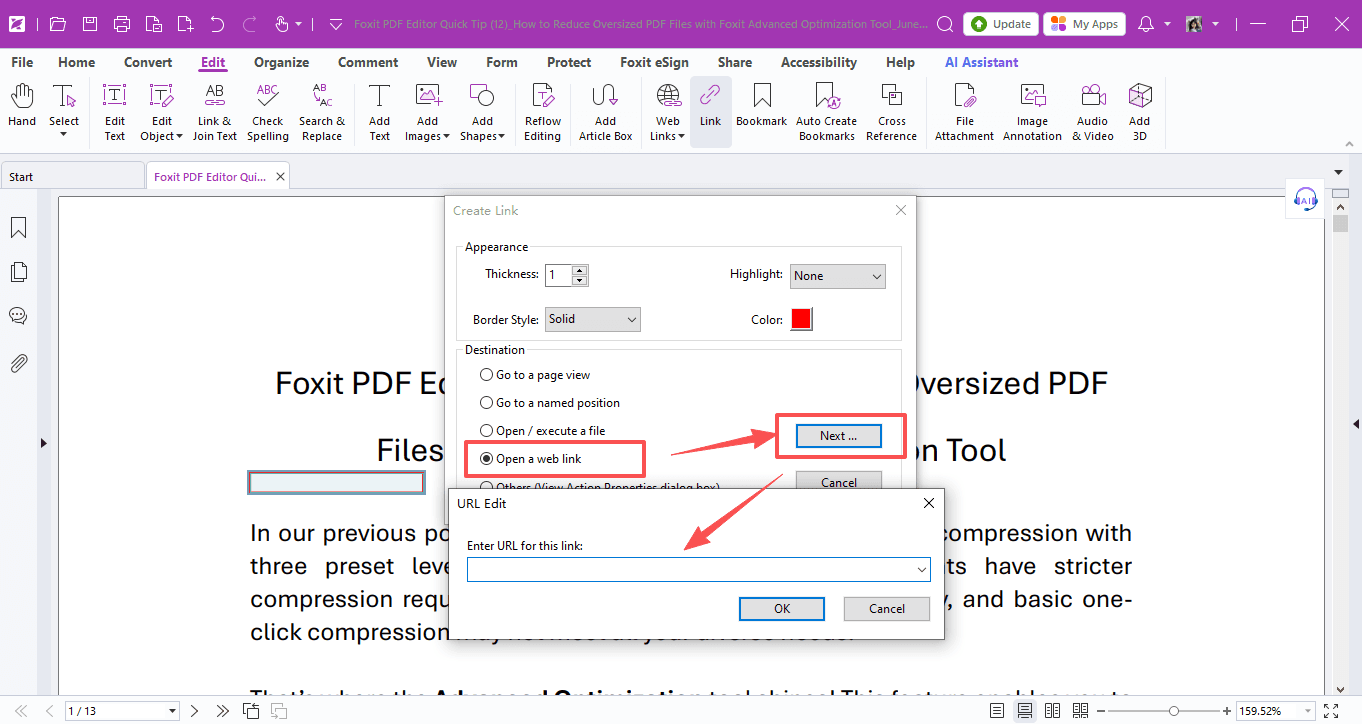
- In the pop-up Create Link window, customize the link style and choose where it will jump to.
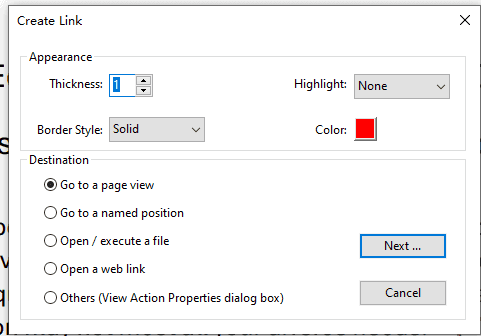
Here are the most frequently used options:
1. Go to a page view
Link to a specific page in the current PDF
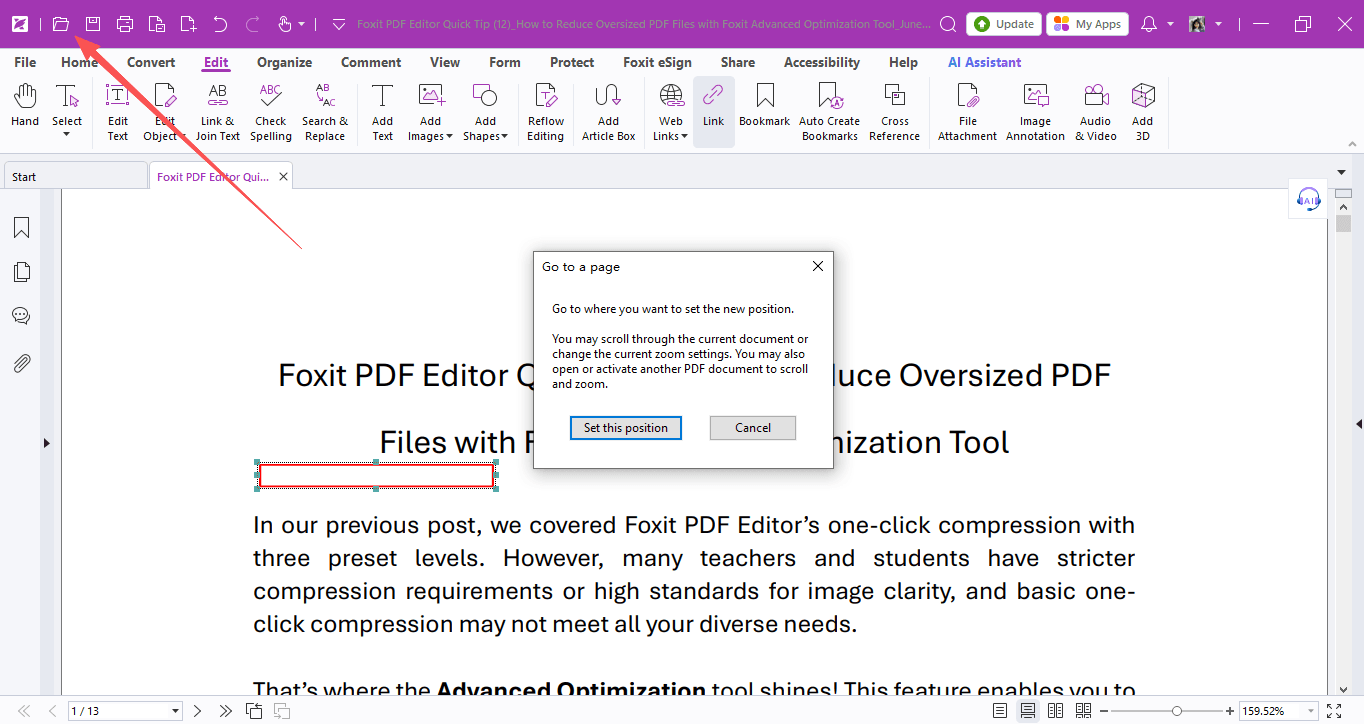
- Choose Go to a page view and click Next. Scroll to your target spot, then select Set this position as the destination.
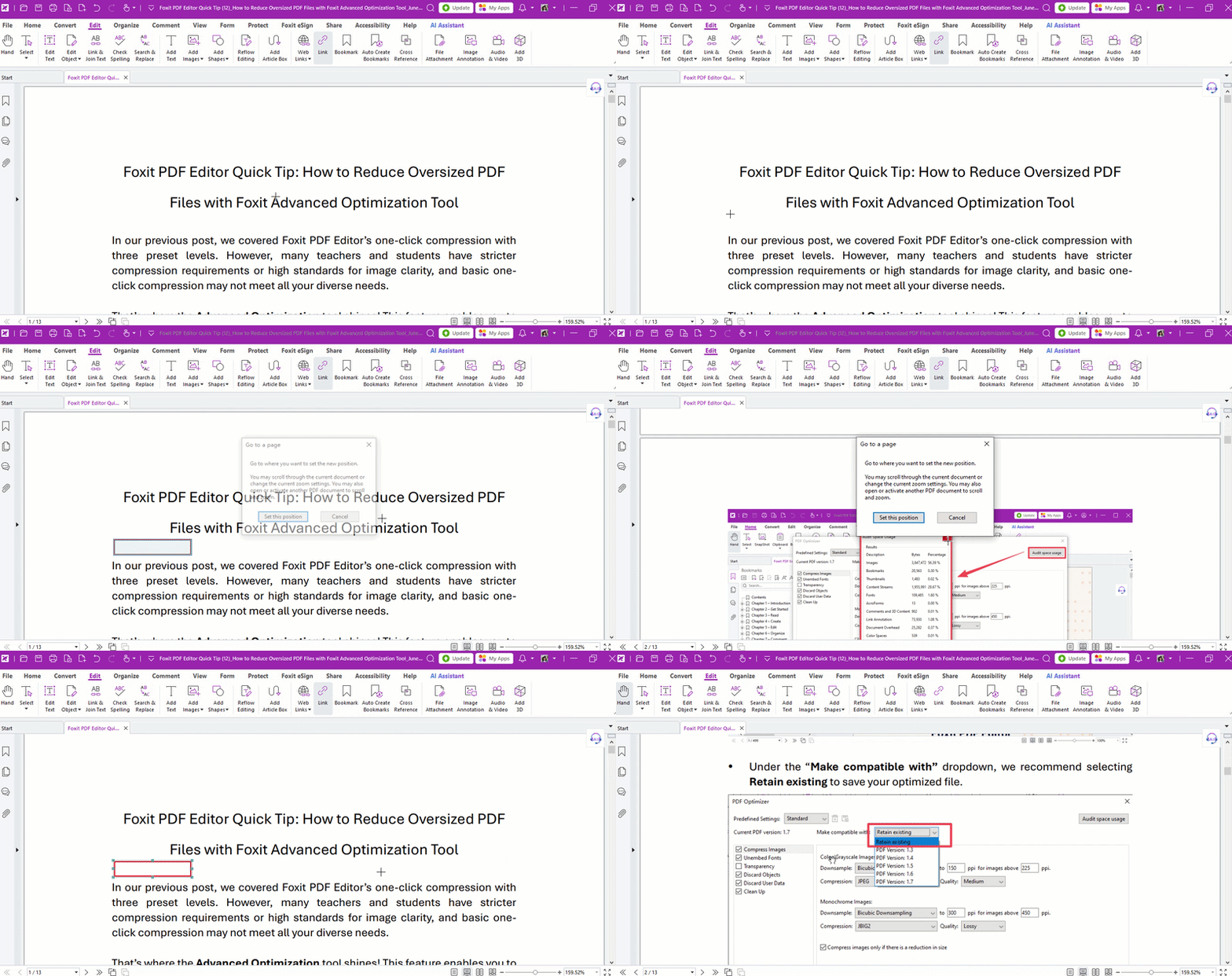
Link to a page inside another PDF saved on your computer
- Select Go to a page view and click Next.
- Hit the Open button and select the target PDF file. Navigate to the required page and click Set this position as the destination.
2. Go to a named position
You need to create a destination before using this option.
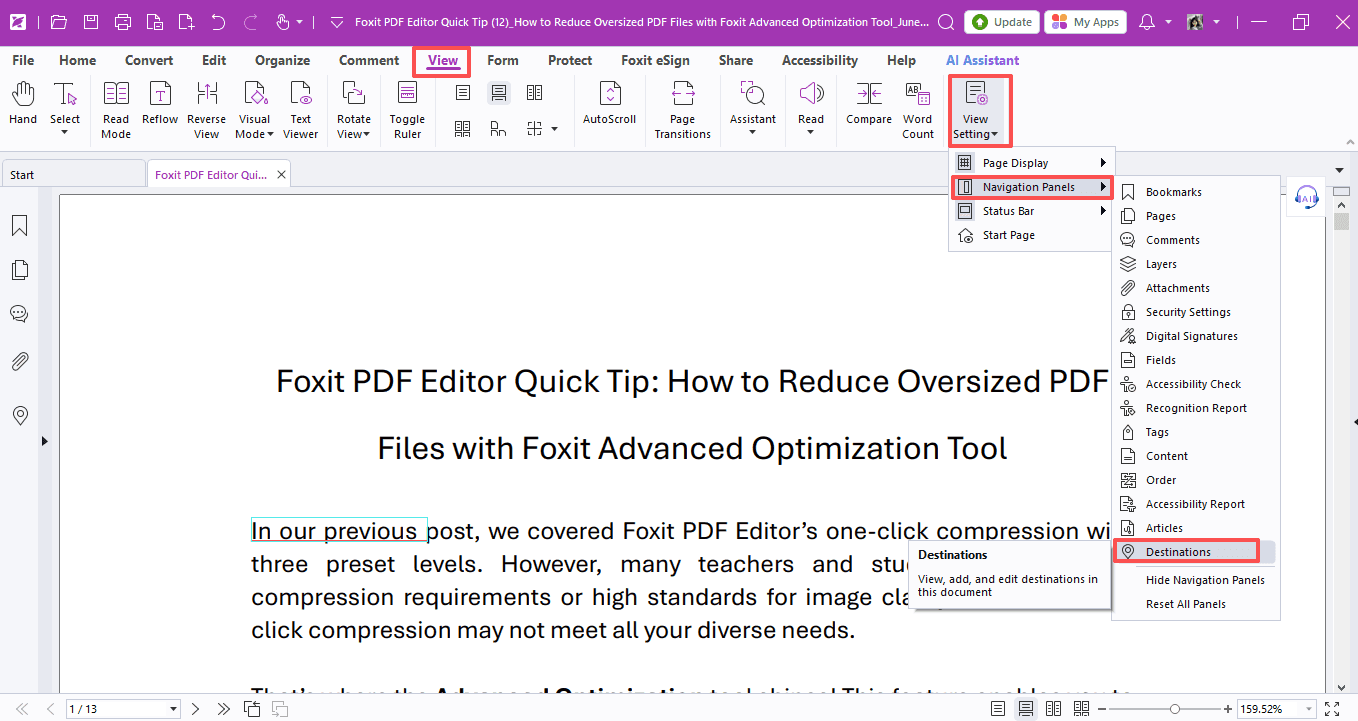
- View > View Setting > Navigation Panels > Destinations.
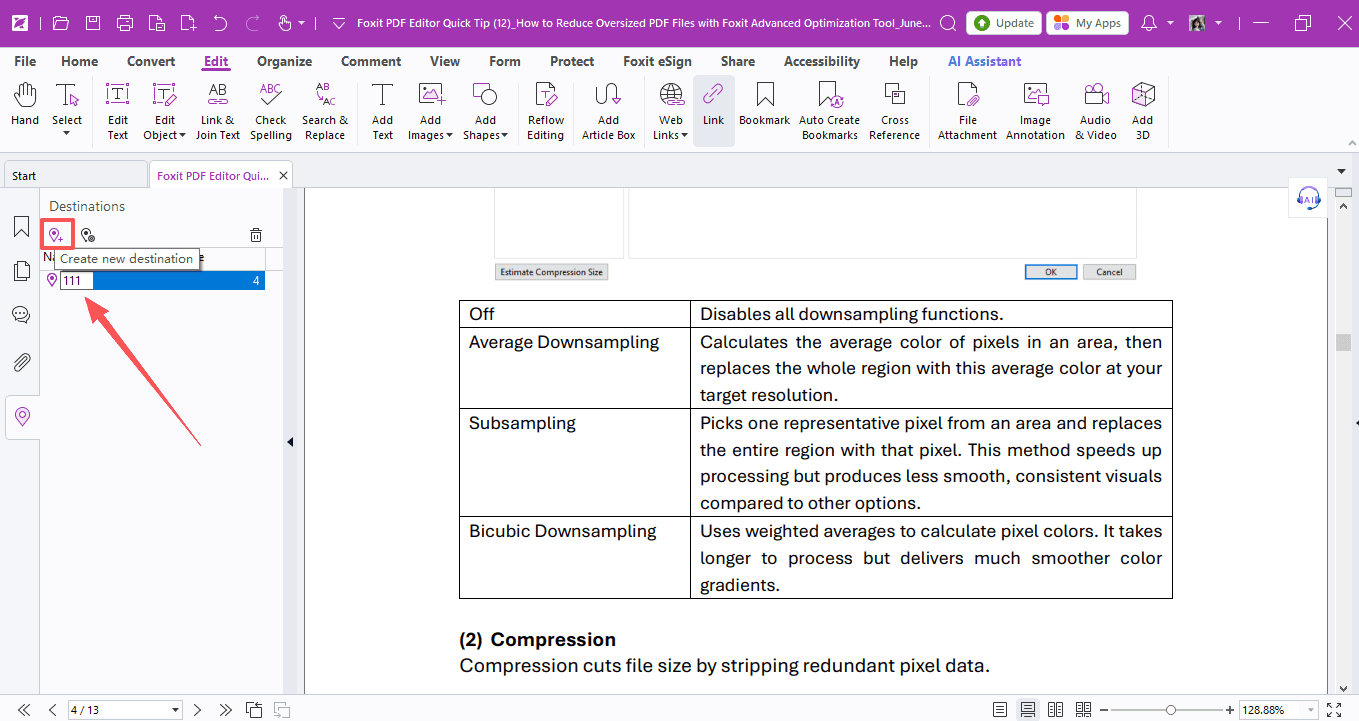
- Scroll to your target page or position, click Create new destination and name it.
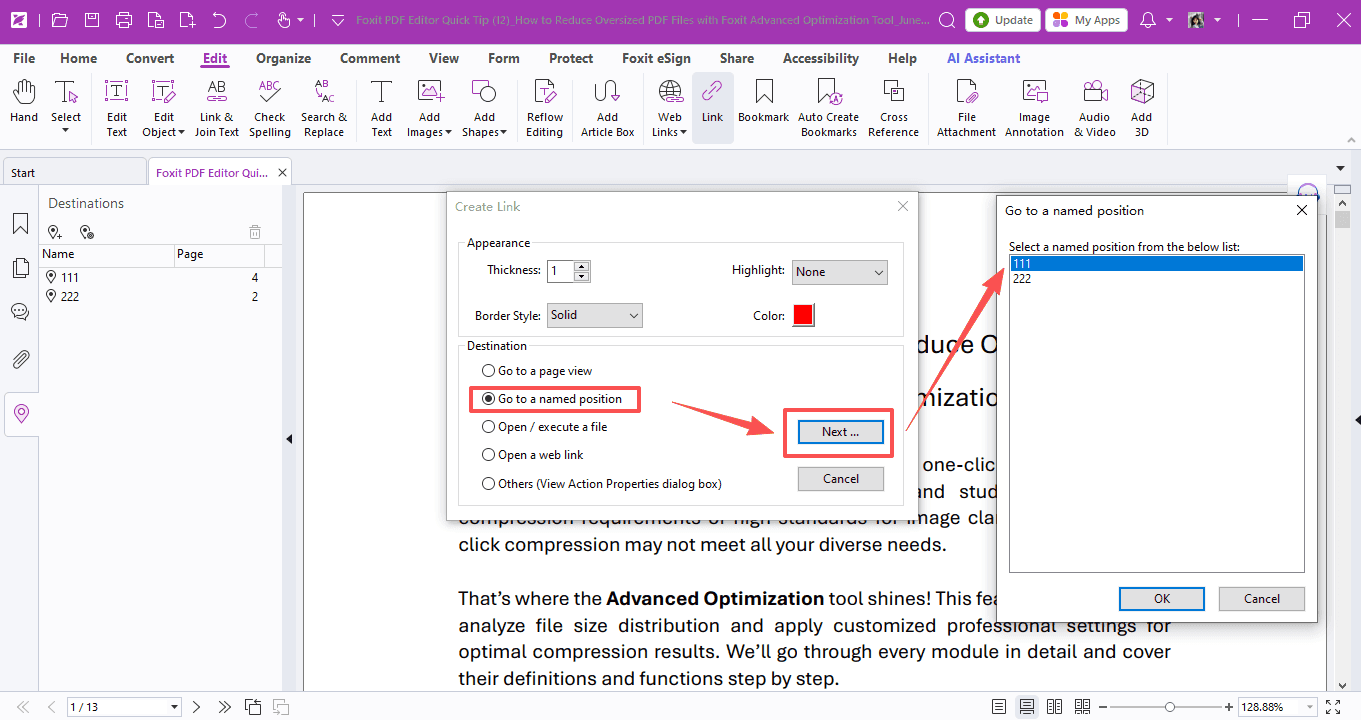
- Select Go to a named position and click Next. Choose your target destination from the list and hit OK.
3. Open / execute a file
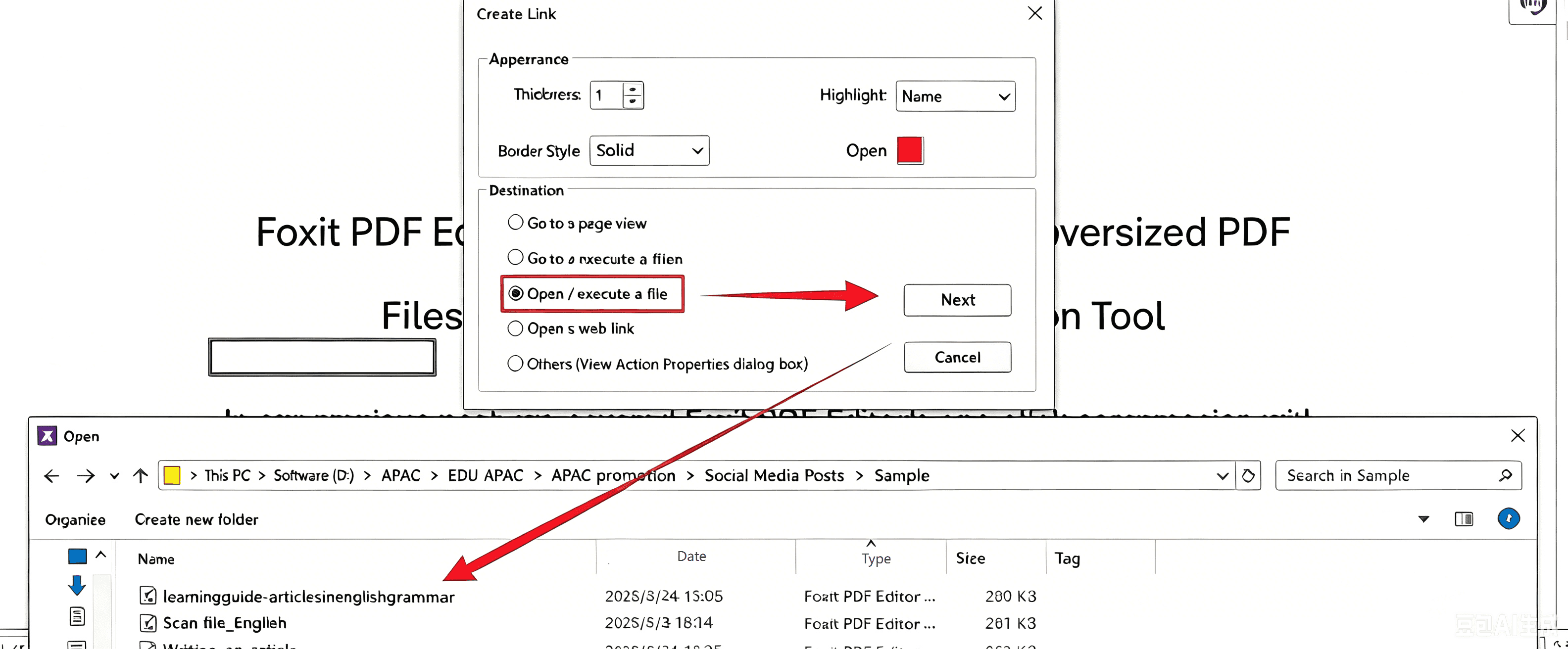
- Pick Open / execute a file > Next, choose your target document and open it.
4. Open a web link
- Open a web link > Next and paste the URL. You can also select a recently visited website from the dropdown list, then click OK to finish the web hyperlink.
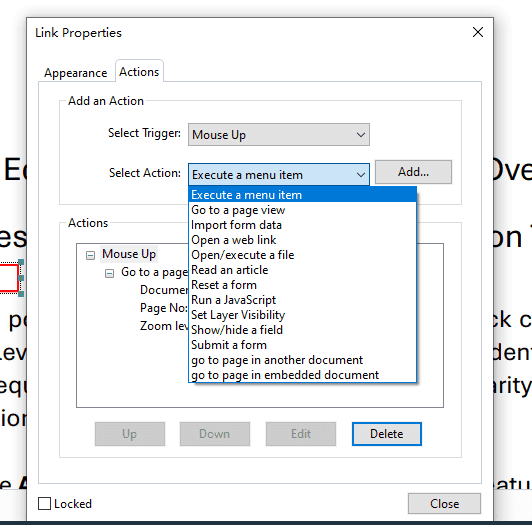
You can also open the Link Properties window to add extra actions, such as importing form data, submitting forms, or running JavaScript scripts.
After configuration, switch to the Hand tool to test your links!
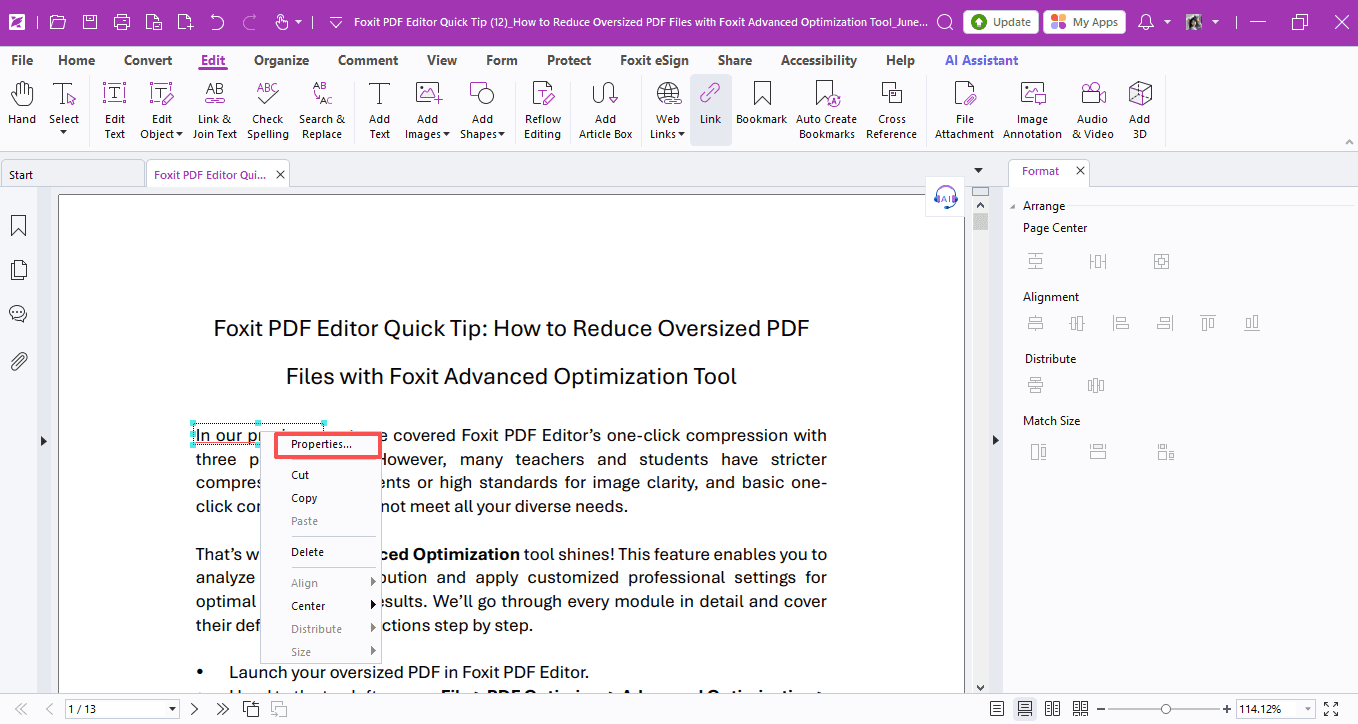
You can further edit the link box: adjust its appearance, action, alignment, or simply delete it.
That wraps up today’s guide. Stay tuned for more practical PDF tips!
If you need help with any specific case using Foxit PDF Editor, or have questions about how to use it, please feel free to click here to submit your inquiries. We will create dedicated guides based on your actual needs to provide further support.
Try it yourself
Open the interactive Web SDK demo, or talk to a Foxit APAC partner about licensing for your team or campus.