
Weekly Tip #28
How to Add Checkmarks & Symbols in PDFs to Grade Smarter
Need to tick a box or mark answers on a PDF? Foxit PDF Editor's Symbol tool and Fill & Sign make it quick and easy.
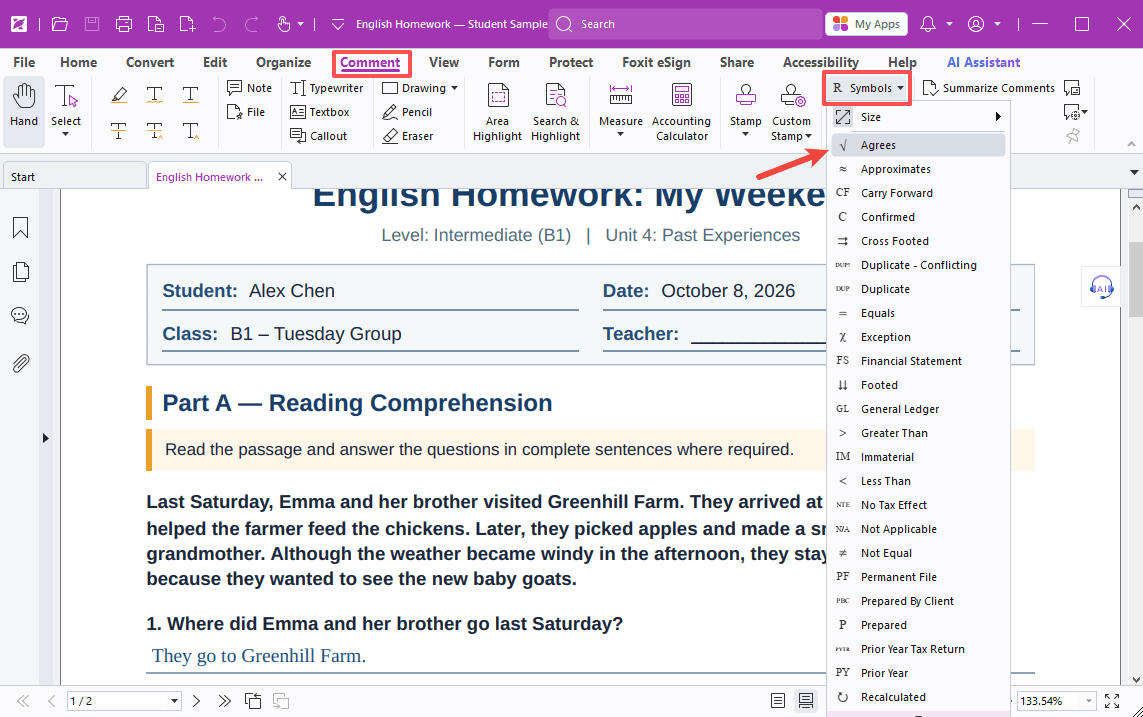
Need to tick a box, mark a correct answer, or give clear feedback on a PDF worksheet or assignment?
With Foxit PDF Editor’s Symbol tool, you can add checkmarks and a range of symbols for reviewing work and giving visual feedback. Let’s take a look!
Method 1: Using the Symbol Tool (Checkmarks and Review)
- Go to Comment > Symbol, select the √ symbol and click where you want the checkmark to appear.
You can click the symbol to change its color or adjust its position using the toolbar. To delete it, just select it and hit the Delete key.
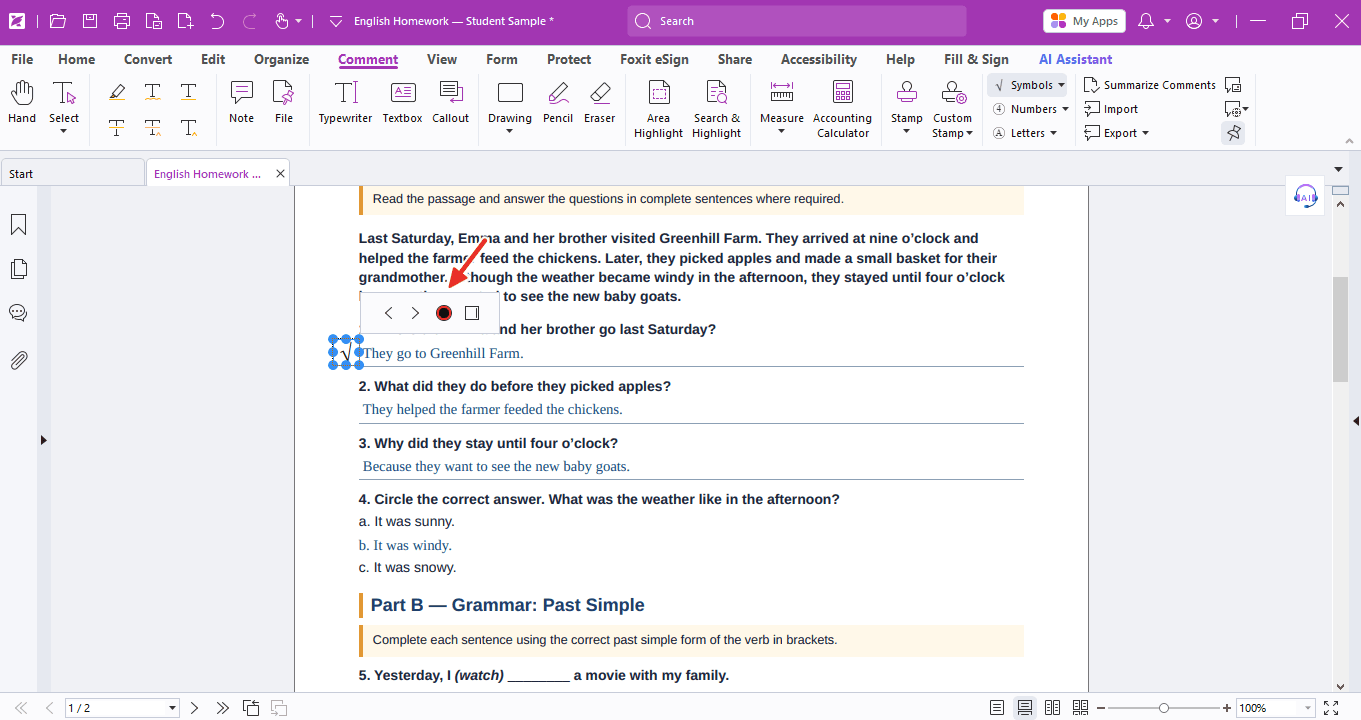
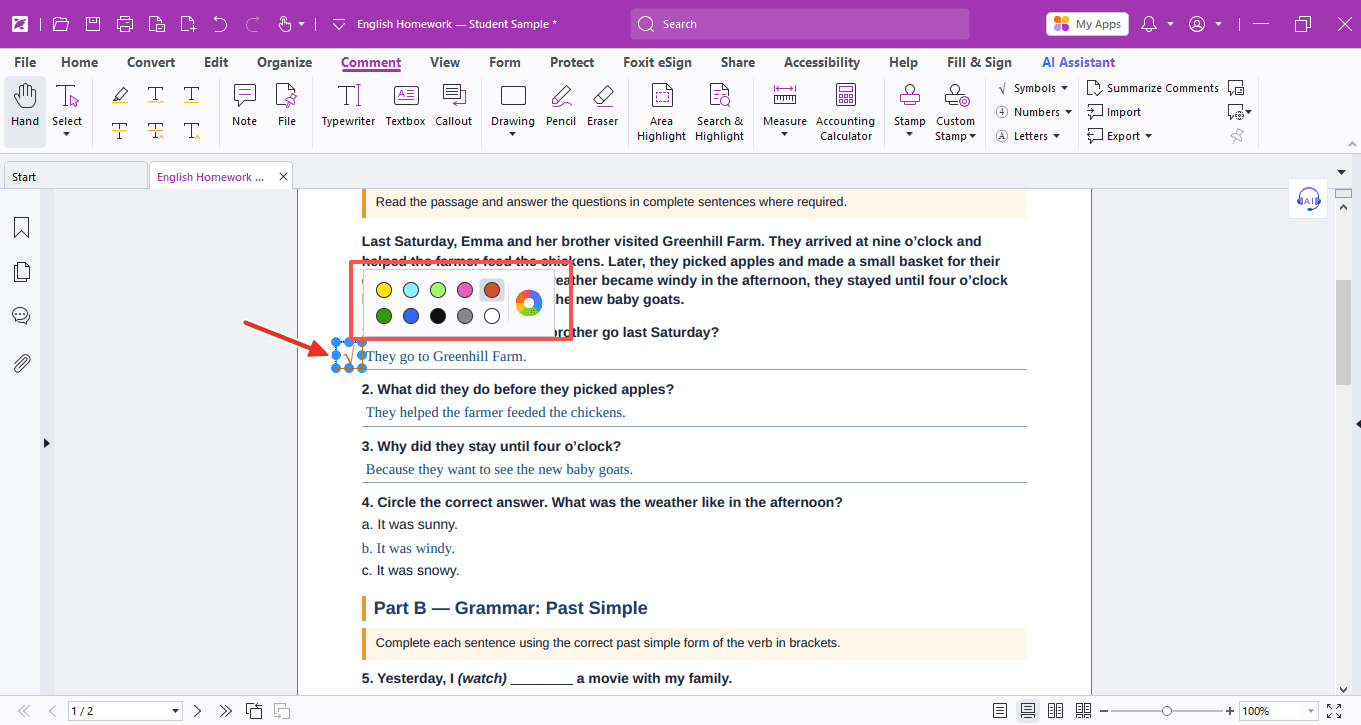
You can also see a Reviewed marker. Select it, click where you want it, and it is placed the same way—ideal for showing that a document, section, or assignment has already been reviewed.

Method 2: Using Fill & Sign (√ and ✗)
Go to Protect > Fill & Sign and choose √ or ✗ to add your mark.
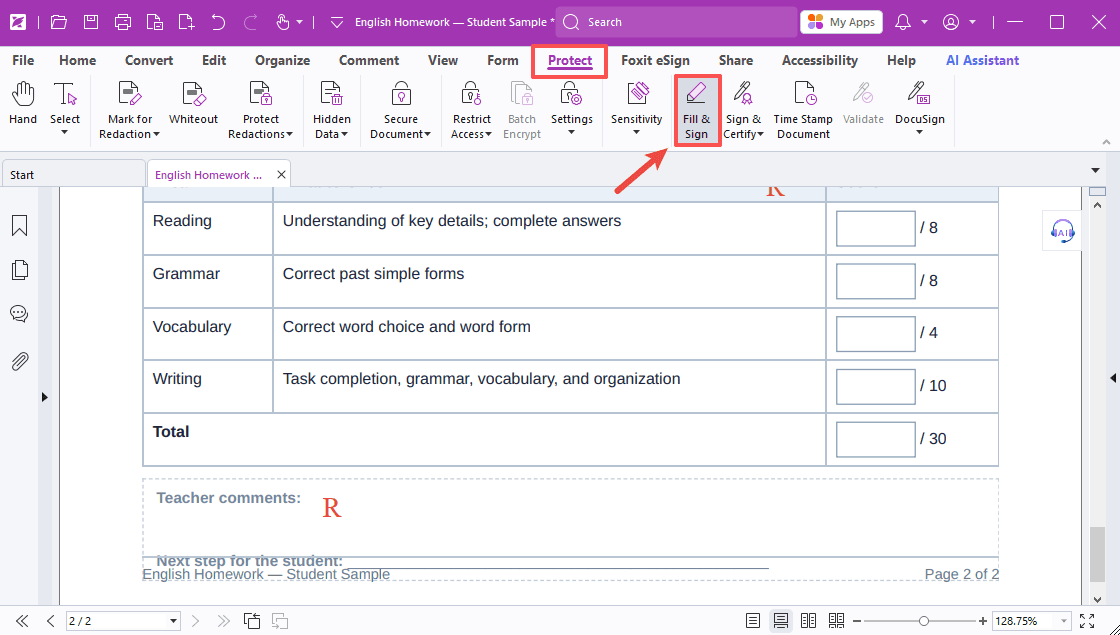
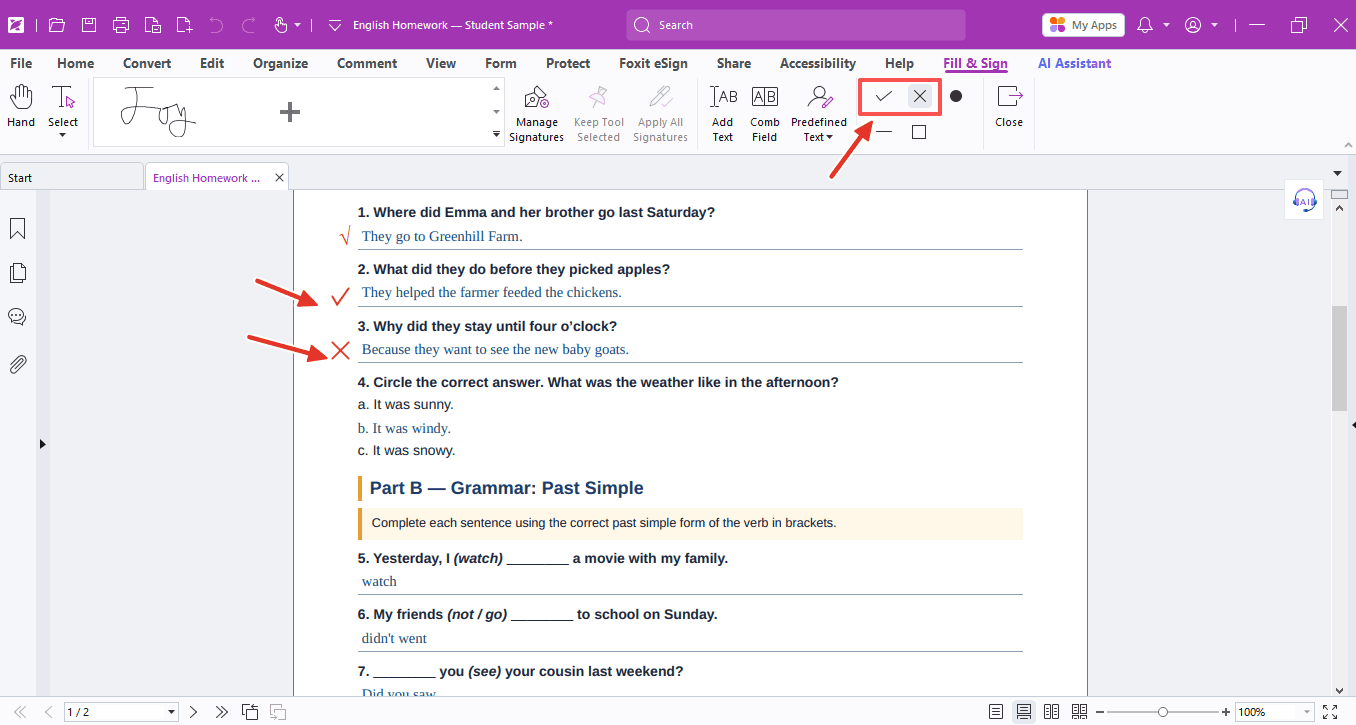
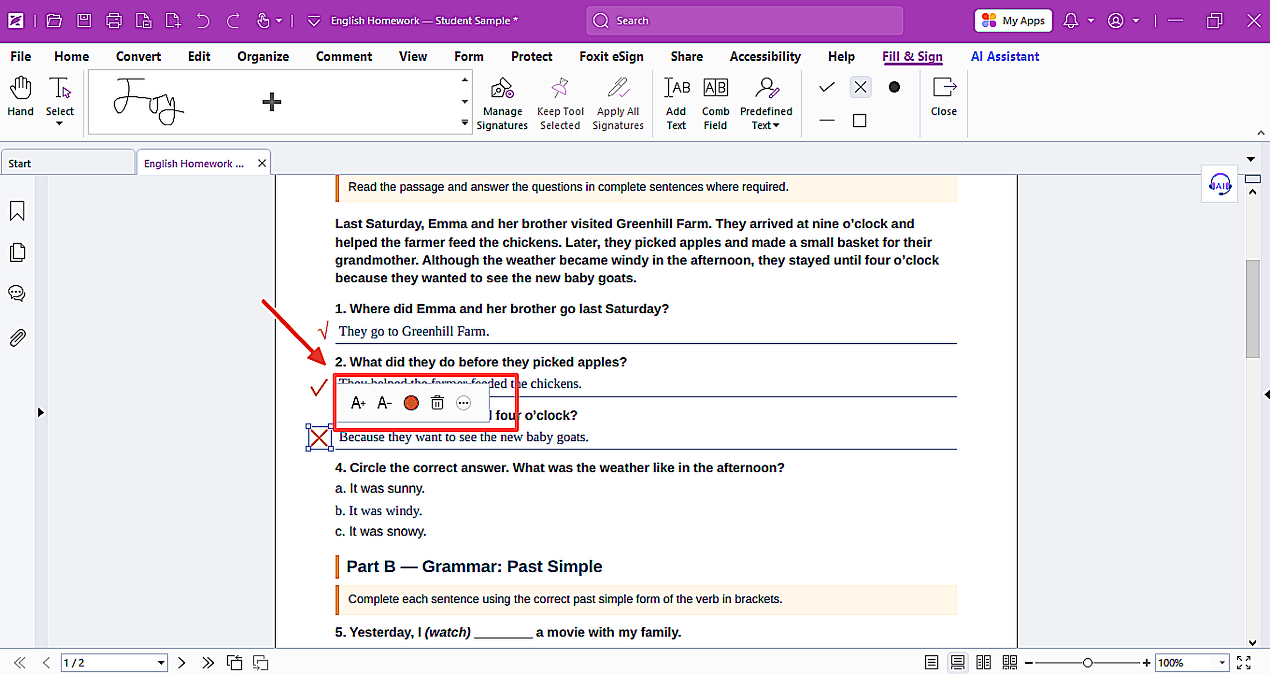
You can still click the symbol to adjust its position, size, and color. To remove it, simply select it and press the Delete key.
Beyond the symbols covered today, the Symbol menu also includes other useful marks (e.g., =, >, <, ≈) to easily annotate formulas, highlight correct or incorrect steps, and give quick feedback on assignments. Keep an eye out for our upcoming tip to see how to do this in Foxit PDF Editor!
If you need help with any specific case using Foxit PDF Editor, or have questions about how to use it, please feel free to click here to submit your inquiries. We will create dedicated guides based on your actual needs to provide further support.
Try it yourself
Open the interactive Web SDK demo, or talk to a Foxit APAC partner about licensing for your team or campus.