
Weekly Tip #29
Foxit PDF Editor Quick Tip: How to Encrypt and Restrict PDFs
Sharing sensitive PDFs? Learn how to password-protect, restrict editing, and hide confidential data using Foxit PDF Editor.
Sharing PDFs is a campus norm, but how do you protect your privacy when sending sensitive files?
Whether you need to:
- Password-protect personal forms
- Restrict edits on shared materials
- Hide sensitive data in drafts
You can handle it all with Foxit PDF Editor. Follow today’s quick guide to safeguarding your documents.
Encrypt the Entire Document
If a document is strictly confidential, the best approach is to set a password.
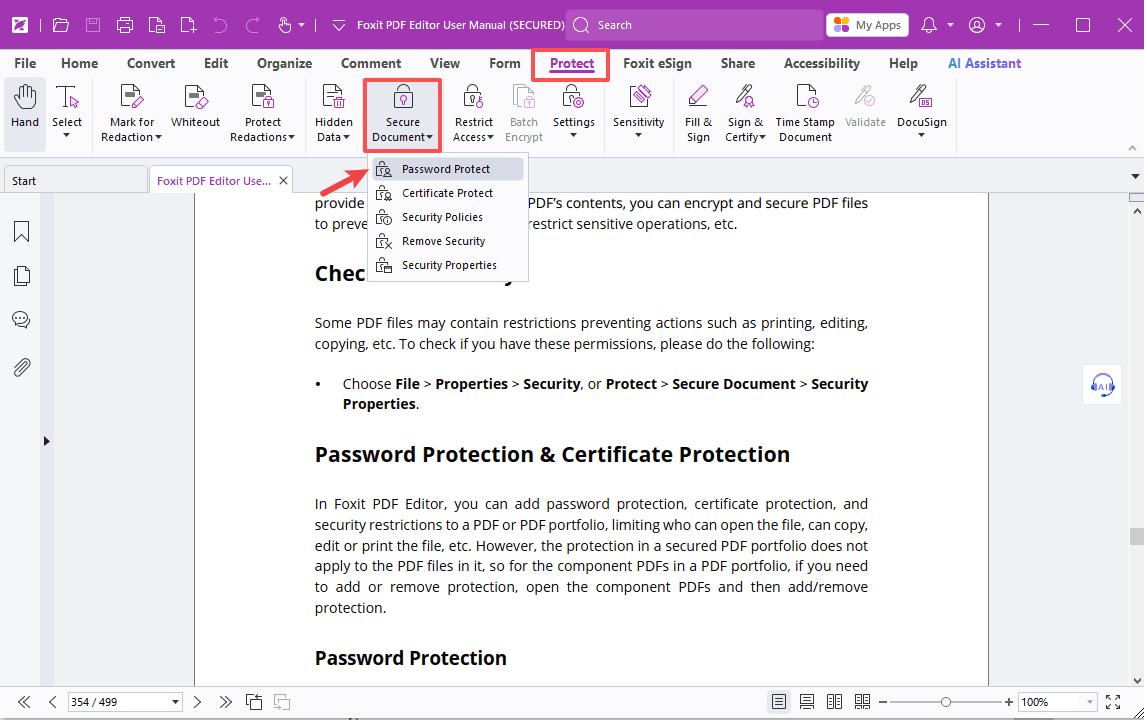
- Protect > Secure Document > Password Protect
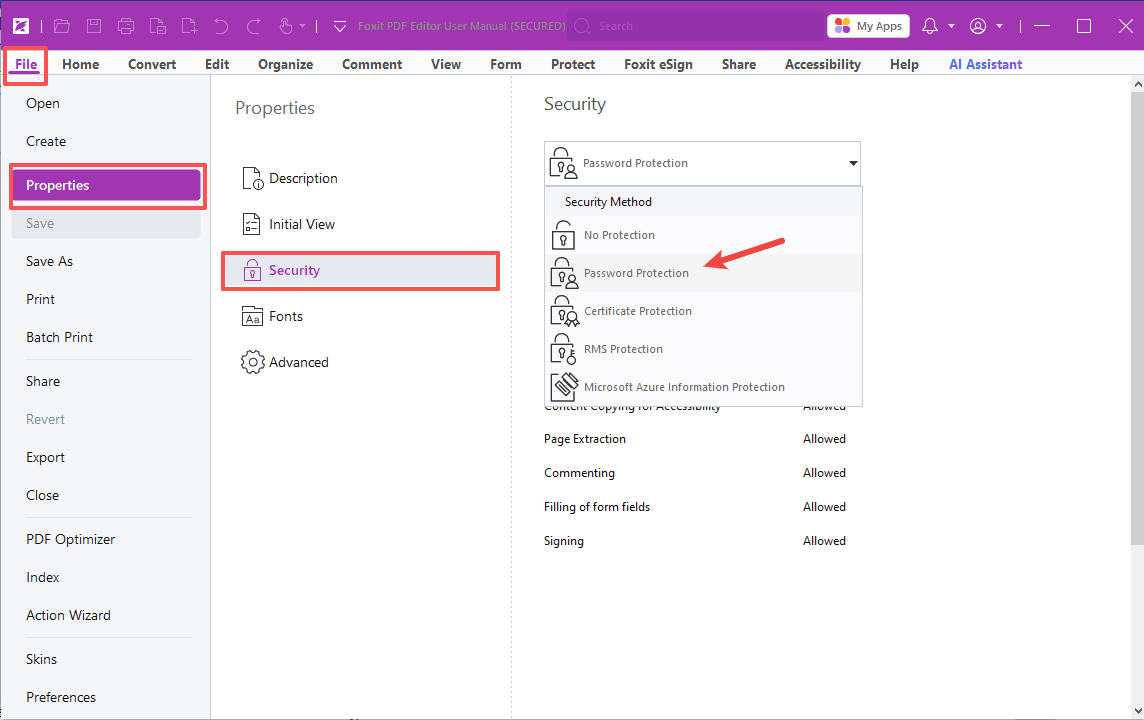
- Or click File > Properties > Security, select Password Protect from the dropdown menu.
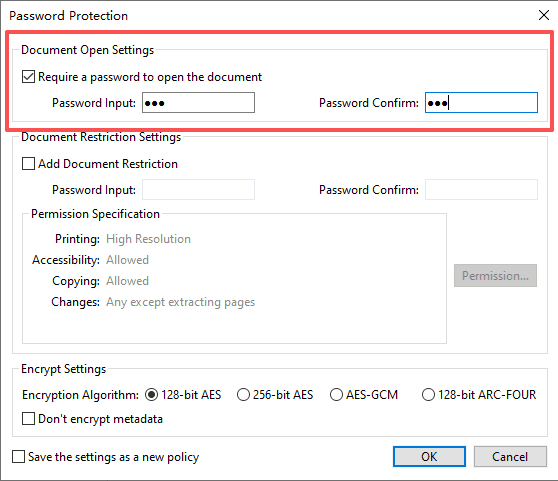
- Enter a password and confirm it.
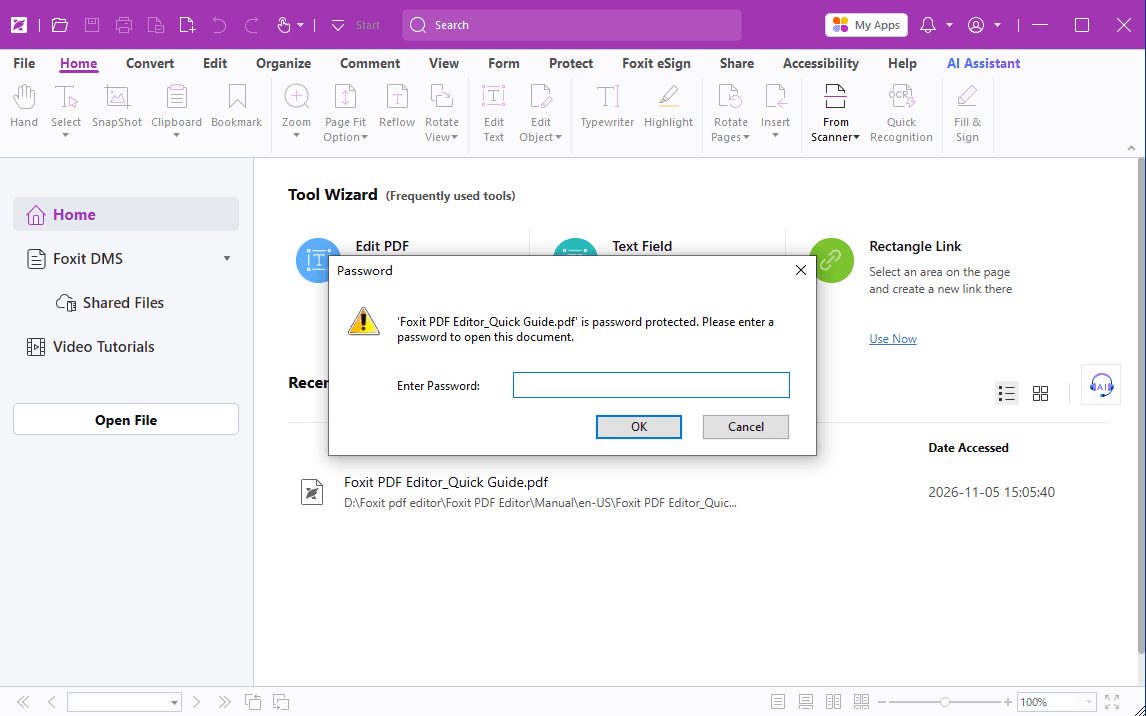
From then on, anyone trying to open the document will need the correct password.
View-Only Access
What if you're sharing materials for viewing only, but want to prevent others from editing them?
- Go back to the Password Protect page, select Add Document Restriction and set a password.
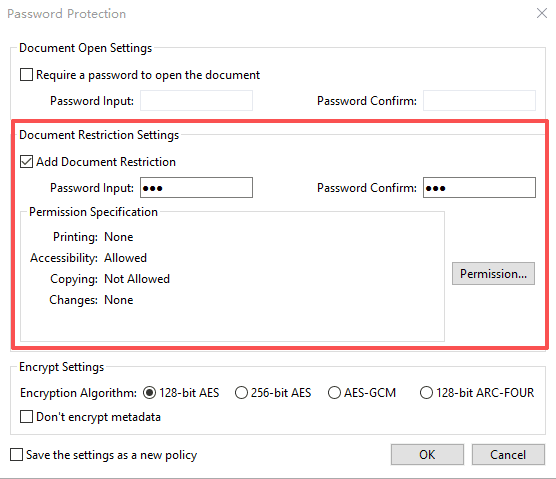
- Click Permissions to customize the printing and editing rights based on your needs, then click OK.
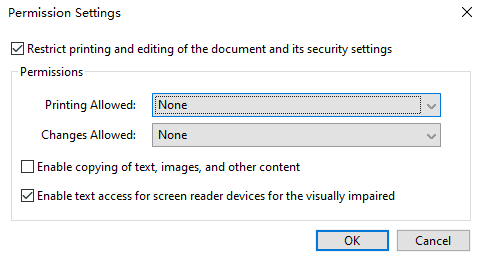
Note: These settings only take effect after you save the document. You can still adjust them before closing!
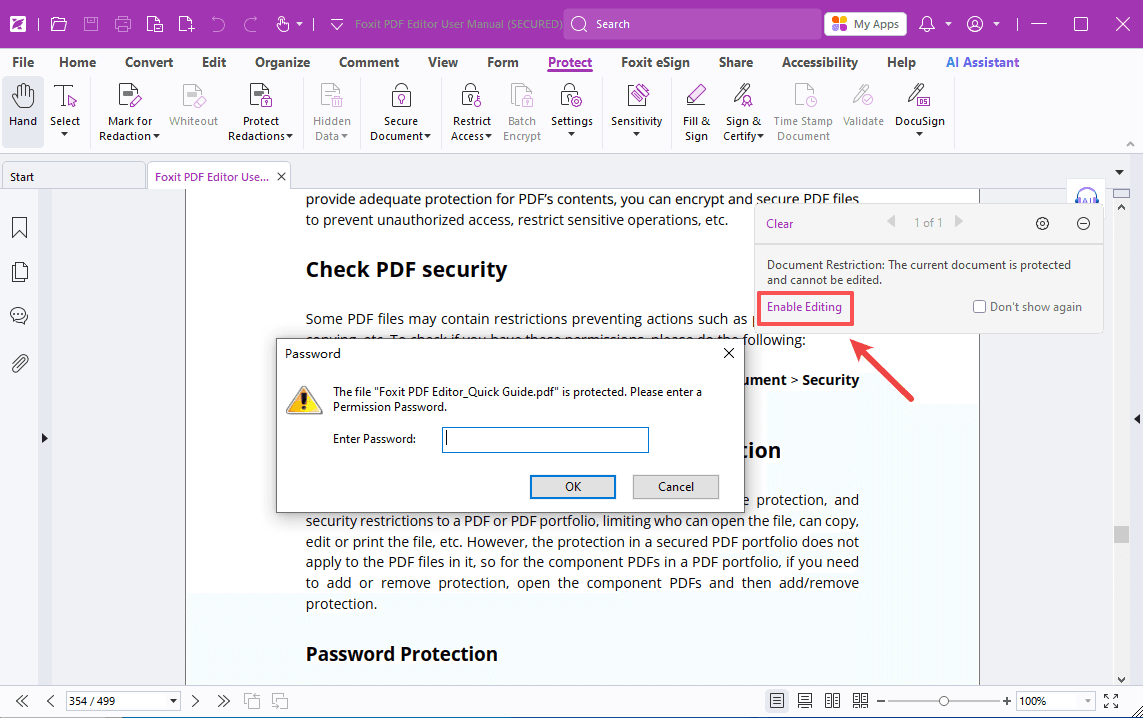
Once saved and reopened, the file will be view-only. A password is required to edit it, effectively preventing unauthorized modifications!
Hide the Sensitive Data
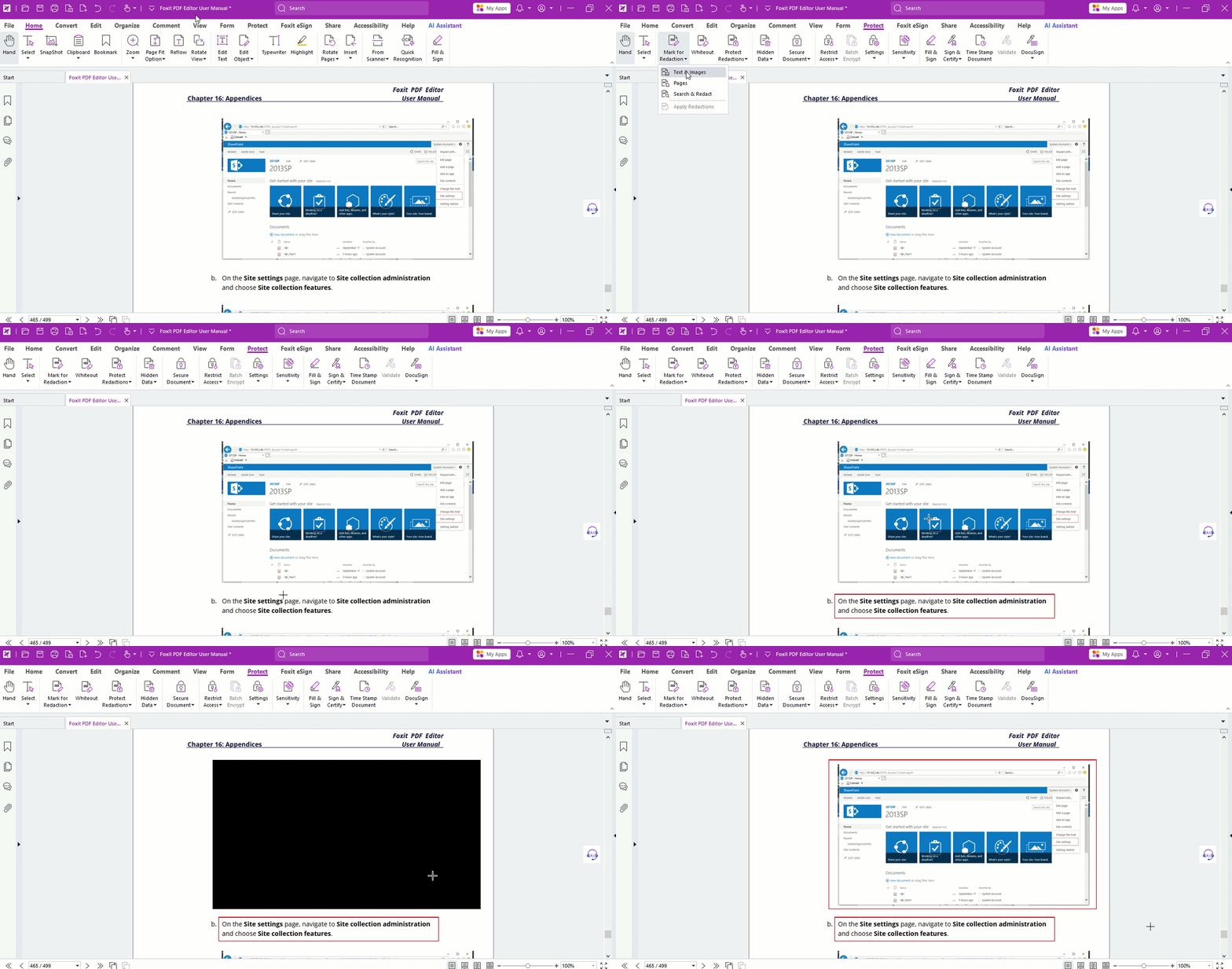
Sometimes you may need to hide certain information from others. You can use the Redaction feature in Foxit PDF Editor to make confidential information invisible.
For a detailed guide on how to redact sensitive content, please refer to our tip #27!
Need to encrypt multiple files at once? You might notice the Batch Encrypt button is grayed out—this is because it requires an enterprise RMS server. But don't worry, there are other easy ways to do this in Foxit PDF Editor. Stay tuned to learn how!
If you need help with any specific case using Foxit PDF Editor, or have questions about how to use it, please feel free to click here to submit your inquiries. We will create dedicated guides based on your actual needs to provide further support.
Try it yourself
Open the interactive Web SDK demo, or talk to a Foxit APAC partner about licensing for your team or campus.